在 Windows 10 和 11 中使用快速鍵和 cmd 命令存取裝置管理員
Summary: 瞭解如何使用快捷方式、命令和 CMD 打開設備管理員。說明裝置管理員捷徑、裝置管理員命令,以及如何在 Windows 11 和 Windows 10 中存取裝置管理員。
This article applies to
This article does not apply to
This article is not tied to any specific product.
Not all product versions are identified in this article.
Instructions
注意:Microsoft 將於 2025 年 10 月 14 日終止對 Windows 10 的支援。如需更多資訊,請參閱我們的 Microsoft Windows 10 終止支援公告。
裝置管理員背景
裝置管理員為 Microsoft Windows 中的控制台小程式,您可以用來檢視和控制連接至電腦的硬體。如果驅動程式未正確安裝,裝置可能不會出現在裝置管理員的清單中。驅動程式問題也會在裝置管理員中反白顯示。
注意:有許多方法可存取裝置管理員,但本文列出最簡單的方法。
「執行方塊」方法
下列方法可適用於 Windows 10 和 11。
- 若要開啟裝置管理員。同時按下 Windows 標誌鍵和 R 鍵。這應該會開啟一個 執行方塊。
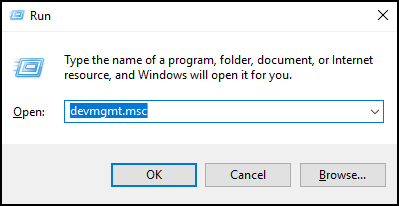
- 輸入:
devmgmt.msc - 按一下確定或按下 Enter 鍵。
- 裝置管理員 隨即開啟。
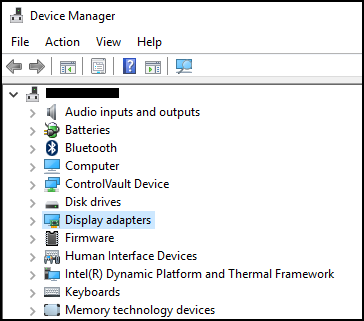
命令提示字元方法
如果您的鍵盤沒有 Windows 標誌鍵。可使用命令提示字元的替代方法。
- 按 一下開始功能表 或 搜尋列。
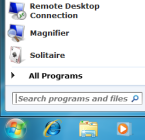
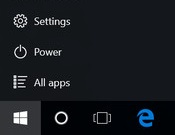
- 輸入 CMD ,這應該會開啟 命令提示字元。
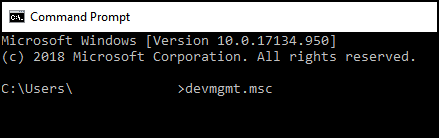
- 輸入
devmgmt.msc - 按下 Enter 鍵。
- 裝置管理員 隨即開啟。

Affected Products
Alienware, Dell All-in-One, Dell Pro All-in-One, Inspiron, OptiPlex, Vostro, XPS, G Series, G Series, Alienware, Dell Plus, Dell Pro, Dell Pro Max, Dell Pro Plus, Dell Pro Premium, Inspiron, Latitude, Dell Pro Rugged, Vostro, XPS, Fixed Workstations
, Mobile Workstations
...
Article Properties
Article Number: 000123570
Article Type: How To
Last Modified: 14 Jul 2025
Version: 10
Find answers to your questions from other Dell users
Support Services
Check if your device is covered by Support Services.