如何在 Dell Endpoint Security Suite Enterprise 中安全列出檔案
Summary: 依照以下指示,檔案可安全地列在 Dell Endpoint Security Suite Enterprise 中。
This article applies to
This article does not apply to
This article is not tied to any specific product.
Not all product versions are identified in this article.
Symptoms
注意:
- 截至 2022 年 5 月,Dell Endpoint Security Suite Enterprise 已達到維護結束的期限。Dell 已不再更新本文。如需詳細資訊,請參閱 Dell 資料安全性的產品生命週期 (支援結束與生命週期結束) 政策。如果您對其他文章有任何問題,請聯絡您的銷售團隊或聯絡 endpointsecurity@dell.com。
- 請參考端點安全性,以取得有關目前產品的其他資訊。
Dell Endpoint Security Suite Enterprise 系統管理員可能需要安全列出檔案,才能:
- 避免第三方衝突
- 解決效能問題
- 清除偽陽性
本文探討如何在 Dell Endpoint Security Suite Enterprise 的 Dell Data Security (先前稱為 Dell Data Protection) 管理主控台中安全列出檔案。
受影響的產品:
- Dell Endpoint Security Suite Enterprise
Cause
不適用
Resolution
- 開啟網頁瀏覽器並前往
https://servername.company.com:8443/webui。

注意:
- FQDN (完整網域名稱) 範例會與環境中的伺服器不同。
- 連接埠 8443 可能與環境中的管理主控台連接埠不同。
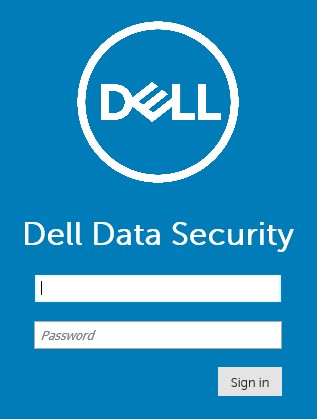
- 登入管理主控台。
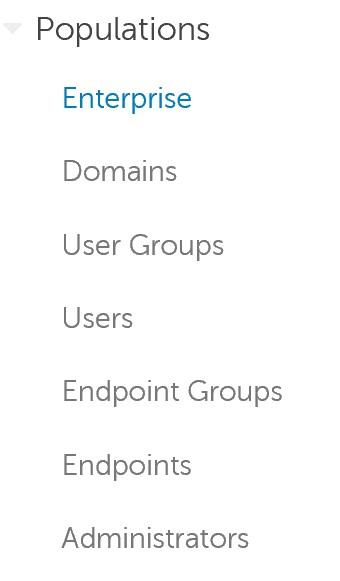
- 在左側功能表窗格中,展開填入,然後按一下 Enterprise。
- 按一下進階威脅標籤。

- 按一下全域清單標籤。

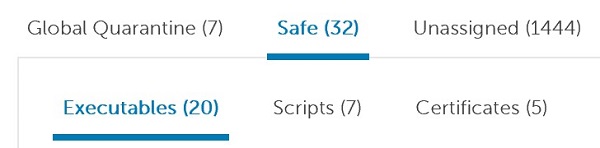
- 按一下安全,然後選取以下任一選項:
- 可執行檔
- 指令檔
- 憑證
- 按一下新增檔案。

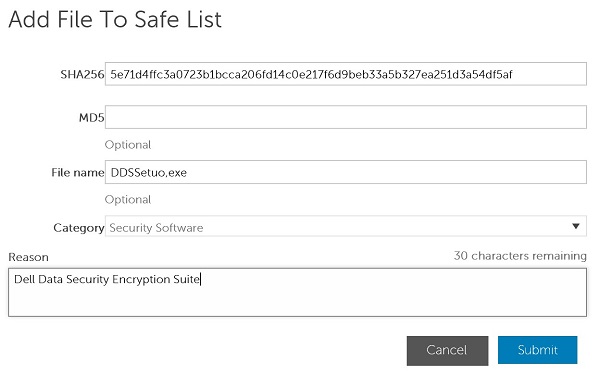
- 在「將檔案新增至安全清單」功能表中:
- 填入檔案的 SHA256。
- 或者,新增檔案的 MD5。
- 或者,新增檔案名稱。
- 為檔案選取適當的類別。
- 填入安全列出檔案的原因。
- 按一下提交。
注意:
- 如需更多資訊,請參閱如何為防毒/惡意軟體預防應用程式識別檔案的 SHA-256 雜湊。
- 螢幕擷圖中的範例會依您的環境而有所不同。
- 按一下新增指令檔。

- 在「將指令檔新增至安全清單」功能表中:
- 填入檔案的 SHA256。
- 或者,新增檔案名稱。
- 填入安全列出檔案的原因。
- 按一下提交。
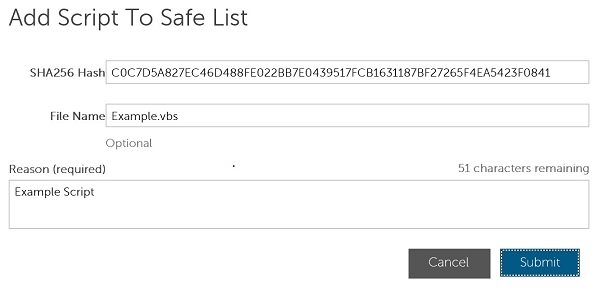
注意:
- 如需更多資訊,請參閱如何為防毒/惡意軟體預防應用程式識別檔案的 SHA-256 雜湊。
- 螢幕擷圖中的範例會依您的環境而有所不同。
注意:安全列出檔案之前,必須在 Dell Data Security 管理主控台中新增簽署憑證。如需更多資訊,請參閱如何在 Dell Endpoint Security Suite Enterprise 中新增簽署憑證。
- 按一下新增憑證。

- 在「新增至安全清單」功能表中:
- 勾選至少一個憑證。
- 選取該憑證的類別。
- 填入安全列出檔案的原因。
- 按一下提交。
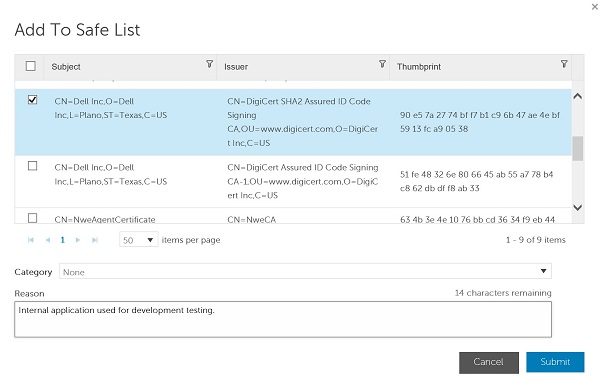
注意:螢幕擷圖中的範例會依您的環境而有所不同。
如要聯絡支援部門,請參閱 Dell Data Security 國際支援電話號碼。
請前往 TechDirect,以線上產生技術支援要求。
如需更多深入見解與資源,請加入 Dell 安全性社群論壇。
Additional Information
Videos
Affected Products
Dell Endpoint Security Suite EnterpriseArticle Properties
Article Number: 000129502
Article Type: Solution
Last Modified: 25 Oct 2023
Version: 10
Find answers to your questions from other Dell users
Support Services
Check if your device is covered by Support Services.