Dell Recovery with USB: Reinstall the OS Using a Direct Media Drive
Summary: Information about Dell recovery and OS reinstallation using Direct Media USB.
This article applies to
This article does not apply to
This article is not tied to any specific product.
Not all product versions are identified in this article.
Symptoms
Cause
There is no cause information available.
Resolution
Dell Direct Media Online Instructions
Complete the following steps to use the Dell Direct Media.
Step 1: Connect power to your Dell Desktop or Laptop and insert the Dell Direct Media USB drive. Some devices may need a USB-C adapter.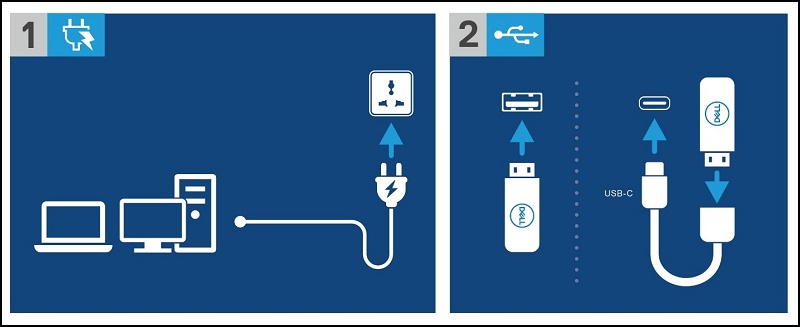
Step 2: Power your Dell Computer or Laptop on and press the F12 Key to enter the "One Time Boot Menu." Select "USB Storage Device" to boot to the Dell Direct Media USB drive.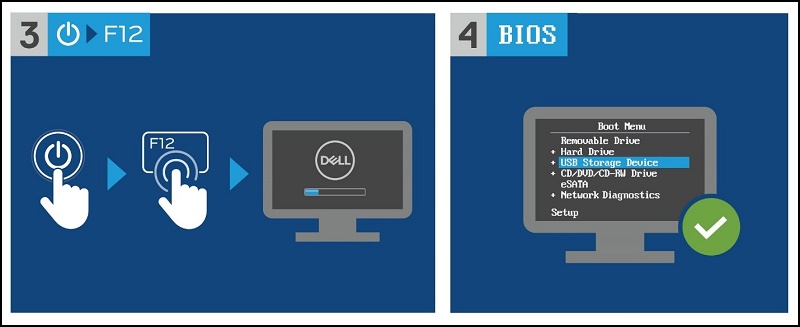
Step 3: The Dell Desktop or Laptop boots to the Dell Direct Media USB drive. Follow the on-screen instructions and Windows begins to install.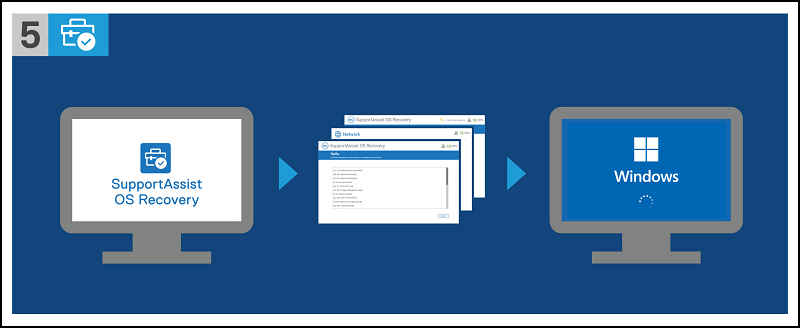
Additional Information
You can find the Dell SupportAssist OS Recovery User’s Guide on the following documentation page:
Affected Products
Alienware, Inspiron, OptiPlex, Vostro, XPS, G Series, G Series, Alienware, Inspiron, Latitude, Vostro, XPS, Fixed Workstations, Mobile WorkstationsArticle Properties
Article Number: 000129655
Article Type: Solution
Last Modified: 14 Jul 2025
Version: 10
Find answers to your questions from other Dell users
Support Services
Check if your device is covered by Support Services.