Resolving High CPU Temperature Issues on Alienware Laptops
Summary: Discover solutions for high CPU temperatures on Alienware laptops. Learn how to run updates, troubleshoot, and optimize thermal controls.
This article applies to
This article does not apply to
This article is not tied to any specific product.
Not all product versions are identified in this article.
Symptoms
The following article provides information about an issue with high CPU temperatures. Alerts of high CPU temperatures may occur when the computer is under a heavy load. Running the Alienware Command Center that measures the thermal temperature on these Alienware laptops can help with troubleshooting the high CPU temperatures. Follow these instructions if you are experiencing an Alienware laptop overheating.
Affected Platforms:
- Alienware 13 R3
- Alienware 15 R3
- Alienware 15 R4
- Alienware 17 R4
- Alienware 17 R5
- Alienware m15
- Alienware m15 R2
- Alienware m15 R3
- Alienware m17
- Alienware m17 R2
- Alienware m17 R3
- Alienware Area-51m
- Alienware Area-51m R2
High CPU temperatures on Alienware laptops
There are reports that the CPU temperature on Alienware 13 R3, 15 R3 and R4, 17 R4 and R5, m15, m15 R2, m15 R3 m17, m17 R2, m17 R3, Area-51m, and Area-51m R2 laptops are reaching high temperatures. This may happen more frequently when the computer is under a heavy load. The alert or warning (text in red) of the high CPU temperature may be seen when the Alienware Command Center (AWCC) measures the temperature.
Cause
How to Troubleshoot High CPU Temperatures
- Update the BIOS, drivers, and firmware to the most recent revisions from https://www.dell.com/support/, and then select the appropriate model for the next steps.
Note:
- For more information about how to download and update the BIOS, reference BIOS Update Guide.
- For more information about how to download and update drivers, reference How to Download and Install Dell Drivers.
- Configure the G-SYNC settings.
Note: This step is only applicable on G-SYNC supported models.
- Disable the NVIDIA G-SYNC.
- Right-click the desktop.
- Select the NVIDIA Control Panel.
- Click Set up G-SYNC in the left side menu.
- Clear the checkbox next to Enable G-SYNC.
- Click Apply.
- Restart the computer and enter the BIOS by tapping rapidly on the F2 key during POST.
- Go to the Advanced tab and select Performance Options and press the Enter key.
- Change the CPU Performance Mode to Enabled.
- Set the Core Over-Clocking Level to OC LV 3 and then press the Enter key.
- Press the F10 key to save the changes and exit the BIOS.
- Disable the NVIDIA G-SYNC.
- When the computer finishes booting, using the preinstalled Dell SupportAssist software, run the CPU stress test. From Dell SupportAssist, click Hardware Checkup, CPU, and then CPU stress test.
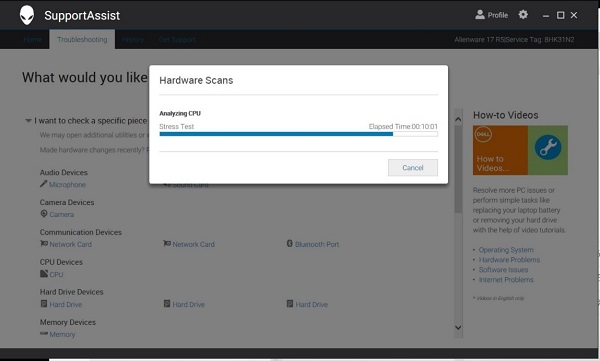
- Launch the Alienware Command Center and go to Fusion and monitor the CPU frequency. Ensure that the CPU frequency is within the range that is identified in the table below during the first 5 minutes.
| Performance Mode + Highest Level Overclock (If Applicable) | CPU Frequency |
|---|---|
| Intel Processor i9-8950HK in Overclocked level 3 mode | 2900 MHz~5000 MHz |
| Intel Processor i7-8750H in performance mode | 2200 MHz~4100 MHz |
| Intel Processor i5-8300H in performance mode | 2300 MHz~4000 MHz |
Note:
- The CPU peak temperature should be less than or equal to 100°C (212°F).
- When under high stress, the computer's average temperature can be expected to be up to 95°C (203°F).
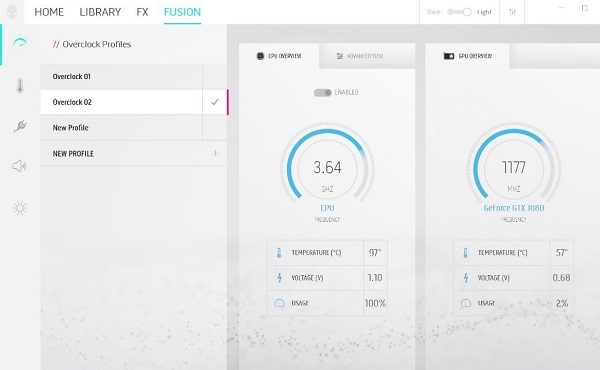
-
Monitor the CPU temperature on the Fusion page.
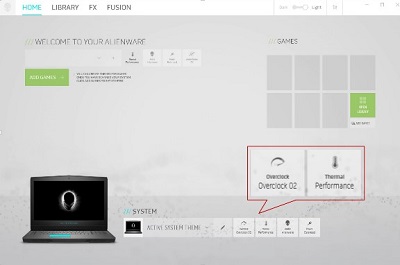
- Configure the Alienware Command Center.
- Open the Alienware Command Center.
- Set the Active System Theme - Thermal as Performance Mode.
- Change the Active System Theme - Overclock to Overclock 02 (if applicable).
- Using the preinstalled Dell SupportAssist software, run the CPU stress test. From Dell SupportAssist, click Hardware Checkup, CPU, and then CPU stress test.
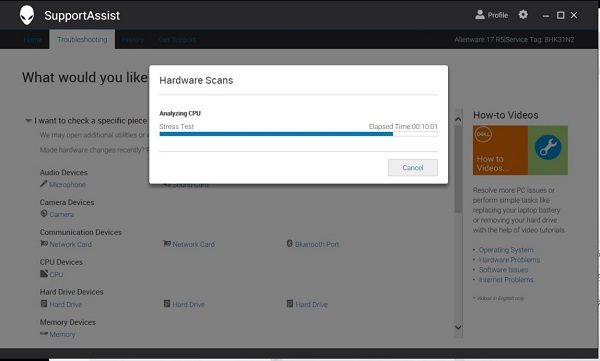
- Launch the Alienware Command Center and go to Fusion and monitor the CPU frequency. Ensure that the CPU frequency is within the range during the first 5 minutes.
| Performance Mode + Highest Level Overclock (If Applicable) | CPU Frequency |
|---|---|
| Intel Processor i9-8950HK in Overclocked level 3 mode | 2900 MHz~5000 MHz |
| Intel Processor i7-8750H in performance mode | 2200 MHz~4100 MHz |
| Intel Processor i5-8300H in performance mode | 2300 MHz~4000 MHz |
-
Monitor the CPU temperature on the Fusion page.
- The CPU peak temperature should be less than or equal to 100°C (212°F).
- When under high stress, the computer's average temperature can be expected to be up to 95°C (203°F).
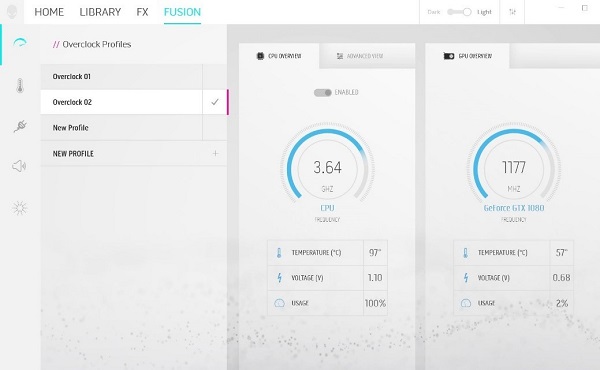
- Configure Alienware Command Center.
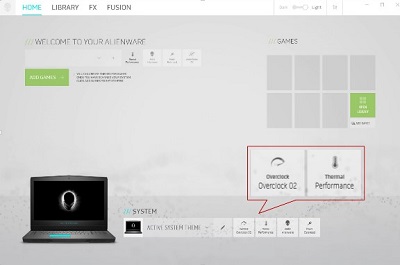
- Open the Alienware Command Center.
- Set the Active System Theme - Thermal as Performance Mode.
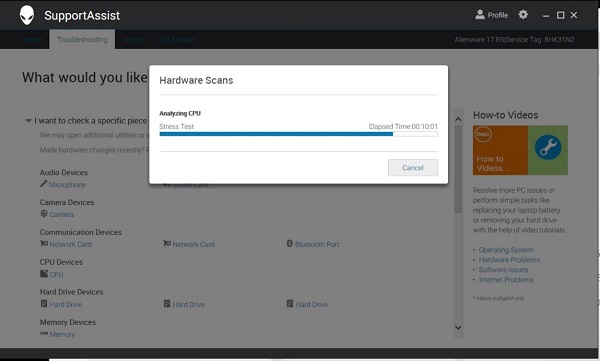
- Using the preinstalled Dell SupportAssist software, run the CPU stress test. From Dell SupportAssist, click Hardware Checkup, CPU, and then CPU stress test.
- Launch the Alienware Command Center and go to Fusion and monitor the CPU frequency. Ensure that the CPU frequency is within the range during the first 5 minutes under performance mode.
Alienware m15, and m17
| CPU Type | Base Frequency | Performance Mode | Cool Mode |
|---|---|---|---|
| Intel Processor i9-8950HK | 2900 MHz | 3100 MHz ~ 4800 MHz | 2900 MHz ~ 4800 MHz |
| Intel Processor i7-8750H | 2200 MHz | 2600 MHz ~ 4100 MHz | 2200 MHz ~ 4100 MHz |
| Intel Processor i5-8300H | 2300 MHz | 2700 MHz ~ 4100 MHz | 2300 MHz ~ 4000 MHz |
Alienware m15 R2, and m17 R2
| CPU Model Name | Base Frequency | Performance mode | Cool mode |
|---|---|---|---|
| Intel Processor i9-9980HK | 2400 MHz | 3300 MHz~4800 MHz | 2600 MHz~4400 MHz |
| Intel Processor i9-9880H | 2300 MHz | 3300 MHz~4400 MHz | 2600 MHz~4400 MHz |
| Intel Processor i7-9750H | 2600 MHz | 3000 MHz~4000 MHz | 2600 MHz~4000 MHz |
| Intel Processor i5-9300H | 2400 MHz | 3000 MHz~4000 MHz | 2600 MHz~4000 MHz |
- Monitor the CPU temperature on the Fusion page.
- The CPU peak temperature should be less than or equal to 100°C (212°F).
- When under high stress, the computer's average temperature can be expected to be less than 100°C (212°F).
Note: The CPU average temperature can be expected to reach 95°C (203°F) under cool mode for the Alienware m15, m15R2, m17, and m17R2 computers.
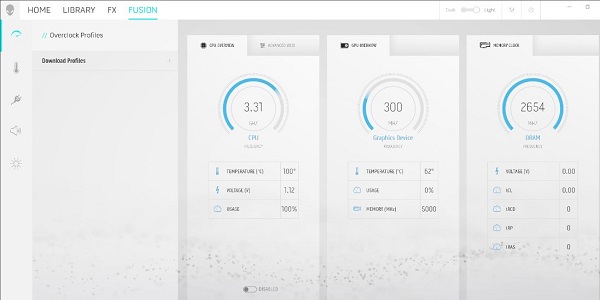
Example: Performance mode
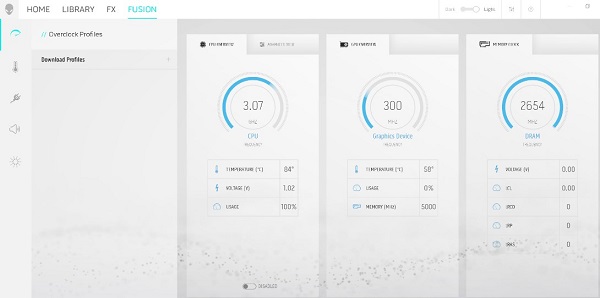
Example: Cool mode
Note: Reference this article only after the computer has been diagnosed with the onboard diagnostics (ePSA).
CPU Performance Behavior on the Alienware m15 R3 and m17 R3
In general, the CPU frequency goes higher than Intel CPU's high frequency under Performance mode and Balance mode.
| CPU Model Name | i5-10300H | i7-10750H | i9-10980HK |
|---|---|---|---|
| # of Cores | 4 | 6 | 8 |
| # of Threads | 8 | 12 | 16 |
| Processor Base Frequency | 2.5 GHz | 2.6 GHz | 2.4 GHz |
Fan control modes
- Full speed mode: The fan runs full speed to support the CPU operating at turbo frequency for a longer time. A noticeable fan sound can be heard.
- Performance mode: The fan runs aggressively to support the CPU operating at turbo frequency for a longer time. A noticeable fan sound can be heard.
- Balance mode: The fan runs in a moderate manner. Fan sound is less noticeable, but the period for the CPU to operate at turbo frequency would be shorter.
- Cool mode: The fan runs in a moderate manner. Fan sound is less noticeable, but the GPU and GPU performance is limited for better comfort and battery life.
- Quiet mode: The fan runs in a more quiet level than Balance Mode. Fan sound is less noticeable, but the period for the CPU to operate at turbo frequency would be lower and shorter.
Note: Regardless of what mode, the CPU temperature can go above 99°C (210.2°F) and trigger a Thermal Event (TCC) under heavy load. TCC is activated and adjusts the CPU Power Limit 1 (PL1) frequency down by a couple hundred MHz. This decrease to the temperature rise allows the computer’s thermal control mechanism to catch up to the computer's best thermal performance balance. This is a general design of all gaming laptops.
Verification Process
- First verify using the ePSA diagnostics that the computer has an overheating issue.
- Set the test environment and plug the AC adapter to the test unit.
- Open the Alienware Command Center (AWCC).
- Select the HOME Page on the Alienware Command Center main page.
- Set the thermal mode to Performance.
- Using the preinstalled Dell SupportAssist software, run the CPU stress test.
- Select the FUSION Page and monitor if the CPU Frequency and CPU temperature of Performance Mode CPU perform within the specifications of the below performance table.
| Processor | Running Alienware SupportAssist CPU Stress Test |
|---|---|
| CML i9-10980HK in Performance mode | 3900 MHz~4800 MHz |
| CML i7-10750H in Performance mode | 3700 MHz~4600 MHz |
| CML i5-10300H in Performance mode | 3700 MHz~4300 MHz |
Note:
- The Alienware SupportAssist CPU Stress Test field above relates to only the CPU portion of the stress test, not the memory portion.
- The CPU speed should remain close to the listed speed in the first 5 minutes of the stress period.
- Select the HOME page.
- Change the Thermal Mode to Cool.
- Using the preinstalled Dell SupportAssist software, run the CPU stress test.
- Select the FUSION page.
- Monitor the CPU Frequency and CPU temperature of Cool Mode.
- Verify that the CPU performs as specified in the performance table.
| Processor | Running Alienware SupportAssist CPU Stress Test |
|---|---|
| CML i9-10980HK in Performance mode | 3000 MHz~4800 MHz |
| CML i7-10750H in Performance mode | 3000 MHz~4600 MHz |
| CML i5-10300H in Performance mode | 3300 MHz~4300 MHz |
Note:
- The Alienware SupportAssist CPU Stress Test field above relates to only the CPU portion of the stress test, not the memory portion.
- The CPU speed should remain close to the listed speed in the first 5 minutes of the stress period.
Reference Settings:
- Open the Alienware Command Center to set performance mode on the Home Page.
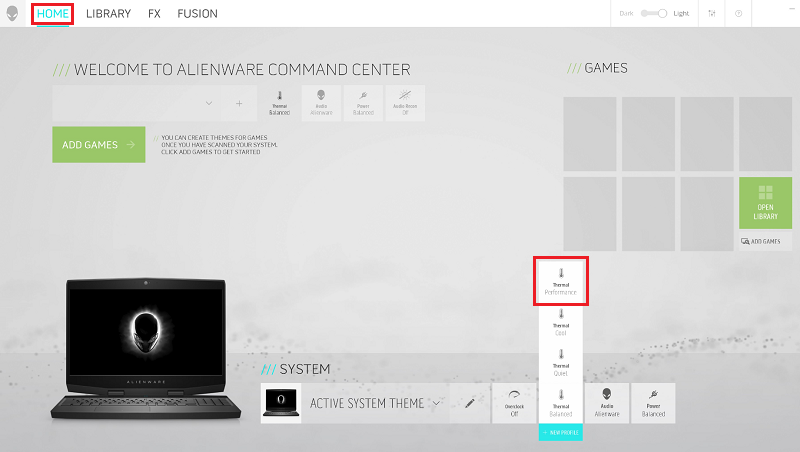
- Stress the CPU using Dell SupportAssist. From Dell SupportAssist, click checkup, choose CPU, and then run the stress test.
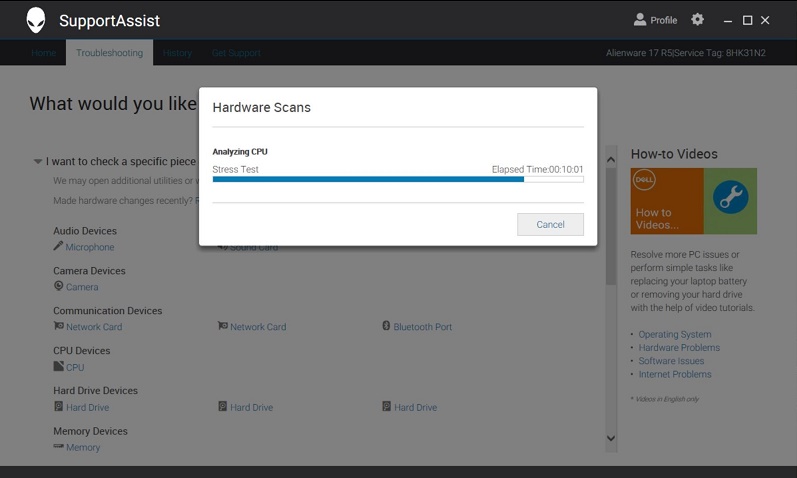
- Monitor the CPU frequency and temperature on the FUSION page.
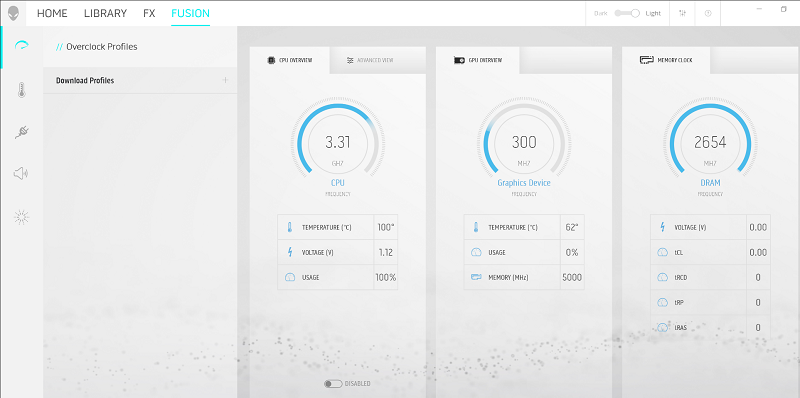
- Example: Performance Mode
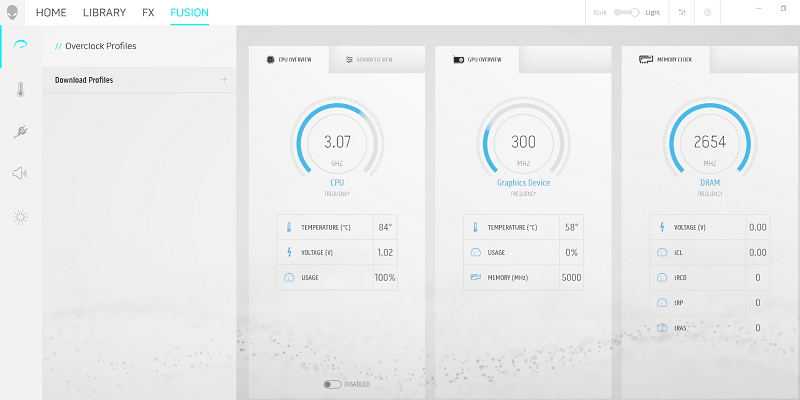
- Example: Cool Mode
Note: Third-party tools may show the temperature in red when the CPU T is greater than 90°C (194°F). However, being red does not indicate that there is an issue. When the Thermal Control Circuit (TCC) is activated at 100°C (212°F), it adjusts the CPU Power Limit 1 (PL1) frequency down by a couple hundred MHz. This decrease to the temperature rise allows the computer’s thermal control mechanism to catch up to the computer's best thermal performance balance. This is a general design of all gaming laptops.
Common Questions
Why does the computer Diagnostic Tool post High CPU temperatures in idle mode?
When the computer is idle, the computer is not truly idle. There are background tasks operating in high frequency still, and they induce short period high CPU temperatures (less than 1 second). Then they lower down to a lower average temperature.
Does the CPU get damaged when CPU temperatures reach 100°C (212°F)?
No. The CPU operates well under the Intel CPU specification: Tjmax=100. (Intel) Processors supply a method (Digital Thermal Sensor or DTS) to report real time die temperatures below, equal to, or above the Tj(max). While the die should not typically run above the Tj (max), a temperature value above the Tj(max) may occur occasionally under normal operation. (Tj(max)=100)
Why does the Diagnostic Tool post High CPU temperatures in a gaming application or a graphic stress application?
Some gaming and graphic stress applications that are combined with heavy CPU activity causes high CPU temperatures.
Is the CPU peak temperature under balance mode lower than under performance mode?
No. Under Balance Mode, the CPU can still boost to its highest frequency in short periods and induce high peak temperatures. The CPU high peak temperature is expected when you set it to grab the best performance, no matter whether performance mode, balanced mode, quiet mode, or cool mode is chosen.
Note: Reference this article only after the computer has been diagnosed with the onboard diagnostics (ePSA).
CPU Performance Behavior on the Alienware Area-51m and Area-51m R2
In general, the CPU frequency remains higher than the Intel CPU's base frequency.
Alienware Area 51M
| CPU Model Name | i7-8700 | i9-9700K | i9-9900K |
|---|---|---|---|
| Number of Cores | 6 | 8 | 8 |
| Number of Threads | 12 | 8 | 16 |
| Processor Base Frequency | 3.2 GHz | 3.6 GHz | 3.6 GHz |
Alienware Area 51M R2
| CPU Model Name | i7-10700 | i7-10700K | i7-10900 | i9-10900K |
|---|---|---|---|---|
| Number of Cores | 8 | 8 | 10 | 10 |
| Number of Threads | 16 | 16 | 20 | 20 |
| Processor Base Frequency | 2.9 GHz | 3.8 GHz | 2.8 GHz | 3.7 GHz |
Five fan control modes
- Performance mode: The fan runs aggressively to support the CPU operating at turbo frequency for a longer time. A noticeable fan sound can be heard.
- Balance mode: The fan runs in a moderate manner. Fan sound is less noticeable, but the period for the CPU to operate at turbo frequency would be shorter.
- Cool mode: The fan runs in a moderate manner. Fan sound is less noticeable, but the GPU and GPU performance is limited for better comfort and battery life.
- Quiet mode: The fan runs in a quieter level than Balance Mode. Fan sound is less noticeable, but the period for the CPU to operate at turbo frequency would be lower and shorter.
- Full speed mode: The fan runs full speed to support the CPU operating at turbo frequency for a longer time. A noticeable fan sound can be heard.
Note: Regardless of what mode, the CPU temperature can go above 90°C (194°F) under heavy load. Intel Processors supply a method (Digital Thermal Sensor or DTS) to report real-time die temperature that is below, equal to, or above Tj(max). While the die should not run above Tj (max), a temperature value above Tj(max) may occur occasionally under normal operation. (Tj(max)=100)
Verification Process
- First verify using ePSA that the computer has an overheating issue.
- Set the test environment and plug an AC adapter to the test unit.
- Open the Alienware Command Center (AWCC).
- Select the HOME Page on the AWCC Main Page.
- Set the Thermal Mode to Performance.
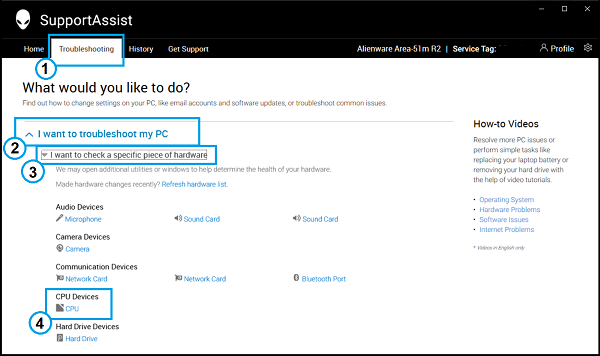
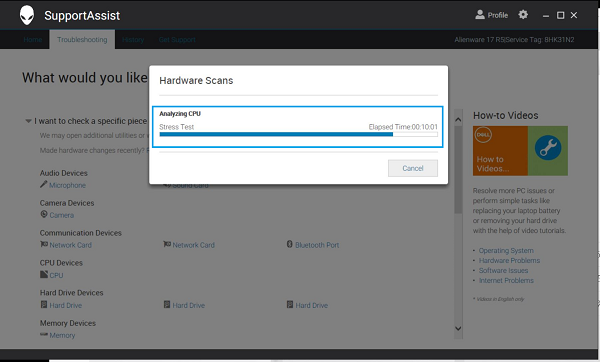
- Using the preinstalled Dell SupportAssist software, run the CPU stress test. From Dell SupportAssist, click Troubleshooting, I want to troubleshoot my PC, I want to check a specific piece of hardware, and then click CPU.
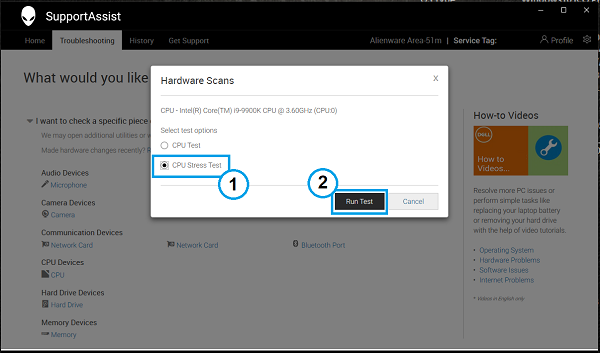
- From the hardware scan prompt, click CPU stress test, and then click Run Test.
- Select the FUSION Page.
- Monitor the CPU Frequency and CPU temperature of Performance Mode.
- Verify that the CPU average temperature stays high and keeps the operating frequency higher than the CPU Base Frequency + 400 MHz.
- Select the HOME Page.
- Change the Thermal Mode to Cool.
- Stress test the CPU again using the Dell SupportAssist CPU stress test.
- Select the FUSION Page.
- Monitor the CPU Frequency and CPU temperature of Cool Mode.
Reference Settings:
- Open the Alienware Command Center to set the performance mode from the HOME Page.
- Set the Active System thermal mode to Performance Mode.
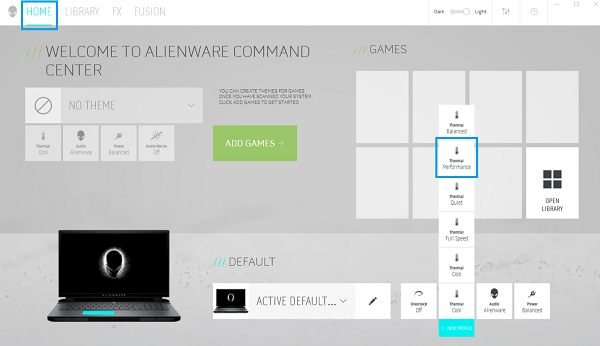
- Using Dell SupportAssist, run the stress test.
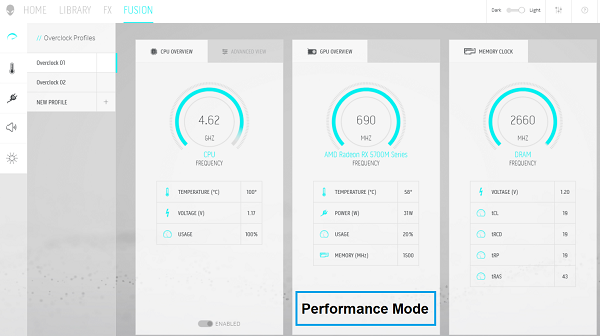
- Read the temperature on the FUSION Window.
- The CPU temperature should be no greater than 100°C (212°F) using Performance Mode.
- The CPU average temperature should be no greater than 99°C (210.2°F) using Cool Mode.
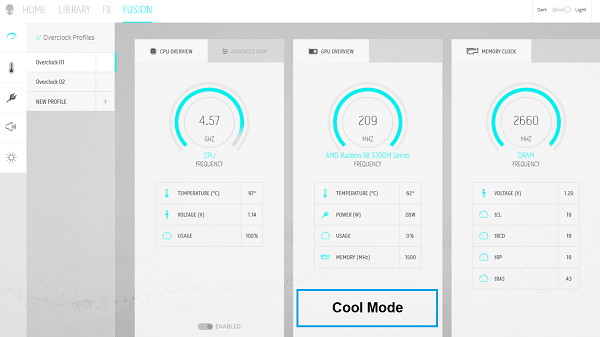
Note: Third-party tools may show the temperature in red when the CPU T is greater than 90°C (194°F). However, being red does not indicate that there is an issue. When the Thermal Control Circuit (TCC) is activated at 100°C (212°F), it adjusts the CPU Power Limit 1 (PL1) frequency down by a couple hundred MHz. This decrease to the temperature rise allows the computer’s thermal control mechanism to catch up to the computer's best thermal performance balance. This is a general design of all gaming laptops.
Common Questions
Why does the Diagnostic Tool post High CPU temperatures in idle mode?
When the computer is idle, the computer is not truly idle. There are still background tasks still operating in high frequency and they induce short period high CPU temperatures (less than 1 second). Then they lower down to a lower average temperature.
Does the CPU get damaged when CPU temperatures reach 100°C (212°F)?
No. The CPU operates well under the Intel CPU specification: Tjmax=100. Intel processors supply a method (Digital Thermal Sensor, or DTS) to report real time die temperatures below, equal to, or above the Tj(max). While the die should not typically run above the Tj (max), a temperature value above the Tj(max) may occur occasionally under normal operation. (Tj(max)=100)
Why does the Diagnostic Tool post High CPU temperatures in a gaming application or a graphic stress application?
Some gaming or graphic stress applications that are combined with heavy CPU activity causes high CPU temperatures.
Is the CPU peak temperature under balance mode lower than under performance mode?
No. Under Balance Mode, the CPU can still boost to its highest frequency in short periods and induce high peak temperatures. The CPU high peak temperature is expected when you set it to grab the best performance, no matter whether performance mode, balanced mode, quiet mode, or cool mode is chosen.
Resolution
The Intel eighth generation (Coffee Lake) processor supports a higher clock rate than seventh generation (Kaby Lake) or older processors. That means these computers noticeably generate more heat compared to any previous generation of computers. Because of this, Dell's engineering teams have designed the computer to tolerate higher temperatures. The articles below may also provide further insights by model and overclocking in general:
- Alienware m15 R6: Guide to Thermal Controls in Operating Modes in Alienware Command Center
- Alienware System Overheats or Shuts Down
- Alienware x15 R2 and x17 R2: Guide to Thermal Controls in Operating Modes in Alienware Command Center
- Alienware and Dell Gaming Computer Overclocking
- Alienware M15 R4 / Alienware M17 R4 thermal measurement guidance
If the Alienware Command Center reports a CPU peak temperature above 100°C (212°F), contact technical support for a high temperature resolution. You can get contact details from the link below:
Note: These computers are designed to maintain stability when the CPU temperature reaches a set temperature (termed the Thermal Control Circuit activation point). The Thermal Control Circuit (TCC) is activated and adjusts the CPU frequency down by a couple of hundred MHz to reduce the temperature rise. This allows the computer’s thermal control mechanism to catch up. The frequency never drops below the Base Frequency Mode. This slight drop in frequency can sometimes be mistaken for a performance drop. It is a design feature that is common to all gaming laptops. It helps to optimize the performance and prevent computers from exceeding 100°C (212°F). The TCC point for the following computers is:
- Alienware 13 R3, 15 R3/R4, and 17 R4/R5 - TCC = 97°C (206.6°F)
- Alienware M15, and M17 - TCC = 100°C (212°F)
- Alienware Area-51m R2 - TCC = 100°C (212°F)
If none of the information above has affected or been responsible for your issue, there is another setting to check. The mode set in your Thermal User Profile can also affect the fan noise and the computer thermal temperature. Reference the mode types below and confirm that you have the mode enabled that works for you.
All Models:
- Performance Mode: The fan runs aggressively to support the CPU operating at Turbo frequency for longer periods. The fan is noticeably heard to run.
- Balance Mode: The fan runs at a more moderate rate, which allows the CPU to operate at Turbo frequency for shorter periods. The fan is still heard but is quieter.
- Cool Mode: The fan runs slower and the fan is quieter, but the GPU and its performance are also limited to increase battery life.
- Quiet Mode: The fan runs slower than in balance mode and the fan noise is less noticeable than in cool mode, but the GPU performance is limited. The time that the CPU can operate at Turbo frequency would be lower and shorter.
Alienware m15 R3, m17 R3, and Area-51m R2:
- Full speed mode: The fan runs full speed to support the CPU operating at turbo frequency for a longer time. A noticeable fan sound is heard.
Affected Products
Alienware 13 R3, Alienware 15 R3, Alienware 15 R4, Alienware 17 R4, Alienware 17 R5, Alienware M15, Alienware M15 R2, Alienware M15 R3, Alienware M17, Alienware M17 R2, Alienware M17 R3, Alienware Area-51Article Properties
Article Number: 000131532
Article Type: Solution
Last Modified: 20 Nov 2025
Version: 14
Find answers to your questions from other Dell users
Support Services
Check if your device is covered by Support Services.