How to Modify Policy in Dell Encryption Personal
Summary: Learn how to modify policies in Dell Encryption Personal (formerly Dell Data Protection Personal Edition) by using these instructions.
This article applies to
This article does not apply to
This article is not tied to any specific product.
Not all product versions are identified in this article.
Instructions
This article provides steps to modify policies in Dell Encryption Personal (formerly Dell Data Protection Personal Edition).
Affected Products:
- Dell Encryption Personal
- Dell Data Protection Personal Edition
Affected Platforms:
- Windows
When Dell Encryption Personal is initially activated, a policy template must be chosen to complete activation. Policy templates contain a default set of policy settings that work together. After activation, the policy template may require modification to:
- Provide exclusions for software.
- Adhere to new security standards.
- Troubleshoot the endpoint.
Policy templates are to be used as a baseline to be customized to your environment.
Warning: Modifying policy templates or applying custom policy settings may impact both the scope of encrypted data and how it is encrypted. Dell Technologies recommends contacting Dell ProSupport with any questions before making modifications. For more information, reference Dell Data Security International Support Phone Numbers.
Note:
- The Encryption Administrator Password is required to make any policy modifications.
- A storage device (outside of the endpoint with Dell Encryption Personal installed) is required to back up the encryption keys.
The steps to modify policies differ between v8.15.0 and Later and v8.0.0 to 8.13.X. Click the appropriate client version for specific steps to modify the policy. For more information about versioning, reference How to Identify the Dell Encryption Enterprise or Dell Encryption Personal Version.
v8.15.0 and Later
Modify policies by either changing the policy Template or by applying Custom changes to the template. Click the appropriate method for more information.
Template
- Log in to the Windows computer.
- In the Windows system tray, right-click the Dell Encryption icon and then select Open Dell Encryption.

- Click Advanced in the bottom right.
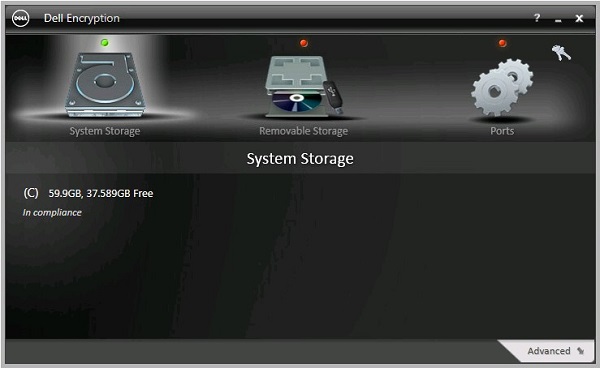
- Click Default Settings.
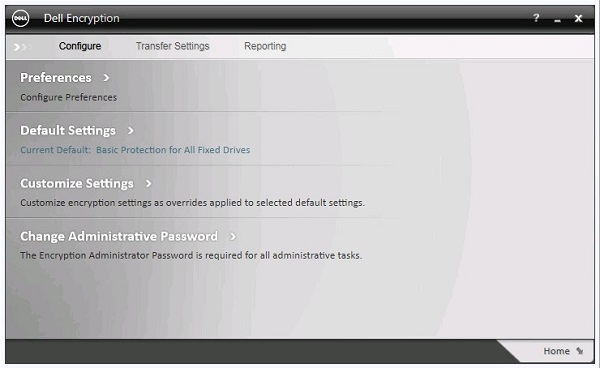
- Populate the Encryption Administrator Password and then click OK.
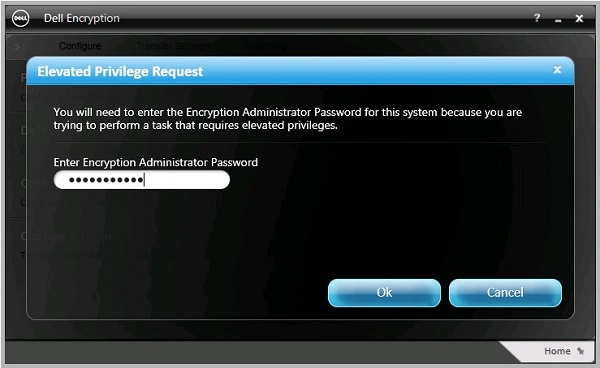
- From the Default Settings user interface (UI):
- Select a policy template.
- Click Save.
- Click Back to configure.
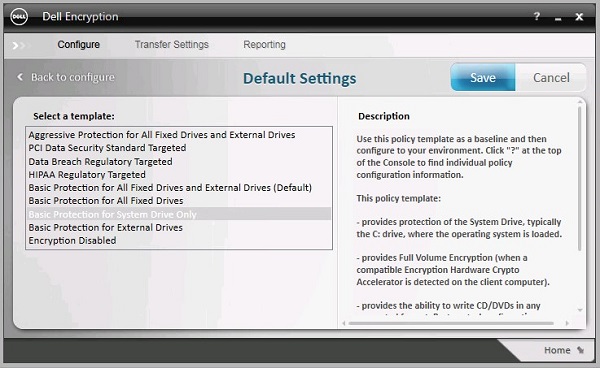 Note: For more information about policy templates, reference Policy Templates in Dell Encryption Personal.
 - In the bottom-right, click Home.
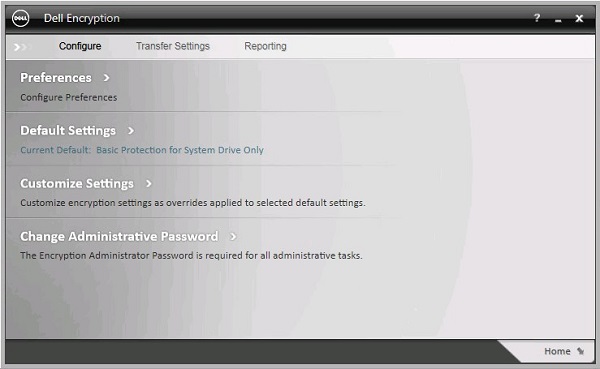
- Back up the encryption keys.
 Note: For more information, reference How to Manually Back Up Encryption Keys in Dell Encryption Personal.
Custom
- Log in to the Windows computer.
- In the Windows system tray, right-click the Dell Encryption icon and then select Open Dell Encryption.
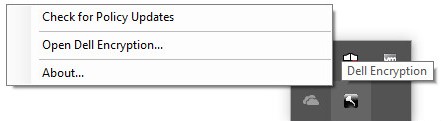
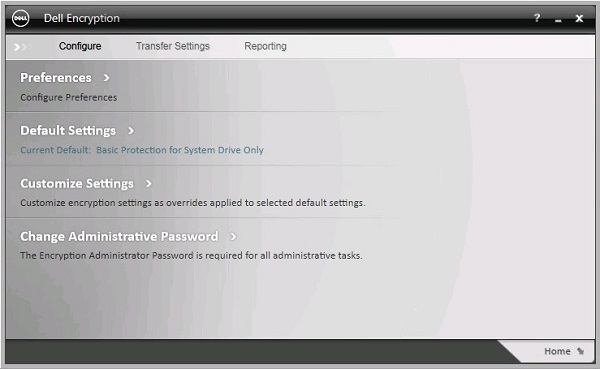
- Click Advanced in the bottom right.
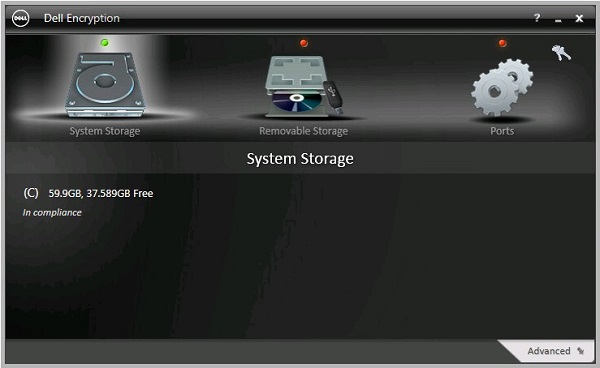
- Click Customize Settings.
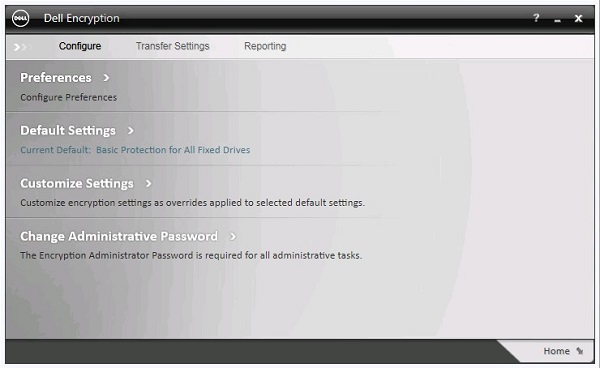
- Populate the Encryption Administrator Password and then click OK.
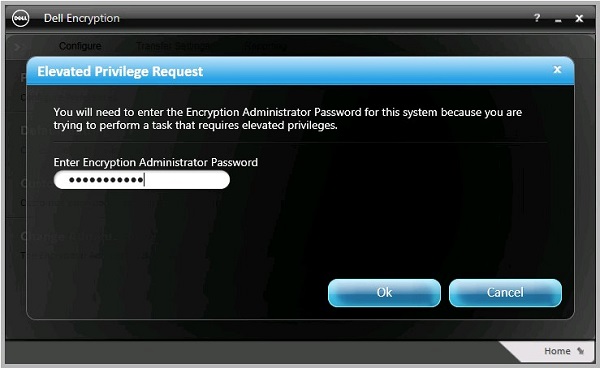
- From the Customize user interface (UI):
- Modify the appropriate Customization column policies.
- Click Save.
- Click Back to configure.
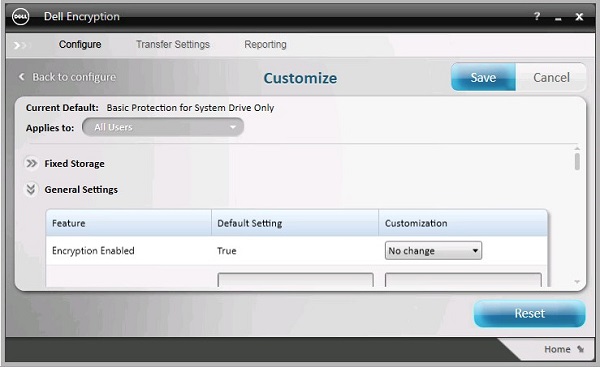 Warning:
- If customizing a text box policy instead of a drop-down policy, ensure that all text from the Default Setting is copied into the Customization box.
- Incompatible policy customizations may lead to errors or loss of functionality.
- For detailed policy definitions, reference the help file.
- For assistance with policy conflicts, contact Dell Data Security International Support. For more information, reference Dell Data Security International Support Phone Numbers.
Note: To reset customized policies to the default policy template, click Reset. - In the bottom-right, click Home.
- Back up the encryption keys.
 Note: For more information, reference How to Manually Back Up Encryption Keys in Dell Encryption Personal.
v8.0.0 to 8.13.X
Modify policies by either changing the policy Template or by applying Custom changes to the template. Click the appropriate method for more information.
Template
- Log in to the Windows computer.
- In the Windows system tray, right-click the Dell Data Protection Encryption icon and then select Open Dell Data Protection Encryption.
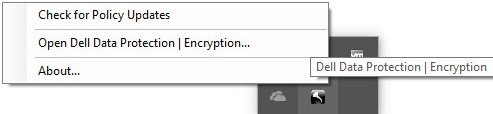
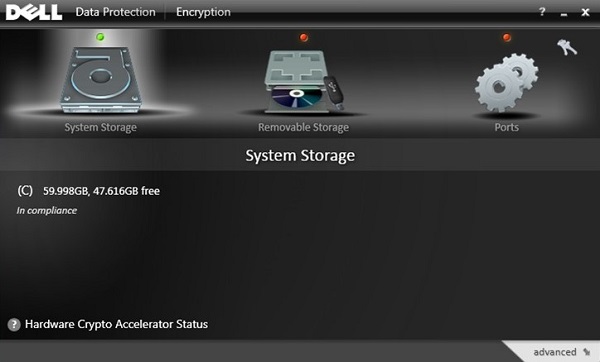
- Click advanced in the bottom right.
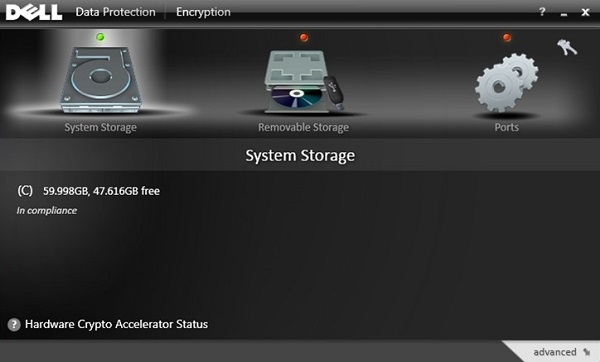
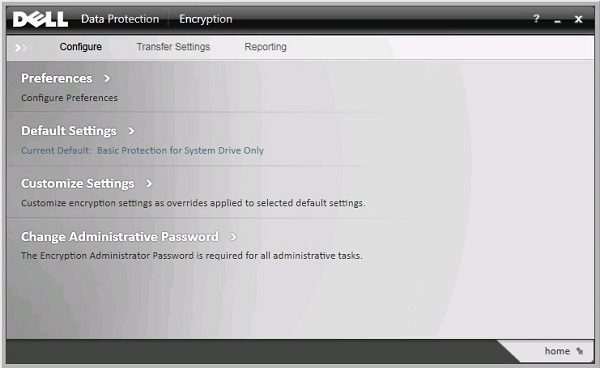
- Click Default Settings.
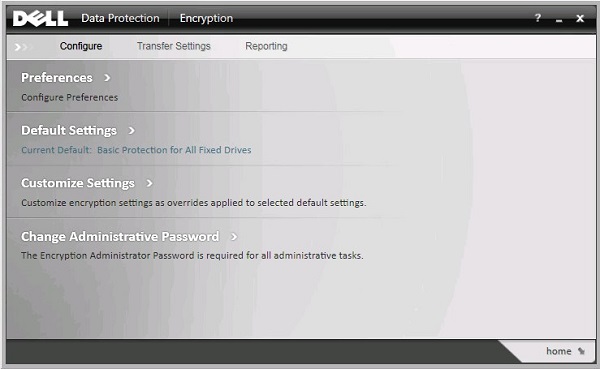
- Populate the Encryption Administrator Password and then click OK.
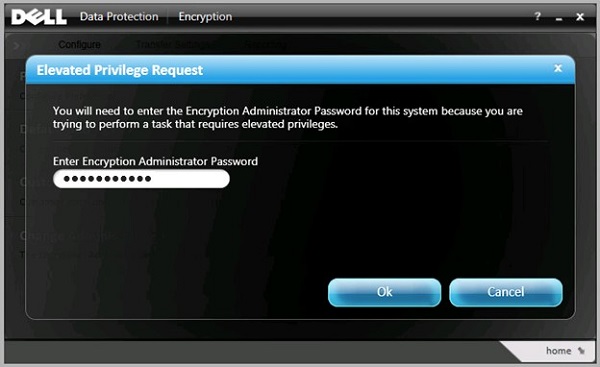
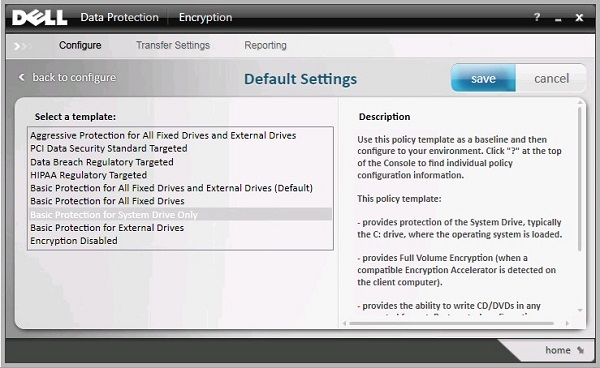
- From the Default Settings user interface (UI):
- Select a policy template.
- Click save.
- Click back to configure.
 Note: For more information about policy templates, reference Policy Templates in Dell Encryption Personal.
 - In the bottom-right, click home.
- Back up the encryption keys.
 Note: For more information, reference How to Manually Back Up Encryption Keys in Dell Encryption Personal.
Custom
- Log in to the Windows computer.
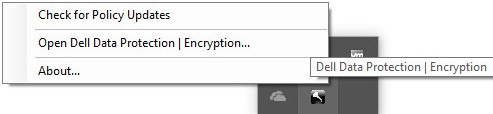
- In the Windows system tray, right-click the Dell Data Protection Encryption icon and then select Open Dell Data Protection Encryption.
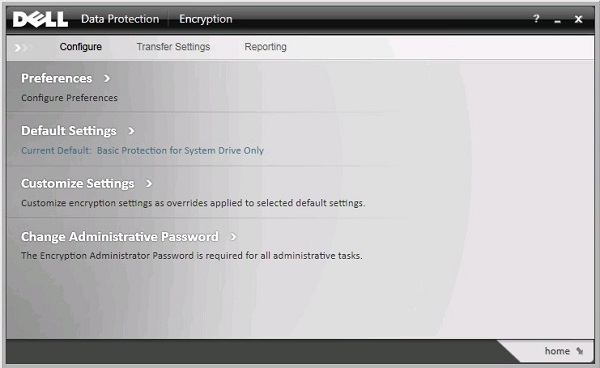
- Click advanced in the bottom right.
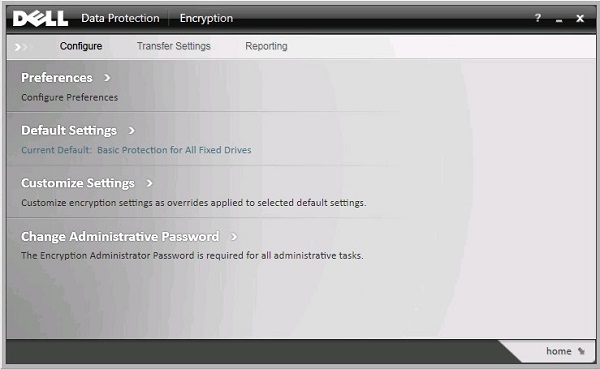
- Click Customize Settings.
- Populate the Encryption Administrator Password and then click OK.
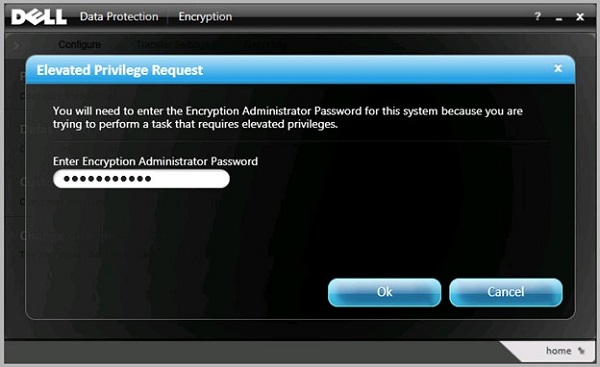
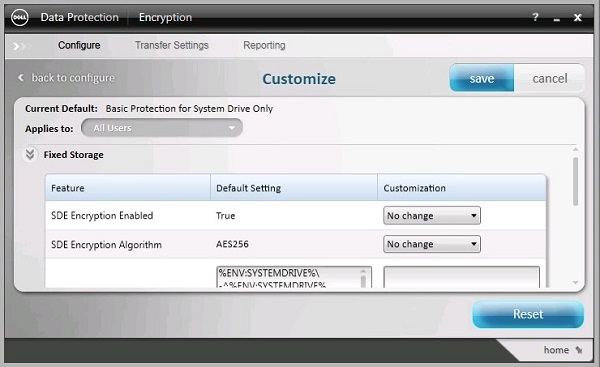
- From the Customize user interface (UI):
- Modify the appropriate Customization column policies.
- Click save.
- Click back to configure.
 Warning:
- If customizing a text box policy instead of a drop-down policy, ensure that all text from the Default Setting is copied into the Customization box.
- Incompatible policy customizations may lead to errors or loss of functionality.
- For detailed policy definitions, reference the help file.
- For assistance with policy conflicts, contact Dell Data Security International Support. For more information, reference Dell Data Security International Support Phone Numbers.
Note: To reset customized policies to the default policy template, click Reset. - In the bottom-right, click home.
- Back up the encryption keys.
 Note: For more information, reference How to Manually Back Up Encryption Keys in Dell Encryption Personal.
To contact support, reference Dell Data Security International Support Phone Numbers.
Go to TechDirect to generate a technical support request online.
For additional insights and resources, join the Dell Security Community Forum.
Affected Products
Dell EncryptionArticle Properties
Article Number: 000131804
Article Type: How To
Last Modified: 07 Jul 2025
Version: 12
Find answers to your questions from other Dell users
Support Services
Check if your device is covered by Support Services.