How to Turn Off or On and Troubleshoot the Backlit Keyboard on a Dell Laptop
Summary: Learn how to turn on a backlit keyboard, keep the keyboard backlight off, and troubleshoot common issues like keyboard illumination not working. Follow easy steps for enabling and adjusting backlit settings on Dell laptops. ...
This article applies to
This article does not apply to
This article is not tied to any specific product.
Not all product versions are identified in this article.
Instructions
Working in dim lighting? Your Dell keyboard's backlight feature can help you see the keys clearly.
Check if Your Keyboard Has Backlighting
Not all Dell computers come with backlit keyboards. Here is how to find out if yours does:
Look for the Backlit key ( ) on your keyboard. You will typically find it on one of these keys:
- F5, F6, F7, or F10
- Right arrow key (lower right corner)
- A dedicated backlight key
Do you not see the Backlit key? Your keyboard does not have this feature. Check your Dell computer documentation to confirm your model's specifications.
To cycle through the brightness options
If Your Backlit Key Is on a Function or Arrow Key, perform the following steps.
- Press and hold the Fn key
- Press the Backlit key
- Continue pressing the Backlit key to cycle through brightness levels
Not working? Change the lock mode by perform the following steps.
- Press and hold the Fn key.
- Press the Esc key and release both.
- Press the Backlit key to cycle through brightness levels.
If Your Backlit Key Is Dedicated, perform the following steps.
- Press the Backlit key to cycle through brightness levels.
When the key combinations do not cycle through the options, ensure that the computer has the latest System Setup (BIOS). For more information, see our How to Update BIOS: Install and Upgrade BIOS on Windows library page.
After updating the BIOS and the keyboard backlight still does not cycle through the options, perform the steps below to ensure that the Keyboard Illumination is enabled in the BIOS.
NOTE: The instructions listed are for the latest known BIOS configuration. Depending on the version of the BIOS on your computer, you may have different options, you may have to search for the Keyboard Illumination option (when available).
-
With the computer powered off, press the power button.
- Immediately start pressing the F2 key once per second (if the computer boots into Windows, shut down the computer and try again).
- Once in the BIOS, select Keyboard.
- In the Keyboard Illumination section, select the wanted options (Figure 1).
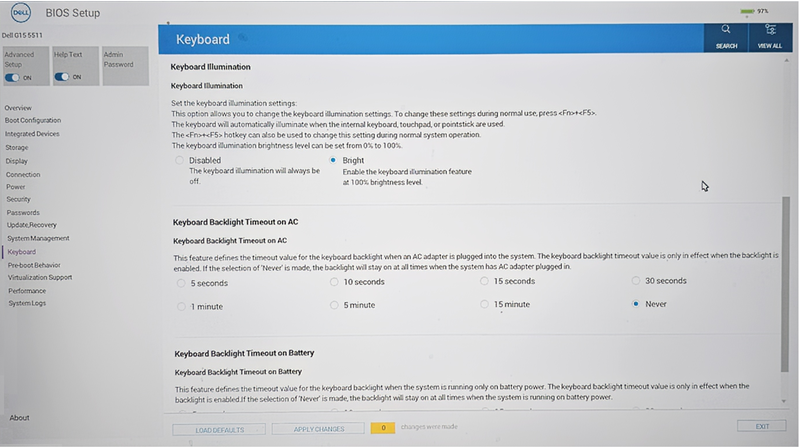
Figure 1: Keyboard Illumination SettingsNOTE: When Keyboard Illumination is not an option, your computer does not have a backlit keyboard. - Select APPLY CHANGES, and then EXIT.
Additional Information
How to Fix Keyboard Not Lighting Up
Duration: 02:55
When available, closed caption (subtitles) language settings can be chosen using the Settings or CC icon on this video player.
Affected Products
G Series, Alienware, Dell Plus, Dell Pro, Dell Pro Max, Dell Pro Plus, Dell Pro Premium, Inspiron, Latitude, Dell Pro Rugged, Vostro, XPS, Legacy Laptop Models, Mobile Workstations, Dell Pro Max 16 XE MC16250Article Properties
Article Number: 000132120
Article Type: How To
Last Modified: 04 Dec 2025
Version: 28
Find answers to your questions from other Dell users
Support Services
Check if your device is covered by Support Services.