Cloudlink: How to modify Cloudlink appliance IP address
Summary: How to modify Cloudlink appliance IP address
This article applies to
This article does not apply to
This article is not tied to any specific product.
Not all product versions are identified in this article.
Instructions
- Before modifying the IP address of the Cloudlink appliance ensure that the new IP address will have connectivity to the other nodes in the Cloudlink cluster, encrypted VM's, etc..
- See the Cloudlink Deployment Guide for information on Cloudlink network port usage
- https://dl.dell.com/content/docu103712
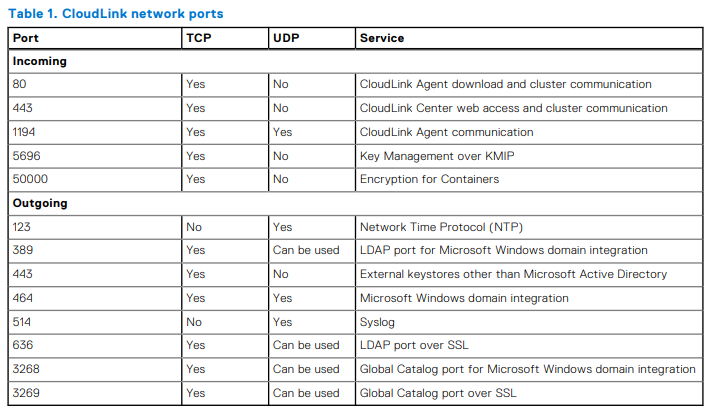
To modify the IP address of the Cloudlink appliance you can perform the following steps:
- Login to the VM console with the user 'cloudlink' and the cloudlink user's password that you have set
- Cloudlink will prompt you to enter the password again. After that you should see a menu like the picture below:
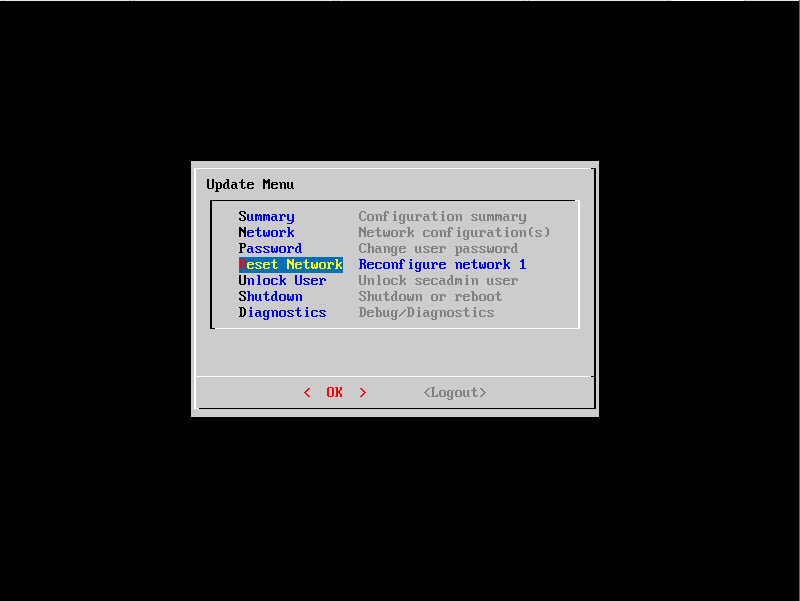
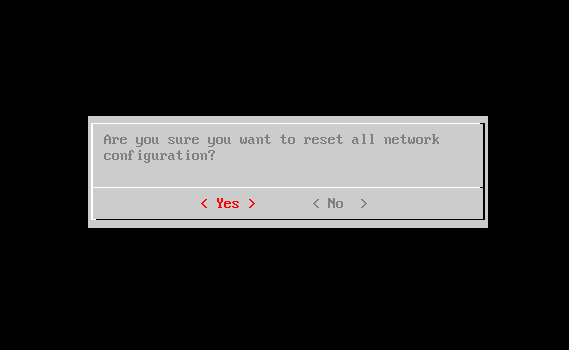
- Select "Reset Network" and it will ask you to confirm if you want to reset all network configuration. Select "Yes"
- Continue with the prompts as they come up
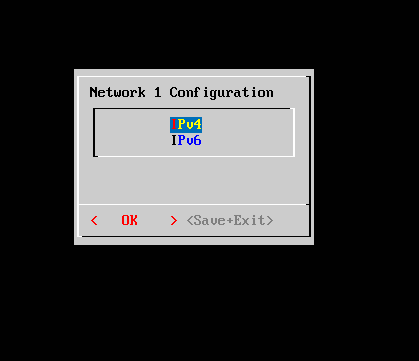
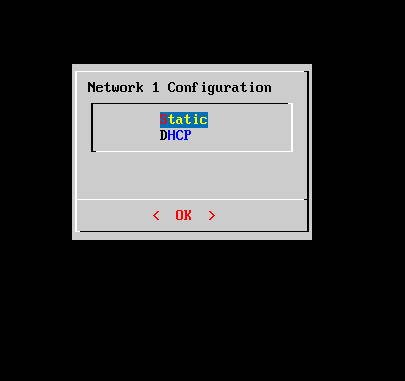
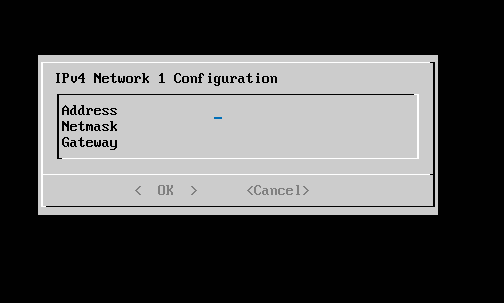
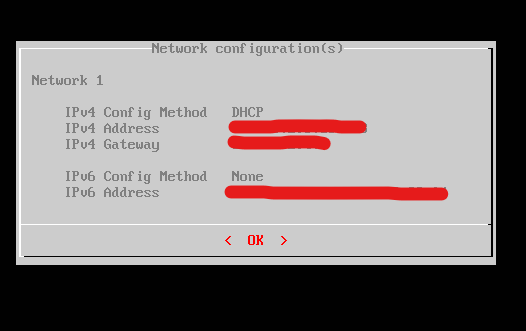
- After entering the information you will see the configuration summary screen
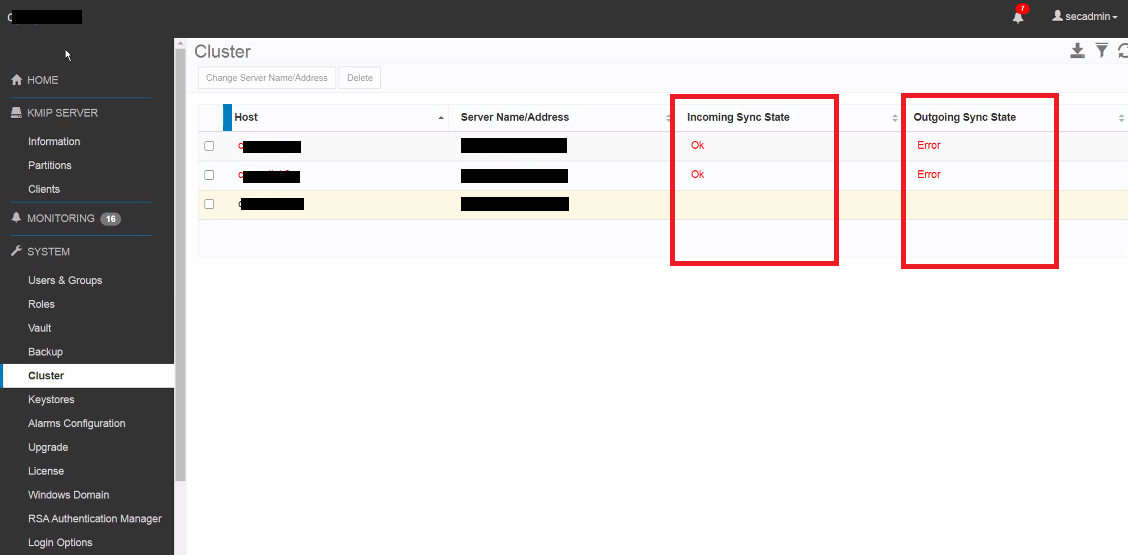
- Once the IP address is updated go to the Cloudlink UI and check to cluster status to ensure that the node with the updated IP address is still in Sync with the other nodes in the cluster
- You want to see "Ok" status on Incoming / Outgoing Sync state - not an "Error" state like we see in the example below:
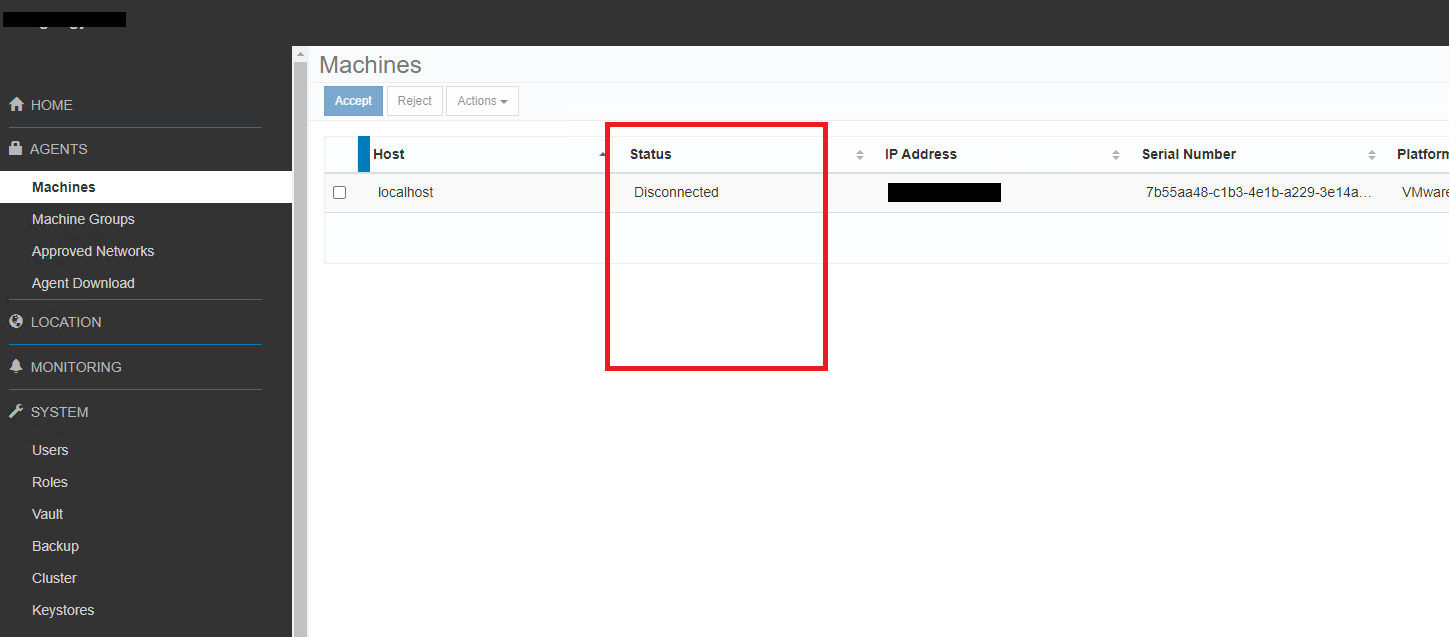
- Check to make sure that all encrypted VM's also show their status as "Connected" and not disconnected like you see in the screenshot below:
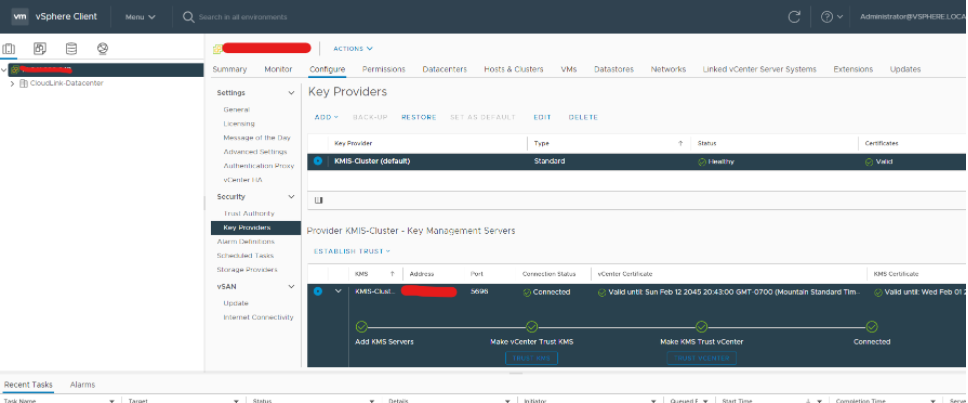
- To check KMS connection status in vSphere select the vCenter server instance in the inventory list
- Click on the Configure tab and then click Key Providers under Security
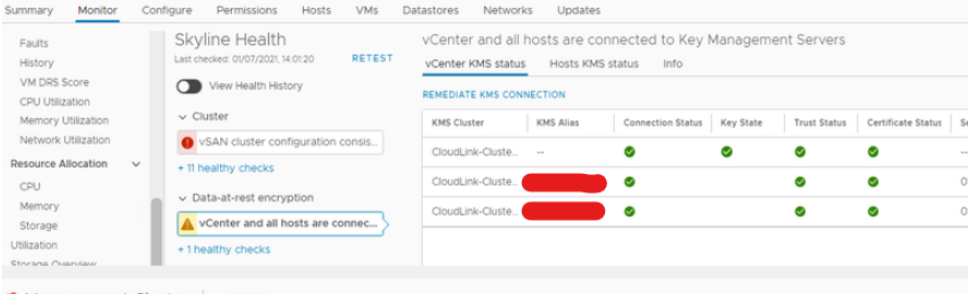
- KMS status for vCenter and hosts can alternatively be checked at the Cluster level in vSphere inventory list
- Click on the Monitor tab and then click Skyline Health under vSAN
- In Skyline Health click on Encryption / Data-at-rest Encryption and then vCenter and all hosts are connected to Key Management servers
Affected Products
CloudLinkProducts
CloudLink SecureVMArticle Properties
Article Number: 000197530
Article Type: How To
Last Modified: 13 May 2026
Version: 5
Find answers to your questions from other Dell users
Support Services
Check if your device is covered by Support Services.