PowerVault ME5, ME52: How to Configure SupportAssist to Connect Using Gateway Server
Summary: The integrated SupportAssist feature can be configured to Connect Directly or Connect using Gateway Server to send telemetry data from the PowerVault ME5. PowerVault ME5 can only connect to Secure Connect Gateway (SCG) Virtual Edition. ...
This article applies to
This article does not apply to
This article is not tied to any specific product.
Not all product versions are identified in this article.
Instructions
Index:

- About using SupportAssist
- SupportAssist Configuration Pre-requisites
- Configuring the PowerVault ME series with SCG Virtual Edition (VE)
- Information about Secure Connect Gateway (SCG)
- Viewing PowerVault ME series as a device in SCG VE
- Troubleshooting tips and hints
About using SupportAssist
Dell Technologies recommends enabling SupportAssist on the PowerVault ME5 series. SupportAssist can help reduce time taken to resolve technical support queries and when used with APEX AIOps infrastructure observability (formerly CloudIQ) can provide you with insight into array system health, capacity consumption, and performance anywhere in the world using an Internet browser or CloudIQ smartphone app.
- Automatic case creation (for example, disk drive failure) with Dell Technical Support for in warranty products
- Receive notification of available controller or disk drive firmware updates in PowerVault Manager.
- Use Dells APEX AIOps Infrastructure observability service (formerly CloudIQ) to remotely monitor your arrays heath using Internet browser or CloudIQ smartphone application. For more information, see APEX AIOps Observability: General Procedures to Onboard PowerVault ME Series Arrays.
- Simple for operators to send telemetry data from the product to Dell technical support. See section on SupportAssist in PowerVault ME5: How to collect PowerVault support logs
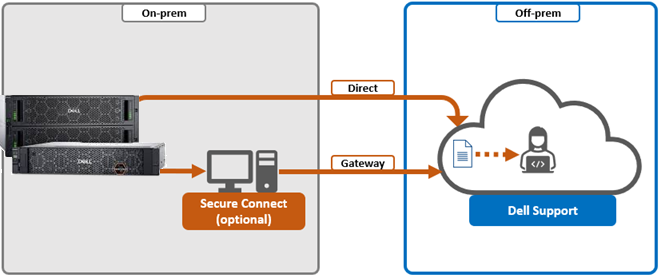
Figure 1: SupportAssist connection image
- SupportAssist can be enabled to send telemetry data using Dell Secure Connect Gateway (SCG VE) appliance or alternatively a direct connection to Dell endpoints.
- To configure SupportAssist using a direct connection, see this article: PowerVault ME5: How to enable SupportAssist using direct connection
Outline of steps required to configure SupportAssist to connect to SCG VE.
- SCG VE appliance deployed in your organization must be able to connect to Dell endpoints.
- PowerVault ME5 administrators must configure the array to use a Domain Name System (DNS) server that can resolve endpoint hostnames.
- Configure PowerVault ME5 SupportAssist to connect to the SCG VE appliance on port 9443. Example:
https://SCG.VE.Management.Address:9443 - Where applicable, that is on systems shipped from Dell prior to April 2023, enter Access key & PIN (AK&P). Systems shipped since this date do not require this step.
| ME5 SupportAssist connection endpoint hostnames | Protocol and Port |
| <SCG appliance hostname> or <IP address> | outbound TCP/9443 |
| esrs3-core.emc.com | outbound TCP/443 |
| esrs3-coredr.emc.com | outbound TCP/443 |
Information about Secure Connect Gateway (SCG)
SCG is available as two separate applications: PowerVault ME5 users must use Secure Connect Gateway - Virtual Edition, or Secure Connect Gateway.
- SCG Application Edition (SCG AE) installs on Microsoft Windows. This replaces SupportAssist enterprise (SAE) application version and is used in environments without a hypervisor. This version can be used to monitor Dell PowerEdge servers, Dell switches, and previous generation Dell Storage products such as EqualLogic/PS Series, Compellent/SC Series, PowerVault MD3xxx, and PowerVault ME4 series.
Note: See the SCG AE support matrix. This version does NOT support PowerVault ME5 series arrays or other Dell Storage Products such as Unity, PowerStore, or PowerMax arrays.
- SCG Virtual Edition (SCG VE) is a Linux appliance installed in a hypervisor environment such as Broadcom ESXi or Microsoft Hyper-V. This appliance is also available for Docker, Podman, or Kubernetes environments. Supported hypervisors are listed in the SCG VE support matrix accompanying the software version. SCG VE is needed if you want to discover ALL supported devices from the Dell Enterprise product range. SCG VE V5.10.x and later add support for PowerVault ME5 series as an endpoint for SupportAssist.
- SCG VE Deployment and configuration guides are available online and a YouTube playlist with a series of short videos
with guides to use SCG VE are available.
- System administrators can review the Security for Secure Connect Gateway whitepaper.
- SCG VE appliance must be able to connect to the Dell secure remote server endpoint before you configure PowerVault ME5 SupportAssist to connect using Gateway server appliance. Within the SCG VE application, click Connectivity in the header and then click Network connections and services. You can click Test connection to verify connectivity to the Global access and Enterprise servers. If SCG VE is not operational, see the Secure Connect Gateway Virtual Edition Troubleshooting Guide.
- Secure Connect Gateway Virtual edition (SCG VE) V5.10.x and later configured and connecting to Dell endpoint.
- PowerVault ME5 must be able to resolve domain names. Ensure that each controller is configured in PowerVault Manager to use a DNS server. See section Configuring PowerVault ME5 to Connect using Gateway Server.
- On systems shipped prior to April 2023, an Access key and PIN is required to activate SupportAssist on PowerVault ME5. For details see ME5: How to generate an Access Key and Pin to enable SupportAssist. If you need assistance generating AK&P contact Dell Technical Support.
- The management network must be configured on PowerVault ME5 controllers. The management network IP on Controller A must be able to reach the SCG VE appliance. SupportAssist service defaults to Controller A. The service runs on Controller B when A is offline.
- PowerVault ME5 SAN SupportAssist uses
TCP port 9443 https://SCG.VE.Management.Address:9443to establish a connection with the SCG VE gateway appliance.
Note: Attempting to configure SupportAssist to connect to SCG management port 5700 does NOT work.
Configuring PowerVault ME5 series with SCG VE
How does SCG VE discover the PowerVault ME5?
In the SCG VE support matrix, supported devices are listed along with two discovery methods. Depending on the device, there are two possible methods:
- Configure SupportAssist on the device to connect to the Secure Connect Gateway appliance. This method applies to the PowerVault ME5 series. SupportAssist establishes a secure mutual connection with the SCG VE appliance.
- Add a device manually using the Secure Connect Gateway user interface. This method only applies to the PowerVault ME4 series.
Note: If you attempt to manually add the PowerVault ME5 manually using SCG VE management interface, you receive the following message: "This product is not able to be added from the gateway UI. See the product installation documentation for connection instructions."
Administrators must follow the instructions further down to configure SupportAssist to Connect using Gateway Server.
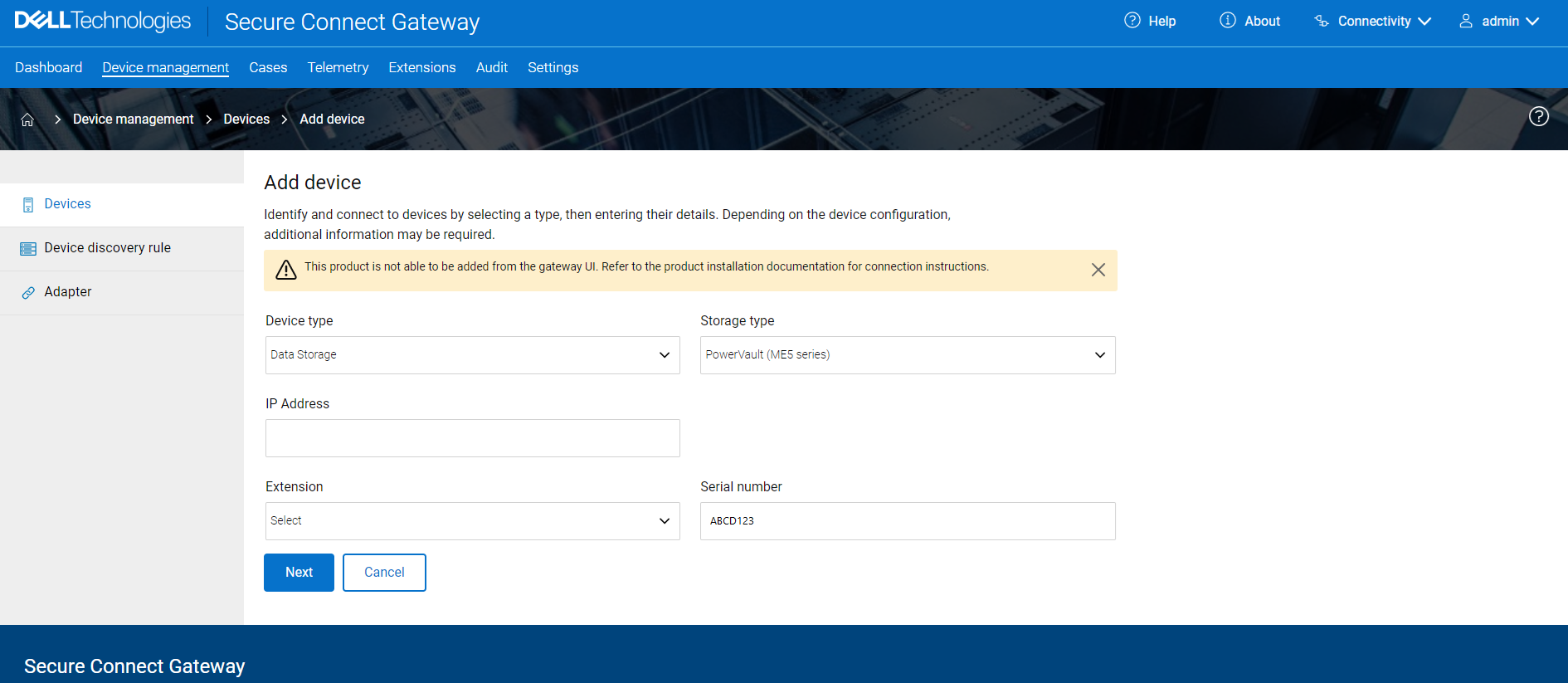
Figure 2: Attempting to manually add a PowerVault ME5 in SCG VE fails.
Configuring PowerVault ME5 to Connect using Gateway Server using PowerVault Manager.
Configure both controllers to resolve DNS names using PowerVault Manager.
- In the PowerVault manager, the Network panel (Settings > Network) provides options for you to configure network-port settings, including a specifying DNS server.
- Configure both controller modules to resolve DNS (Settings > Network > DNS).
Figure 3: Configuring DNS using PowerVault Manager
Change the SupportAssist connection type to Gateway Server using PowerVault Manager.
Use the Support panel (Maintenance > Support) to configure SupportAssist.
- Select the SupportAssist tab
- Check the box Connect to SupportAssist and Connect to APEX AIOps (ME5.1.2.1.x and later) or Connect to CloudIQ (ME5.1.2.0.3 and earlier). You can sign on to the APEX AIOps (formerly CloudIQ) service later. For more information, see Article: APEX AIOps Observability: General Procedures to Onboard PowerVault ME Series Arrays
- The SupportAssist agreement is displayed. Read through the agreement, then acknowledge it by selecting I accept this agreement and clicking ACCEPT AND CONTINUE.
- In the Connection Information panel, select your connectivity options:
- Connection Type - Select whether to Connect Directly or Connect using Gateway Server
The Primary Gateway IP is entered in the form
https://SCG.VE.Management.Address and the Gateway Port is 9443
- Proxy Details - If applicable, select Use a Proxy Server and then enter the server settings.
- Access key and PIN - This is not presented on systems shipped after April 2023. If asked enter the information requested. If you do not have the access key or PIN, click request a new Access Key and PIN and follow the prompts to have new key information emailed to you. For more information, see PowerVault ME5: How to Generate an Access Key and Pin to Enable SupportAssist
- Click Test and Enable Connectivity - Test results are displayed, you can either go back and reenter information, or click Continue to proceed.
- In the Contact Information panel, enter the primary contact information and select the preferred contact settings. You can also enter information for a secondary contact
- Click Apply changes, and click OK on the confirmation prompt.
Access key and PIN to authenticate key exchange on systems shipped prior to April 2023.
- PowerVault ME5 uses a two-factor authentication Access key and PIN method to generate the keys required to establish a secure connection. Since April 2023, this is preloaded at the Dell factory and is likely not required for your system.
- Administrators must log in using a registered business account to generate an access key and PIN to activate SCG VE and SupportAssist on PowerVault ME5 series arrays.
For the PowerVault ME5 series, follow the instructions in Article: ME5: How to generate an Access Key and Pin to enable SupportAssist
An access key is valid for 7 days after generation.
If you have issues generating an access key and PIN Dell Technical Support for assistance.
An access key is valid for 7 days after generation.
If you have issues generating an access key and PIN Dell Technical Support for assistance.
Using Command-Line Interface (CLI) to add the gateway server on PowerVault ME5
Using Command-Line Interface (CLI) to configure DNS settings.
- Administrators can optionally open an SSH session to either controller module using an SSH client or a terminal application such as PuTTY
- Use the following commands to configure DNS on both controllers. Command syntax is shown by preceding the command with
help. For example,help set dns-parameters - To display DNS settings:
show dns-management-hostname
show dns-parameters
- To configure DNS settings:
set dns-management-hostname name <controllerAHostname> controller A
set dns-management-hostname name <controllerBHostname> controller B
set dns-parameters nameservers <DNS Server 1 IP>,<DNS Server 2 IP> search-domains <mydomain.local> controller A
set dns-parameters nameservers <DNS Server 1 IP>,<DNS Server 2 IP> search-domains <mydomain.local> controller B
Using Command-Line Interface (CLI) to enable SupportAssist.
Open an SSH session to either PowerVault ME5 management controller IP address. To learn the syntax options for each command, precede the command with help. For example, use help set support-assist-connection and help check support-assist-connection. The commands relevant to SupportAssist configuration are listed here.
- Commands to view SupportAssist configuration and operation.
show support-assist eula
show support-assist
show support-assist-contact
show support-assist-telemetry-status
- Commands to configure SupportAssist.
Skip commands that do not apply such as proxy configuration or access key and PIN.
set support-assist-connection connection-preference gateway gateway-urls https://<SCG.VE.Address:9443>
set support-assist-proxy
set support-assist-authentication access-key <Access Key> pin <PIN Number>
set support-assist-contact
- Test the network connection used by SupportAssist to connect to the gateway or if direct to the SCG VE endpoint or Dell endpoint.
check support-assist-connection mode gateway
check support-assist-connection mode direct
- Check if updated controller or drive firmware updates are available for the PowerVault ME5.
check support-assist-updates
Sample configuration CLI command sequence on PowerVault ME5
Note: Before you can enable SupportAssist, you must review the End User License Agreement (EULA) by running
When you enable SupportAssist for the first time, the CLI presents a confirmation to ensure that you have reviewed and accept the EULA. The agreement allows remote monitoring of the storage system, collection of diagnostic information, and transmission of that data to a remote support server. Reply
After enabling the service, use the
show support-assist with the EULA parameter: show support-assist eula
When you enable SupportAssist for the first time, the CLI presents a confirmation to ensure that you have reviewed and accept the EULA. The agreement allows remote monitoring of the storage system, collection of diagnostic information, and transmission of that data to a remote support server. Reply
yes to enable the support service or no to leave it disabled.
After enabling the service, use the
set support-assist-connection command to establish connectivity to the SupportAssist server, then use the set support-assist-contact command to enter customer information.
show support-assist eula
set support-assist enabled
set support-assist cloud-iq enabled
set support-assist-connection connection-preference gateway gateway-urls <https://<SCG.VE.Management.Address:9443>
check support-assist-connection mode gateway
/* Most systems do not require AK&P */  set support-assist-authentication access-key <Access Key> pin <PIN Number>
Continue afterwards and configure a primary and secondary IT contact for your organization using the set support-assist-contact command.
Note: Type
help before a command to learn the commands syntax and output.
Viewing PowerVault ME series as a device in SCG VE
- Click Device management
- Select Devices
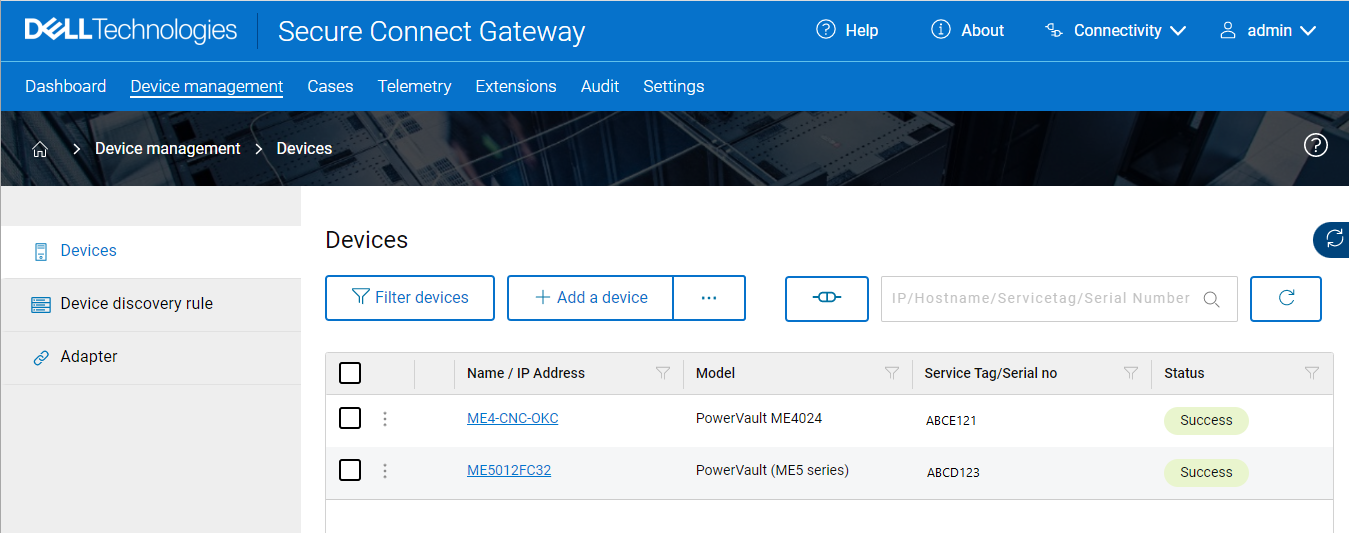
- PowerVault ME4 arrays appear after they have been added. (using Add a device)
- PowerVault ME5 arrays appear after SupportAssist has been configured in PowerVault Manager to use the Secure Gateway.
Figure 4: PowerVault ME4 and ME5 Series arrays shown under Devices.
Troubleshooting tips and hints
How can the network connection to an SCG VE appliance be verified from the PowerVault ME5?
- Open an SSH session to either PowerVault ME5 controller module A management IP address.
- Confirm that DNS is configured using the command:
show dns-parameters
- To verify a network connection can be formed between the ME5 and SCG VE appliance. Use the command:
check support-assist-connection mode gateway
# check support-assist-connection mode gateway uri https://x.x.x.x:9443 proxy false
SupportAssist Connection
------------------------
Connection State: Connected

  Endpoint
  --------
  Mode: gateway
  Endpoint: https://x.x.x.x:9443
  Status: success
  HTTP Status: 200
  Message: OK
  Status Detail: Success
  Proxy Type: none

Success: Command completed successfully. (2022-07-04 12:50:02)
Message HTTP Status: 200andMessage: OKHTTP Status: 200means that the network connection between the ME5 array and the Secure Connect Gateway is good and the web service is running on SCG VE.Message: OKmeans that services are running on the SCG VE appliance.- If your organization uses firewalls between company sites, ensure
TCP port 9443is open to allow the remote ME5 to establish a secure connection with the SCG VE appliance.
Is telemetry data from PowerVault ME5 being sent to Dell?
- Click Audit > File Transfer
- Filter by the PowerVault ME5 service tag.
- If Enable CloudIQ is checked in PowerVault Manager, performance telemetry data is sent out every 15 minutes from the PowerVault ME5
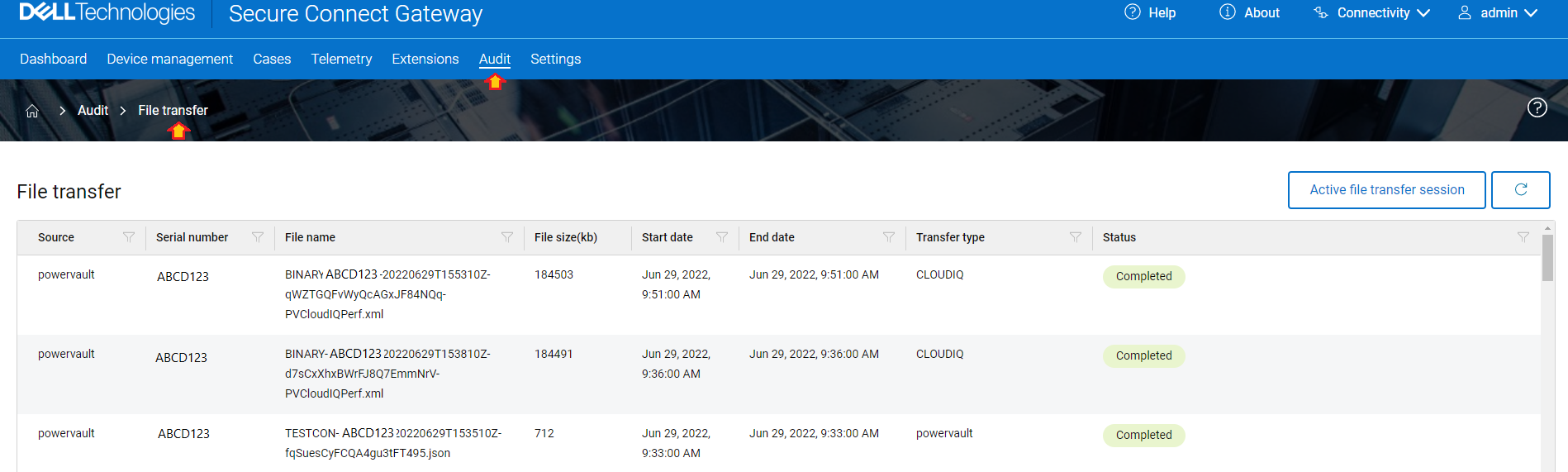
Figure 5: Audit File transfer view showing telemetry data from the ME5 series being sent to Dell
Can SCG VE discover PowerVault ME4 series arrays?
Yes - The method is different. See article SCG-VE: How to Discover PowerVault ME4 Arrays with Secure Connect Gateway
Note: A security update in ME4 controller firmware GT280R010-01 and later prevents all SCG versions prior to v5.14.00.16 authenticating discovery. Update SCG to v5.14.00.16 or later.
Affected Products
Secure Connect Gateway, ME Series, PowerVault ME5012, PowerVault ME5024, PowerVault ME5084, PowerVault ME5212, PowerVault ME5224, PowerVault ME5284, Secure Connect Gateway - Virtual EditionArticle Properties
Article Number: 000200129
Article Type: How To
Last Modified: 04 Jul 2025
Version: 10
Find answers to your questions from other Dell users
Support Services
Check if your device is covered by Support Services.