What is Dell Pair?
Summary: The following article provides information about the Dell Pair software. This software makes it easier to connect your Dell Bluetooth devices to your Dell computer.
This article applies to
This article does not apply to
This article is not tied to any specific product.
Not all product versions are identified in this article.
Instructions
Table of Contents:
- Introduction
- Software Requirements
- Installing Dell Pair
- Dell Pair Features
- Supported Platforms and Peripherals
- Troubleshooting
- Additional Information
Introduction
Dell Pair is a software utility that is available on certain Dell platforms and supports pairing to Dell Bluetooth devices. (For Example: Bluetooth devices such as your wireless mouse, keyboard, or headset.) When Dell Pair is enabled, the utilities User Interface (UI) automatically prompts pairing with any Dell Bluetooth device within Bluetooth detection range of the Dell computer.
Software Requirements
The Dell Pair application has the following requirements:
- Windows 11
- Windows 10 (Version 10.0.19041 and above.)
- Bluetooth Version 5.0 or higher
- Bluetooth is enabled
Installing Dell Pair
Manually download and install the utility from the Dell applications Drivers & Downloads page:
Note: Administrator privileges are required to make software changes to your Dell computer.
Note: Dell Technologies recommends downloading the Dell Pair application from its support page to ensure installing the latest version of the utility available.
-
Browse to the: Dell Pair Drivers & Downloads page
-
Select the operating system that is running on the Dell computer.
-
Under Category, select Application.
-
Locate the Dell Pair software package.
-
Click Download and save the file to your Dell computer.
-
Open File Explorer and browse to the location where downloaded files are saved.
-
Double-click the downloaded setup file and follow the on-screen instructions to complete the installation process.
Note: Use the applications guide on the documentation page on the software product page to get full install or uninstall instructions. (Including Command-Line installation.)
Note: Dell Pair comes preinstalled on selected Dell platforms.
All supporting documentation for the Dell Pair application can be found on the Dell Support site:
Dell Pair Features
The Dell Pair notification appears automatically. It appears when a Bluetooth device that supports detection by Dell Pair is turned on and is within detection range of the Dell computer.

| 1 | Dell Pair Settings | 2 | Start Pairing using Bluetooth |
When the UI appears, click Pair to pair the Dell Bluetooth device with the Dell computer.
Open the user interface for the Dell Pair application from the start menu:
- Start Menu
-
Dell
-
Dell Pair
-
-
From the Dell Pair user interface, change the Dell Pair setting. Enable or disable the Dell Pair application by sliding the switch to either the ON or OFF position.
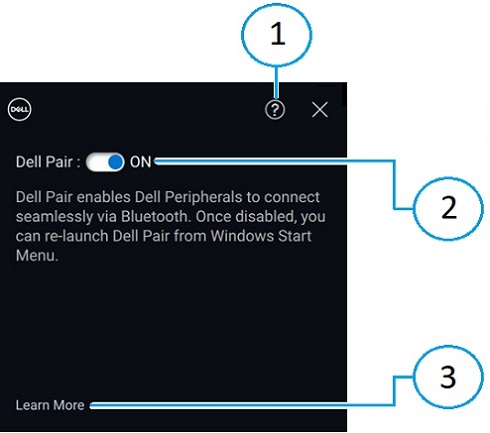
| 1 | Software Version Information | 2 | Enable or Disable Dell Pair |
| 3 | Learn More |
Note: Once the application is disabled, relaunch Dell Pair from the Windows start menu.
Supported Platforms and Peripherals
The Dell Pair software comes preinstalled on the following computers:
| Inspiron | Vostro | XPS | Latitude | Precision |
|---|---|---|---|---|
| 13 5320 | 3440 | 13 9315 | 3330 | 3480 |
| 13 5330 | 5320 | 13 9315 2-in-1 | 3340 | 3490 |
| 14 5420 | 5620 | 13 Plus 9320 | 3440 | 3570 |
| 14 5425 | 5625 | 13 9340 | 3450 | 3571 |
| 14 5430 | 5630 | 14 9350 | 3540 | 3580 |
| 14 5435 | 5635 | 14 9440 | 3550 | 3581 |
| 16 5620 | 5640 | 15 9520 | 5320 | 3590 |
| 14 5440 | 7620 | 15 9530 | 5330 | 3591 |
| 14 5445 | 16 9640 | 5340 | 5470 | |
| 16 5625 | 17 9720 | 5350 | 5480 | |
| 16 5630 | 17 9730 | 5430 | 5490 | |
| 16 5635 | 5431 | 5570 | ||
| 14 5640 | 5440 | 5690 | ||
| 14 5645 | 5450 | 5770 | ||
| 14 Plus 7420 | 5455 | 7670 | ||
| 14 7430 2-in-1 | 5530 | 7680 | ||
| 14 Plus 7430 | 5531 | 7770 | ||
| 14 7435 2-in-1 | 5540 | 7780 | ||
| 14 Plus 7440 | 5550 | |||
| 14 7440 2-in-1 | 7320 | |||
| 14 7445 2-in-1 | 7330 | |||
| 16 Plus 7620 | 7350 | |||
| 16 Plus 7630 | 7350 Detachable | |||
| 16 Plus 7640 | 7420 | |||
| 16 7630 2-in-1 | 7430 | |||
| 16 7635 2-in-1 | 7450 | |||
| 16 7640 2-in-1 | 7455 | |||
| 7530 | ||||
| 7650 | ||||
| 9330 | ||||
| 9430 | ||||
| 9440 2-in-1 | ||||
| 9450 2-in-1 |
| Dell Pro | Dell Plus | Dell Pro Premium | Dell Pro Plus | Dell Pro Rugged |
|---|---|---|---|---|
| PC14255 | DB16250 | PA13250 | PB13250 | RA13250 |
| PC16255 | DB16255 | PA14250 | PB13255 | RB14250 |
| PB14250 | ||||
| PB14255 | ||||
| PB16250 | ||||
| PB16255 |
Note: Did your computer arrive without Dell Pair? If so, check on the installation requirements and the latest supported models in your service manual on the following support site page:
| Supported Peripherals | ||
|---|---|---|
| Dell Pro Compact Silent Mouse (MS355): Alternatively, Dell Silent Mouse | Dell Pro Plus Wireless Active Noise Cancelling (ANC) Headset (WL5024): Alternatively, Dell Pro Wireless ANC Headset | Dell Pro Plus Wireless Speakerphone SL525 |
| Dell Pro Compact Silent Keyboard and Mouse (KM555): Alternatively, Dell Silent Keyboard and Mouse | Dell Pro Premium Wireless ANC Headset WL7024: Alternatively, Dell Premier Wireless ANC Headset | |
| Dell Bluetooth Travel Mouse (MS700) | Dell Pro Wireless Headset WL3024: Alternatively, Dell Wireless Headset | |
Dell Pro Premium Collaboration Keyboard and Mouse KM900:
|
Dell Pro Plus Earbuds EB525 | |
| Dell Pro Premium Mouse MS900 | ||
Troubleshooting
| Problems | Possible solutions |
|---|---|
| Dell Pair notification does not open when a Dell Bluetooth device is turned on for the first time. |
|
| Dell Pair reports a pairing error. |
|
Additional Information
Bluetooth Troubleshooting Support
Learn how to use and troubleshoot problems with the Bluetooth devices that are in use with your computer. Find out information about Troubleshooting steps, How-To guides, and relevant Support Videos for assistance.
For the Dell Pair User Guide, browse to the Dell Pair Manual Page. Touch or click View PDF to the right of the User Guide, which is in the Manuals and Documents section.
Affected Products
Dell 16 Plus DB16250, Dell 16 Plus DB16255, Dell Pro Plus Earbuds EB525, Dell Pro Premium Collaboration Keyboard KB900, Dell Pro Compact Silent Keyboard and Mouse - KM555, Dell Pro Premium Collaboration Keyboard and Mouse KM900
, Dell Pro Premium Mouse MS900, Dell Pair, Dell Pro 13 Premium PA13250, Dell Pro 14 Premium PA14250, Dell Pro 13 Plus PB13250, Dell Pro 13 Plus PB13255, Dell Pro 14 Plus PB14250, Dell Pro 14 Plus PB14255, Dell Pro 16 Plus PB16250, Dell Pro 16 Plus PB16255, Dell Pro 14 PC14255, Dell Pro 16 PC16255, Dell Pro Rugged 13 RA13250, Dell Pro Rugged 14 RB14250, Dell Pro Plus Wireless Speakerphone SL525, Dell Pro Wired Speakerphone SP325, Dell Pro Wireless Headset WL3024, Dell Pro Plus Wireless ANC Headset WL5024, Dell Pro Premium Wireless ANC Headset WL7024, Inspiron 13 5320, Inspiron 13 5330, Inspiron 14 5420, Inspiron 14 5425, Inspiron 14 5430, Inspiron 14 5435, Inspiron 14 5440, Inspiron 14 5445, Inspiron 14 Plus 7420, Inspiron 14 7430 2-in-1, Inspiron 14 Plus 7430, Inspiron 14 7440 2-in-1, Inspiron 14 Plus 7440, Inspiron 14 7445 2-in-1, Inspiron 16 5620, Inspiron 16 5625, Inspiron 16 5630, Inspiron 16 5635, Inspiron 16 5640, Inspiron 16 5645, Inspiron 16 Plus 7620, Inspiron 16 7630 2-in-1, Inspiron 16 Plus 7630, Inspiron 16 7635 2-in-1, Inspiron 16 7640 2-in-1, Inspiron 16 Plus 7640, Latitude 3330, Latitude 3340, Latitude 5320, Latitude 5330, Latitude 5340, Latitude 5350, Latitude 7320, Latitude 7330, Latitude 7340, Latitude 7350, Latitude 7350 Detachable, Latitude 9330, Latitude 3440, Latitude 3450, Latitude 5431, Latitude 5440, Latitude 5450, Latitude 5455, Latitude 7420, Latitude 7430, Latitude 7450, Latitude 7455, Latitude 9430, Latitude 9440 2-in-1, Latitude 9450 2-in-1, Latitude 3540, Latitude 5530, Latitude 5531, Latitude 5540, Latitude 5550, Latitude 7530, Latitude 7650, Latitude 5430, Precision 3480, Precision 3490, Precision 5470, Precision 5480, Precision 5490, Precision 3570, Precision 3571, Precision 3580, Precision 3581, Precision 3590, Mobile Precision 3591, Mobile Precision 5690, Precision 7680, Precision 5770, Precision 7770, Precision 7780, Vostro 5320, Vostro 14 3440, Vostro 5620, Vostro 5625, Vostro 16 5630, Vostro 16 5635, Vostro 16 5640, Vostro 7620, XPS 13 9315 2-in-1, XPS 13 9315, XPS 13 9340, XPS 13 9350, XPS 15 9520, XPS 15 9530, XPS 16 9640, XPS 17 9720, XPS 17 9730
...
Article Properties
Article Number: 000201693
Article Type: How To
Last Modified: 08 Oct 2025
Version: 22
Find answers to your questions from other Dell users
Support Services
Check if your device is covered by Support Services.