How to Install the Dell Device Management Agent on a Host Computer
Summary: This article provides information about how to install the Dell Device Management Agent (DDMA) on to a host computer.
This article applies to
This article does not apply to
This article is not tied to any specific product.
Not all product versions are identified in this article.
Instructions
Affected Products:
- Dell Device Management Console
Note: After successful installation of the DDMA, when launching the agent icon in the system tray should have all the access to the host computer information.
Example of a successful Dell Device Manager Agent UI installed.
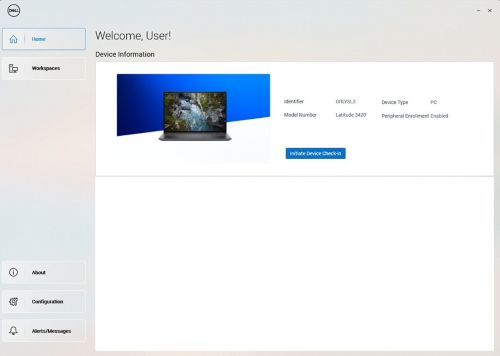
Steps to install DDMA:
- From the host computer, log in to the Dell Device Manager Console (DDMC).
https://device.manage.dell.com/ - From the DDMC go to the Deployment Tab and select Manage Available Software.
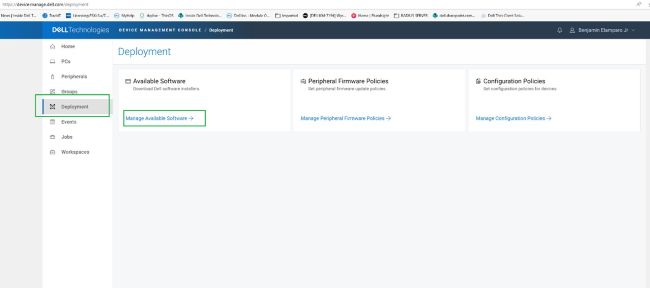
- Download the DDMA.
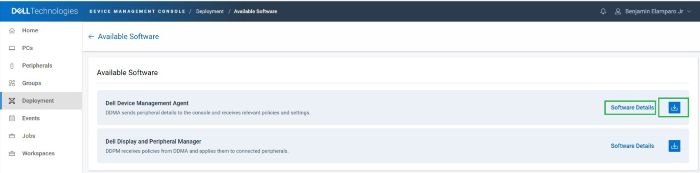
- Click Software Details and then copy the Group Token.
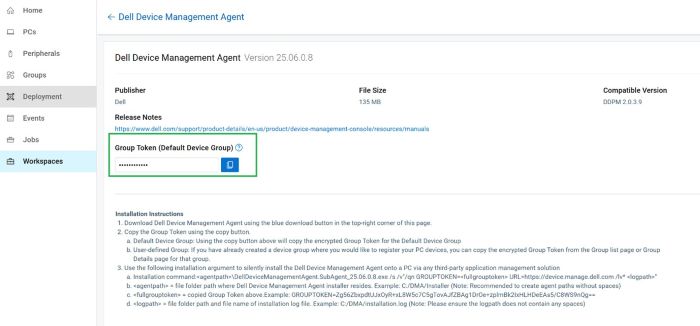
- Deploy the DDMA using the Group Token with the installation arguments for the server URL.
- Installation steps:
- Place the downloaded DDMA agent in the host at
C:\temp. - Open the command prompt with administrative privileges.
- From the command prompt, change the directory to
C:\temp. - Run the following command syntax, including the GROUPTOKEN:
DellDeviceManagementAgent.SubAgent_25.06.0.8.exe /s /v"/qn GROUPTOKEN=xxxxxxxx URL=https://device.manage.dell.com:443 /lv* c:\dma_installer.log"
Note: To ensure that the BIOS TPM is enabled.
- Place the downloaded DDMA agent in the host at
- Installation steps:
- Reboot the host computer and check the DMA agent in the system tray. It should appear as expected.
The host computer is now registered in the Dell Device Management Console.

Affected Products
Dell Device Management ConsoleArticle Properties
Article Number: 000348644
Article Type: How To
Last Modified: 23 Jul 2025
Version: 2
Find answers to your questions from other Dell users
Support Services
Check if your device is covered by Support Services.