NetWorker: Triage NetWorker - Troubleshooting a Backup Failure
Summary: Troubleshooting a Backup Failures of NetWorker client-based backups.
This article applies to
This article does not apply to
This article is not tied to any specific product.
Not all product versions are identified in this article.
Instructions
The goal of the document is to help the reader narrow down any backup failure, by helping to create a more detailed problem definition, and identifying supportive logs.
Step 1: Obtain an understanding of the problem and objectives
- Determine the scope of the issue. Is the problem affecting one or more clients?
- Is the data protection environment newly configured, or existing?
- Are the clients involved new or previously functioning?
- For any issue where a previously functioning backup is failing, determine when the failure first appeared. Isolate any changes in the environment which could have factored into the issue. For example:
- System updates.
- Networking changes.
- Configuration changes (either in NetWorker or in the environment).
- For any issue where a previously functioning backup is failing, determine when the failure first appeared. Isolate any changes in the environment which could have factored into the issue. For example:
- Determine the general error message.
- Search the Dell knowledgebase for any articles which may explain and resolve the error. https://www.dell.com/support/
- Collect a detailed issue statement including the action performed, scope of the issue, errors observed, system, and NetWorker details. The following steps help with answering this point.
Step 2: Basic environment gathering
Collect the following information from systems involved in the backup. This includes the NetWorker server, client, and NetWorker storage nodes (if used to mount the device for backup).
-
Hostname:
The command "hostname" -
OS type, and version:
-
- For AIX, at the command prompt type the
oslevelcommand - For Linux, at the command prompt type the
uname -acommand - For Solaris, at the command prompt type the
uname -acommand - For Windows, at the command prompt type
systeminfo | findstr /C:"OS"
- For AIX, at the command prompt type the
-
NetWorker version, and build number:
- Are compatibility requirements met: https://elabnavigator.dell.com/eln/modernHomeAutomatedTiles?page=NetWorker
- Optionally obtain a
nsrgetbundle from the NetWorker server, clients, storage node (where relevant). For example, if the issue is specific to an issue on the NetWorker server, get the NetWorker server'snsrget. If there is an issue specific to one single client, get the NetWorker server and NetWorker client'snsrget. If there is an issue backing up through a specific storage node, get the NetWorker and NetWorker storage node'snsrget. Instructions for collecting and using the nsrget utility can be found in:
Log files are explained in the following article:
Step 3: Review Backup output
- Identify the issue by reviewing the backup action log output on the NetWorker server:
Linux: /nsr/logs/policy/POLICY_NAME/WORKFLOW_NAME/ACTION-NAME_JOB-ID_logs/
Windows: <INSTALL_DRIVE>:\Program Files\EMC NetWorker\nsr\logs\POLICY_NAME\WORKFLOW_NAME\ACTION-NAME_JOB-ID_logs\
The backup session logs can also be reviewed from the NetWorker Management Console (NMC):
Procedure:
1. From the Administration window, click Monitoring.
2. Expand the backup Policy->Workflow->Action of the failed backup action.
3. Right-click the Action to view, then select Show Details. The action details window appears.

4. Select the failed session, then click Show Messages:
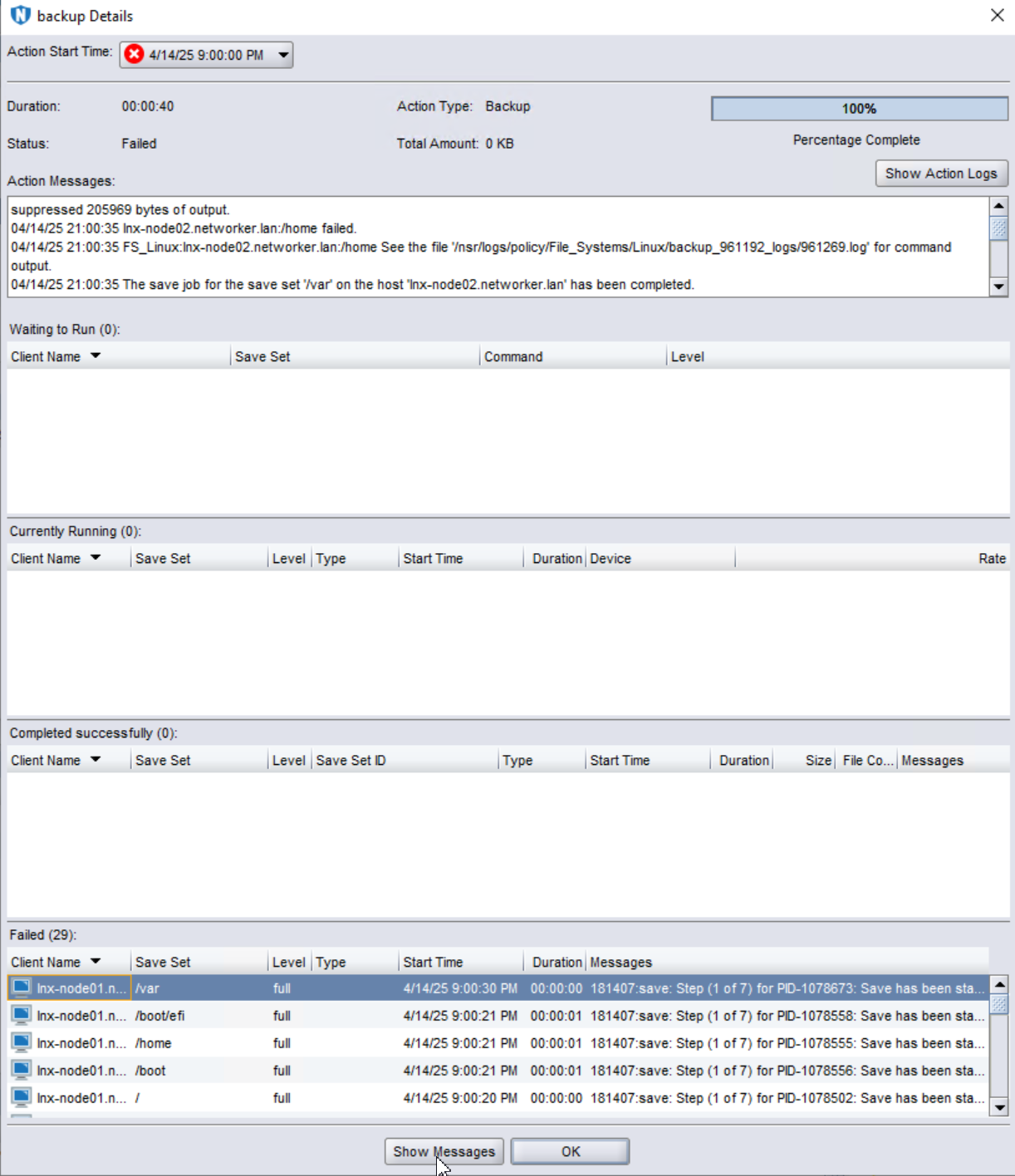
5. A summary of the backup appears, wherein the backup failure message can typically be found:

NOTE: Optionally, the Get Full Log option can be used to retrieve the entire backup session log for the failed client.
- Note timestamps and correlate timestamps to activities in the daemon log on the NetWorker client and server hosts.
Linux: /nsr/logs/daemon.raw
Windows: <INSTALL_DRIVE>:\Program Files\EMC NetWorker\nsr\logs\daemon.raw
NOTE: the unrendered daemon.raw must be rendered on the host from which it originates. This renders the log file using the same timestamps of the host's locale. This can be done using the
nsr_render_log command.
NetWorker: How to use nsr_render_log to render .raw log files
Research any error messages observed in the action or daemon logs, and compare with any known issues in the Knowledge Base. https://www.dell.com/support/
- Optionally, review the systems operating system logs for any errors which may align with the failure:
Linux: /var/log/messages
Windows: Understanding the Windows Event Log and Event Log Policies

Best Practices:
- Conduct regular file system backups. If regular file system backups for this host are failing, those errors must be resolved first before troubleshooting any application level backups (if performed).
- Crosscheck the timestamps of the Oracle backup failures, with the OS system log files, and daemon.raw files on the Oracle server, NetWorker backup server, and Storage Node (if one is used). Investigate any error messages.
- Perform intermittent restore testing to validate the integrity of backups.
Additional Information
The following articles may be useful in troubleshooting any NetWorker backup or restore issue:
Affected Products
NetWorkerProducts
NetWorkerArticle Properties
Article Number: 000021126
Article Type: How To
Last Modified: 15 Apr 2025
Version: 5
Find answers to your questions from other Dell users
Support Services
Check if your device is covered by Support Services.