VNXe: How to replace a power supply in a disk processor enclosure (User Correctable)
Summary: This article describes a process for user to replace a power supply in Disk Processor Enclosure of VNXe3200 array.
This article applies to
This article does not apply to
This article is not tied to any specific product.
Not all product versions are identified in this article.
Instructions
Step 1: Removing a power supply
Procedure
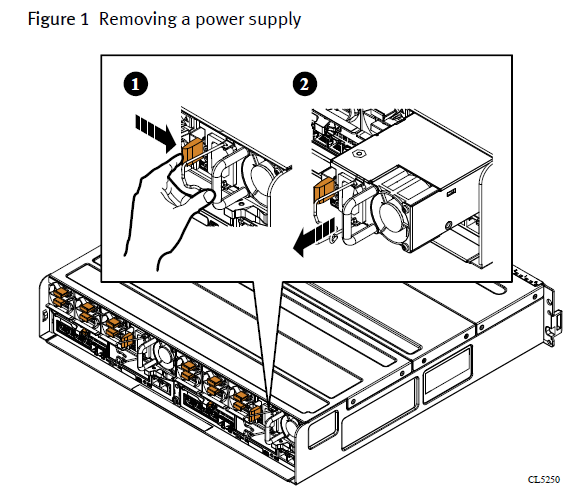
1. Disconnect the power cord from the power supply.
2. While grasping the power supply's handle, push the supply's orange release tab to
the right.
3. Pull the power supply from the enclosure and place it on a clean, static-free surface.
2. While grasping the power supply's handle, push the supply's orange release tab to
the right.
3. Pull the power supply from the enclosure and place it on a clean, static-free surface.
Step 2: Installing a power supply
Procedure
Procedure
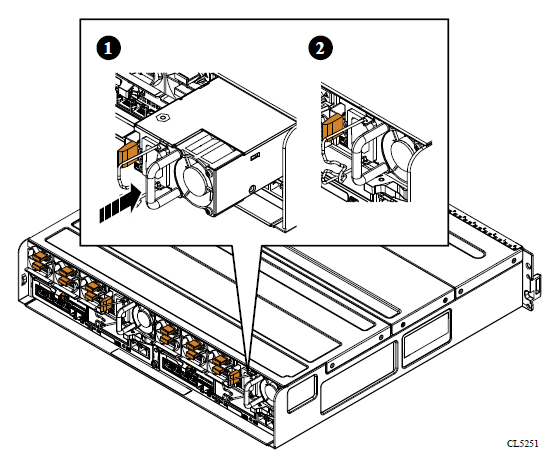
1. Holding the power supply with the power cord connector on the left, align the power
supply with the slot in the enclosure.
2. Push the power supply into the slot until it clicks in place.
Figure 2 Installing a power supply
supply with the slot in the enclosure.
2. Push the power supply into the slot until it clicks in place.
Figure 2 Installing a power supply
3. Reconnect the power cord to the power supply, securing cord with the retention bail at the connector.
The power supply fault LED turns off after about 2 seconds.
Step 3: Verifying the operation of a part
Verify that the new part is recognized by your system, and operating correctly using the
procedure that follows.
procedure that follows.
Procedure
1. In Unisphere™, select System > System Health.
2. Select the part in the System Component list or the graphical view:
2. Select the part in the System Component list or the graphical view:
To verify the status of a part contained within the storage processor, like a battery
backup unit, for example, you must locate the part in the System Component list.
- l In the System Component list, the part should be marked with a status OK icon:
- l In the graphical view, the part should be highlighted green. If the system health monitor shows the part as faulted, contact your service provider.
Additional Information
Affected Products
VNXe3200Products
VNXe2 Series, VNXe3200, VNX/VNXeArticle Properties
Article Number: 000022353
Article Type: How To
Last Modified: 12 Sept 2025
Version: 5
Find answers to your questions from other Dell users
Support Services
Check if your device is covered by Support Services.