How to Manually Back Up Encryption Keys in Dell Encryption Personal
Summary: Encryption keys for Dell Encryption Personal and Dell Data Protection Personal Edition may be manually backed up by following these instructions.
This article applies to
This article does not apply to
This article is not tied to any specific product.
Not all product versions are identified in this article.
Symptoms
This article provides information about how to manually back up encryption keys (also known as escrowing the keys) in Dell Encryption Personal (formerly Dell Data Protection | Personal Edition).
Affected Products:
- Dell Encryption Personal
- Dell Data Protection | Personal Edition
Affected Operating Systems:
- Windows
Cause
Not applicable
Resolution
Click the appropriate client version for specific steps to backup the encryption keys. For more information about versioning, reference How to Identify the Dell Encryption Enterprise or Dell Encryption Personal Version.
Note:
- To successfully backup keys, Dell Encryption Personal requires a storage device (outside of the endpoint with Dell Encryption Personal installed).
- The Encryption Administrator Password is required to backup the keys.
- Log in to the Windows computer.
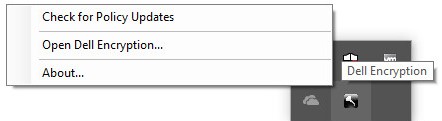
- In the Windows System Tray, right-click the Dell Encryption icon and then select Open Dell Encryption.
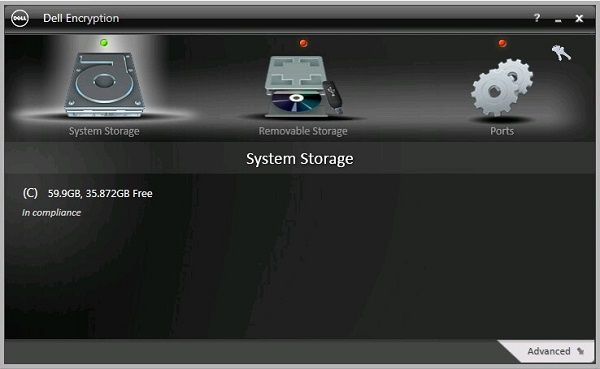
- Click the key icon in the upper right.
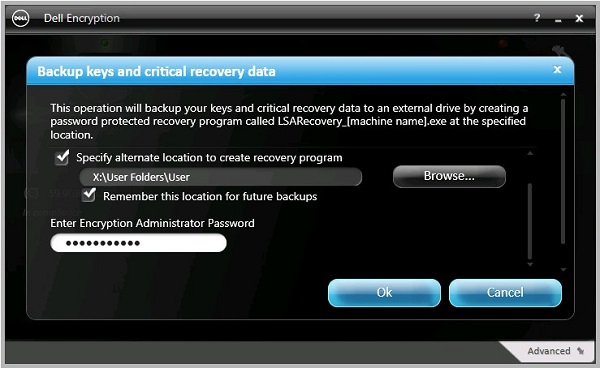
- From the Backup keys and critical recovery data menu:
- Check Specify alternate location to create recovery program.
- Click to Browse to a secondary storage device.
- Optionally, check Remember this location for future backups.
- Populate the Encryption Administrator Password.
- Click OK.
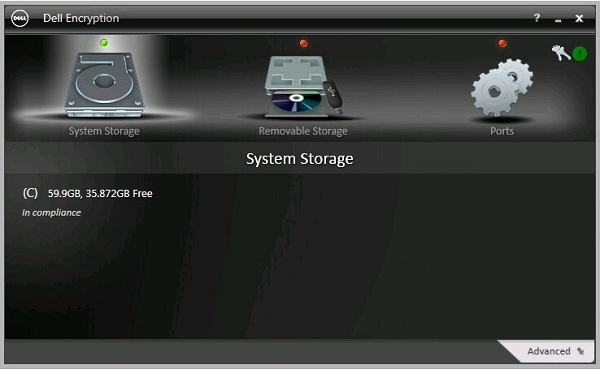
- The key icon (Step 2) displays a green ! icon beside it upon completion of the backup.
- The
LSARecovery_[NAME]appears in the location chosen (Step 4).

Note:
[NAME] = Name of the endpoint
- Log in to the Windows computer.
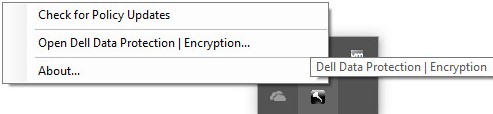
- In the Windows System Tray, right-click the Dell Data Protection | Encryption icon and then select Open Dell Data Protection | Encryption.
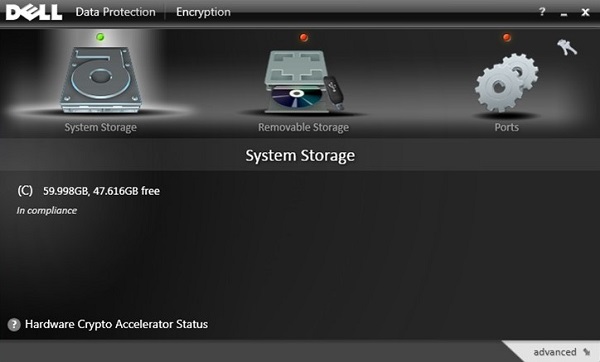
- Click the key icon in the upper right.
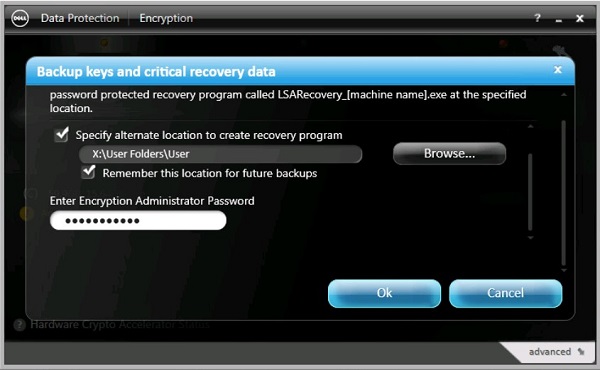
- From the Backup keys and critical recovery data menu:
- Check Specify alternate location to create recovery program.
- Click to Browse to a secondary storage device.
- Optionally, check Remember this location for future backups.
- Populate the Encryption Administrator Password.
- Click OK.
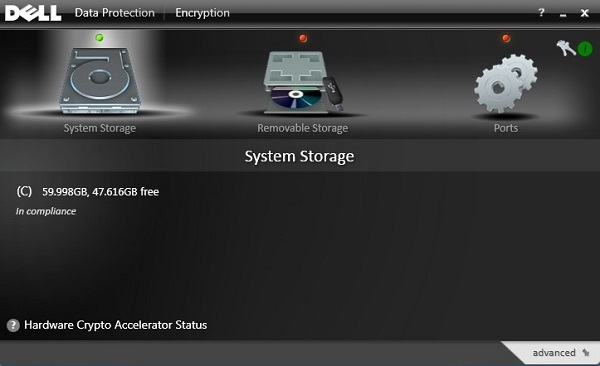
- The key icon (Step 2) displays a green ! icon beside it upon completion of the backup.
- The
LSARecovery_[NAME]appears in the location chosen (Step 4).

Note:
[NAME] = Name of the endpoint
- Log in to the Windows computer.
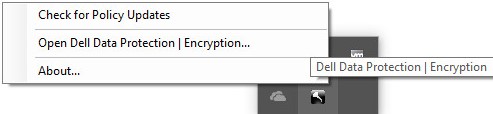
- In the Windows System Tray, right-click the Dell Data Protection | Encryption icon and then select Open Dell Data Protection | Encryption.
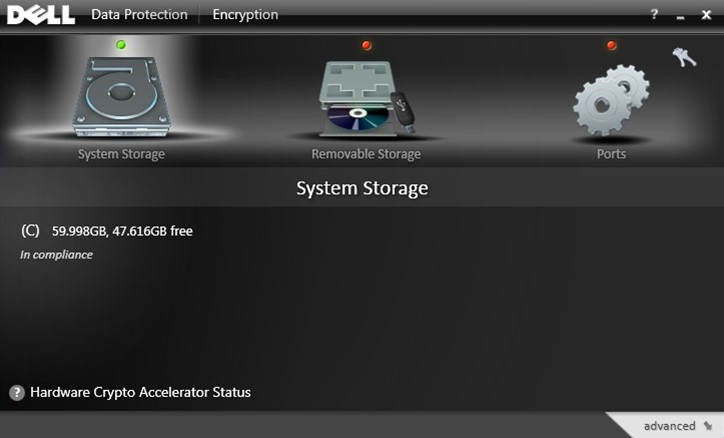
- Click the key icon in the upper right.
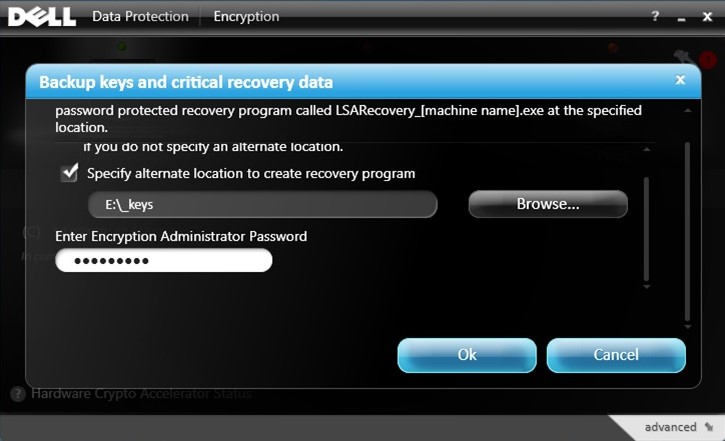
- From the Backup keys and critical recovery data menu:
- Check Specify alternate location to create recovery program.
- Click to Browse to a secondary storage device.
- Populate the Encryption Administrator Password.
- Click OK.
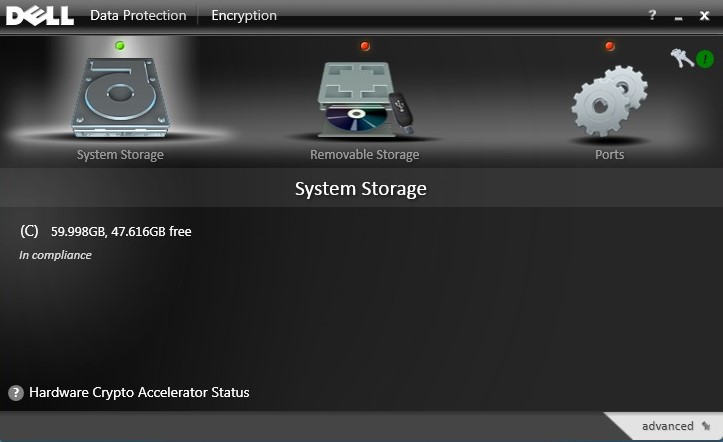
- The key icon (Step 2) displays a green ! icon beside it upon completion of the backup.
- The
LSARecovery_[NAME]appears in the location chosen (Step 4).

Note:
[NAME] = Name of the endpoint
To contact support, reference Dell Data Security International Support Phone Numbers.
Go to TechDirect to generate a technical support request online.
For additional insights and resources, join the Dell Security Community Forum.
Additional Information
Videos
Affected Products
Dell EncryptionArticle Properties
Article Number: 000126842
Article Type: Solution
Last Modified: 24 Oct 2023
Version: 9
Find answers to your questions from other Dell users
Support Services
Check if your device is covered by Support Services.