How to Disable OTB Logging in Dell Security Management Server
Summary: This article provides information about how to disable on-the-box (OTB) logging on Dell Security Management Server (formerly Dell Data Protection | Enterprise Edition).
This article applies to
This article does not apply to
This article is not tied to any specific product.
Not all product versions are identified in this article.
Symptoms
Affected Products:
- Dell Security Management Server
- Dell Data Protection | Enterprise Edition
- Dell Security Management Server Virtual
- Dell Data Protection | Virtual Edition
Affected Platforms:
- Windows
- Linux
Cause
Not Applicable
Resolution
As of 8.0, Dell Security Management Servers process On-The-Box entitlements.
This allows corporations to purchase computers with Dell Security Management Server licenses tied to them.
When they activate against a Dell Security Management Server, we reach out to cloud.dell.com over 443 to check for entitlements using the Service Tag or Serial Number that was sent to the Dell Security Management Server during activation.
If computers are purchased without entitlements, we still reach out to the entitlement services at cloud.dell.com to check for entitlements even if the computer is not dell or does not provide a service tag.
Choose your server type:
Choose your server version:
To disable this OTB logging:
- Modify the log4j.xml file. By default, this file is in
C:\Program Files\Dell\Enterprise Edition\Security Server\conf\ - Adding the section of XML below between other logger properties in the log4j2.xml configuration file removes these entries in the logs:
<Logger name="RIGHTS" additivity="false" level="FATAL">
    <AppenderRef ref="ROLLING_FILE"/>
    <AppenderRef ref="CONSOLE"/>
</Logger>
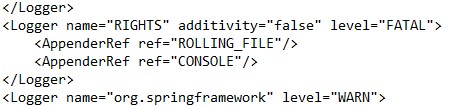
Figure 1: (English Only) Add XML code to log4j2.xml file
- Save this file.
- Restart the Security Server service.
To disable this OTB logging:
- Modify the log4j.xml file. By default, this file is in
C:\Program Files\Dell\Enterprise Edition\Security Server\conf\ - Adding the section of XML below between other logger properties in the log4j2.xml configuration file removes these entries in the logs:
 <logger name="RIGHTS">
    <level value="FATAL"/>
 </logger>
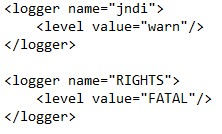
Figure 2: (English Only) Add XML code to log4j2.xml file
- Save this file.
- Restart the Security Server service.
Choose your server version:
To disable this OTB logging:
- Log in to the Dell Security Management Server Virtual administration console.
Note:
- The default credentials for Dell Security Management Server Virtual are:
- Username:
delluser - Password:
delluser
- Username:
- An administrator can change the default password within the product’s virtual appliance menu.
- From the Main Menu, select Launch Shell and then press Enter.
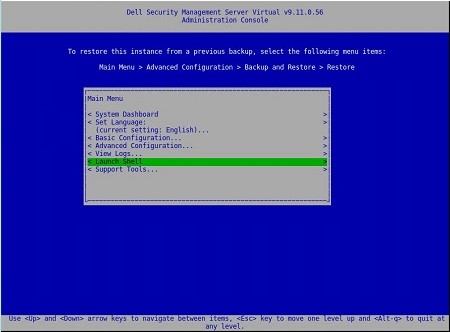
Figure 3: (English Only) Launch Shell
- Change the user to
dellsupportusing thesu dellsupportcommand.

Figure 4: (English Only) Change user
- Confirm the password for the
dellsupportuser.

Figure 5: (English Only) Confirm Password
- Open
/opt/dell/server/security-server/conf/log4j2.xmlusing the commandsudo nano /opt/dell/server/security-server/conf/log4j2.xmland then go to the <logger> tags.
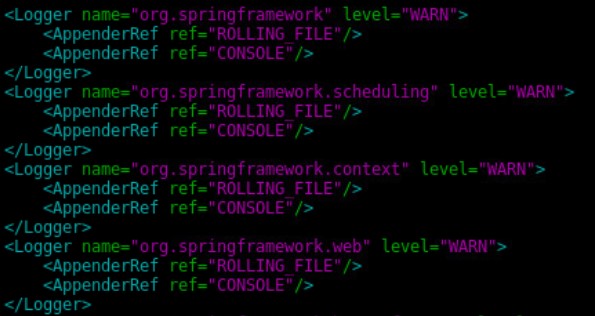
Figure 6: (English Only) Open Log4j2.xml file
- Add a logger section using the following XML tags.
<Logger name="RIGHTS" additivity="false" level="FATAL">
<AppenderRef ref="ROLLING_FILE"/>
<AppenderRef ref="CONSOLE"/>
</Logger>
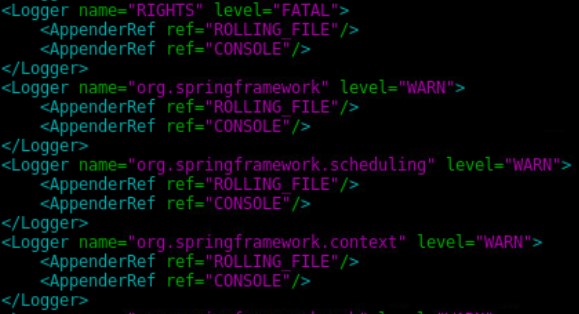
Figure 7: (English Only) Add the logger section to the log4j.xml file
- Press CTRL + X to exit.

Figure 8: (English Only) Exit
- Press Y to save the changes and then press Enter to confirm the file name.

Figure 9: (English Only) Confirm file name
- Type
exitand then press Enter to log out ofdellsupport.

Figure 10: (English Only) Exit out of dellsupport
- Type
exitand then press Enter to log out of the shell to the Main Menu.

Figure 11: (English Only) Exit back to main menu
- Restart all services.
Note: For more information, reference How to Stop and Start Services in Dell Security Management Server Virtual / Dell Data Protection Virtual Edition.
To disable this OTB logging:
- Log in to the Dell Security Management Server Virtual administration console.
Note:
- The default credentials for Dell Security Management Server Virtual are:
- Username:
delluser - Password:
delluser
- Username:
- An administrator can change the default password within the product’s virtual appliance menu.
- From the Main Menu, select Launch Shell and then press Enter.
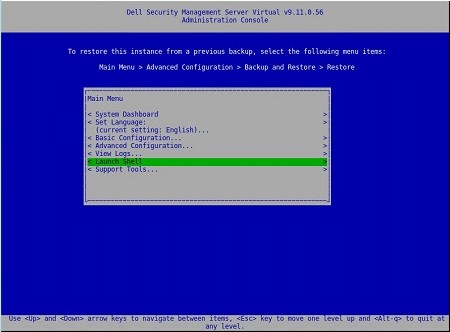
Figure 12: (English Only) Launch Shell
- Change the user to
dellsupportusing thesu dellsupportcommand.

Figure 13: (English Only) Change user
- Confirm the password for the
dellsupportuser.

Figure 14: (English Only) Confirm password
- Open
/opt/dell/server/security-server/conf/log4j.xmlusing the commandsudo nano /opt/dell/server/security-server/conf/log4j.xmland then go to the <logger> tags.
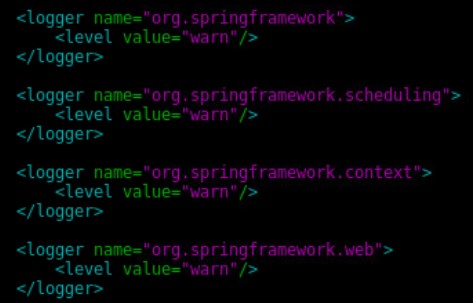
Figure 15: (English Only) Open log4j.xml file
- Add a logger section using the following XML tags.
<logger name="RIGHTS">
   <level value="FATAL"/>
</logger>
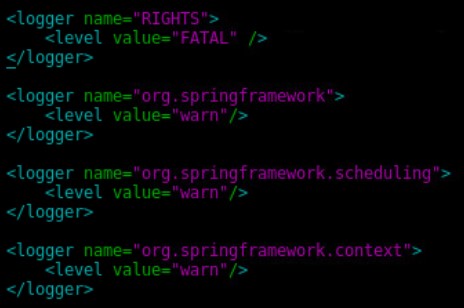
Figure 16: (English Only) Add the logger section to the log4j.xml file
- Press CTRL + X to exit.

Figure 17: (English Only) Exit
- Press Y to save the changes and then press Enter to confirm the file name.

Figure 18: (English Only) Confirm file name
- Type
exitand then press Enter to log out ofdellsupport.

Figure 19: (English Only) Log out of dellsupport
- Type
exitand then press Enter to log out of the shell to the Main Menu.

Figure 20: (English Only) Exit to Main Menu
- Restart all services.
Note: For more information, reference How to Stop and Start Services in Dell Security Management Server Virtual / Dell Data Protection Virtual Edition.
To contact support, reference Dell Data Security International Support Phone Numbers.
Go to TechDirect to generate a technical support request online.
For additional insights and resources, join the Dell Security Community Forum.
Affected Products
Dell EncryptionArticle Properties
Article Number: 000131029
Article Type: Solution
Last Modified: 11 Jan 2024
Version: 11
Find answers to your questions from other Dell users
Support Services
Check if your device is covered by Support Services.