Fan Noise on Dell DCXXXXX, Dell Pro Essential, Inspiron, XPS, Vostro, Mobile Precision, Latitude Laptops
Summary: The following article provides information about using the Dell Power Manager (DPM) and MyDell utilities to reduce fan noise on Dell Laptops.
This article applies to
This article does not apply to
This article is not tied to any specific product.
Not all product versions are identified in this article.
Symptoms
Dell DCXXXXX, Dell Pro Essential, Inspiron, XPS, Vostro, Mobile Precision, and Latitude laptop owners may find that under normal usage, the fan noise sometimes seems high.
Cause
This is due to thermal control limitations.
Resolution
See the step-by-step instructions on how to improve the fan noise.
Commercial Laptops such as Latitude, Mobile Precision Workstations, and Pro Essential
Dell Power Manager Service (DPM) 3.0 may be able to reduce the fan noise. Perform the following steps to install it:
-
Open the Settings page from the start menu. Click Apps.
-
Check in Apps & features to see if your laptop came with Dell Power Manager Service preinstalled. (See figure 1.)
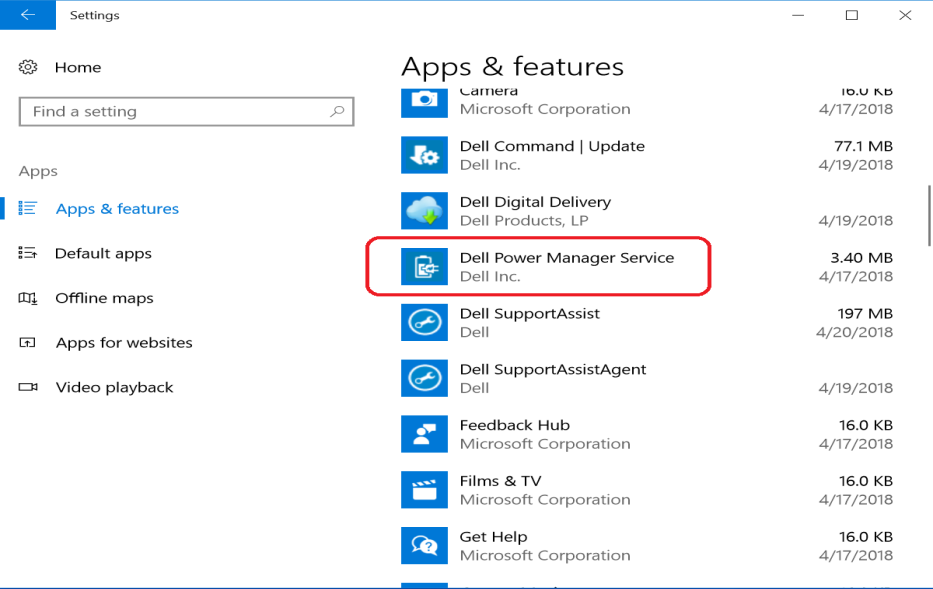
If your laptop has Dell Power Manager Service preinstalled, go to step 5. If not, go to step 3.
-
Go to Dell Drivers & Downloads to download the DPM 3.0 service application.
-
Input your Service Tag or System Model to search for the correct download page for your laptop.
Note: The following article guides you through identifying your laptop: What Kind of Computer Do I Have by Finding Your Dell Model Number-
On the Drivers & Downloads page, select the Systems Management category to locate the application.
-
Download Dell Power Manager Service.
-
- Install the DPM Service application by following the on-screen installation wizard.
Note: The installation wizard prompts you to install the Dell Power Manager application. Click the OK button to continue to install the DPM Service. (See figure 2.)
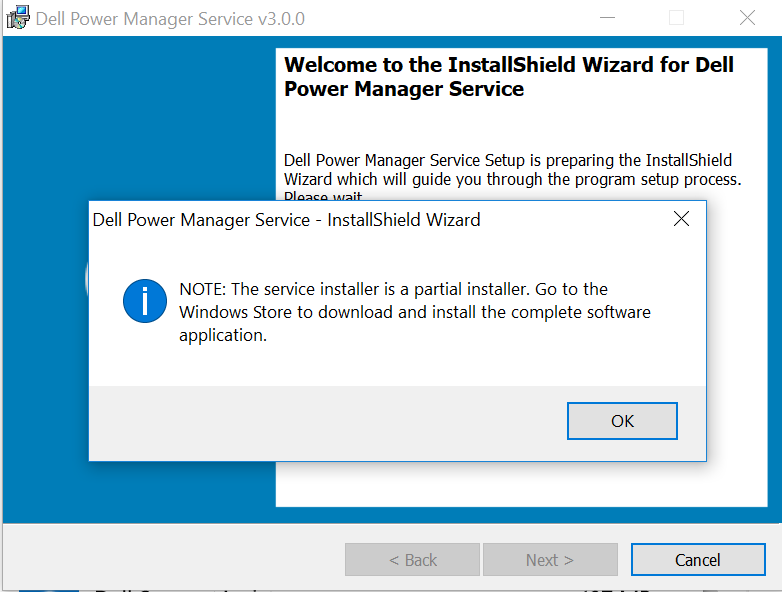
-
After the DPM Service is installed, open the Windows Store and search for Dell Power Manager. Click the Get button to install. (See figure 3.)

-
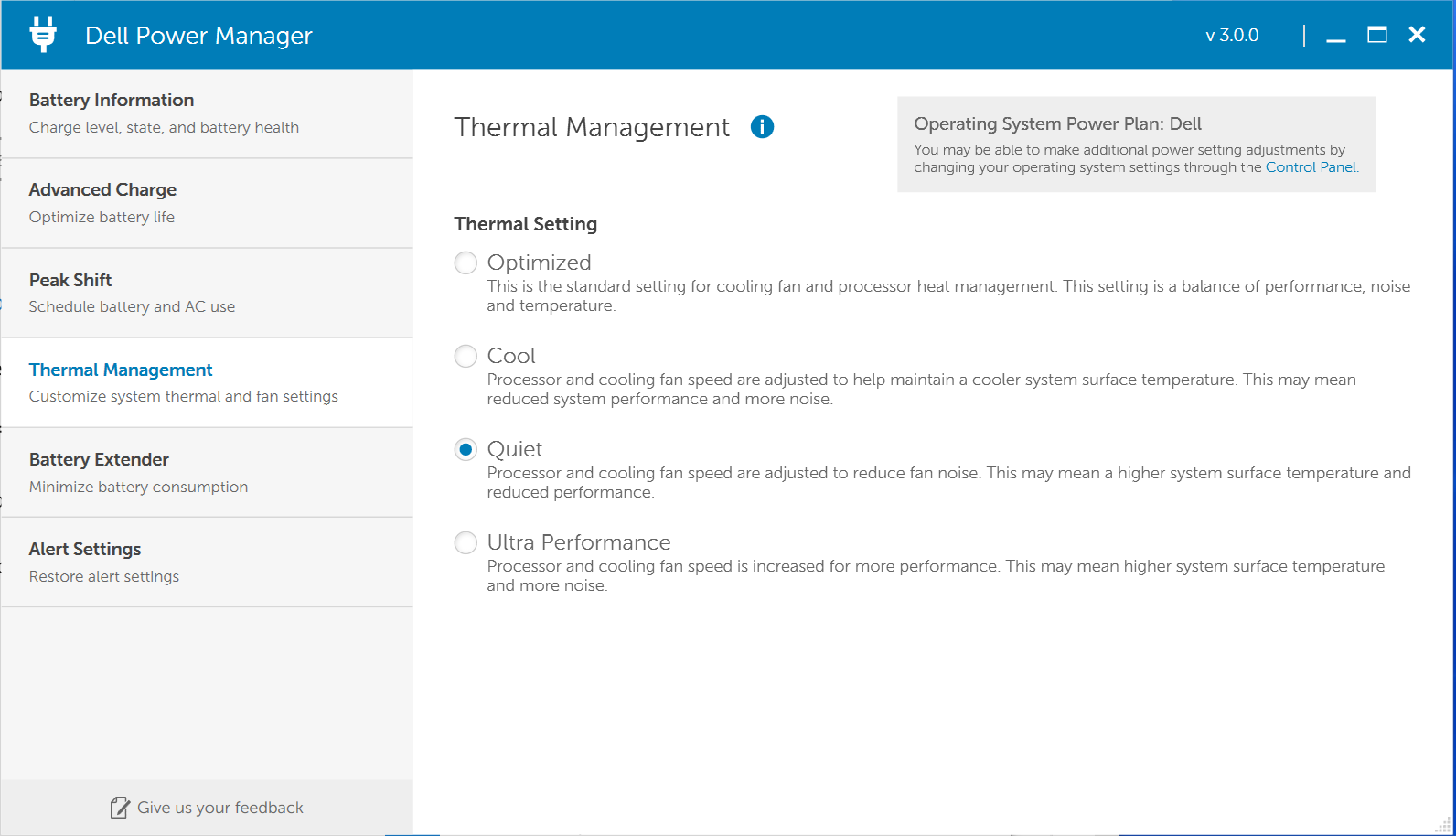
Launch Dell Power Manager. Click Thermal Management in the left pane.
-
Four thermal settings are shown. The default setting is Optimized, which balances performance, noise, and temperature. The Quiet setting reduces the cooling fan and processor speeds are to reduce fan noise. However, this configuration may reduce performance and raise the laptop's surface temperature. (See figure 4.)
Consumer Laptops such as XPS, Inspiron, Vostro, Dell DCXXXXX
The MyDell application may be able to reduce the fan noise. Perform the following steps to install it:
-
Install MyDell from the Microsoft Store.
-
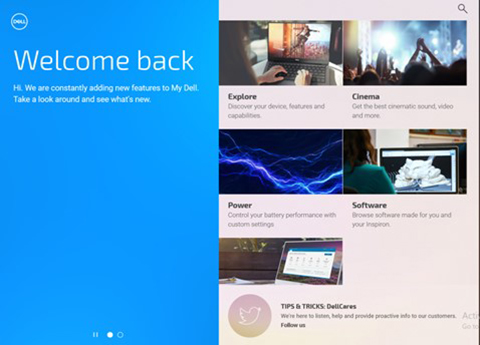
Open MyDell. (See figure 5.)
-
Click Power. (See figure 6.)

-
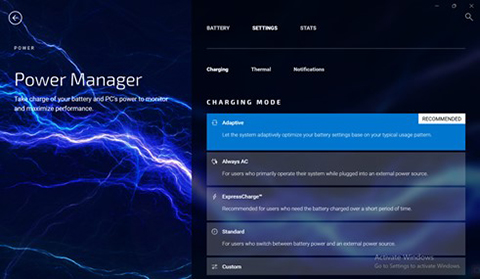
Go to Settings. (See figure 7.)
-
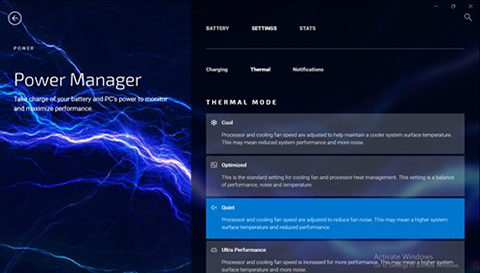
Click Thermal and select Quiet. (This may reduce performance and increase the laptop's surface temperature. See Figure 8.)
See these Dell Knowledge Base articles for related information:
Affected Products
Dell 14 DC14250, Dell 14 DC14255, Dell Pro 14 Essential PV14250, Dell Pro 14 Essential PV14255, Dell Venue 10 Pro 5056, Venue 7140 Pro, Dell Venue 8 Pro 5855, Inspiron 7390 2-in-1, Inspiron 7391 2-in-1, Inspiron 14 5440, Inspiron 14 5445
, Inspiron 7590 2-in-1, Inspiron 7591 2-in-1, Inspiron 7791 2-in-1, Latitude 3189, Latitude 3190, Latitude 5280/5288, Latitude 5285 2-in-1, Latitude 5289 2-in-1, Latitude 7214 Rugged Extreme, Latitude 7280, Latitude 7285 2-in-1, Latitude 3340, Latitude 13 3379 2-in-1, Latitude 13 3380, Latitude 7350 2-in-1 (End of Life), Latitude 7370, Latitude 7380, Latitude 7389 2-in-1, Dell Latitude 3480/3488, Latitude 3490, Latitude 5414 Rugged, Latitude 5480/5488, Latitude 5490, Latitude 5495, Latitude 7414 Rugged, Latitude 7480, Latitude 3510, Dell Latitude 3580/3588, Latitude 3590, Latitude 5580, Latitude 5591, Latitude 7520, Latitude 3150, Latitude 3160, Latitude 3460, Latitude 3560, Latitude 3570, Latitude 5175 2-in-1, Latitude 5179 2-in-1, Latitude 5404 Rugged, Latitude 6430u, Latitude 7204 Rugged, Latitude 7275, Latitude 7404 Rugged, Latitude E5250/5250, Latitude E5270, Latitude E5450/5450, Latitude E5470, Latitude E5550/5550, Latitude E5570, Latitude E6420 XFR, Latitude E6440, Latitude E6540, Latitude E7240 Ultrabook, Latitude E7250/7250, Latitude E7270, Latitude E7440, Latitude E7450, Latitude E7470, Latitude XT3, MyDell, Precision 3520, Precision 5520, Precision 5550, Precision 7720, Precision M4700, Precision 5510, Precision M6700, Precision 7510, Precision 7710, XPS 13 9300, XPS 13 9343, XPS 13 9350, XPS 13 9360, XPS 13 9365 2-in-1, XPS 15 9500, XPS 15 9550
...
Article Properties
Article Number: 000132117
Article Type: Solution
Last Modified: 17 Oct 2025
Version: 14
Find answers to your questions from other Dell users
Support Services
Check if your device is covered by Support Services.