PowerFlex: General Procedures to Onboard PowerFlex Systems to Dell AIOps
Summary: This article describes the onboarding process for PowerFlex Systems to Dell AIOps.
This article applies to
This article does not apply to
This article is not tied to any specific product.
Not all product versions are identified in this article.
Instructions
Dell AIOps Overview
Dell AIOps is a cloud-based application that leverages machine learning to proactively monitor and measure the overall health of Dell IT infrastructure systems through intelligent, comprehensive, and predictive analytics.
This article covers Dell AIOps connectivity for:
- PowerFlex appliance, PowerFlex rack, or PowerFlex software (v4.0+) using PowerFlex Manager
- PowerFlex software (v3.6) or Ready node solution using the PowerFlex Gateway
Onboarding - PowerFlex 4.0 and later
Note: For earlier PowerFlex versions, see the next procedure, below.
Prerequisites - Using PowerFlex Appliance, PowerFlex Rack, or PowerFlex Software using PowerFlex Manager
- General requirements:
- Users who log in to Dell AIOps must have Dell Support credentials
See How to Register for Access to Dell Technologies Online Support or Upgrade an Existing AccountGeneral requirements - All devices used with Dell AIOps must be under a ProSupport (or higher) contract to successfully send data to Dell AIOps
To check for ProSupport coverage, enter the service tag for devices on the Support Services & Warranty page - User with admin credentials to PowerFlex
- Users who log in to Dell AIOps must have Dell Support credentials
- One of the following:
- PowerFlex Appliance
- PowerFlex Rack
- PowerFlex Software
- Secure connect gateway
- Minimum PowerFlex version - 4.0
- Minimum PowerFlex Manager - 4.0
- Configurations
- PowerFlex system license is configured
- The system is registered with a secure connect gateway
Procedure - Using PowerFlex Appliance, PowerFlex Rack, or PowerFlex Software using PowerFlex Manager
- Enter the IP address of the appliance in a browser and log in to PowerFlex Manager using admin credentials.
- From PowerFlex Manager, go to Settings > Events and Alerts.
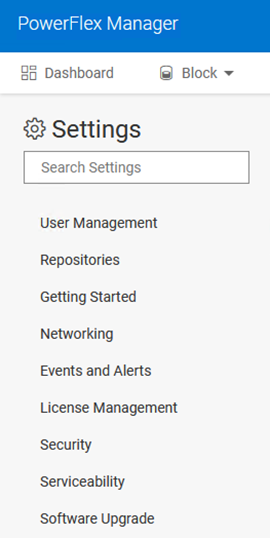
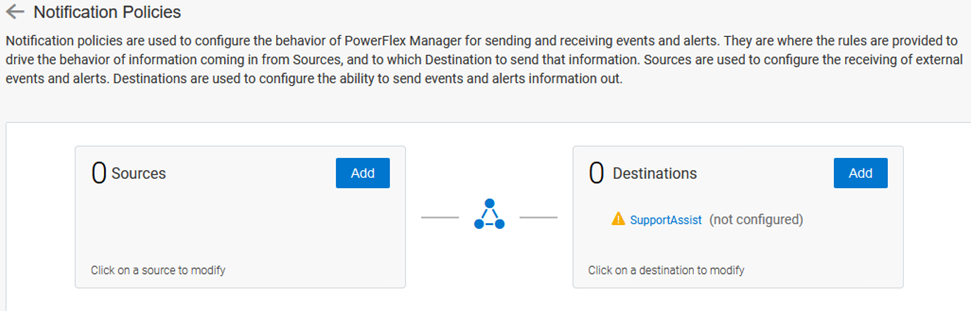
- Click Notification Policies.

- Click SupportAssist (for PowerFlex Manager versions under 4.8) or Dell Technologies Connectivity Services (for version 4.8 and later).
Note: If using Dell Technologies Connectivity Services, you can continue using this procedure as the interface is nearly identical to SupportAssist. It does, however, refer to Dell Technologies Connectivity Services where the screenshots and instructions here reference SupportAssist.
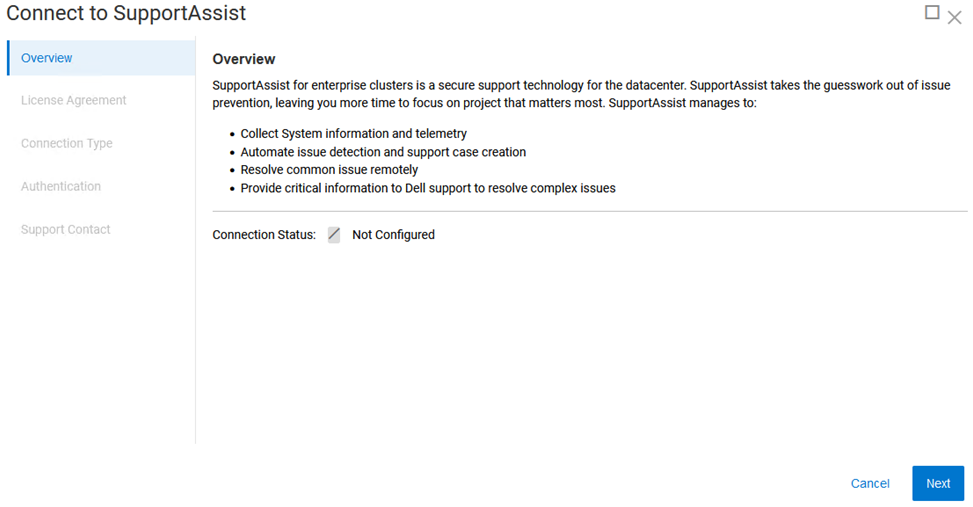
- On the Overview screen, click Next.
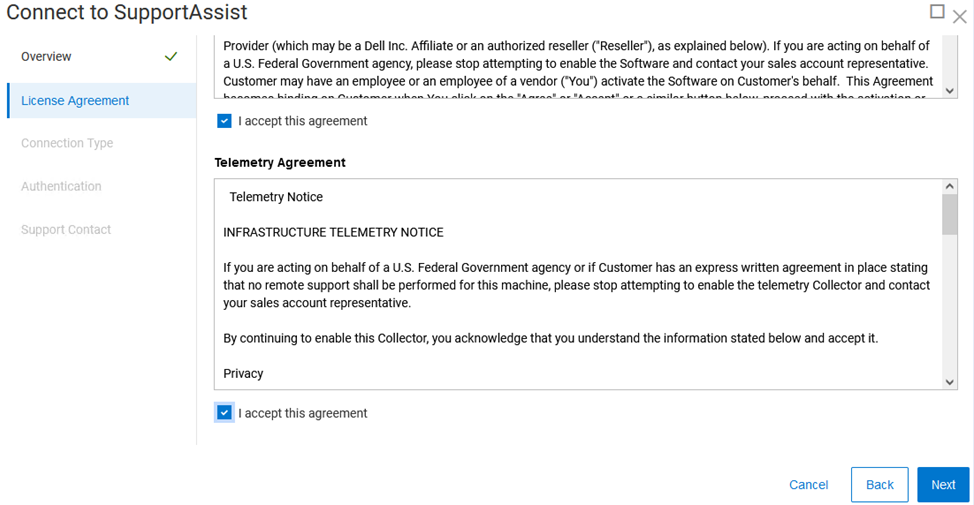
- On the License Agreement screen, accept the License Agreement and Telemetry Agreement and click Next.
- On the Connection type screen, select Connect Directly if using Embedded Service Enabler (ESE) or Connect using Gateway Server if using centralized secure connect gateway.
When selecting Connect using Gateway Server, enter the secure connect gateway IP address.
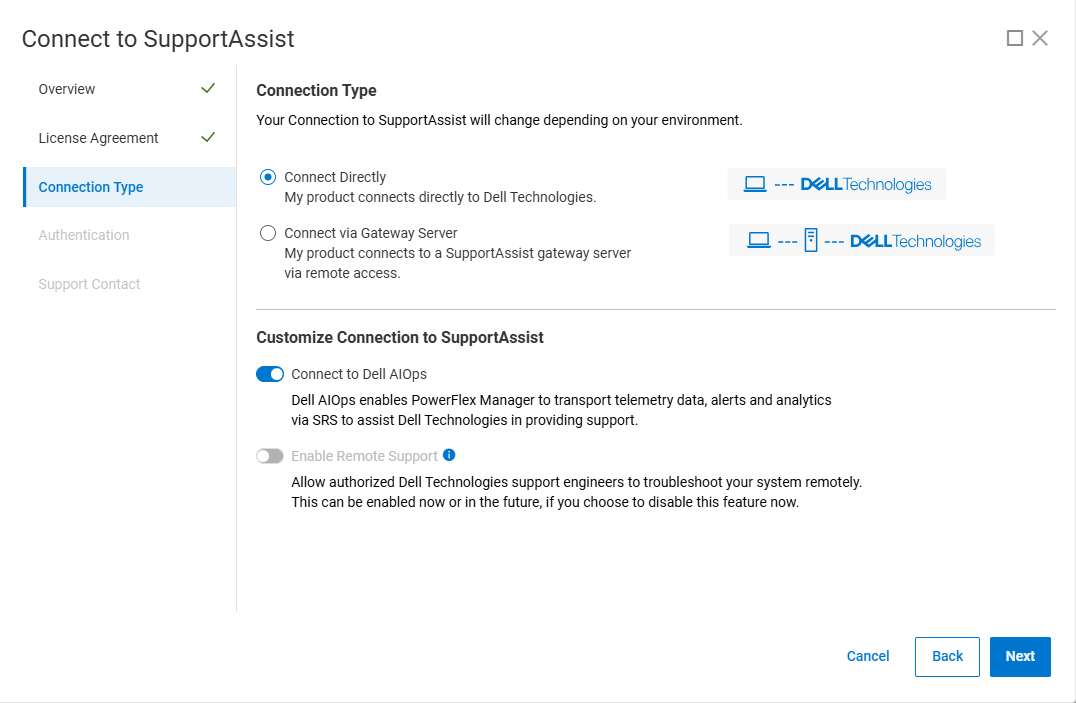
- Ensure that Connect to Dell AIOps is selected, then click Next.
Note: For PowerFlex Manager prior to v4.8, this option is called Connect to CloudIQ.
- On the Authentication screen, enter your Access Key and PIN, and select your device Type.
Select your configuration from the Type list:
- PowerFlex appliance
- PowerFlex rack
- PowerFlex software
For PowerFlex appliance and PowerFlex rack, the following information is required; ELMS Software Unique ID, Solution Serial Number, and Site ID.
PowerFlex software requires only the Access Key and PIN.
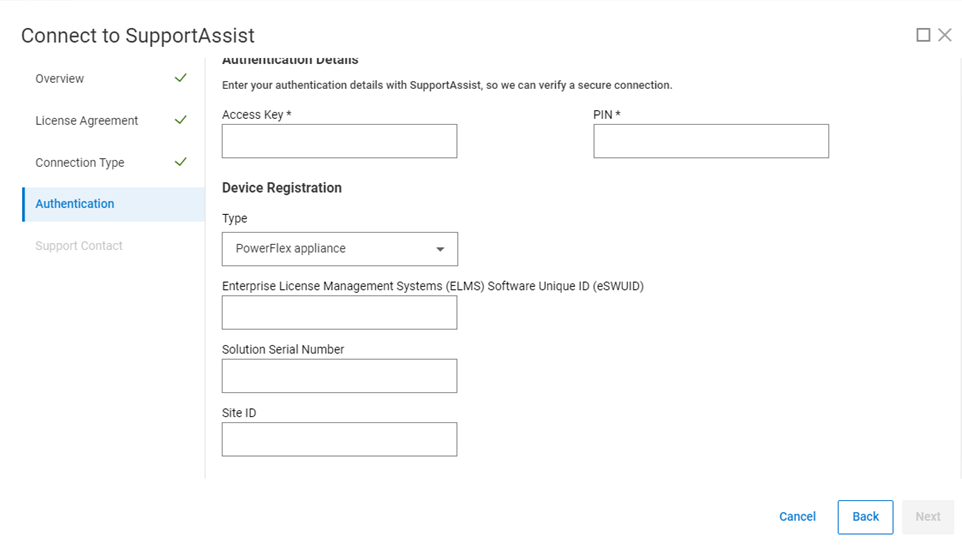
To obtain the information shown:
- Generate an Access Key and PIN. See Generate Access Key and PIN for Dell Products
- Find your eSWUID:
In PowerFlex Manager, go to Settings > Licenses Management > PowerFlex License > Production License.
The eSWUID is in the following format:
PowerFlex Software = ELMSIOxxx
PowerFlex Appliance = ELMVXFxxx
PowerFlex Rack = ELMVXRxxx
PowerFlex Appliance = ELMVXFxxx
PowerFlex Rack = ELMVXRxxx
- Find your Solution Serial Number:
Look on the back of the PowerFlex rack or appliance. The number appears in this format:
PowerFlex Appliance = ELMVXFxxx
PowerFlex Rack = ELMVXRxxx
You must contact Dell Support if you do not know your Site ID.
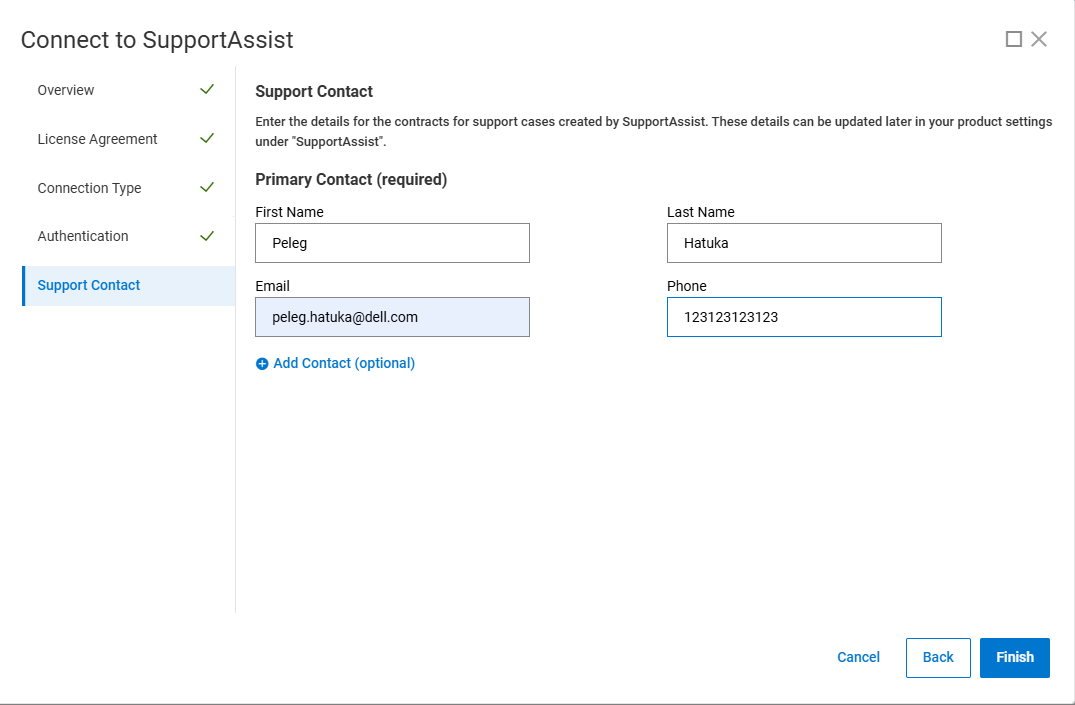
- On the Support Contact screen, enter contact information for the primary support contact.
-
Wait for the changes to apply, then click Finish to complete the configuration.
Accessing Dell AIOps
- Log in to Dell AIOps at https://aiops.dell.com/ using your Dell ProSupport credentials.
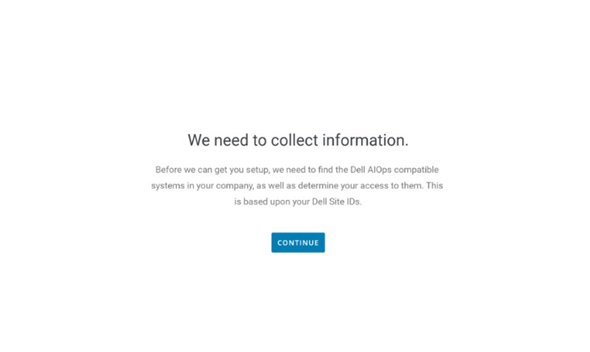
New users logging in to Dell AIOps step through the following onboarding screens:


- Dell AIOps retrieves the systems that are associated to the user's site IDs based on their support credentials and displays a success message when the process completes.
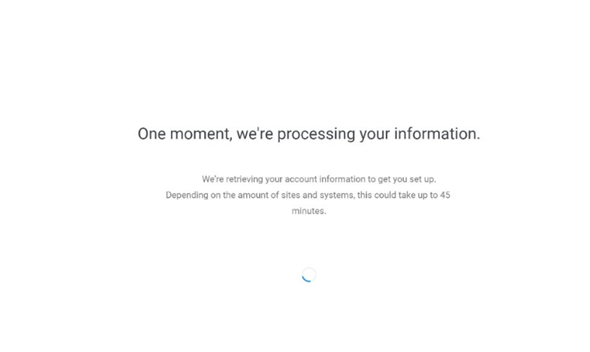
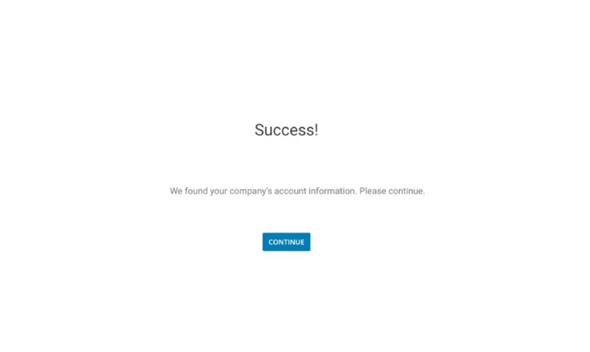
- Upon logging in to Dell AIOps, the user sees all systems that are successfully sending data to Dell AIOps. In situations where the user has not successfully configured systems to send data to Dell AIOps, they are directed to the Connectivity page in the Dell AIOps UI. The Connectivity page is where they see their Dell AIOps-compatible systems.

Onboarding - PowerFlex 3.6.x
Prerequisites - Using PowerFlex software or Ready node using PowerFlex Gateway
Note: Dell AIOps does not support a PowerFlex 3.6.0 Gateway with older versions of PowerFlex software components. For Dell AIOps support, PowerFlex operating system must be 3.6 or later.
- General requirements
- Users who log in to Dell AIOps must have Dell Support credentials
See How to Register for Access to Dell Technologies Online Support or Upgrade an Existing Account - All devices used with Dell AIOps must be under a ProSupport (or higher) contract to successfully send data to Dell AIOps
To check for ProSupport coverage, enter the service tag for devices on the Support Services & Warranty page - User with admin credentials for PowerFlex
- Users who log in to Dell AIOps must have Dell Support credentials
- Minimum Secure Remote Services version - 3.46.00.04
- Minimum PowerFlex version - 3.6.0
- Operating system packages
- Same operating system dependencies used by Gateway without Dell AIOps
- Operating system package to create .zip files
- Required configurations
- PowerFlex Gateway Lockbox is configured
- PowerFlex system license is configured
- The system is registered with Secure Remote Services Gateway
- Support for Upload of Large Files
- Some older systems use only a single 1 GbE network interface for Gateway management connectivity. Depending on the scale of the system, uploading Dell AIOps data may inhibit or slow down other Gateway operations.
- A 10 GbE or bonded 1 GbE interface is recommended.
Procedure - Using PowerFlex software or Ready node using PowerFlex Gateway
- From a web browser, enter the IP address of the PowerFlex Gateway and log in to the PowerFlex Installer.
- Go to the Maintain tab and enter the following information:
Note: Refer to this page for help.
- Primary metadata manager (MDM) IP address
- MDM admin username and password
- LIA authentication type
- LIA password
- Click Retrieve the system topology.
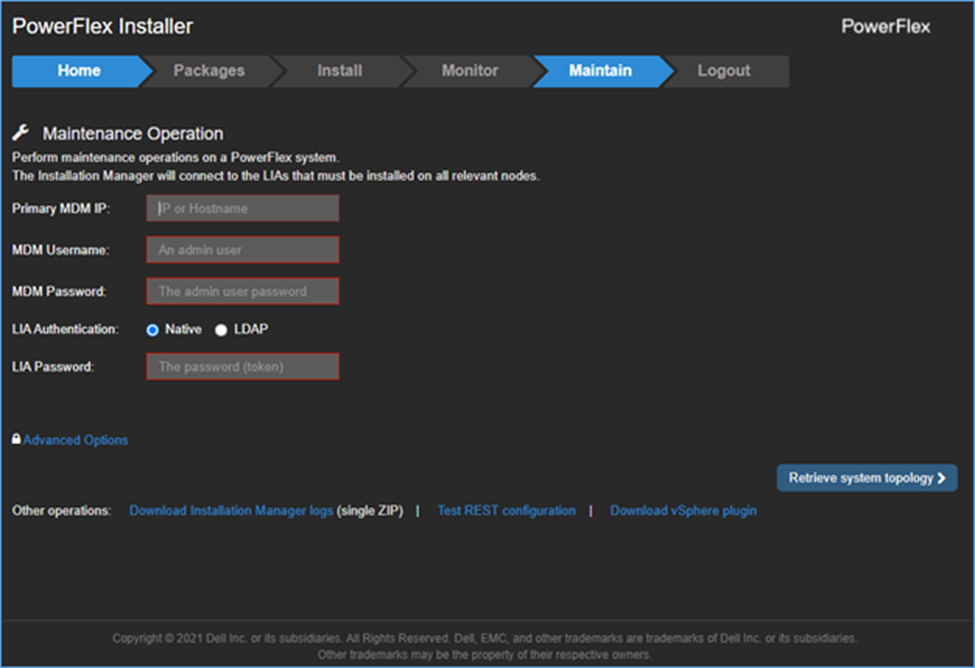
- On the Maintain tab, select System Logs and Analysis.
- Verify that PowerFlex is registered to Secure Remote Services.
If it is not, click Register PowerFlex system to Secure Remote Services and enter Secure Remote Services gateway information.
Note: Dell user account passwords cannot include special characters. Since this is a one-time event, you can temporarily set a simple password and revert to a secure password after registering the PowerFlex system with Secure Remote Services.
Complete this information to register PowerFlex to Secure Remote Services:
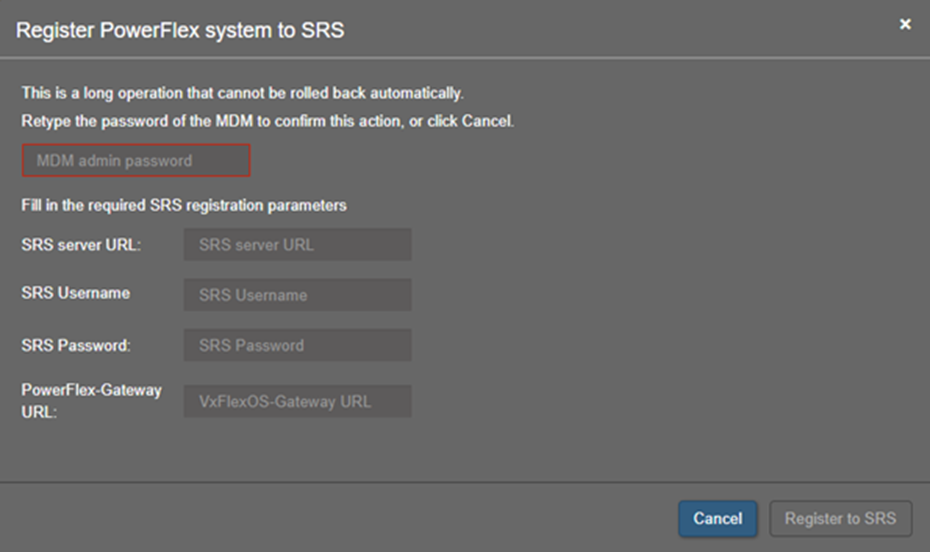
- After PowerFlex is registered with Secure Remote Services, verify the Send data to CloudIQ option is selected. This option is enabled by default.|
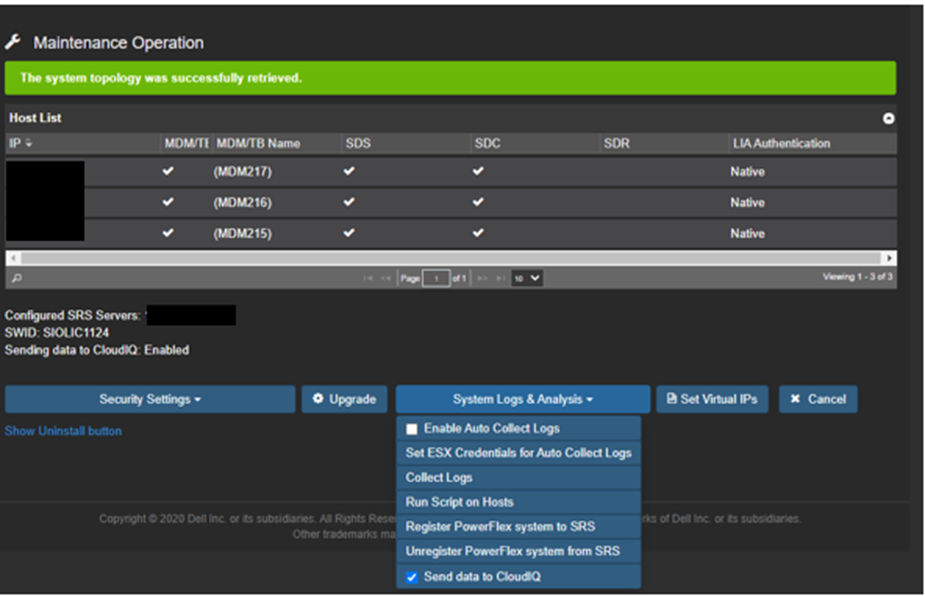
- Continue to the Dell AIOps UI. See "Accessing Dell AIOps," above.
Article Properties
Article Number: 000187624
Article Type: How To
Last Modified: 29 Oct 2025
Version: 19
Find answers to your questions from other Dell users
Support Services
Check if your device is covered by Support Services.