PowerEdge: How to configure, manage and deploy server profiles from the IDRAC console.
Summary: Systems Management How to Video that covers how to configure, manage and deploy server profiles from the IDRAC console.
This article applies to
This article does not apply to
This article is not tied to any specific product.
Not all product versions are identified in this article.
Instructions
iDRAC Server Configuration Profiles
Duration: 00:10:20 (hh:mm:ss)
When available, closed caption (subtitles) language settings can be chosen using the CC icon on this video player.
Server Configuration Profile Basics:
What is SCP?:
-
Single file that holds configuration value for BIOS, iDRAC, NIC, Alerting, and RAID configuration
-
Can include one or many different configuration component FQDDs
-
Best used to capture a "golden image" to deploy to many servers
-
Used by multiple products for their configuration compliance, like OpenManage Enterprise and OMIVV
SCP Formatting:
-
Each section is divided by Component FQDD:
<Component FQDD="BIOS.Setup.1-1">
-
Followed by list of attributes:
<Attribute Name="LogicalProc">Enabled</Attribute>
-
Followed by closing of the Component:
</Component>
Pulling a Server Configuration Profile:
Types of Export:
-
BASIC - Non-Destruction snapshot of configuration
-
REPLACEMENT - Rarely used. Designed to restore a server to an identical configuration. Destructive and includes system-specific details like Service Tag.
-
CLONE - Capture golden image to deploy. Destructive of all attributes, including RAID. I/O Identity is not cloned
Export from the Web User Interface:
-
Configuration > Server Configuration Profile > Export
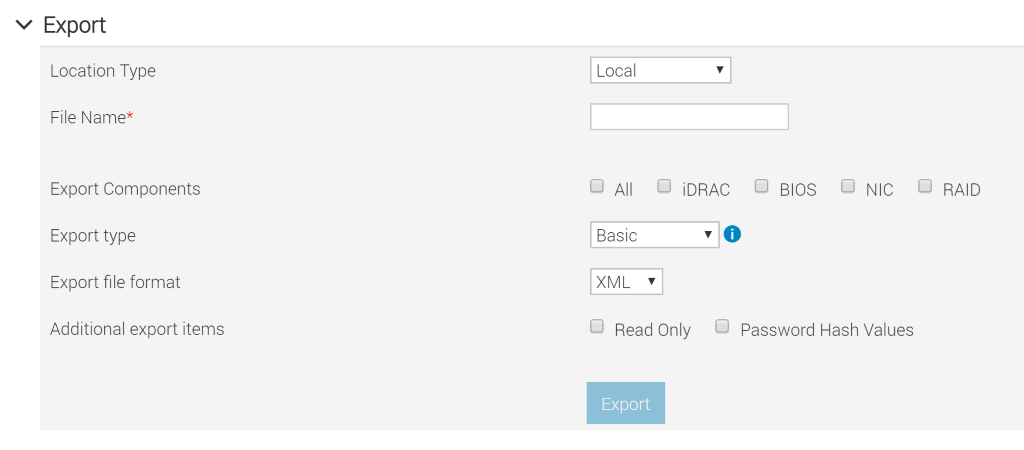
-
Configure the location type if exporting logs to a share
-
The file name does not require to include file type
-
Select Export Components
Note: Selecting ALL does not pull ALL. Eventfilters will definitely be excluded unless you pull using command line.
-
Password Hash values will allow user Passwords to be exported and hashed for future import to clone iDRAC local users
Export from racadm:
-
Command to pull all attributes:
racadm get –t xml –f c:\idrac.xml
-
--cloneand–includephare commonly used for a true clone
Export from Redfish:
-
Make a POST method call to:
https://iDRAC/redfish/v1/Managers/iDRAC.Embedded.1/Actions/Oem/EID_674_Manager.ExportSystemConfiguration -
Check out ExportSystemConfigurationNetworkShareREDFISH.py from the Dell Redfish GitHub for scripting example
Importing a Server Configuration Profile:
Best Practices Before Importing:
-
Remove RAID Config unless you want to include it on purpose
-
LDAP Bind Password has to be entered in manually
-
Comment or delete any values under the BIOS System Profile unless changing it to Custom
-
Do not include Boot Order unless the Bootable Devices are identical
Import from the user interface:
-
Configuration > Server Configuration Profile > Import
-
Configure shutdown type to apply the profile
-
iDRAC and EventFilter attributes do not require a reboot
Note: Selecting No Reboot will make iDRAC and Eventfilters not set immediately.
Import from racadm:
-
Command to pull all attributes:
racadm set –t xml –f c:\idrac.xml
Import from Redfish:
-
Make a call to:
https://iDRAC/redfish/v1/Managers/iDRAC.Embedded.1/Actions/Oem/EID_674_Manager.ImportSystemConfiguration
Check out ImportSystemConfigurationLocalREDFISH.py from the Dell Redfish Github for scripting example
Troubleshooting Server Configuration Profile:
SYS047 - Input file for system configuration XML is not compliant with configuration schema.
- Likely the user manually edited it and the formatting is wrong
- Usually a simple edit
- Sometimes doing a clean Clone export is a quicker choice
SYS055 - Import of system configuration XML file operation completed with errors
- The profile was set but at least one attribute could not be configured
- Usually it is setting something that does not exit like Boot Order, or something with a dependency in the BIOS
- Check the Lifecycle Log for details on what did not set.
Note: Exporting it to a file or using the one in the raw TSR gives you the full details.
winrmcommand to get configuration results from WSMAN:
winrm i GetConfigResults "http://schemas.dell.com/wbem/wscim/1/cim-schema/2/DCIM_LCRecordLog?InstanceID=DCIM:LifecycleLog+__cimnamespace=root/dcim” -u:root -p:calvin -r:https://IPADDRESS/wsman -encoding:utf-8 -a:basic -SkipCNcheck -SkipCAcheck @{JobID="JID_123456789"}
Affected Products
iDRAC7, iDRAC8, iDRAC9Products
PowerEdge XR2, Poweredge C4140, PowerEdge C6420, PowerEdge C6520, PowerEdge C6525, PowerEdge C6615, PowerEdge C6620, PowerEdge FC640, PowerEdge M640, PowerEdge M640 (for PE VRTX), PowerEdge MX5016s, PowerEdge MX740C, PowerEdge MX750c
, PowerEdge MX760c, PowerEdge MX840C, PowerEdge R240, PowerEdge R250, PowerEdge R260, PowerEdge R340, PowerEdge R350, PowerEdge R360, PowerEdge R440, PowerEdge R450, PowerEdge R540, PowerEdge R550, PowerEdge R640, PowerEdge R6415, PowerEdge R650, PowerEdge R650xs, PowerEdge R6515, PowerEdge R6525, PowerEdge R660, PowerEdge R660xs, PowerEdge R6615, PowerEdge R6625, PowerEdge R740, PowerEdge R740XD, PowerEdge R740XD2, PowerEdge R7415, PowerEdge R7425, PowerEdge R750, PowerEdge R750XA, PowerEdge R750xs, PowerEdge R7515, PowerEdge R7525, PowerEdge R760, PowerEdge R760XA, PowerEdge R760xd2, PowerEdge R760xs, PowerEdge R7615, PowerEdge R7625, PowerEdge R840, PowerEdge R860, PowerEdge R940, PowerEdge R940xa, PowerEdge R960, PowerEdge T140, PowerEdge T150, PowerEdge T160, PowerEdge T340, PowerEdge T350, PowerEdge T360, PowerEdge T440, PowerEdge T550, PowerEdge T560, PowerEdge T640, PowerEdge XR11, PowerEdge XR12
...
Article Properties
Article Number: 000188050
Article Type: How To
Last Modified: 12 Dec 2024
Version: 7
Find answers to your questions from other Dell users
Support Services
Check if your device is covered by Support Services.