How to Use and Troubleshoot Dell Thunderbolt 4 Docking Station WD22TB4
Summary: This article provides information about how to set up, use, and troubleshoot the Dell Thunderbolt 4 Docking Station WD22TB4. Learn how to download and install drivers. How to set up multiple monitors. How to find troubleshooting steps to resolve common issues. ...
This article applies to
This article does not apply to
This article is not tied to any specific product.
Not all product versions are identified in this article.
Instructions
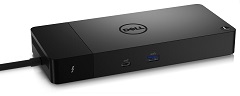
Dell Thunderbolt Docking Station WD22TB4 links all your electronic devices to your laptop using a single Thunderbolt 4 (USB-C) cable. When you connect a supported laptop to the Dell WD22TB4 docking station, you can gain access to all your peripherals. This is without having to plug each device into the laptop. (For Example: The mouse, keyboard, stereo speakers, external hard drive, and large-screen monitors.)
NOTE: Dell Thunderbolt Docking Station WD22TB4 is compatible with Dell laptops that has a USB-C port that supports Thunderbolt 4. Learn how to identify if the USB-C port on your laptop supports Thunderbolt 4. The WD22TB4 docking station works as a WD19 docking station on Dell laptops that has a USB-C port that supports DisplayPort over USB Type-C (DP) alternate mode.
For help with specifications, setup, connecting an external monitor, troubleshooting common issues, and so on, see one of the expanding sections below.
| Laptop Connectivity | Thunderbolt 4 (USB-C) |
|---|---|
| Video ports |
|
| Network ports |
|
| USB ports |
|
| Power or DC-in |
|
| Power Delivery | Dell laptops
|
The Dell Thunderbolt Docking Station WD22TB4 is designed for laptops with USB-C port that support Thunderbolt 4 protocol. Before using the docking station, ensure that your laptop has a USB-C port that supports Thunderbolt 4.
NOTE: The Dell Thunderbolt Docking Station WD22TB4 will function on a device with a USB-C port that supports DisplayPort over USB-C or Thunderbolt 4. When connected to a DisplayPort over USB-C port, the WD22TB4 dock functions as a WD19 dock. Verify that your laptop supports DisplayPort over USB-C or Thunderbolt 4.

Figure 1: Dell Thunderbolt Docking Station WD22TB4 Front Ports
| 1. | USB 3.2 Gen2 Type-C |
|---|---|
| 2. | USB 3.2 Gen1 w/PowerShare |
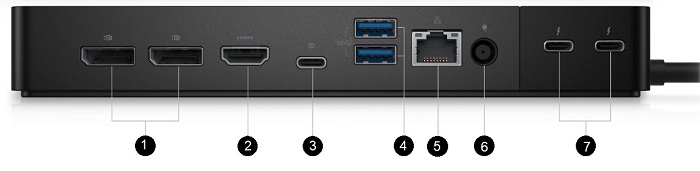
Figure 2: Dell Thunderbolt Docking Station WD22TB4 Rear Ports
| 2. |
|---|
| 1. | 2 x DisplayPort 1.4 |
|---|---|
| HDMI 2.0 | |
| 3. | USB 3.2 Gen2 Type-C w/DP 1.4 Alt Mode |
| 4. | 2 x USB 3.2 Gen1 |
| 5. | Gigabit Ethernet |
| 6. | AC power |
| 7. | 2 x USB Type-C with Thunderbolt 4 |
NOTE: The power button on the docking station is designed to replicate your laptop's power button. If you connect the Dell Thunderbolt Docking Station WD22TB4 to supported Dell laptops, the power button works like your laptop's power button. You can use it to turn on, sleep or force shut-down the laptop. The power button is not functional if connected to unsupported Dell laptops or non-Dell laptops.

Figure 3: Dell Thunderbolt Docking Station WD22TB4 Right Side
| 1. | Wedge-shaped lock slot |
|---|---|
| 2. | Kensington security-cable slot |
NOTE: Update your laptop’s BIOS and the Dell Docking Station drivers to the latest versions available before using the docking station. The latest are available at the Dell Drivers & Downloads website. Older BIOS versions and drivers could result in a docking station that your laptop does not recognize or it does not function optimally.
Dell highly recommends the following applications to automate the installation of BIOS, firmware, driver, and critical updates specific to your computer and docking station:
- Dell | Update - for Dell XPS computers only
- Dell Command | Update - for Dell Latitude, Dell Precision, or XPS computers
NOTE: Dell WD22TB4 dock connection to your computer is required for Dell Update to start software updates on the host computer.
Download and install drivers for Dell WD22TB4 docking station
- Browse to: Dell Drivers & Downloads page
- You can click Detect laptop to auto-detect your product. You can enter your computer’s Service Tag in the Enter a Service Tag or Express Service Code field. Alternatively, you can click Browse all products to browse to your computer model.
- Select the Operating System.
- Download and install the latest Basic Input/Output System (BIOS) for the computer. This is available in the "BIOS" section.
NOTE: To learn more about updating the BIOS on a Dell computer, see the Dell knowledge base article BIOS Update Guide.
- Download and install the latest Intel Thunderbolt Controller Driver for the computer. This is available in the "Chipset" section.
- Download and install the latest Intel or NVIDIA or AMD graphics driver for the computer. This is available in the "Video" section.
- Download and install the latest Realtek USB Audio Driver for the docking station. This is available in the "Docks/Stands" section.
- Download and install the latest Realtek USB Gigabit (GBE) Ethernet Controller Driver for the docking station. This is available in the "Docks/Stands" section.
- Download and install the latest Dell Dock WD19/WD22 Series Firmware Update Utility for the docking station. This is available in the "Docks/Stands" section.
- Restart the computer.
- After the driver update process completes, connect the AC adapter to the Dell WD22TB4 dock first. Then you can attach the Thunderbolt 3 (USB-C) cable to the computer before using the docking station.
NOTE: To learn more about installing device drivers, see the Dell knowledge base article. Learn How to Download and Install Dell Drivers.
Thunderbolt driver setting
- Connect the Thunderbolt Device to the computer. The Thunderbolt icon appears in the system tray.
- An Authentication window appears for the user to select the connection setting.
- Right-click the Thunderbolt icon to View Attached Thunderbolt Devices.
- Right-click the Thunderbolt Icon to view Thunderbolt Settings.
- Click Details to view (Thunderbolt driver or firmware) version details.
Thunderbolt Configuration
If Dell BIOS is used in your computer, you may find the below Control options in the Thunderbolt Configuration page in your BIOS Setup:
- Enable Thunderbolt Technology Support (Enabled by default)
- When enabled, the Thunderbolt Technology feature and associated ports and adapters are enabled.
- When disabled, the Thunderbolt Technology feature is disabled, and any connected Thunderbolt adapter devices are not available in preboot or within the operating system.
- Enable Thunderbolt Boot Support (Disabled by default)
- If either following option is enabled: "Thunderbolt adapter boot support," or "USB device on Thunderbolt adapter support" (including USB boot support.) It allows Thunderbolt adapter peripheral devices and USB devices that are connected to the Thunderbolt adapter to be used during BIOS preboot. However, setting this to "Enabled" overrides the Security Levels used within the operating system. What happens when this setting is enabled? Any Thunderbolt adapter peripherals and USB devices that are connected to the Thunderbolt adapter port before booting the computer can be used in preboot. As long as the device remains connected, it continues to function within the operating system, regardless of the Security Level set in the BIOS.
- Enable Thunderbolt Adapter Preboot Modules (Disabled by default)
- What happens when this is enabled? This setting allows PCIe devices that are connected through a Thunderbolt adapter (that is PCIe devices behind the Thunderbolt adapter) to start the PCIe device’s United Extensible Firmware Interface (UEFI) Option ROMs (if present) during preboot.
- What happens when this is disabled? This setting prevents PCIe device Option ROMs from running during preboot for PCIe devices that are connected behind the Thunderbolt adapter.
NOTE: To allow devices that are connected to the Thunderbolt adapter during preboot to function in the operating system enable one of the following options: "Enable Thunderbolt Adapter Boot Support" or "Enable Thunderbolt Adapter Preboot Modules" This is regardless of the Security Level that is selected in BIOS Setup. The device continues to operate in the operating system until it is disconnected. When reconnected while within the operating system, the device connects according to the Security Level and previous operating system authorizations.
Thunderbolt Security
The settings below configure the Thunderbolt adapter security settings within the operating system. Security Levels are not applicable or enforced in the Preboot environment.
- No Security: Automatically connect to devices plugged into the Thunderbolt port.
- User Authorization: Approval is required for any new devices that are connected to the Thunderbolt port.
- Secure Connect: The Thunderbolt adapter port allows connection to devices that have been configured with a shared key.
- DisplayPort Only: Automatically connect to DisplayPort devices only. No Thunderbolt adapter or PCIe devices are allowed to connect.
In the BIOS of a Dell Thunderbolt-enabled laptop, you can configure the security settings of the Thunderbolt connection. You can find the configuration options in the BIOS path: System Configuration > USB/Thunderbolt Configuration
- No security - Allow legacy Thunderbolt devices to autoconnect - the CM auto connects a new device plugged in.
- User Authorization - Allow User Notification devices at minimum - the CM requests connection approval from the host software (SW) and auto-approval may be given based on the Unique ID of the connecting device.
- Secure Connect - Allow one-time saved key devices at minimum - the CM requests connection approval from the host SW and auto-approval is only given if the host challenge to the device is acceptable.
- DisplayPort Only - Allow DisplayPort sinks to be connected (re-driver or DP tunnel, no PCIe tunneling)
Microsoft Windows operating system includes the VGA graphics drivers only. For optimum graphics performance, update the Dell graphics drivers applicable for your laptop from the Dell Drivers & Downloads website under the "Video" section.
NOTES:
- For NVIDIA Discrete Graphics solutions on the Latitude and Mobile Dell Precision laptops:
- First, install the Intel Media Adapter Graphics Driver applicable to your laptop.
- Second, install the NVIDIA Discrete Graphics Driver applicable to your laptop.
- For AMD Discrete Graphics solutions on the Latitude and Mobile Dell Precision laptops:
- First, install the Intel Media Adapter Graphics driver applicable to your laptop.
- Second, install the AMD Discrete Graphics driver applicable to your laptop.
Before connecting the docking station to your laptop and connecting a monitor and other external devices, ensure to install all the required drivers.
Connect the monitor to the docking station using the DisplayPort, DisplayPort/USB-C, HDMI, or Thunderbolt USB-C cable provided with the monitor. The docking station supports up to four monitors connected simultaneously. See the Display Resolution Table in the section below for more details about the supported resolution when connecting multiple monitors to the docking station.
| Dual Display | Triple Display | Quad Display |
|---|---|---|
| DisplayPort + DisplayPort | DisplayPort + DisplayPort + HDMI | DisplayPort + DisplayPort + HDMI + Thunderbolt |
| DisplayPort + HDMI | DisplayPort + DisplayPort + DisplayPort/USB-C | DisplayPort + DisplayPort + DisplayPort/USB-C + Thunderbolt |
| DisplayPort + DisplayPort/USB-C | DisplayPort + DisplayPort + Thunderbolt | |
| DisplayPort + Thunderbolt | DisplayPort + HDMI + Thunderbolt | |
| HDMI + Thunderbolt | DisplayPort + DisplayPort/USB-C + Thunderbolt | |
| DisplayPort/USB-C + Thunderbolt | ||
| Thunderbolt + Thunderbolt |
To learn more about setting up and troubleshooting issues with multiple monitor setups, see either of these Dell knowledge-base articles. How to Set up Dual Monitors or Multiple Monitors or How to Troubleshoot Multiple Monitor Issues
Display resolution table
External monitors require a certain amount of bandwidth to work properly. Monitors with higher resolution require more bandwidth.
- HBR2 is DP 1.2 (5.4 Gbps maximum link rate per lane). With DP overhead, the effective data rate is 4.3 Gbps per lane.
- HBR3 is DP 1.4 (8.1 Gbps maximum link rate per lane). With DP overhead, the effective data rate is 6.5 Gbps per lane.
| Resolution | Minimum bandwidth required |
|---|---|
| 1 x FHD (1920 x 1080) @ 60 Hz | 3.2 Gbps |
| 1 x QHD (2560 x 1440) @ 60 Hz | 5.6 Gbps |
| 1 x 4k (3840 x 2160) @ 30 Hz | 6.2 Gbps |
| 1 x 4k (3840 x 2160) @ 60 Hz | 12.5 Gbps |
Display resolution table for non-Thunderbolt laptops
| DisplayPort available bandwidth | Single Display (maximum resolution) | Dual Display (maximum resolution) | Triple Display (maximum resolution) | Quad Display (maximum resolution) |
|---|---|---|---|---|
| HBR2 (HBR2 x2 lanes - 8.6 Gbps) |
|
|
|
Not applicable |
| HBR3 (HBR3 x2 lanes - 12.9 Gbps) |
|
|
|
|
| HBR3 with Display Stream Compression (DSC) |
or
|
|
|
|
NOTE: ** The fourth display must be daisy chained through one of the monitors connected to DP 1.4 ports.
Display resolution table for Thunderbolt laptops
| DisplayPort available bandwidth | Single Display (maximum resolution) | Dual Display (maximum resolution) | Triple Display (maximum resolution) | Quad Display * (maximum resolution) |
|---|---|---|---|---|
| HBR2 (HBR2 x8 lanes - 34.5 Gbps) |
|
|
|
Not applicable |
| HBR3 (HBR3 x4 lanes + HBR3 x1 - 32.4 Gbps) |
|
|
|
|
| HBR3 with Display Stream Compression (DSC) |
|
|
|
|
NOTE: Linux operating system is unable to physically turn-off the integrated display. The external display numbers are one less than the display numbers listed in the above tables.
If the Display Port Data Rate is HBR2, then the maximum resolution that Linux supports is 8192 x 8192 (counted with integrated display plus external display).
WD22TB4 for Thunderbolt computers with HBR2:
If the Display Port Data Rate is HBR2, then the maximum resolution that Linux supports is 8192 x 8192 (counted with integrated display plus external display).
WD22TB4 for Thunderbolt computers with HBR2:
- If the integrated display resolution is FHD (1920 x 1080 @ 60 Hz), two external displays with QHD (2560 x 1440) @ 60 Hz could be supported.
- If the integrated display resolution is 4K (3840 x 2160 @ 60 Hz), only one external display with QHD (2560 x 1440) @ 60 Hz could be supported.
NOTE: HDMI 2.0 and Multi-Function DisplayPort (MFDP) USB-C ports on the back of all docks in the WD family are toggled. HDMI and MFDP USB-C cannot support dual monitors simultaneously. Only one of these ports can be used as a display device at a time.
NOTE: If higher resolution monitors are used, the Graphics driver makes a judgment that is based on monitor specifications and display configurations. Some resolutions may not be supported and be removed from the Intel Graphics Media Control Panel.
Resolution support is also dependent on the monitor’s Extended Display Identification Data (EDID) resolution.
Resolution support is also dependent on the monitor’s Extended Display Identification Data (EDID) resolution.
| Symptom | Possible Solution |
|---|---|
| The docking station does not turn on. |
|
| No video on the monitors that are attached to the High Definition Multimedia Interface (HDMI), mini-DisplayPort (mDP) port, or DisplayPort (DP) port on the docking station |
|
| The video on the attached monitor is distorted or flickering. |
|
| The video on the attached monitor is not displaying as an Extended Monitor. |
|
| The audio connector is not functioning or there is a lag in the audio. (WD22TB4 only) |
|
| The USB ports are not functioning on the docking station. |
|
| The HDCP content is not displayed on the attached monitor. |
NOTE: The monitor or display connected to the docking station must support HDCP 2.2.
|
| The LAN port is not functioning. |
|
| Cable LED is not ON after it is connected to your host. |
|
| USB port has no function in a pre-OPERATING SYSTEM environment. | If your BIOS has a USB Configuration page, ensure that the following options are checked:
|
| PXE boot on dock does not function. | If your BIOS has an integrated network adapter page, select Enabled w/PXE. If your BIOS Setup on your laptop has a USB Configuration page, ensure that the following options are checked:
|
| USB Boot does not function. | If your BIOS has a USB Configuration page, ensure that the following options are checked:
|
| AC Adapter is displayed as "Not Installed" in the Battery Information page of the Dell BIOS Setup when the Thunderbolt 3 (USB-C) cable is connected. |
|
| Peripherals connected to the docking station do not work in a pre-OPERATING SYSTEM environment. | If the BIOS Setup on your laptop has a USB Configuration page, check the following option to enable docking station function in a pre-OPERATING SYSTEM environment:
|
| The alert message "You have attached an undersized power adapter to your computer" is displayed when the docking station is connected to your laptop. |
|
| Undersized power adapter warning message that is displayed and cable LED are off. |
|
| No external display. USB or data and cable LED is off. |
|
| When the laptop or dock is moved, the cable LED turns off. |
|
| Troubleshooting multiple monitor issues |
|
| The error message "Thunderbolt Dock Report Reduced Connectivity" is seen on start-up |
|
To update the firmware on your docking station, perform the following steps.
- Go to the Dell Drivers & Downloads website.
- Identify your dock using its Service Tag, Express Service Code, or Model Number.
- Locate the Dell Dock Firmware Update Utility and click Download.
- Ensure that the docking station is connected to your computer.
- After downloading, run the Firmware Update Tool. Ensure to start the firmware update tool in administrative mode, and follow the prompts.
NOTE: It is recommended to power cycle the docking station after the firmware update is finished. Always ensure that the latest firmware version is installed to resolve issues and enhance performance.
Frequently asked questions
Dell Thunderbolt Docking Station WD22TB4 is compatible with Dell laptops that has a USB-C port that supports Thunderbolt 4. The WD22TB4 docking station works as a WD19 docking station on Dell laptops that has a USB-C port that supports DisplayPort over USB Type-C alternate mode.
NOTE: To learn more about what type of USB-C port is available on your laptop, see the User Guide of the laptop.
USB-C also known as USB Type-C, is an industry standard connector for transmitting both data and power over a single cable. USB-C is a common type of connector. Different protocols like USB 2.0, USB 3.0, and alternate modes like USB Power Delivery, DisplayPort over USB Type-C, and Thunderbolt 4 can be implemented. For more information, see: Guide to USB Type-C
Thunderbolt is a hardware interface that combines data, video, audio, and power in a single connection. Thunderbolt combines PCI Express (PCIe) and DisplayPort (DP) into one serial signal and also provides DC power, all in one cable. While Thunderbolt 1 and Thunderbolt 2 use the same connector as mini-DP (DisplayPort) to connect to peripherals, Thunderbolt 4 uses a USB-C connector.
To identify if the USB-C port supports Thunderbolt 4, look for the Thunderbolt icon next to the USB-C port.
Before using the docking station, ensure that your laptop has a USB-C port that supports either DisplayPort over USB Type-C or Thunderbolt 4.
Dell Thunderbolt Docking Station WD22TB4 is tested for specific Dell laptops. See the User Manual of the docking station to find a list of fully tested and supported Dell laptops. On non-Dell laptops, you may notice limited functionality.
Dell Thunderbolt Docking Station WD22TB4 provides power to the laptop over USB-C cable in the following scenarios:
For Dell laptops
- 130 W with Dell laptops and 180 W power supply
For non-Dell laptops
- 90 W with non-Dell laptops and 180 W power supply
- The temperature triggers the fan. The dock fan does not rotate until the dock is hot enough to trigger a thermal threshold.
- Conversely, if your dock is not cool enough, the fan does not stop even when you disconnect the dock from the laptop.
- When you hear a loud fan noise, it is warning you that the dock is in some kind of a hot condition. For example, the vent in the dock may be blocked or the dock is working in a high working-temperature environment (> 35C). Eliminate these abnormal conditions from the dock. If you do not eliminate the abnormal condition, in a worst-case situation, the dock shuts down through the over-temperature protection mechanism. Once this happens, unplug the Type-C cable from the laptop and remove the dock’s power. Then, plug in the dock power to recover the dock back online.
- This is a normal condition. The first time plugging in of the dock’s AC adapter triggers the fan to rotate, but it turns off soon.
- The dock fan is designed with two different rotation speeds. The dock works on low fan speed. If you put the dock in a heavy loading or a high working-temperature environment, the dock fan may have a chance to work at a high speed. But, this is normal and the fan works at a low/high speed depending on the work loading.
- The Dell Thunderbolt Docking Station WD22TB4 can charge your mobile or power bank even without being connected to the laptop. Ensure that your dock is connected to external power. The dock fan rotates automatically if the dock gets too warm. This is the normal working condition.
- When a new device is plugged in, the USB hub driver notifies the Plug and Play (PnP) manager that a new device was detected. The PnP manager queries the hub driver for all the device's hardware IDs and then notifies the Windows operating system that a new device must be installed. In this scenario, the user sees a hardware installation window.
- Step 1: The New Device is Identified
- Identifiers for USB Devices

- Our Dell dock is designed to operate on AC power only, and it does not support a laptop power source back to the dock (powered by laptop USB-C port). A power loss event makes all devices on the dock fail to work. After you restore the AC power, the dock may not function properly. This is because the dock must negotiate the proper power contract with the laptop's USB-C port. It has to establish a laptop EC-to-dock-EC connection.
- You can disconnect and reconnect the AC Adapter from the back of the docking station to fix this.
Some additional troubleshooting articles are listed below:
Additional Information
In addition, please bookmark our Support Library page for Docking Stations.
Affected Products
Dell Thunderbolt Dock – WD22TB4Article Properties
Article Number: 000198086
Article Type: How To
Last Modified: 25 Nov 2025
Version: 12
Find answers to your questions from other Dell users
Support Services
Check if your device is covered by Support Services.