NetWorker DD device``is Marked as Suspect or Unable to connect to /All DD boost volumes got unmounted.
Summary: NetWorker DD device is Marked as Suspect or Unable to connect to /All DD boost volumes got unmounted.
This article applies to
This article does not apply to
This article is not tied to any specific product.
Not all product versions are identified in this article.
Symptoms
DD boost device <device name> is Marked as Suspect or Unable to connect to <data domain hostname>
All DD boost volumes get unmounted.
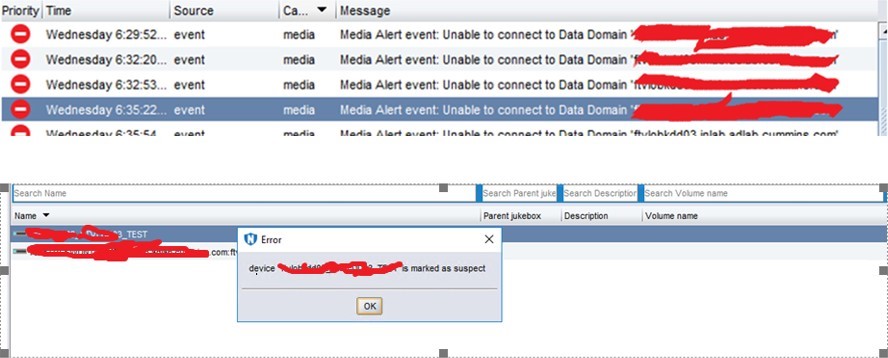
All DD boost volumes get unmounted.
Cause
There are multiple possible causes for the DD device to be marked as suspect.
In this scenario, the ddboost-user password has expired, locked from the DD end and a new password has been set for ddboost-user.
In this scenario, the ddboost-user password has expired, locked from the DD end and a new password has been set for ddboost-user.
Resolution
From NetWorker 19.9 onwards, device passwords can be updated without restarting the NetWorker services.
Steps for updating device password without restarting NetWorker services:
1. Verify communication between the NetWorker Server and DD vice versa (ping,nslookup,telnet for port 2049 and 111).
2. Log in to DD with sysadmin user or other admin privilege users and verify the user status.
4. Modify the max-days-between-change value of 90 to a higher value on your DD system; if allowed.
6. nsradmin> type:NSR Data Domain;name:name of NSR Data Domain resource
- To confirm the correct resource is selected type p for print of the current query.
7. If you are updating the username
8. If you are updating the password:
9. Update ddboost Device username and password using command line. Prepare accordingly prior to implementing this KB.
10. prompt> nsradmin -d nsrdb
11. nsradmin> . type:NSR Device;device access information:device_path of NSR Device resource
- To confirm the correct resource is selected, type p for print of the current query.
12. If you are updating the username:
13. If you are updating the password:
14. Mount the unmounted dd Volumes.
15. Media Alert Event is cleared.
Command to update password for multiple devices using nsradmin command:
In the case of multiple devices, admin can use single nsradmin command to update password for multiple devices. These steps are for multiple devices created from the same DD and mtree.
1. Create two files for updating DD resource and Device resource.
DD Resource file:
option regexp
. type: NSR Data Domain; name: <name of the Data Domain Resource>
update password : <new password>
Device file:
option regexp
. type: NSR device; device access information: <dd_ip*>
update password : <new password>
Example:
dd_resource.txt
dd_device.txt:
2. Run the two files by using nsradmin -i <input file name>.
3. After execution, Media alert events in NMC or NWUI will be cleared.
Steps for updating device password without restarting NetWorker services:
1. Verify communication between the NetWorker Server and DD vice versa (ping,nslookup,telnet for port 2049 and 111).
2. Log in to DD with sysadmin user or other admin privilege users and verify the user status.
# user show list
    # user show detailed <ddboost-user>
3. Change the Password for ddboost-user
# user change password <ddboost-user>
4. Modify the max-days-between-change value of 90 to a higher value on your DD system; if allowed.
  # user password aging set <ddboost-user>  max-days-between-change 999999 < days>
  # user password aging show
5. prompt> nsradmin -d nsrdb
6. nsradmin> type:NSR Data Domain;name:name of NSR Data Domain resource
- To confirm the correct resource is selected type p for print of the current query.
7. If you are updating the username
 nsradmin> update username:new_username
                     update? Y
8. If you are updating the password:
   nsradmin> update password:new_password
       update? Y
9. Update ddboost Device username and password using command line. Prepare accordingly prior to implementing this KB.
10. prompt> nsradmin -d nsrdb
11. nsradmin> . type:NSR Device;device access information:device_path of NSR Device resource
- To confirm the correct resource is selected, type p for print of the current query.
12. If you are updating the username:
  nsradmin> update username:new_username
                       update? Y
13. If you are updating the password:
nsradmin> update password:new_password
update? Y
14. Mount the unmounted dd Volumes.
15. Media Alert Event is cleared.
Command to update password for multiple devices using nsradmin command:
In the case of multiple devices, admin can use single nsradmin command to update password for multiple devices. These steps are for multiple devices created from the same DD and mtree.
1. Create two files for updating DD resource and Device resource.
DD Resource file:
option regexp
. type: NSR Data Domain; name: <name of the Data Domain Resource>
update password : <new password>
Device file:
option regexp
. type: NSR device; device access information: <dd_ip*>
update password : <new password>
Example:
  Device access information <ddip:/Networker_server_hostname/device_folder_name>
Device 1: 10.100.101.102:/abc123a119/bkp_dev1
Device 1: 10.100.101.102:/abc123a119/bkp_dev2
Device 1: 10.100.101.102:/abc123a119/bkp_dev3
dd_resource.txt
    option regexp
. type: NSR Data Domain; name: 10.100.101.102
update password : new@123
dd_device.txt:
      option regexp
      . type: NSR device; device access information: 10.100.101.102
      update password : new@123
2. Run the two files by using nsradmin -i <input file name>.
nsradmin -i dd_resource.txt
nsradmin -i dd_device.txt
3. After execution, Media alert events in NMC or NWUI will be cleared.
Affected Products
NetWorkerArticle Properties
Article Number: 000214911
Article Type: Solution
Last Modified: 21 Sept 2023
Version: 3
Find answers to your questions from other Dell users
Support Services
Check if your device is covered by Support Services.