ECS GeoDrive folder is missing
Summary: ECS GeoDrive folder is missing on local drive.
This article applies to
This article does not apply to
This article is not tied to any specific product.
Not all product versions are identified in this article.
Symptoms
User will see the GeoDrive folder or a subfolder missing on their local drive on the host.
The folder will be having the data but it will be invisible/hidden.
- For example, a folder "folder1" is missing in GeoDrive.

- Try to create new folder with same name, then you would be getting the prompt that the folder actually exists.
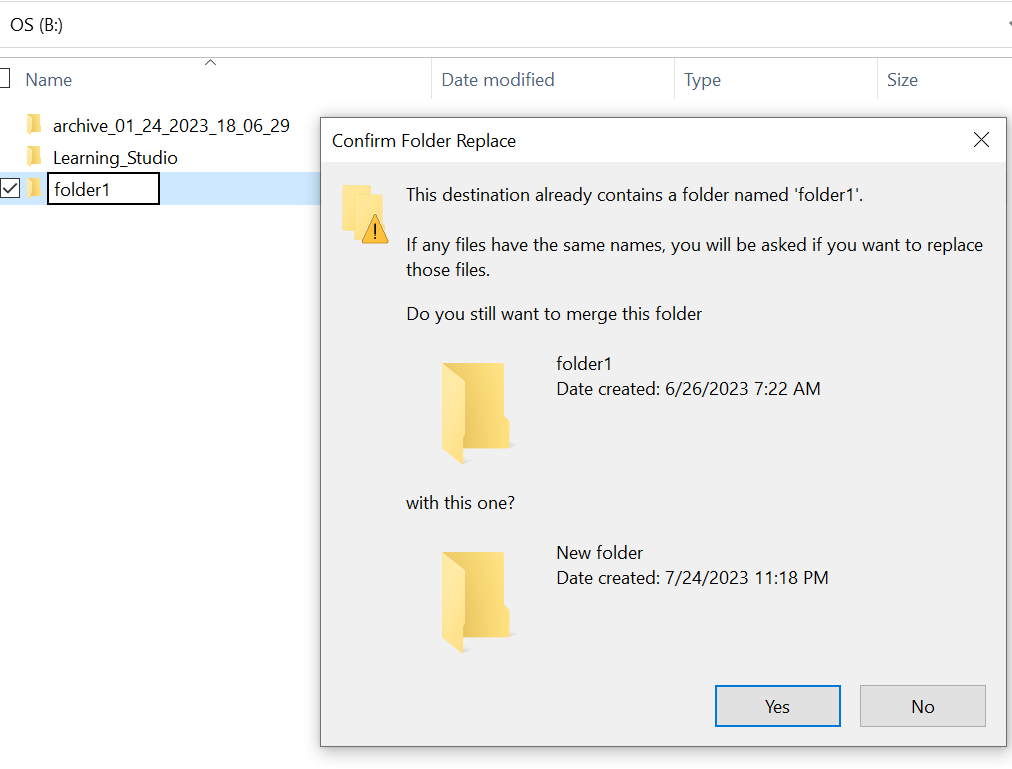
- Search with the missing folder path in the explorer. We should be able to see the contents.

Cause
This is because of the HIDDEN and SYSTEM attributes that were set on the folder.
Resolution
Please follow the below steps.
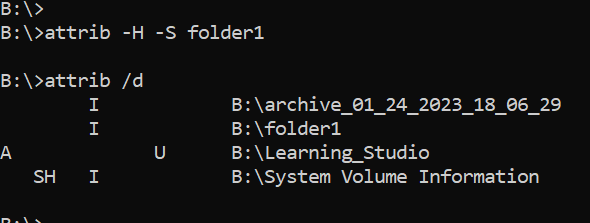
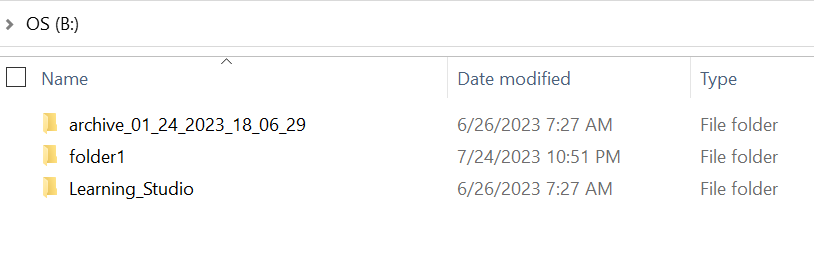
After running this command, check the local drive again. The missing folder will be back to normal.
- Go to the windows command prompt on the host system.
- cd to the parent directory where the folder is missing and run "attrib /d".
- You should see a list of directories and missing folder should be in the list.
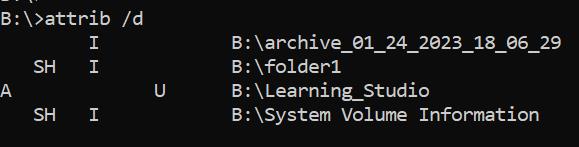
- The letters before it indicate the attributes. You should be seeing SH before the file (SYSTEM and HIDDEN).
- Then run this command to remove the above two attributes : attrib -H -S folder_name
Additional Information
There are numerous other options available for attrib command.
B:\>attrib /?
Displays or changes file attributes.

ATTRIB [+R | -R] [+A | -A] [+S | -S] [+H | -H] [+O | -O] [+I | -I] [+X | -X] [+P | -P] [+U | -U]
       [drive:][path][filename] [/S [/D]] [/L]

  +   Sets an attribute.
  -   Clears an attribute.
  R   Read-only file attribute.
  A   Archive file attribute.
  S   System file attribute.
  H   Hidden file attribute.
  O   Offline attribute.
  I   Not content indexed file attribute.
  X   No scrub file attribute.
  V   Integrity attribute.
  P   Pinned attribute.
  U   Unpinned attribute.
  B   SMR Blob attribute.
  [drive:][path][filename]
      Specifies a file or files for attrib to process.
  /S  Processes matching files in the current folder
      and all subfolders.
  /D  Processes folders as well.
  /L  Work on the attributes of the Symbolic Link versus
      the target of the Symbolic Link
Affected Products
GeoDrive for Windows, Elastic Cloud StorageProducts
ECSArticle Properties
Article Number: 000215245
Article Type: Solution
Last Modified: 18 May 2026
Version: 4
Find answers to your questions from other Dell users
Support Services
Check if your device is covered by Support Services.