Dell VxRail: Witness node upgrade is skipped when vSAN 2 Node or stretched cluster upgrading to 8.0.200 using vLCM method
Summary: This article explains a situation when witness node upgrade is skipped when vSAN 2Node or stretched cluster upgrading to 8.0.200 using vLCM method. This article must be followed to manually upgrade witness node and disk format after the cluster is upgraded to 8.0.200. ...
This article applies to
This article does not apply to
This article is not tied to any specific product.
Not all product versions are identified in this article.
Symptoms
For a vSAN 2node or stretched cluster, if vLCM is enabled, the vLCM handles witness node upgrade during cluster upgrade.
But when using vLCM to upgrade the cluster to VxRail 8.0.200 release, witness node upgrade is skipped.
Cause
Due to a vCenter issue, the automatic upgrade witness fails. So VxRail 8.0.200 release skipped witness upgrade.
The steps on this article must be followed to manually upgrade witness node and disk format after the cluster is upgraded to 8.0.200.
This issue only impacts upgrading to 8.0.200 release with vLCM method for a vSAN 2node or stretched cluster.
If you use VxRail LCM method to upgrade the cluster and choose the option to automatically upgrade witness, this issue will not appear.
Resolution
After the cluster is upgraded to 8.0.200 release, follow the below steps to manually upgrade the witness node and its' disk format if there is a disk format version change.
Upgrade witness node
-
Download the ESXi image from vSAN and upload to the witness host.
- Go to Inventory -> VxRail-Virtual-SAN-Datastore_* -> upgradeBundles-* -> ESXi8.0.2_22380479-72deb405.zip

- Download the ESXi image .zip file, and upload it to witness host.
- Go to Inventory -> VxRail-Virtual-SAN-Datastore_* -> upgradeBundles-* -> ESXi8.0.2_22380479-72deb405.zip
-
Run the following command on the witness node to get the current ESXi version (Optional step):
esxcli software baseimage get|grep Version

-
Run the following command on the witness node to get the baseimage version of the uploaded ESXi image.
esxcli software sources baseimage list -d <esxi package path>
<esxi package path> is the path where you put the ESXi image .zip file on the witness node. For example:

-
Run the following command on the witness node to create software spec for the wanted baseimage. Modify the version value "8.0.2-0.0.22380479" according to the baseimage version that you get from STEP 3.
echo "{\"base_image\": {\"version\": \"8.0.2-0.0.22380479\"}}" > software-spec.json
-
Run the following command on the witness node to perform an ESXi upgrade dry run. (Optional step)
>esxcli software apply -d <esxi package path> -s <software spec file path> --dry-run --no-hardware-warning

-
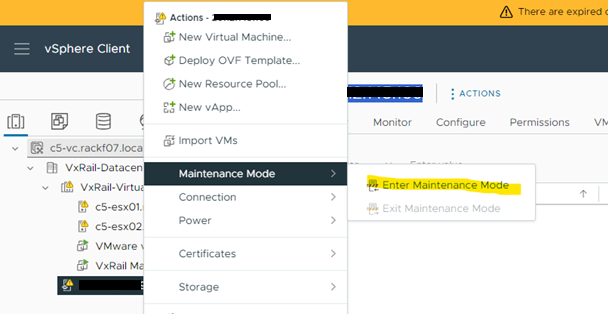
Put the witness node to Maintenance mode using vCenter UI.
-
Run the following command on the witness node to perform ESXi upgrade.
esxcli software apply -d <esxi package path> -s <software spec file path> --no-hardware-warning
After the upgrade command completes, run "reboot" command.

- After witness node reboot completes, exit it from Maintenance mode using vCenter UI.

-
Run the following command on the witness node to confirm the ESXi version has been upgraded to the targe version.
esxcli software baseimage get|grep Version

Upgrade disk format
If the witness node disk format is older than other ESXi nodes, vCenter UI displays a warning. You can upgrade the disk format version using vCenter UI.
Click VxRail Cluster > Configure > Disk Management > UPGRADE.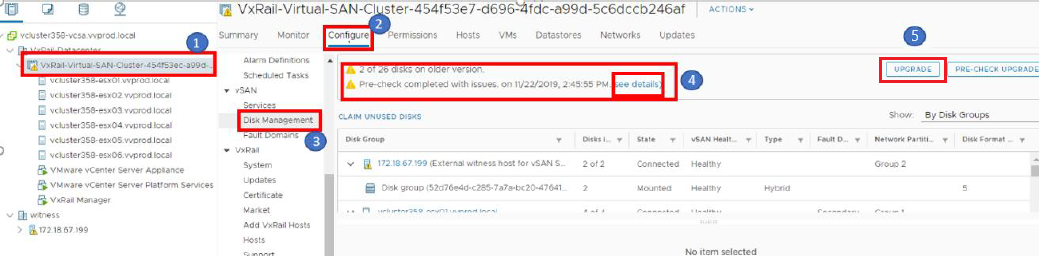
After the disk format upgrade completes, the warning will be gone.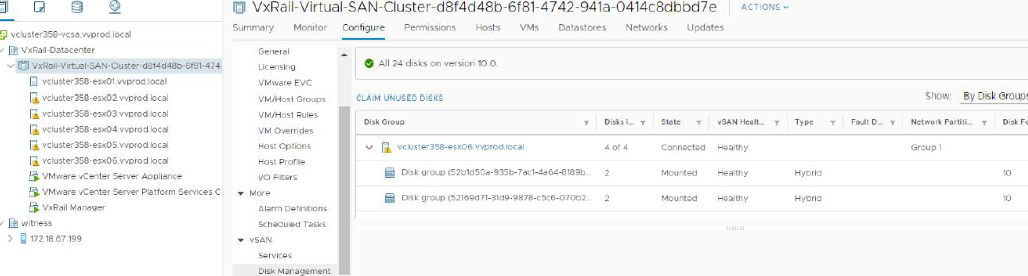
Affected Products
VxRail SoftwareArticle Properties
Article Number: 000218867
Article Type: Solution
Last Modified: 10 Feb 2025
Version: 3
Find answers to your questions from other Dell users
Support Services
Check if your device is covered by Support Services.