How to Deploy Dell Pro AI Studio With Microsoft Configuration Manager
Summary: Learn step-by-step instructions to select appropriate models for the Dell Pro AI Studio (DPAIS) framework and deploy with Microsoft Configuration Manager.
This article applies to
This article does not apply to
This article is not tied to any specific product.
Not all product versions are identified in this article.
Instructions
Dell Pro AI Studio can be deployed through Microsoft Configuration Manager. This requires following the Packaging Prerequisites, Packaging Dell Core Services, Packaging Dell Pro AI Studio Framework, Packaging AI Models, and then Creating the Deployment Task. Click the appropriate section for more information.
Affected Products:
- Dell Pro AI Studio
Packaging Prerequisites
DPAIS requires the following prerequisites:
- .NET Desktop Runtime 8.0.15 (minimum)
- ASP.NET Core Runtime 8.0.15 (minimum)
- Visual C++ Redistributable 14.42.34438.0 (minimum)
The articles below provide step-by-step instructions to create packages for all required prerequisites for both x64 and ARM64 platforms:
- x64
- ARM64
Packaging Dell Core Services
The articles below provide step-by-step instructions to package Dell Core Services for both x64 and ARM64 platforms.
- x64
- ARM64
Packaging Dell Pro AI Studio Framework
The articles below provide step-by-step instructions to package Dell Pro AI Studio Framework for both x64 and ARM64 platforms.
- x64
- ARM64
Packaging AI models
The articles below provide step-by-step instructions to package AI models for both x64 and ARM64 platforms. More than one AI model may be packaged, but it is not required to package more than one. Follow the steps in each article for any additional models being packaged.
- x64
- How to Package Devstral-Small-2507 x64 for NVIDIA GPU Processors for Microsoft Configuration Manager
- How to Package Nomic Embed Text v1.5 for Intel x64 Processors for Microsoft Configuration Manager
- How to Package OpenAI CLIP for Intel x64 CPUs for Microsoft Configuration Manager
- How to Package OpenAI Whisper for Intel x64 CPUs for Microsoft Configuration Manager
- How to Package Phi-3.5-Mini-Instruct for AMD x64 Processors for Microsoft Configuration Manager
- How to Package Phi-3.5-Mini-Instruct for Intel x64 Processors for Microsoft Configuration Manager
- ARM64
- How to Package Nomic Embed Text v1.5 for Qualcomm ARM64 Processors for Microsoft Configuration Manager
- How to Package OpenAI CLIP for Qualcomm ARM64 Processors for Microsoft Configuration Manager
- How to Package OpenAI Whisper for Qualcomm ARM64 Processors for Microsoft Configuration Manager
- How to Package Phi-3.5-Mini-Instruct for Qualcomm ARM64 Processors for Microsoft Configuration Manager
Creating the Deployment Task
The following deployment steps assume that the processes that are linked to above have been followed.
- Packaging Prerequisites
- Packaging Dell Core Services
- Packaging Dell Pro AI Studio Framework
- Packaging AI Models
The AI model or models that are used in your environment can be deployed after following the above processes. All required dependent software is automatically chained, which simplifies the deployment.
- Open Configuration Manager Console.

- Go to Software Library, Application Management, and then Applications.
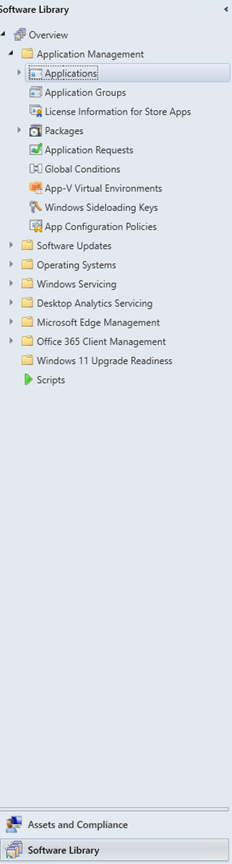
- Select the model or application to deploy and then click the Deploy button in the top ribbon.

- From the General page in the Deploy Software Wizard, click the Browse button that is next to Collection.
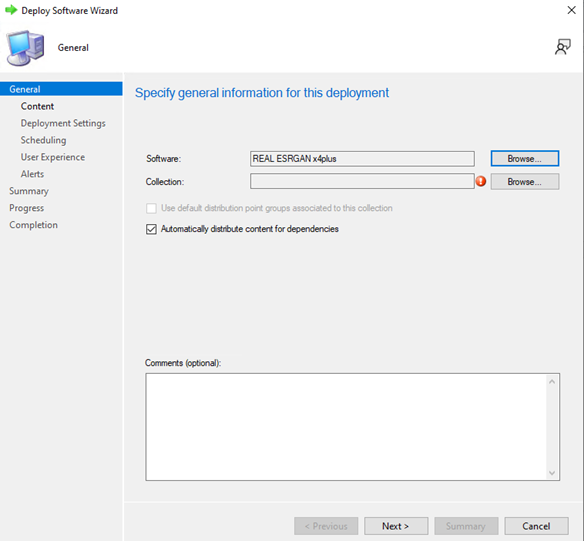 Note: The Software name in the example image may differ from the model or application that is used in your environment.
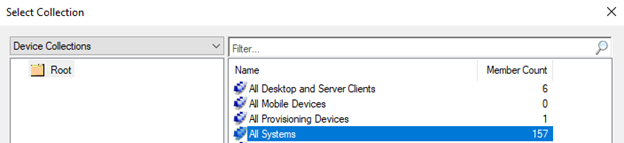
 - From the Select Collection window, select either Device Collections or User Collections from the drop-down menu in the upper-left. From the right pane, select the appropriate targeted collection for the deployment and then click OK.
- From the General page, optionally add Comments, then click Next.

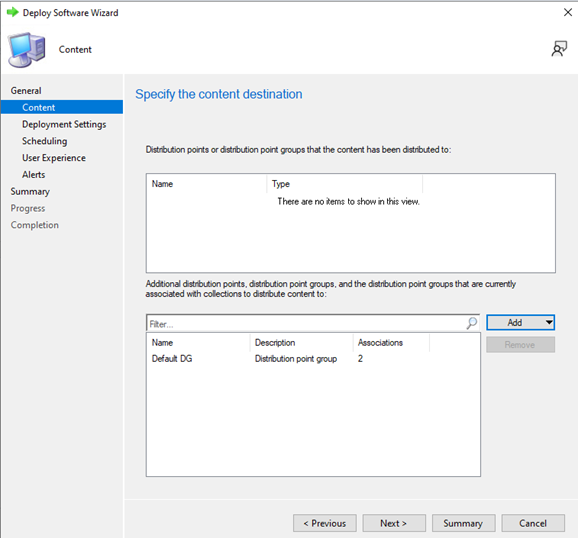
- From the Content page, click Add, then click either Distribution Point or Distribution Point Group depending on your environment.
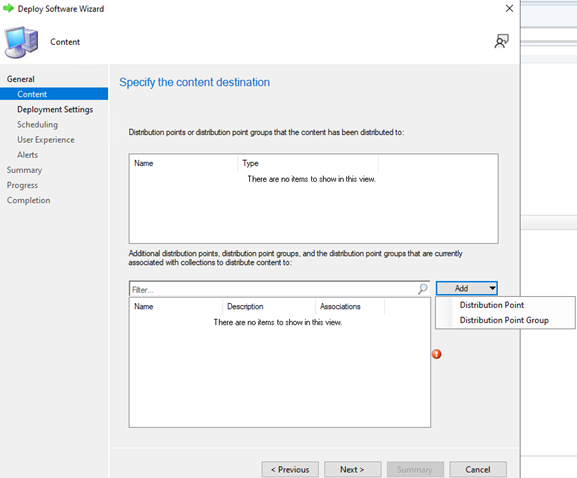
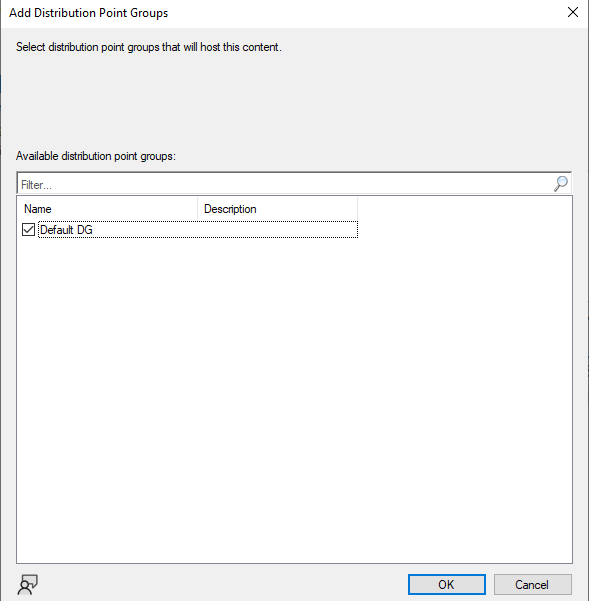
- From the Add Distribution Point Groups screen, select the appropriate distribution point or distribution point group and then click OK.
- From the Content page, click Next.
- From the Deployment Settings page, select the appropriate options below for your environment and then click Next.
- Action: Install
- Purpose:
- Available (available for deployment in Software Center)
- Required (automatically installed on the endpoint)
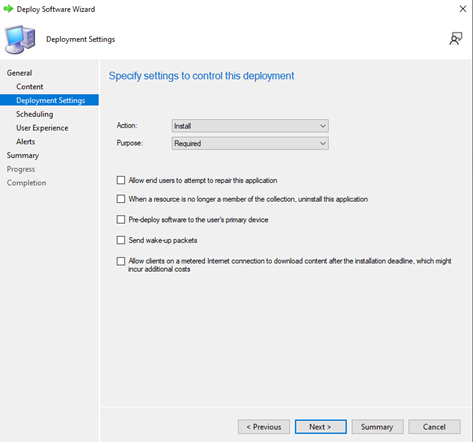 Note: Alternatively, the AI model packages can be displayed in Software Center for an end user to install themselves. Selecting Action: Install and Purpose: Available at the Deployment Settings page allows end users to install the AI model package in Software Center.
 - From the Scheduling page, optionally select to Schedule the application to be available later, then click Next.
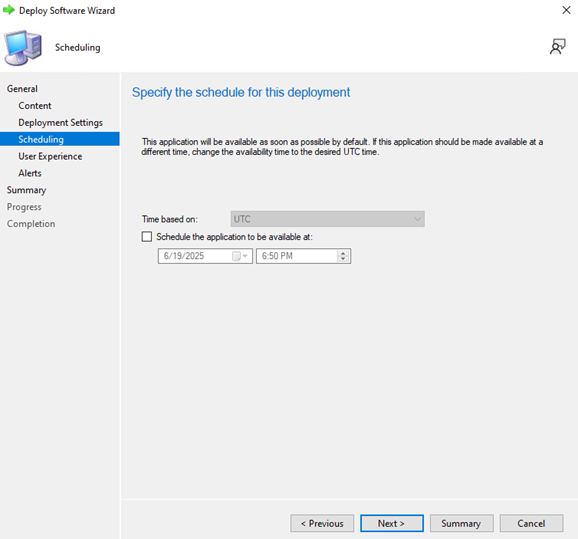 Note: By default, deployment starts once the deployment wizard is complete.
 - From the User Experience page, select the notifications to be displayed on the end user’s machine, select any additional options, and then click Next.
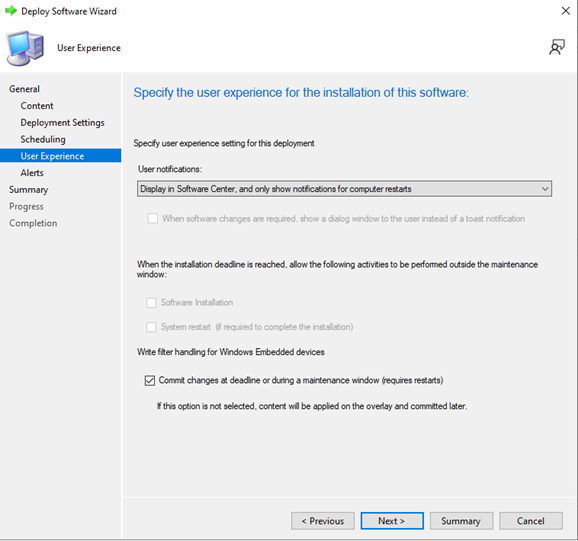 Note: Additional options available on this screen vary depending on if the deployment is required or available.
 - From the Alerts page, select any options that are appropriate for your deployment and then click Next.
 Note: Options available on this screen vary depending on if the deployment is required or available.
 - From the Summary page, confirm that the prior settings are correct and then click Next.
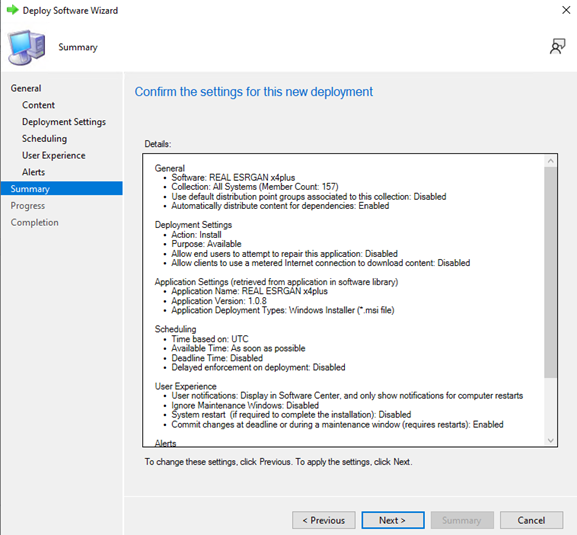
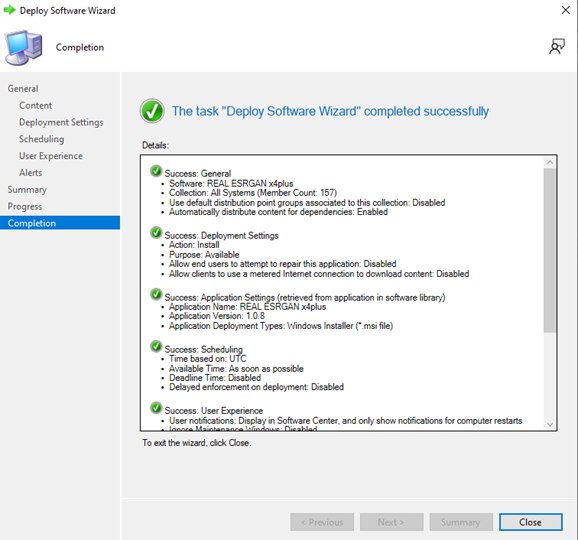
- From the Completion page, click Close.
Affected Products
Dell Pro AI StudioArticle Properties
Article Number: 000352774
Article Type: How To
Last Modified: 30 Oct 2025
Version: 4
Find answers to your questions from other Dell users
Support Services
Check if your device is covered by Support Services.