Dell Online Support Experience Impacted Due to Local Network Access Restrictions
Summary: New Chrome and Edge browser updates restrict local network access by default, impacting experiences on dell.com/support. Learn how to restore functionality by adjusting browser permissions. ...
This article applies to
This article does not apply to
This article is not tied to any specific product.
Not all product versions are identified in this article.
Instructions
Impacts to the Dell online support experience with updated Chromium browsers
Beginning with Google Chrome version 141, customers visiting https://www.dell.com/support using newer versions of Google Chrome may encounter a browser prompt stating:
"Look for and connect to any device on your local network."
Customers who choose Block may be prompted to install SupportAssist, even if the application is already installed.
Additionally, if the user selects Block, SupportAssist-related experiences such as:
- Driver Updates
- Hardware Scans
- System Configuration
will fail to function, even if SupportAssist is already installed.
More information on changes to Chromium browsers
Google Chrome version 141 introduces a Local Network Access permission model to enhance user privacy and security. This change restricts websites from sending requests to devices on the user's local network or localhost unless the user explicitly grants permission.
Microsoft Edge is also implementing similar behavior, with Local Network Access prompts expected to become default as of version 142.
These changes are part of broader efforts to prevent cross-site request forgery (CSRF) and fingerprinting attacks targeting private networks.
To determine your browser version, click the Menu (three vertical dots) button in the top-right corner of the window, then select Settings > About Chrome.
How to restore access to Dell.com support experiences
To maintain full SupportAssist functionality with Google Chrome version 141 and beyond, select Allow when you see the permission prompt:
“Look for and connect to any device on your local network.”
If you previously selected Block, reset the permission by following these steps:
Chrome Browser
- Open a new window in Chrome and go to the Dell support website.
- Select the Security Status
symbol next to the web address.
- Select the slider button next to Local network access to shift the button to the right and turn the slider blue.
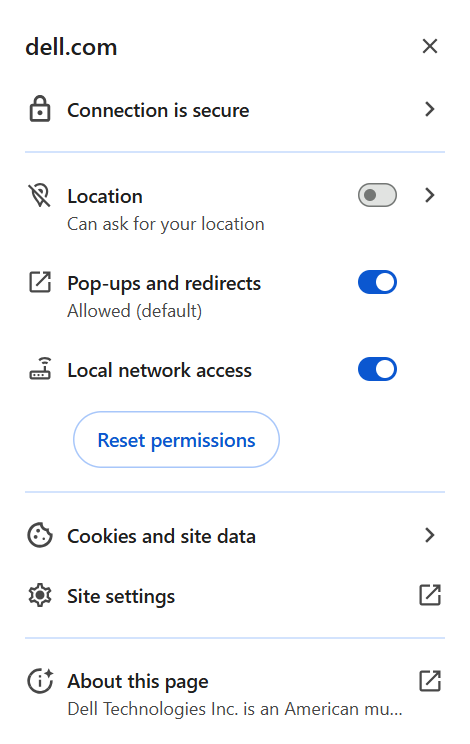
Note: Clicking the Reset permissions button will reset ALL permissions in this section.
Microsoft Edge
- Open a new window in Edge and go to the Dell support website.
- Select the Security Status
 symbol next to the web address.
 - Under Permissions for this site, select the dropdown next to Local network access.

- Select Allow to enable local network access.
For other browsers, refer to your browser support documentation.
Regardless of browser, if you have SupportAssist installed on your device there is no need to reinstall the application.
Managing local network access permissions for Administrators
Administrators can control this feature using Chrome's enterprise policies:
- Use the LocalNetworkAccessAllowedForUrls policy to allow access for specific sites.
- Use the LocalNetworkAccessBlockedForUrls policy to block access for specific sites.
- Setting the policy value to '*' allows local network access on all URLs, mimicking the behavior before the restriction was fully implemented.
For more information:
Affected Products
Alienware, Dell All-in-One, Dell Pro All-in-One, Dell Pro Max Micro, Dell Pro Max Slim, Dell Pro Max Tower, Dell Pro Micro, Dell Pro Slim, Dell Pro Tower, Dell Slim, Dell Tower, Inspiron, Legacy Desktop Models, Vostro, XPS, G Series, G Series
, Alienware, Dell Laptops, Dell Plus, Dell Pro, Dell Pro Max, Dell Pro Plus, Dell Pro Premium, Inspiron, Latitude, Dell Pro Rugged, Vostro, XPS, Legacy Laptop Models, Fixed Workstations, Mobile Workstations, Dell Pro Max Micro XE FCM2250, Dell Pro Max Slim XE FCS1250, Dell Pro Max Tower T2 FCT2250, Dell Pro Max Tower T2 XE FCT2250, Dell Pro Max 14 Premium MA14250, Dell Pro Max 16 Premium MA16250, Dell Pro Max 16 Plus MB16250, Dell Pro Max 18 Plus MB18250, Dell Pro Max 16 XE MC16250, Dell Pro Micro Plus XE QBM1250, Dell Pro Slim Plus XE5 QBS1250, Dell Pro Tower Plus XE5 QBT1250, SupportAssist for Home PCs, SupportAssist for Business PCs
...
Article Properties
Article Number: 000372996
Article Type: How To
Last Modified: 24 Nov 2025
Version: 10
Find answers to your questions from other Dell users
Support Services
Check if your device is covered by Support Services.