How to Add Gmail in Outlook
Summary: This article describes the steps to Add Gmail to your Outlook account.
This article applies to
This article does not apply to
This article is not tied to any specific product.
Not all product versions are identified in this article.
Instructions
An app password generated from the Gmail website is required when adding your Gmail account in Outlook. An app password is a one-time password used to let Gmail know that you are the person accessing your email. You can get your app password by activating your two-factor authentication in Gmail.
Adding your Gmail account to Outlook depends on the version that you have.
Adding Gmail to New Outlook
- Open Outlook

- Click the gear symbol to open settings
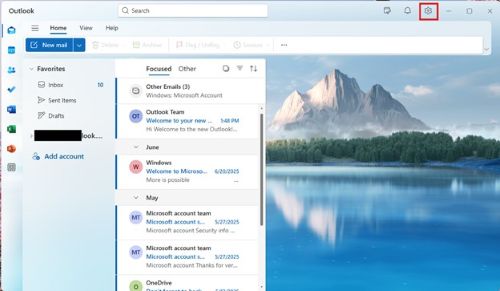
- In Settings, go to Accounts > Your Accounts and click the Add Account button.

- Enter Gmail address in the provided text box.
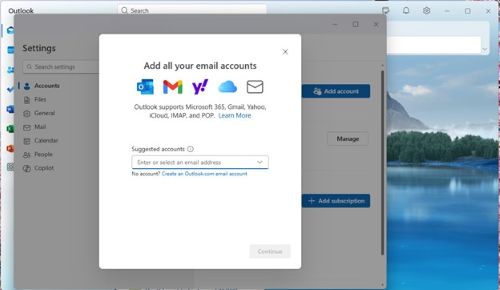
- Click Continue to sync your Gmail account

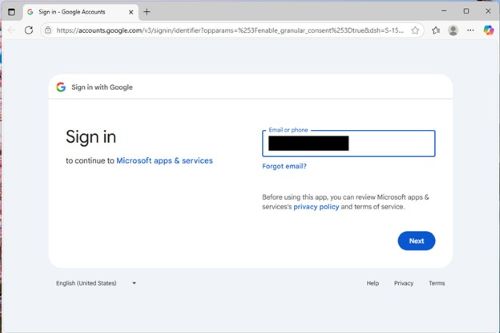
- A browser launches, and you must sign into Gmail.
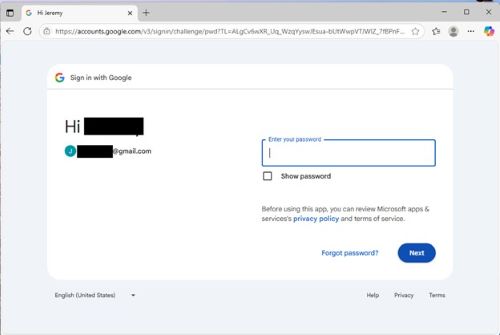
- Provide Password when prompted
- Allow Microsoft Apps and Services access to your account by clicking Continue
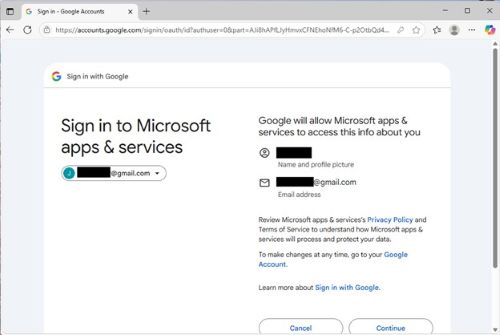
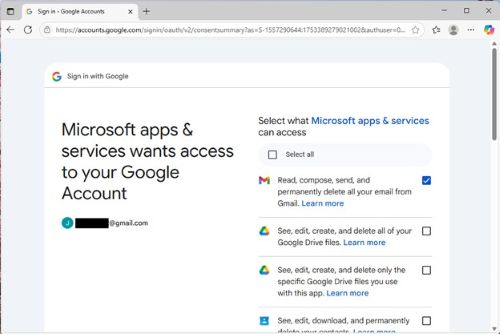
- Select which Google services Microsoft can access by checking the boxes (Gmail access at a minimum) and clicking Continue.
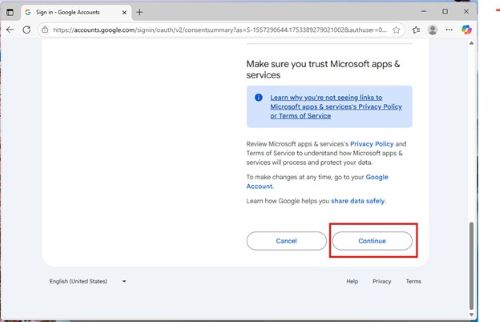
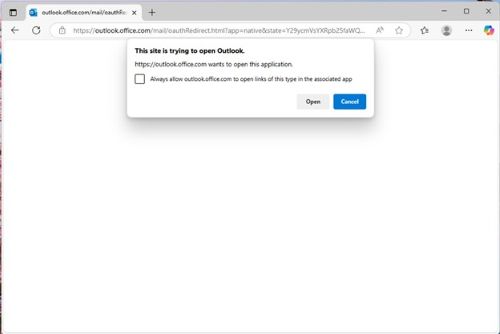
- You are prompted to open Outlook by the browser. Click Open.
- Outlook should signal success. (This may be behind some screens.) Click Done.
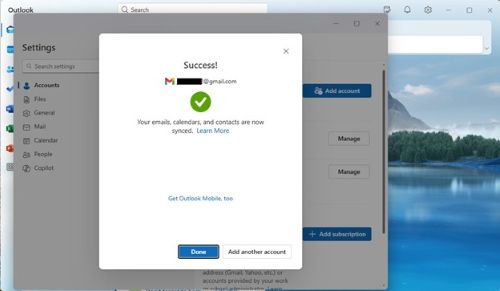
Adding Gmail in Outlook 2016
To add Gmail in Outlook 2016, follow these steps:
- Open Outlook 2016.
- Select File > Add Account.
- The Welcome to Outlook window appears.
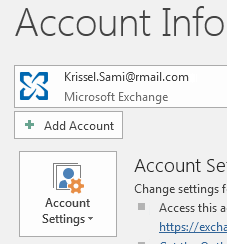
- The Welcome to Outlook window appears.
- Enter your Gmail email address and then click Connect.
- If your screen looks different, enter your name, Gmail address, and the app password. You may be prompted to reenter your generated password as part of Windows Security.
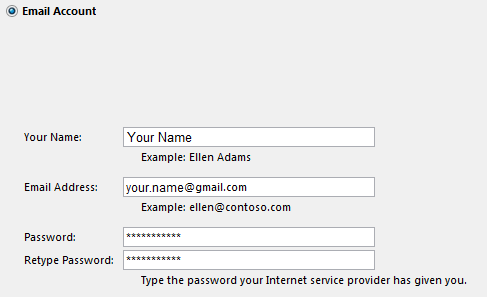
- If your screen looks different, enter your name, Gmail address, and the app password. You may be prompted to reenter your generated password as part of Windows Security.
- Click Next > Finish.
Affected Products
Microsoft 365 from DellArticle Properties
Article Number: 000186185
Article Type: How To
Last Modified: 30 Jul 2025
Version: 2
Find answers to your questions from other Dell users
Support Services
Check if your device is covered by Support Services.