Dell BitLocker Manager Reporting Unprotected After Changing Protector Policy
Summary: This article discusses the root cause and resolution to Dell BitLocker Manager (formerly Dell Data Protection | Dell BitLocker Manager) reporting unprotected after changing protected Dell Data Security server (formerly Dell Data Protection server) policy from Configure TPM Startup PIN to Configure TPM Startup. ...
This article applies to
This article does not apply to
This article is not tied to any specific product.
Not all product versions are identified in this article.
Symptoms
Affected Products:
- Dell BitLocker Manager
- Dell Data Protection | BitLocker Manager
Affected Versions:
- v10.10 and Earlier
In the Dell Data Security server console, an administrator may change the protectors that are required to unlock an endpoint protected with Dell BitLocker Manager.
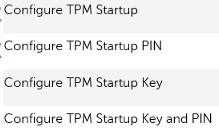
Figure 1: (English Only) Dell Data Security TPM Configuration
Changing Configure TPM Startup PIN to Configure TPM Startup cause:
- After the first reboot post policies change:
- The PIN is required to unlock the operating system disk.
- In the BitLocker Drive Encryption applet of the Control Panel, BitLocker Drive Encryption shows as suspended.
- In the Dell Data Security console, Drive 0 reports Unprotected and Disk C: reports Fully encrypted.
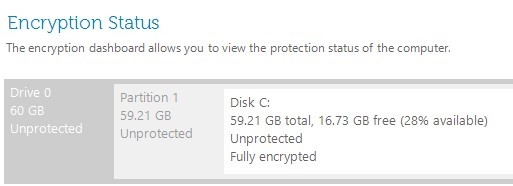
Figure 2: (English Only) Encryption Status
- After the second reboot:
- A PIN is no longer be required to unlock the volume.
- In the BitLocker Drive Encryption applet of the Control Panel, BitLocker Drive Encryption shows as suspended.
- In the Dell Data Security console, Drive 0 reports Unprotected and the Disk C: Fully encrypted.
On the Dell Data Security administration console, the endpoint reports as Unprotected:
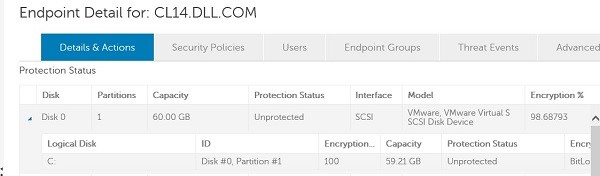
Figure 3: (English Only) Endpoint Details
On the endpoints, the DellAgent.log in C:\ProgramData\Dell\Dell Data Protection shows the error below:
2019.12.10 14:16:34.015 [04596] (00022) E Bde: volume C: unable to enable key protectors - PolicyStartupTpmRequired
Trying to manually resume BitLocker fails:
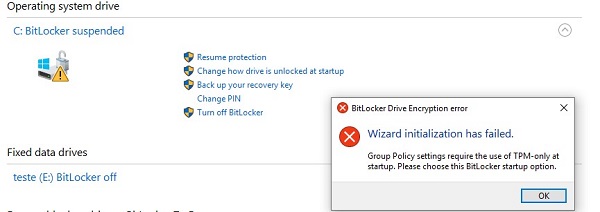
Figure 4: (English Only) BitLocker Drive Encryption error
Cause
Not Applicable
Resolution
To address this issue, it is necessary to manually change the policy settings for BitLocker on the endpoints experiencing the issue.
To resolve:
- Right-click the Windows Start Menu and then select Run.

Figure 5: (English Only) Click Run
- In the Run menu, type control panel and then click OK.
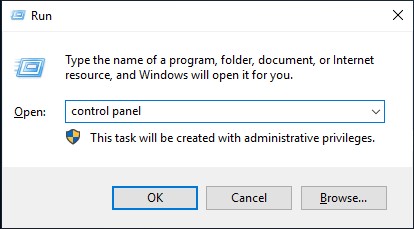
Figure 6: (English Only) Run Control Panel
- In the Control Panel, click BitLocker Drive Encryption.
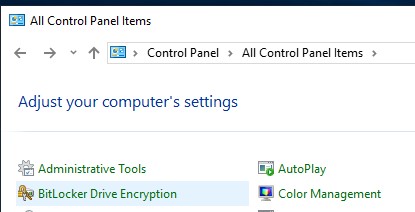
Figure 7: (English Only) BitLocker Drive Encryption
- Click Change how Drive is Unlocked at startup.
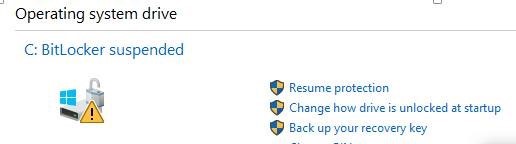
Figure 8: (English Only) BitLocker Suspended
- In the Wizard, select Let BitLocker automatically unlock my drive.
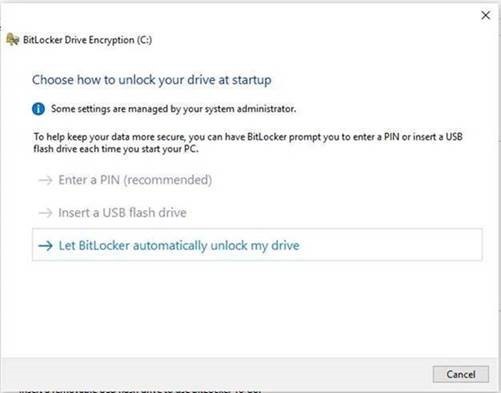
Figure 9: (English Only) BitLocker Drive Encryption
- Click Resume protection.
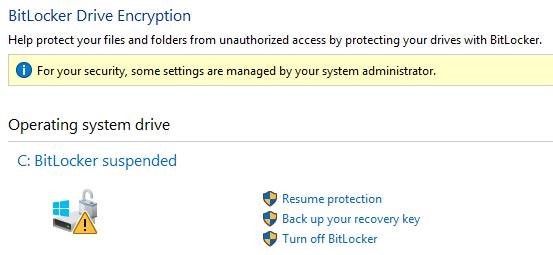
Figure 10: (English Only) BitLocker Drive Encryption
The disk will show as Protected again, after performing these steps:

Figure 11: (English Only) Encryption Status
It is possible to perform the same steps using the administration command line below:
manage-bde -protectors -add c: -TPM
manage-bde -protectors -enable c:
To contact support, reference Dell Data Security International Support Phone Numbers.
Go to TechDirect to generate a technical support request online.
For additional insights and resources, join the Dell Security Community Forum.
Affected Products
Dell EncryptionArticle Properties
Article Number: 000129595
Article Type: Solution
Last Modified: 19 Apr 2026
Version: 11
Find answers to your questions from other Dell users
Support Services
Check if your device is covered by Support Services.