How to Collect Logs for Secureworks Taegis XDR Agent
Summary: Learn how to collect logs for the Secureworks Taegis XDR agent by following these step-by-step instructions for Windows or Linux.
Instructions
This article discusses the methods for collecting the Secureworks Taegis XDR agent logs.
Affected Products:
- Secureworks Taegis XDR
Affected Operating Systems:
- Windows
- Linux
Click Windows or Linux for the log collection process.
Windows
Troubleshoot the Secureworks Taegis XDR agent by manually collecting logs.
- Install logs: Used to troubleshoot installation issues
- Agent logs: Used to troubleshoot activation, communication, and behavior issues
Click the appropriate logging type for more information.
Install
- Right-click the Windows start menu and then click Run.
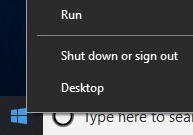
- In the Run UI, type
%temp%and then click OK. Note:
Note:%temp%is the Windows variable forC:\Users\[USERNAME]\AppData\Local\Temp. - Capture the MSI logs named
MSIXXXXX.LOG. Note: The
XXXXXis randomly generated letters and numbers.
Agent
- Create a temporary log folder that is titled
Logs. - Right-click the Windows start menu and then click Run.

- In the Run UI, type
C:\Program Files (x86)\Dell SecureWorks\Red Cloakand then click OK.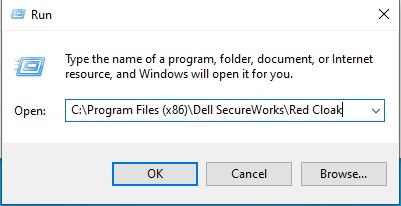
- Sort by type to display all .log files.

- Copy all .log and .dmp files to the
Logsfolder (Step 1). - Right-click the Windows start menu and then click Run.

- In the Run UI, type
C:\Program Files (x86)\Dell SecureWorks\Ignition\and then click OK.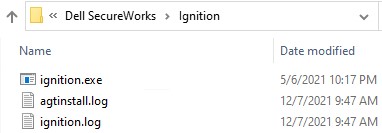
- Copy all .log files to the
Logsfolder (Step 1). - Right-click the
Logsfolder from Step 1, select Send to, and then click Compressed (zipped) folder.
Linux
Troubleshoot the Secureworks Taegis XDR agent by manually collecting logs.
- Install logs: Used to troubleshoot installation issues
- Agent logs: Used to troubleshoot activation, communication, and behavior issues
Install
When installation is run on a Linux endpoint, any errors are displayed as text on the screen. There are no log files to be collected.
Agent
To successfully offload logs, the Secureworks Taegis XDR agent requires:
- A third-party FTP (file transfer protocol) client
- Examples of an FTP client include (but are not limited to):
- Filezilla
- WinSCP
- CuteFTP
- Examples of an FTP client include (but are not limited to):
- A storage device (outside of the Linux server)
- In the FTP client, log in with an FTP user to the Linux server.

- Go to
/opt/secureworks/redcloak/logand then save all files from that folder locally.
To contact support, reference Dell Data Security International Support Phone Numbers.
Go to TechDirect to generate a technical support request online.
For additional insights and resources, join the Dell Security Community Forum.