NetWorker Management Web UI (NWUI): How to Use
Summary: This KB provides an overview of the NetWorker Web User Interface (NWUI). This is an HTML web-based NetWorker management interface that provides similar functionality as the legacy Java-based NetWorker Management Console. ...
This article applies to
This article does not apply to
This article is not tied to any specific product.
Not all product versions are identified in this article.
Instructions
Table of Contents
Refer to this video:
This video is also available on YouTube.
What is the NetWorker Management Web User Interface (NWUI)
This web interface uses HTML5, Apache Tomcat, REST API, and the Spring Framework to provide a superior user-experience through intuitive workflows and increased responsiveness. The NWUI can be installed on Linux or Microsoft Windows operating systems, either directly on the NetWorker server or on a host which is not the NetWorker server. NWUI was initially introduced in NetWorker 18.1.x; depending on the NetWorker version installed some features or functionalities may not exist. For additional information, see the NetWorker version-specific Administration Guides, available through: https://www.dell.com/support/home/product-support/product/networker/docs
How to Install
NWUI supports the following browsers: Microsoft Internet Explorer 11; Google Chrome; Microsoft Edge; Mozilla Firefox
- The UI can be installed either on the NetWorker Server or on the NetWorker Management Console server.
- It can be installed on Linux or Windows Operating Systems. See the NetWorker Compatibility Guides for a full list of supported platforms (Dell Support login may be required).
- The NetWorker Installation Guide provides full details on how to install the NetWorker Management UI on your chosen platform.
- Windows: Extract the executable and run the exe to launch the installation wizard. You may get a Security Alert, from which you must select:
'View Certificate'; 'Install Certificate'; 'Place all certificates on the following store'; 'Browse'; 'Trusted Root Certificate Authorities; 'Ok'; 'Yes'. - Linux: Extract using the '
tar' command and install using the 'rpm' command. There is a prompt to run a configuration script callednwui_configure.shwhich runs through configuring the software.
- Windows: Extract the executable and run the exe to launch the installation wizard. You may get a Security Alert, from which you must select:
- As part of the installation, the authentication host is specified which points to a NetWorker server running the authentication service. The NetWorker Management Web UI uses NetWorker credentials for authentication. These are the same credentials as are used for the NetWorker Management Console.
- Once installed, we control the NetWorker Management UI daemons:
Windows:  Windows Services Manager
Linux sysvinit:  /etc/init.d/nwui start/stop/status
Linux systemd:  systemctl start/stop/status nwui
For full details on how to install the NWUI, see the following article: NetWorker Management Web UI (NWUI): How to Install
How to Use
Accessing the NetWorker Management Web UI
- Access the NetWorker Management Web UI by going to the following address in a web browser:
https://<IP_address_or_hostname>:9090/nwui - Log in with a NetWorker user account and password.
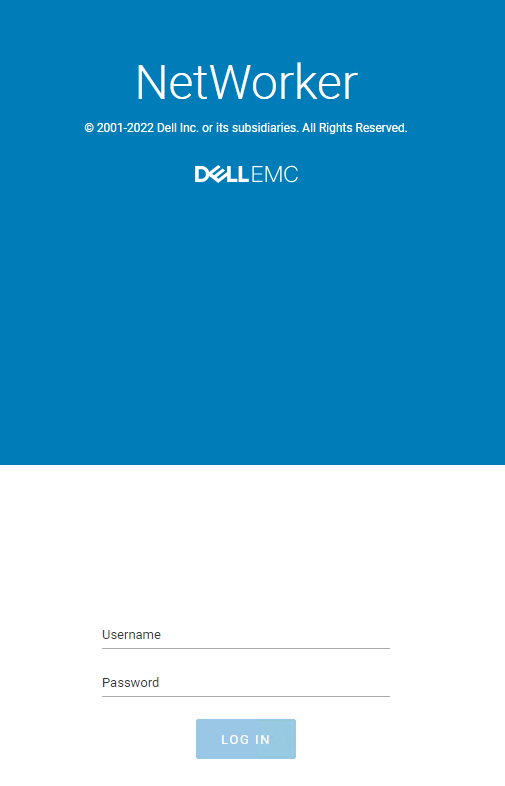
NOTE: The NWUI is accessible using AD/LDAP users once AD/LDAP external authentication is integrated with NetWorker.
- NetWorker NWUI: How to Configure AD/LDAP from the NetWorker Web User Interface
- NetWorker: How to configure "AD over SSL" (LDAPS) from The NetWorker Web User Interface (NWUI)
How to Add the vCenter Server
- Expand the Protection drop-down in the NWUI menu.
- Go to VMware vCenters.
- Click +Add.
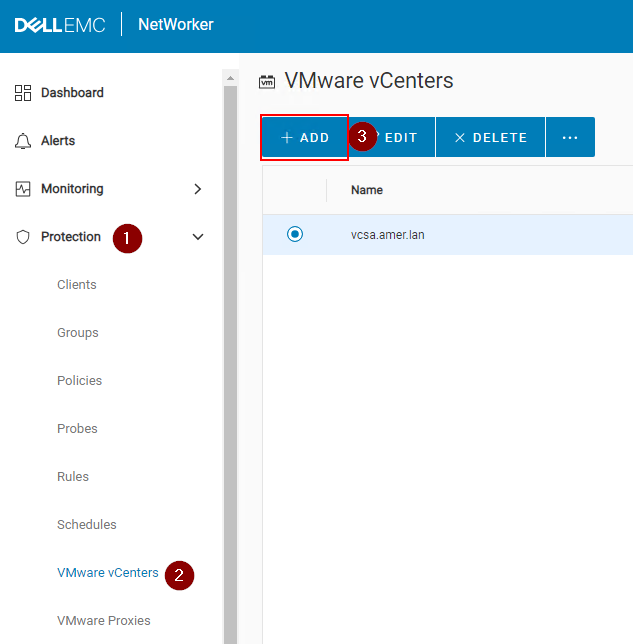
- In the Hostname field, specify the FQDN or IP address of the vCenter server. In the Username field, specify a vCenter user account that has permission to perform backups. In the Password field, specify the password for the vCenter user account. If the vCenter server is deployed in the Cloud, select the Deployed in Cloud checkbox. Click Save.
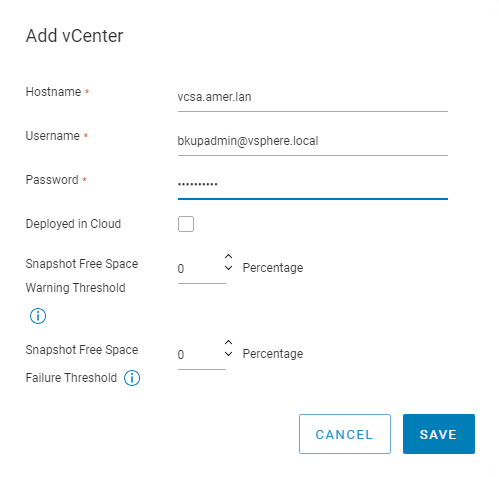
NOTE: The NetWorker VMware Integration Guide details the permissions required by the vCenter user account, available through: https://www.dell.com/support/home/product-support/product/networker/docs.
- An entry for the added vCenter server appears automatically in the Protection window's VMware vCenters pane. If an entry for the added vCenter does not appear, click the Refresh icon.
- When you select one of the available vCenter resources, the vCenter inventory displays in the right pane of the window in a tree structure that allows you to view all virtual machines and entities, and select individual items to view the entity's properties.
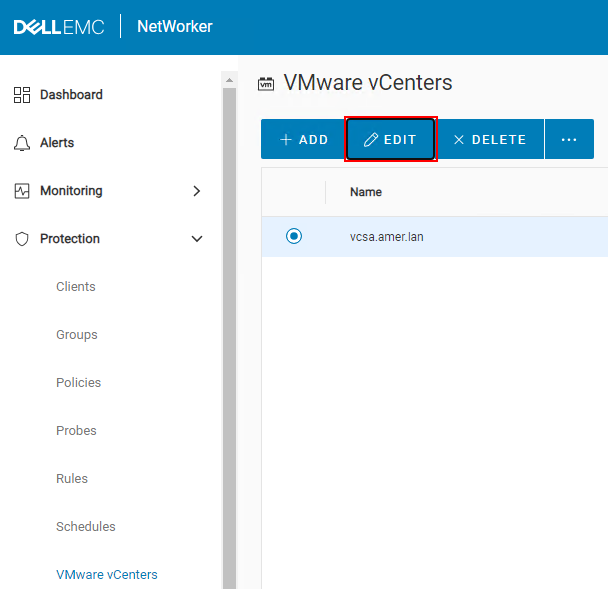
- If you must edit the vCenter server properties, you can do so under Protection > VMware vCenters.
How to Install the vCenter plug-in
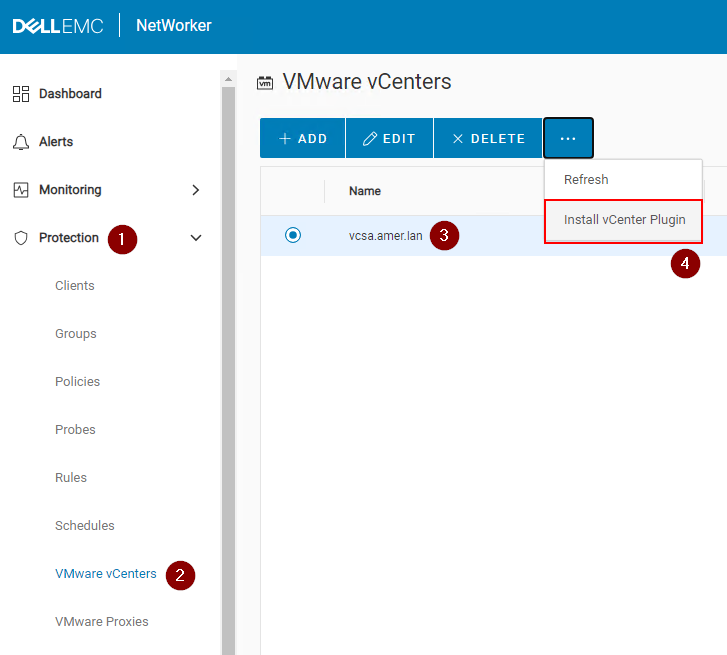
NOTE: The vCenter vSphere NetWorker plug-in is only supported when the vCenter was added to NetWorker using its FQDN or IP address. It does not support vCenters which were added using their shortname alias. NetWorker: vCenter plug-in and VCUI login fail with "vCenter not registered with NetWorker server". The vCenter plug-in is optional, it is not mandatory for performing VMware backup and restore operations. It provides a backup/recover interface directly within the vSphere user interface.
- Expand the Protection drop-down in the NWUI menu.
- Go to VMware vCenters.
- Select the VMware vCenter you want to install the plug-in on.
- Click the ... option and select Install vCenter Plugin.
- The default vCenter port used is 443. Specify the vCenter user account which has permissions to install the plug-in. Specify the vCenter user accounts password.
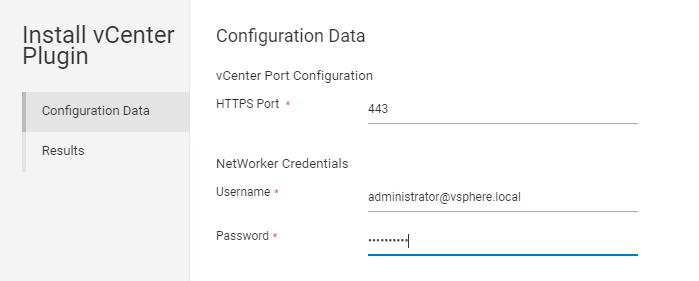
- Click Install and monitor the Results.
- Log in to the vSphere web client. The NetWorker plug-in is available from the home page.
How to add and configure the vProxy
- After deploying the OVA for the vProxy host, perform the following steps to add the vProxy by using the NetWorker Management Web UI.
- You must first have followed the above procedure to add the vCenter.
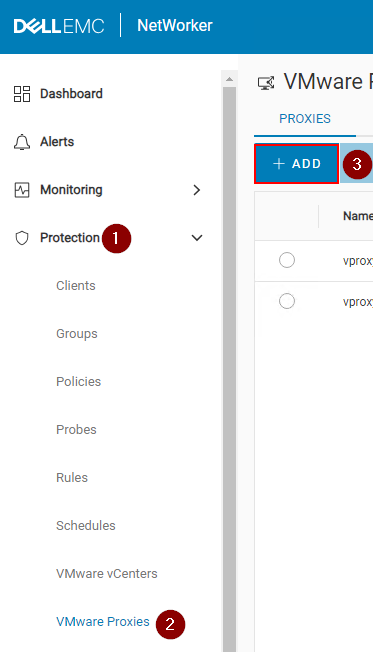
- In the left menu, expand the Protection drop-down.
- Go to VMware Proxies.
- Click +Add.
- In the Selection page, ensure that the correct vCenter is selected. Click Select Proxies to select one or more vProxies.
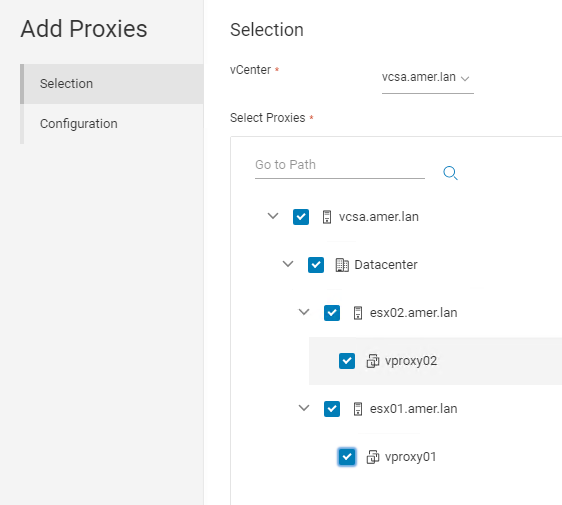
- In the Configuration page, enter the vProxy admin user's password. Click Finish when ready to initiate registration.

NOTE: For more information about Hot add and NBD configuration options and best practices, see the NetWorker VMware Integration Guide, available through: https://www.dell.com/support/home/product-support/product/networker/docs.
- You can edit the properties of the vProxy, using the Edit icon in the Protection->VMware Proxies page.
Adding a Pool
- Expand the Devices and Media drop-down in the left menu.
- Go to Media Pools.
- Click +Add.
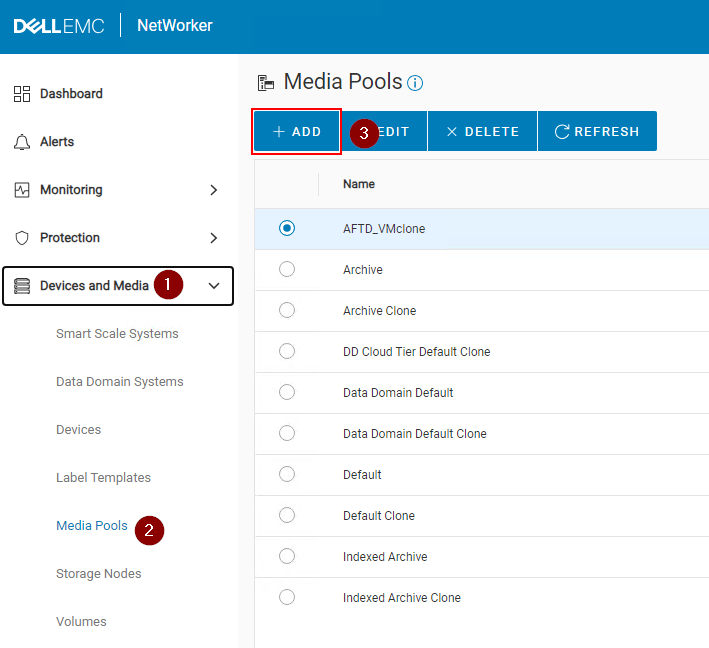
- Populate the required fields:
- Specify a Name for the pool.
- Specify a Type (Backup or Backup Clone).
- Select a Label Template or click Add Label Template. See below Adding a Label Template section.
- Select a Media Type Required for the device type that the Pool will use.
- Optional: Select configured devices to use this pool. This can be left blank if you intend on creating new devices for the pool to use.
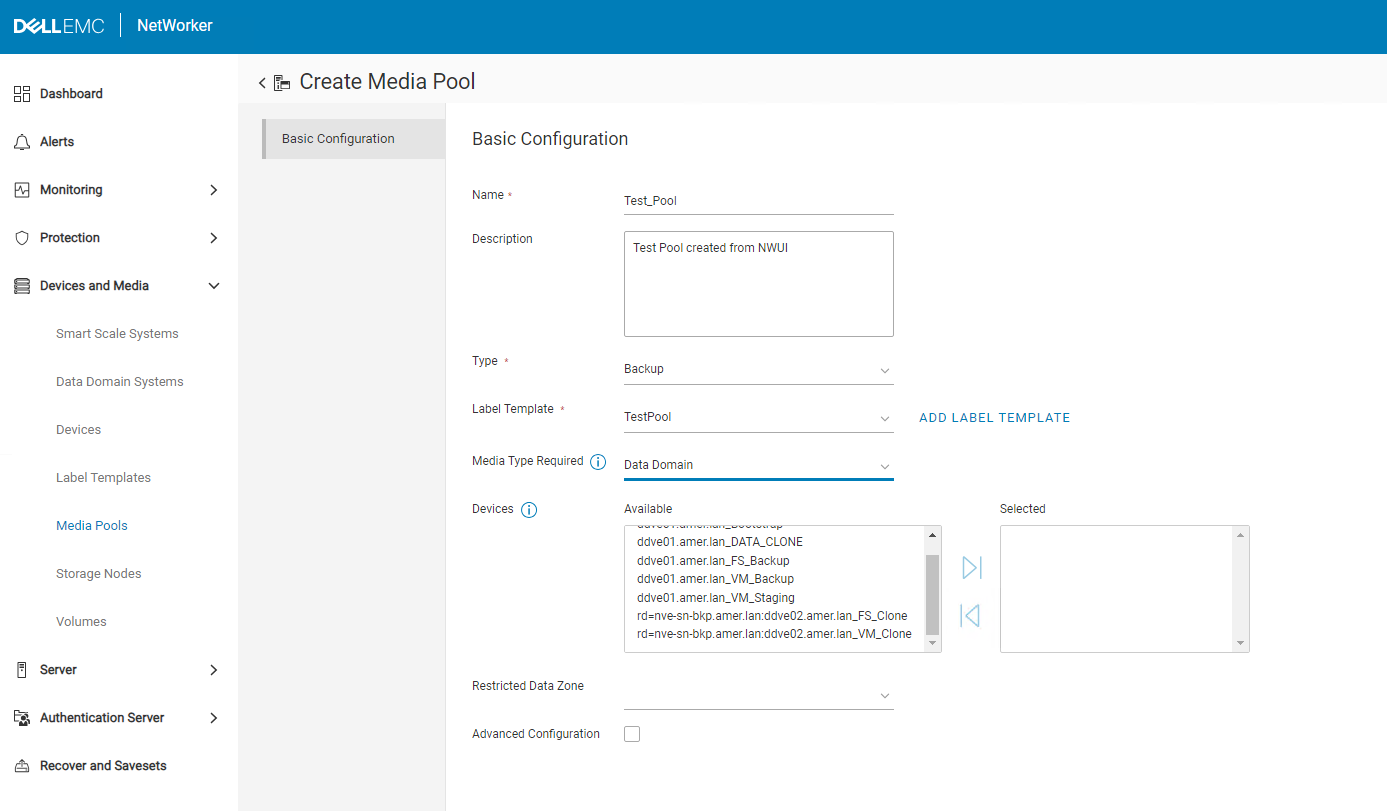
- Click Finish.
- Adding A Label Template:
- Can be accessed from NWUI under Devices and Media->Label Templates.
- Can be accessed during Pool creation by selecting Add Label Template.
- Provide a Name for the label template. This is what appears when a device is labeled to a Pool using the label template.
- Specify a field component, such as Character String.
- Add a field component, such as Range of Numbers: 001 to 999 would be a common one used with NetWorker. The options shown match the default convention used by NetWorker (
NameOfPool.###) appears when a device is labeled against the pool. - Specify a Separator.
- Specify the Next Label for the Label Template to use. For the options used in this example this would be
TestPool.001.
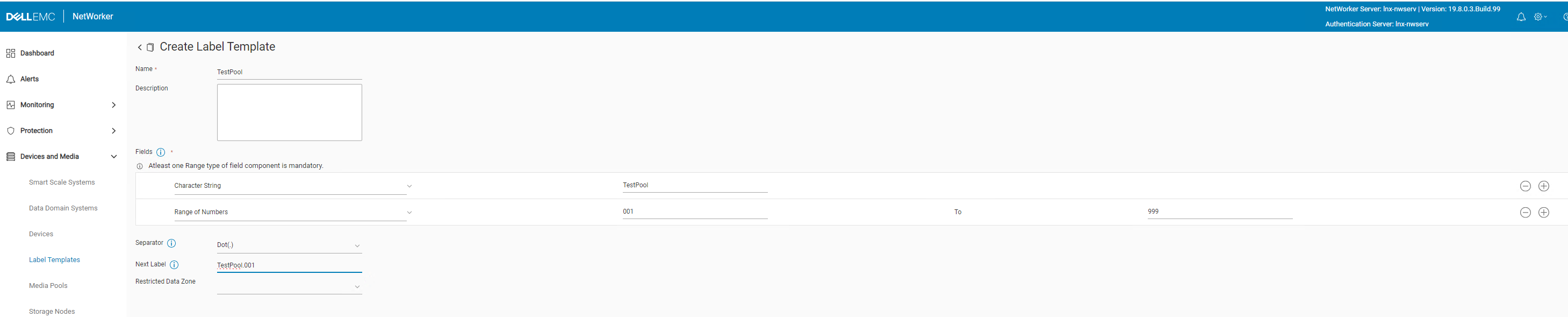
- Click Create.
Creating a Data Domain Device
- Expand the Devices and Media drop down in the left menu.
- Go to Devices.
- Click +Add.
- Select Data Domain.
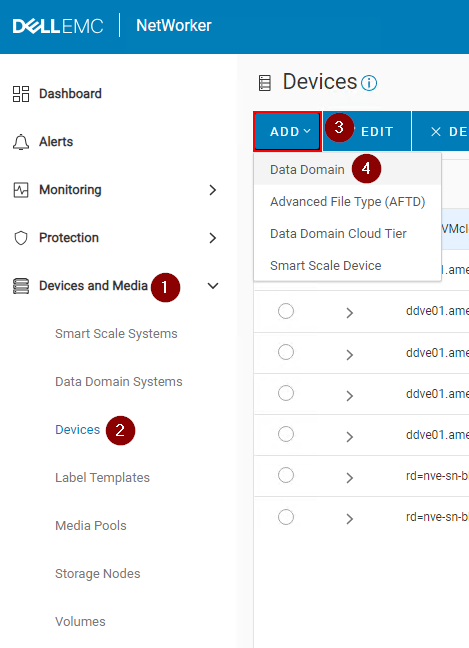
- Select a Data Domain which already exists on the NetWorker server. If no Data Domain exists, click Add Data Domain.
- Ensure that the correct ddboost user is shown when selecting a preexisting Data Domain.
- Click Connect.
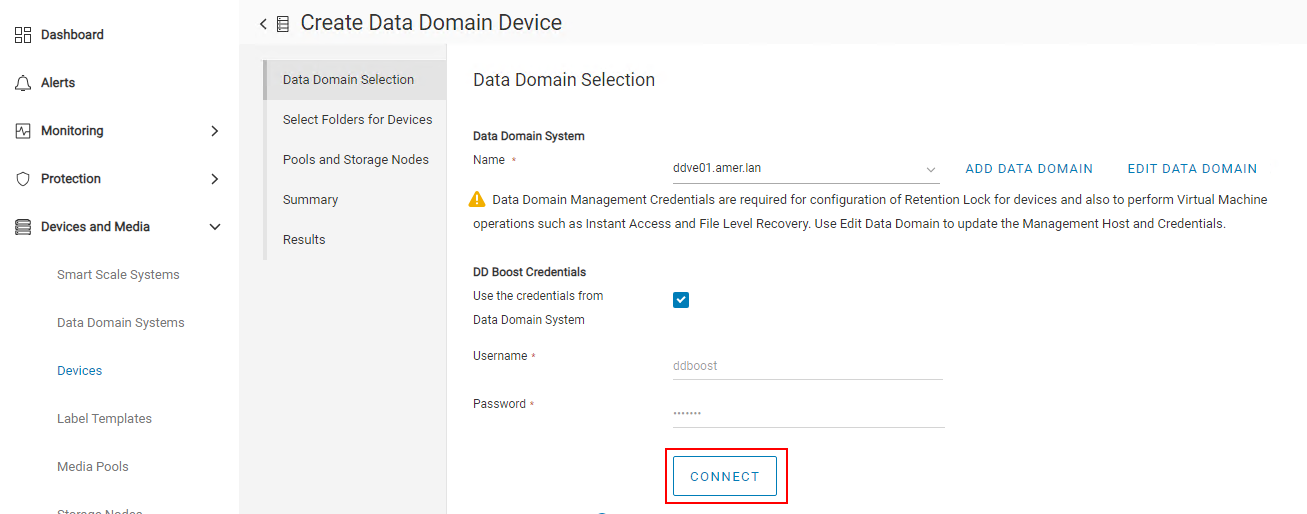
- NOTE: If the connection attempt fails, use the Edit Data Domain option to update the ddboost user credentials. You can validate and update ddboost user credentials from the Data Domain web management interface.
- Click Next.
- Click New Folder.
- Enter a name for the device.
- Check the device. The Device Name and Storage Path should appear in the lower pane.
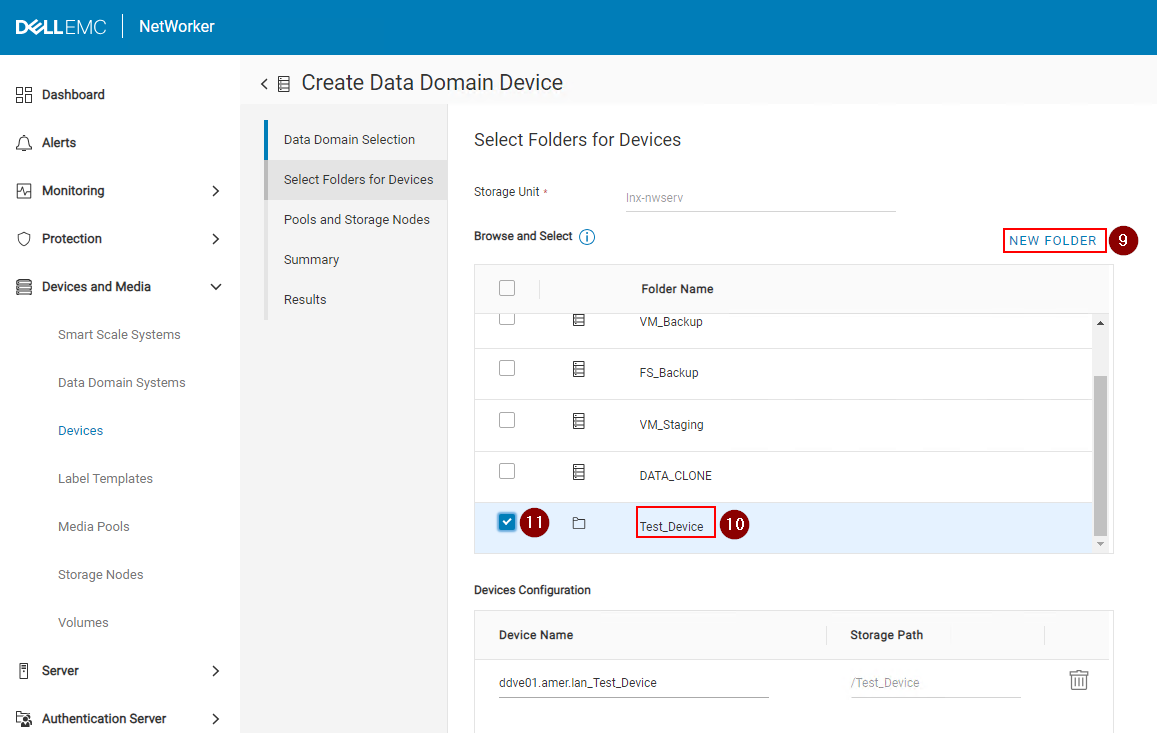
- Click Next.
- Select a Storage Node that the device is configured through.
- Select a Pool Type (Backup or Backup Clone). This should match the Pool type of the Pool selected in the next step. See the Adding a Pool section for more details.
- Select a Pool. See the Adding a Pool section for more details.

- Click Next.
- Review the Summary details and click Create.
- Monitor the Results and click Finish.
- Click Refresh in the Devices pane to see the newly created device.
NVP-vProxy Recovery Operations
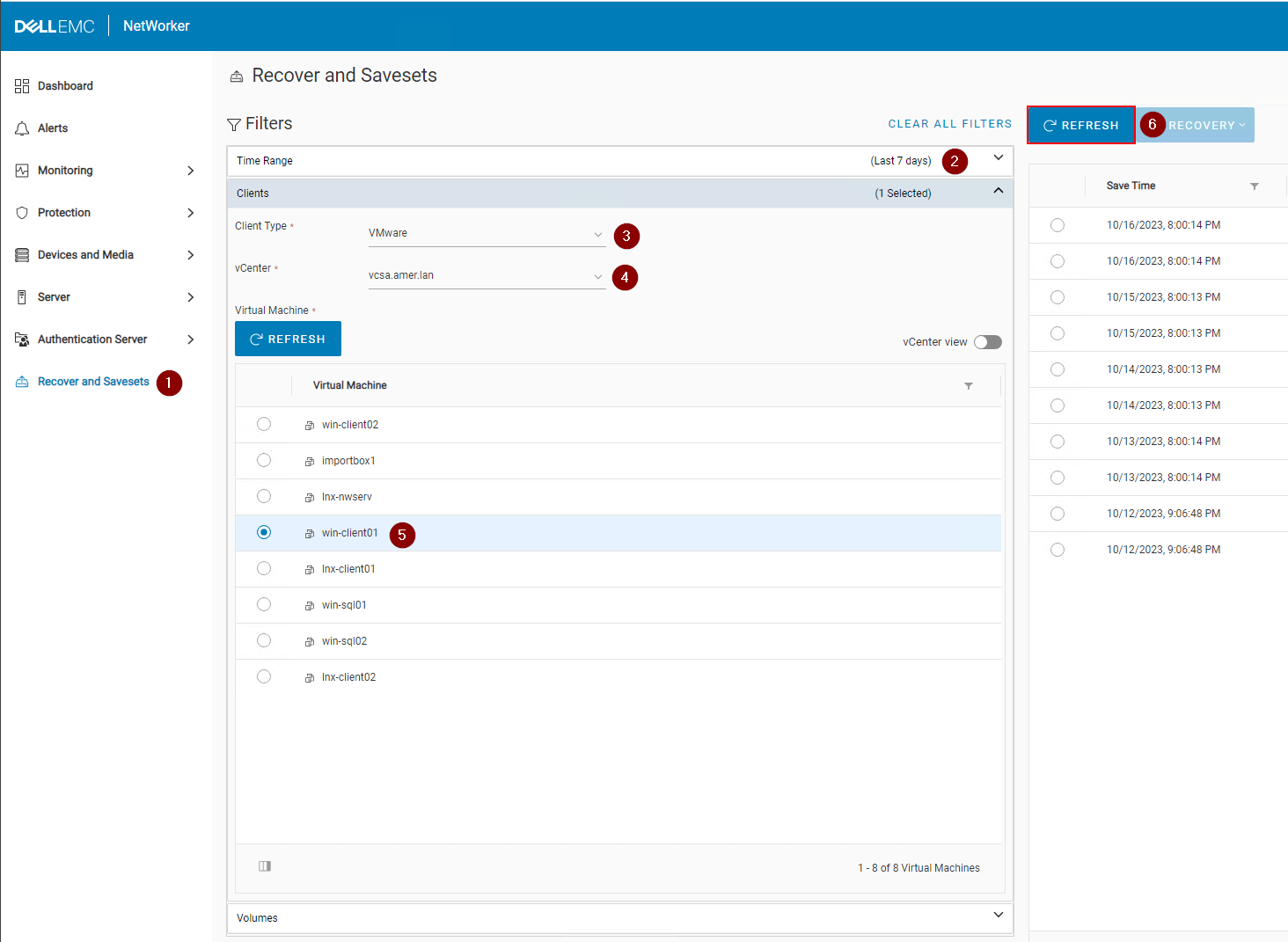
- Click Recover and Savesets in the left menu.
- Select or specify a Time Range.
- Select the VMware client type.
- Select the source vCenter.
- Select the Virtual Machine needed for restore. Click Refresh if the Virtual Machine pane does not populate.
- Click Refresh over the right pane to populate a list of backups and clones within the time range specified.
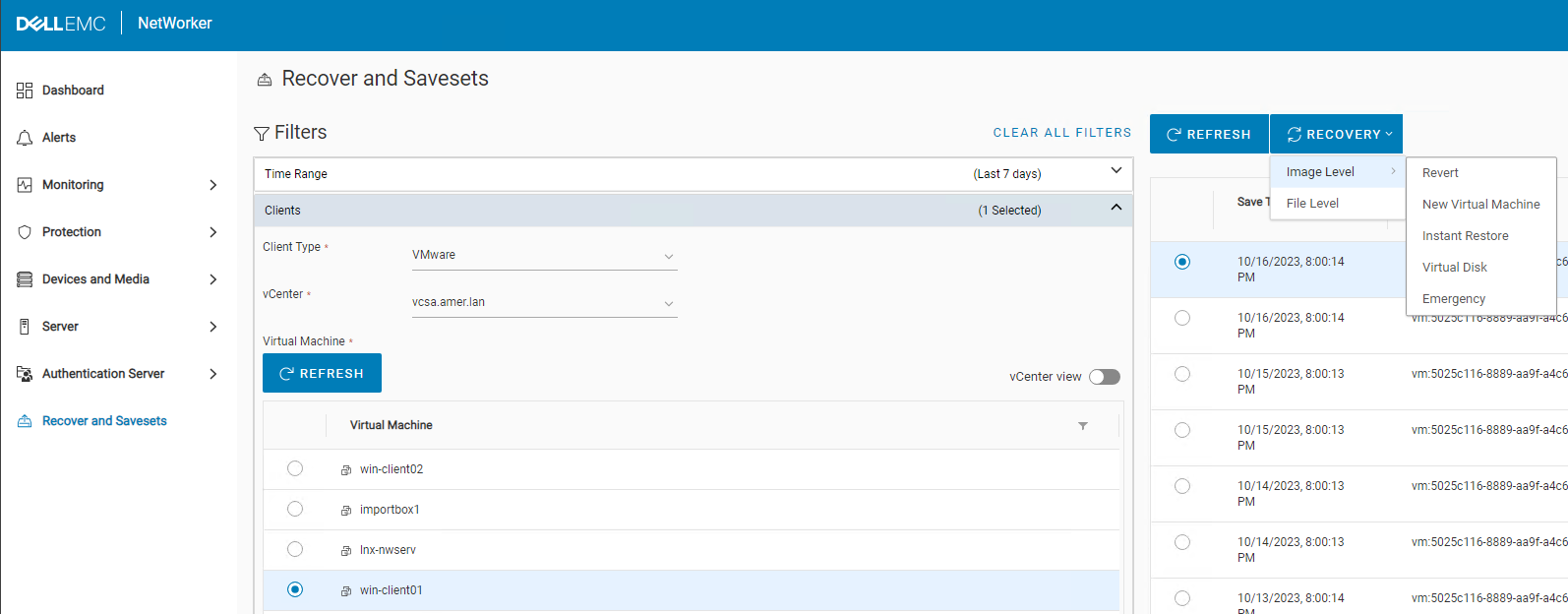
- Click the Recovery drop down over the right pane and select the restore method needed:
| Recovery Method | Description |
|---|---|
| Revert (or rollback) | Roll back one or more VM disks to its state at the time of the backup |
| Recover to a new Virtual Machine | Recover a VM to a new VM |
| Instant Restore | VM backup is read directly from the Data Domain device |
| Virtual Disk (VMDK) Recovery | Recovers a virtual disk and adds it to an existing VM |
| Emergency Recovery | Add ESXi server details to recover a VM using that ESXi host (when no vCenter Server is available) |
| File Level Recovery | Recover individual files from a backup |
NOTE: For more information about the different restore options, see the NetWorker VMware Integration Guide, available through: https://www.dell.com/support/home/product-support/product/networker/docs
Additional Information
NetWorker Management Web UI (NWUI): How to Install
NetWorker NWUI: How to Configure AD/LDAP from the NetWorker Web User Interface
NetWorker: How to configure "AD over SSL" (LDAPS) from The NetWorker Web User Interface (NWUI)
NetWorker: How to Perform a VMware FLR from the NetWorker Web User Interface
NetWorker Management Web UI (NWUI): Triage and Troubleshooting Guide
Affected Products
NetWorkerProducts
NetWorker, NetWorker SeriesArticle Properties
Article Number: 000010494
Article Type: How To
Last Modified: 23 Mar 2026
Version: 11
Find answers to your questions from other Dell users
Support Services
Check if your device is covered by Support Services.