PowerEdge: How to Activate Virtual Machines Using Automatic Virtual Machine Activation
Summary: This article explains how to activate virtual machines (VMs) hosted in Hyper-V on a Datacenter edition of Windows Server using Automatic Virtual Machine Activation (AVMA).
This article applies to
This article does not apply to
This article is not tied to any specific product.
Not all product versions are identified in this article.
Instructions
AVMA is a technology that simplifies activation of VMs on a virtualization host running a Datacenter edition of Windows Server. Using AVMA, VMs running a supported operating system (OS) are activated against the host's license. No Internet connection is required for VMs to activate, and usage data for VMs is stored on the virtualization host.
Contents
What is AVMA?
Requirements for AVMA
AVMA Keys
How to Implement AVMA
What is AVMA?
AVMA is a feature, introduced in Windows Server 2012 R2, that simplifies activation of Windows Server VMs on a Hyper-V host. The host OS is activated using a regular Windows Server product key, while the VMs use specific AVMA keys for activation. These AVMA keys are published by Microsoft, as shown below. AVMA is available in volume-license and OEM licensing scenarios. An AVMA key may be installed on a VM during unattended installation of Windows Server or after the OS is installed.
Requirements for AVMA
- The Hyper-V host must be running the Datacenter edition of Windows Server. AVMA cannot be used with virtualization hosts running a non-Datacenter edition of Windows Server or a non-Windows OS such as VMware ESXi.
- The host OS must be activated.
- The VMs must be running the same version of Windows Server as the host or an earlier version, as far back as Windows Server 2012 R2.
- The VMs must have an AVMA client key installed. These keys are published by Microsoft (see below).
- VMs using AVMA must have the Data Exchange integration service enabled, as shown below.
AVMA Keys
AVMA keys for VMs are published by Microsoft at https://learn.microsoft.com/en-us/windows-server/get-started/automatic-vm-activation?tabs=server2025
How to Implement AVMA
Each VM using AVMA must have the Data Exchange option enabled within Integration Services. This allows the VM to send activation-related data to the host. To ensure this is enabled, open the settings of the VM within Hyper-V Manager and confirm that the checkbox is selected:
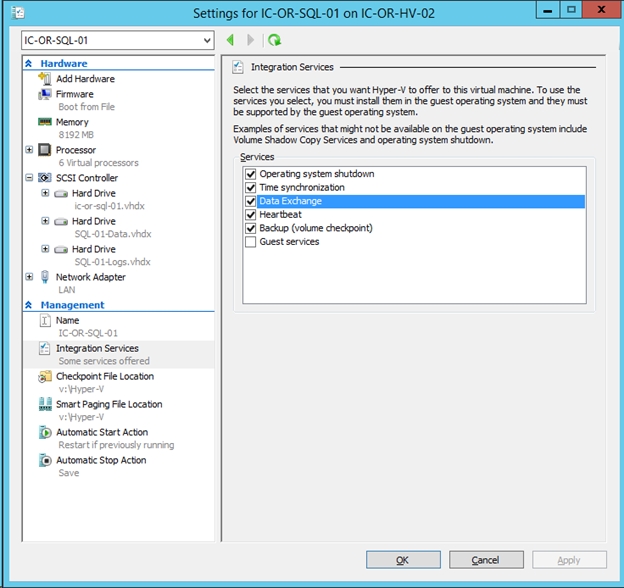
After confirming that setting, install the appropriate AVMA key in the VM. This can be done during installation of the VM's OS or afterward. If the OS has already been installed, run these commands from an elevated command prompt to install the key:
slmgr /upk
slmgr /ipk <AVMA_key>
The VM's OS automatically activates.
Affected Products
Microsoft Windows Server 2016, Microsoft Windows Server 2019, Microsoft Windows Server 2022, Microsoft Windows Server 2025Article Properties
Article Number: 000140349
Article Type: How To
Last Modified: 20 Feb 2026
Version: 7
Find answers to your questions from other Dell users
Support Services
Check if your device is covered by Support Services.