APEX AIOps Infrastructure Observability: General Procedures to Onboard PowerSwitch Systems to APEX AIOps Infrastructure Observability
Summary: APEX AIOps Infrastructure Observability is a cloud-based application that leverages machine Learning to proactively monitor and measure the overall health of the Dell Technologies infrastructure through intelligent, comprehensive, and predictive analytics. This article steps through the requirements to enable APEX AIOps Infrastructure Observability on Dell Networking PowerSwitch systems. ...
This article applies to
This article does not apply to
This article is not tied to any specific product.
Not all product versions are identified in this article.
Instructions
Onboarding Methods
OS10 and SONiC Enterprise devices can be onboarded to APEX AIOps Infrastructure Observability through the APEX AIOps Infrastructure Observability Collector. APEX AIOps Infrastructure Observability Collector is supported on PowerSwitch systems running OS10 10.5.3.0 or later and Enterprise SONiC version 4.1.x and later. APEX AIOps Infrastructure Observability Collector has been validated on OS10 Full Switch and SmartFabric Services modes.
Note: APEX AIOps Infrastructure Observability Collector has replaced the SupportAssist method of onboarding and collecting data for PowerSwitch systems. Customers currently using SupportAssist are advised to migrate to APEX AIOps Infrastructure Observability Collector.
Supported Devices
-
Enterprise SONiC 4.1.x
N3248X-ON
N3248TE-ON
E3248P-ON
E3248PXE-ON
S5248F-ON
S5296F-ON
S5448F-ON
S5232F-ON
S5224F-ON
S5212F-ON
Z9664F-ON
Z9264F-ON
Z9332F-ON
Z9432F-ON
Z9864-ON -
OS10 10.5.3.0 or later
N3248TE-ON
S3048-ON
S4048T
S4112F-ON
S4112T-ON
S4128F-ON
S4128T-ON
S4148F-ON
S4148T-ON
S4148U
S5296F-ON
S5248F-ON
S5232F-ON
S5224F-ON
S5212F-ON
S5448F-ON
Z9100
Z9264F-ON
Z9332F-ON
Z9432F-ON
Z9664F-ON
E3224F-ON
Migrating from SupportAssist to APEX AIOps Infrastructure Observability Collector
Existing OS10 SupportAssist customers can migrate to APEX AIOps Infrastructure Observability Collector without losing their data in APEX AIOps Infrastructure Observability.
-
Remove the SupportAssist configuration.
OS10# configure terminal
OS10(config)# eula-consent support-assist reject
This action will disable Support Assist and erase all configured data. Do you want to proceed ?
[yes/no(default)]:yes
OS10(config)#
-
Once the SupportAssist configuration has been removed in step 1, follow Section 1: Onboarding PowerSwitch systems using APEX AIOps Infrastructure Observability Collector.
Onboarding PowerSwitch systems using APEX AIOps Infrastructure Observability Collector
APEX AIOps Infrastructure Observability Collector
The collector is a small virtual machine distributed as a vApp that enables the collection of data for PowerSwitch, Connectrix, and VMware systems. For PowerSwitch, the APEX AIOps Infrastructure Observability Collector communicates with the individual switches using REST API. A single collector can be used for PowerSwitch, Connectrix, and VMware systems. With collector version 1.15.4 and greater, a centralized gateway is used to connect to Secure Connect Gateway (SCG). The deployment of a new integrated gateway (eVE) is no longer supported.
See Article Number: APEX AIOps Observability: The deployment of a new integrated gateway (eVE) is no longer supported
Centralized Gateway - APEX AIOps Infrastructure Observability Collector communicates by connecting to the Internet through the Secure Connect Gateway (installed independently of the CloudIQ Collector).
Figure 1: Centralized Gateway
Prerequisites
The Customer:
- PowerSwitch with OS10 10.5.3.0 or later, and Enterprise SONiC 4.1.x or later
- Ability to deploy a VMware vApp virtual machine that acts as the data collector
- An active ProSupport or higher contract
- Completed customer registration at Dell Support Site (for each user)
- Open port 9443 for access between the APEX AIOps Infrastructure Observability Collector and the Secure Connect Gateway.
- If the Secure Connect Gateway resides behind a firewall, open port 443 on the firewall for an outbound connection to the SupportAssist server
https://esrs3-core.emc.com
The APEX AIOps Infrastructure Observability Collector:
- Does not support IPv6
- Must be running at least v1.11.0 (OS10) or v1.15.0 (SONiC 4.1.x)
- Requires read-only access to VMware vCenters
Note: When installed, the APEX AIOps Infrastructure Observability Collector is configured with 1 vCPU, 8 GB RAM, and 10 GB hard disk.
For a video Outline of this process, see: Onboarding PowerSwitch Devices to CloudIQ Using CloudIQ Collector

Download APEX AIOps Infrastructure Observability Collector
The APEX AIOps Infrastructure Observability Collector can be downloaded from the Dell Support site or the APEX AIOps Infrastructure Observability UI.
Download from the Dell Support site:
- Log in to the Dell Support Page
- Search for APEX AIOps Infrastructure Observability Collector
- Download the latest APEX AIOps Infrastructure Observability Collector vApp
Download from APEX AIOps Infrastructure Observability UI:
- Log in to the APEX AIOps Infrastructure Observability user interface
- Select Admin > Collectors
- Select Download a Collector at the top of the screen
- Select Download Collector vApp
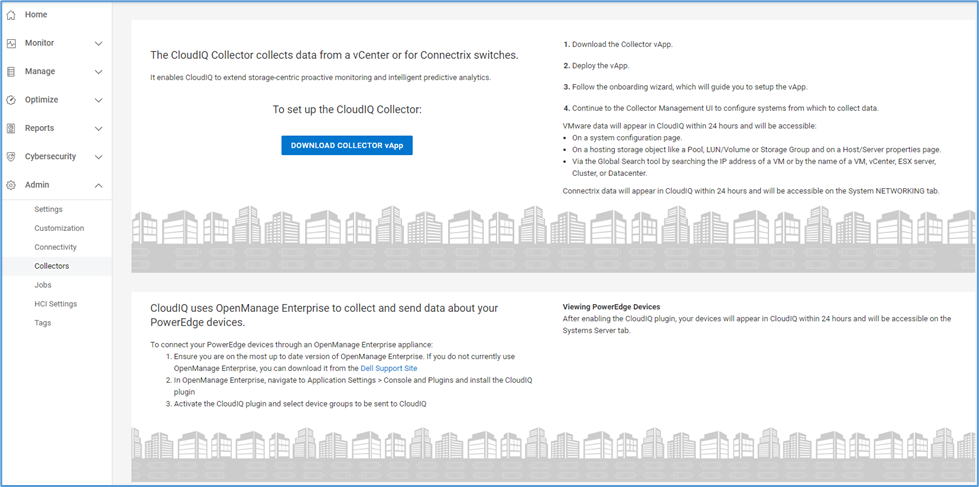
Figure 3: Collector Download Screen.
Deploying the APEX AIOps Infrastructure Observability Collector
- Log in to vCenter
- Select File > Deploy OVF Template
- Select Upload files on the Select an OVA template page in the Deploy OVF template window, browse to and select the OVA file, and then select Next.
- Enter the name of the VM and select the location where it will be installed on the Select a name and folder page, and then select Next.
- Select the Destination compute resource for this operation on the Select a compute resource page, and then select Next.
- Verify the template details on the Review details page, and then select Next.
- Read and select I accept all license agreements on the License agreements page, and then select Next.
- Select the Storage for the configuration on the Select storage page, and then select Next.
- Select a Destination network for each source network in the Select Networks page, and then select Next.
- In the Customized template page, enter the following information, and then select Next.
- Hostname
- IP Address in CIDR format (For example, XX.XX.XX.XX/24)
- Default Gateway
- DNS Server #1
- DNS Server #2 (if applicable)
- Search Domains (Multiple search domains are separated by spaces)
Note: Not entering the IP address in CIDR format allows the vApp to boot, but it is not reachable.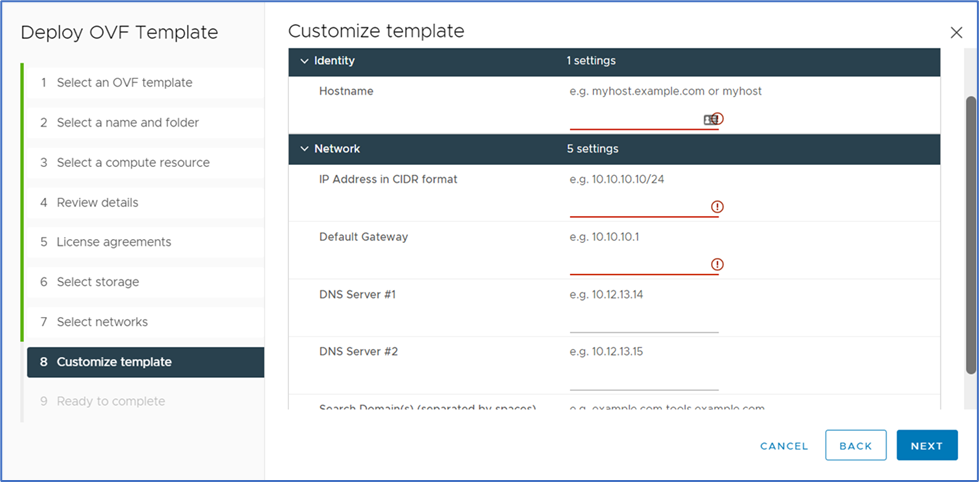
Figure 4: Deployment Screen - Review the host information in the Ready to Complete page.
- If correct, select Finish to deploy the vApp.
- Once the vApp is fully deployed, close the Deployment Completed Successfully window and power on the VM.
Note: The first boot of the vApp takes several minutes to complete its initial deployment.
Configure the APEX AIOPs Observability Collector
The latest version of the collector may be connected directly over SupportAssist or over an SCG gateway.
See details within the following KB.
000275651-APEX AIOPs Observability: How do I install the new APEX AIOPs Observability Collector v1.16.1? (A Dell Support account is required to view this article)
Adding PowerSwitch to APEX AIOPs Observability Collector
Note: Testing was based upon 100 PowerSwitch or 128 Connectrix or a mix of both, up to 100.
-
Ensure that the switches are properly configured before attempting to discover them with the APEX AIOPs Observability Collector
- SONiC
RESTCONF API is enabled by default. Therefore, you do not have to run any commands. - OS10
- Enable the RESTCONF API service only on the switches operating in full switch mode.
- To verify the mode
OS10# show switch-operating-mode
Switch-Operating-Mode : Full Switch Mode
- Enter the configuration mode
OS10# configure terminal
OS10(config)#
- Enable the RESTCONF API
OS10(config)# rest api restconf
OS10(config)# exit
- To verify the mode
- RESTCONF API service is enabled by default on switches operating in SmartFabric Services mode.
- To verify the mode
OS10# show switch-operating-mode
Switch-Operating-Mode : SmartFabric Mode
Note: Rest API RESTCONF is not seen in the running configuration in SmartFabric Services mode, as RESTCONF API Service is enabled by default. - To verify that the RESTCONF API is enabled
show running -configuration | grep rest
If enabled, the output is rest api restconf
- To verify the mode
- Enable the RESTCONF API service only on the switches operating in full switch mode.
-
Create a rest user account for APEX AIOPs Observability Collector with appropriate privileges (Recommended).
- SONiC
The role operator provides access to EXEC mode to view the current configuration. An operator cannot modify configuration settings on a switch.sonic(config)# username <username> password <password> role operator
- OS10
The role netoperator provides access to EXEC mode to view the current configuration with limited access.
A network operator cannot modify any configuration setting on a switch.OS10(config)# username <username> password <password> role netoperator
- SONiC
-
Select PowerSwitch from the left side menu.

Figure 9: Add PowerSwitch. -
Select the Add PowerSwitch button to configure access to switches individually.
-
Enter the switch details and select Validate and Add
Note: Credentials for RADIUS/TACACS+ can be used when adding a PowerSwitch if the OS10 switch is configured with either of these services. If the password changes or expires, the collector is unable to connect to the switches.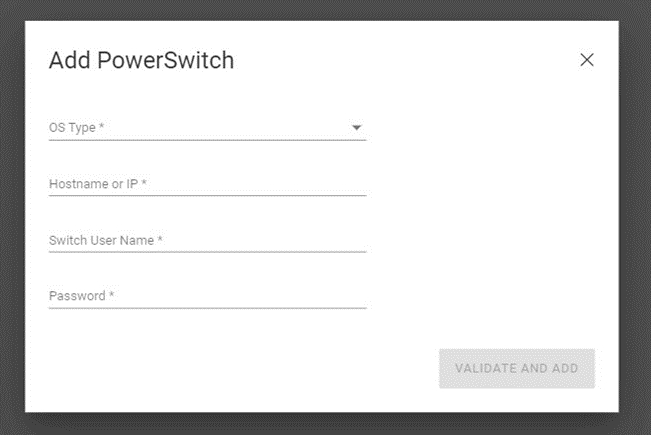
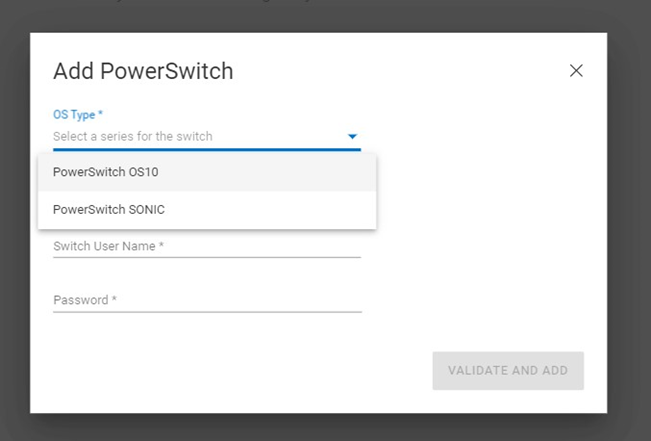
Figure 10: PowerSwitch Details
- SONiC
Note: After adding a PowerSwitch, it may take up to 24 hours for all system data to appear in APEX AIOps Infrastructure Observability.
Affected Products
CloudIQ, CloudIQ, CloudIQ for PowerSwitch, Enterprise SONiC Distribution, PowerSwitch E3200-ON Series, Dell EMC Networking N3200-ON, PowerSwitch S5212F-ON, PowerSwitch S5224F-ON, PowerSwitch S5232F-ON, PowerSwitch S5248F-ON, PowerSwitch S5296F-ON
, PowerSwitch S5448F-ON, PowerSwitch Z9100-ON, PowerSwitch Z9264F-ON, PowerSwitch Z9332F-ON, PowerSwitch Z9432F-ON, SmartFabric OS10 Software
...
Article Properties
Article Number: 000192029
Article Type: How To
Last Modified: 19 Mar 2025
Version: 53
Find answers to your questions from other Dell users
Support Services
Check if your device is covered by Support Services.