How to Set an Admin Password in the BIOS
Summary: Secure your BIOS or UEFI with an Admin Password (sometimes called Setup Password). Protect your system BIOS or UEFI from unauthorized changes with our step-by-step guide.
This article applies to
This article does not apply to
This article is not tied to any specific product.
Not all product versions are identified in this article.
Instructions
Want to prevent unauthorized users from modifying the BIOS or UEFI? Setting up an Admin Password creates a security barrier that prevents unauthorized users from changing the BIOS or UEFI settings without your permission. This guide walks you through the entire process, step by step.
What Is an Admin Password and Why Do You Need One?
Think of the Admin Password (sometimes called Setup Password) as a security lock for your computer's BIOS or UEFI settings. The admin password provides security by locking all the BIOS features and settings. The user can boot and see the BIOS settings, but they cannot modify them unless the correct admin password is provided to the computer.

Key Benefits of Admin Password Protection
- BIOS Settings Protection: Prevents unauthorized changes to critical system settings
- Hardware Configuration Security: Stops others from modifying boot order, security features, or hardware settings
- Administrative Control: Allows viewing of BIOS but restricts modifications
- Does NOT prevent normal booting: Your computer will start normally into Windows/operating system
Important: Admin vs System Password Difference
- Admin Password: Protects BIOS settings modification (allows viewing, prevents changes)
- System Password: Prevents computer from booting entirely (blocks startup completely)
Before You Begin: Important Things to Know
Password Requirements
Latest Dell computers support strong passwords depending on your model. Here's what you need to know:
- Minimum length: At least 8 characters (if strong password is enabled)
- Case requirements: Must include both uppercase and lowercase letters
- Special characters: Latest models support special characters in the password
Warning: Store your password securely using a password manager. Forgot your Admin Password? Check out how to recover the Admin Password.
How to Set Up Your Admin Password in the BIOS or UEFI
Your Dell computer might use a different menu layout for BIOS/UEFI settings. We'll show you the most common methods so you can follow the one that matches your computer.
Need help to remove your HDD password? Learn next steps: How to Reset or Recover BIOS and Hard Drive Passwords
Access the BIOS setup
- Turn off your Dell computer completely
- Turn it back on and immediately press F12 repeatedly until you see the boot menu
- Select "BIOS Setup" or "System Setup" from the menu options
Find the password settings
- Look for either "Security" or "Passwords" in the main menu (this varies by Dell model)
- Use your arrow keys to highlight the option and press Enter
Create your Admin Password
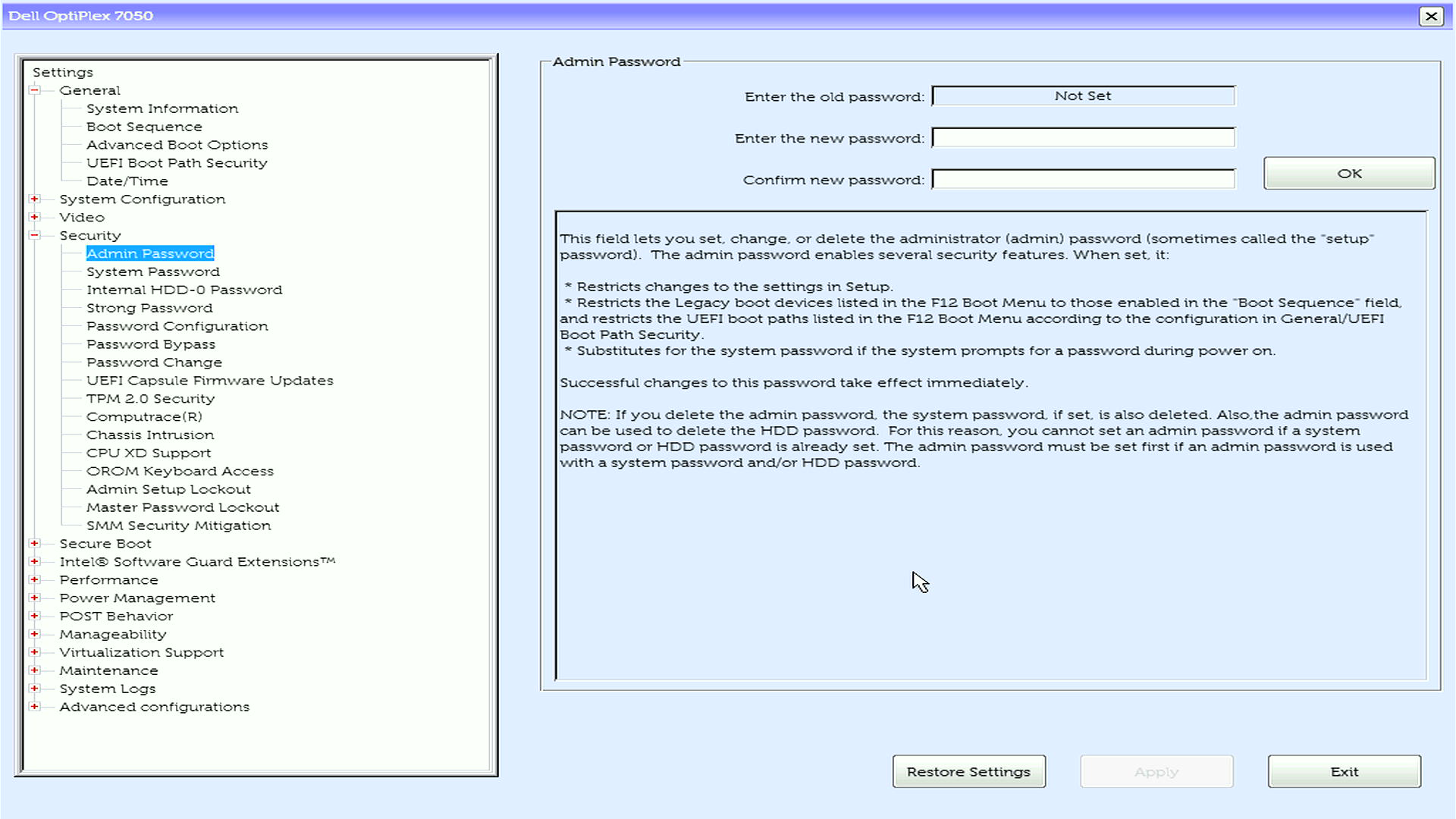
- Find and select Admin Password from the list
- In the Enter the New Password field, type your chosen password and press Enter
- Move to the Confirm New Password field, type the same password and press Enter
Save and exit
- Save your changes using one of these methods:
- Option 1: Look for "Apply" or "Apply Changes" button, click it, then click Exit
- Option 2: Press Esc to go back to the main menu, then press Y when prompted to save changes
- Your computer will restart automatically
What Happens After You Set the Password
Once you've successfully set up your Admin Password, here's what to expect:
During Normal Startup
- Your computer boots directly to the operating system as usual
- NO password prompt appears during normal startup
- The operating system loads without any password requirement
When Accessing BIOS Settings
- You can enter BIOS setup (F2/F12) and VIEW all settings
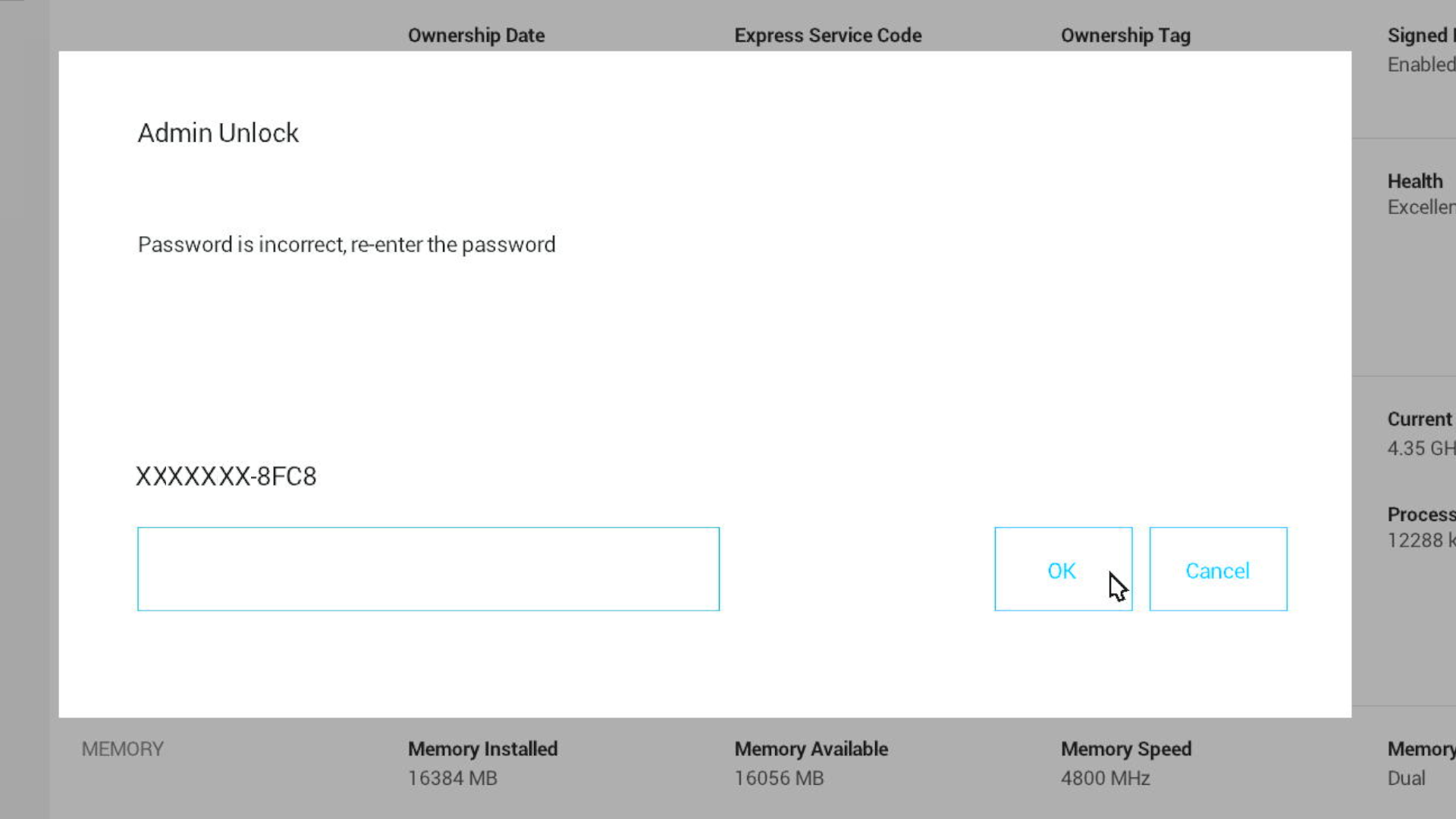
- When you try to MODIFY any setting, the Admin password prompt appears
- You must enter the correct Admin password to make changes
- After setting the admin password, no BIOS settings can be modified except the System password
Need more help?
- Ready to protect your computer? Learn: Understanding BIOS Password Types
- To create new passwords: see guides for System Password or Hard Drive Password setup
Troubleshooting Common Issues
1. Can't Find the Password Option?
- Make sure you're in the correct BIOS section (Security or Passwords)
- Try the alternative method if your current approach doesn't match your computer's layout
- Some older Dell models may have different menu structures, check the user manual
2. Password Field Appears Grayed Out in the BIOS?
- Check if an Admin password is already set—you'll need to enter it first
- Verify that the current password status shows "Not Set"
3. Computer Won't Accept Your Password?
- Ensure you're using the correct password
- Check if Caps Lock is accidentally turned on
Affected Products
Alienware, Dell All-in-One, Dell Pro Max Micro, Dell Pro Max Slim, Dell Pro Max Tower, Dell Pro Micro, Dell Pro Tower, Dell Slim, Dell Tower, Inspiron, OptiPlex, Vostro, XPS, G Series, G Series, Alienware, Dell Pro, Dell Pro Max, Dell Pro Plus
, Inspiron, Latitude, Dell Pro Rugged, Vostro, XPS, Fixed Workstations, Mobile Workstations, Dell Pro Max Micro XE FCM2250
...
Article Properties
Article Number: 000219905
Article Type: How To
Last Modified: 05 Sept 2025
Version: 8
Find answers to your questions from other Dell users
Support Services
Check if your device is covered by Support Services.