LCD Image Retention or Burn In on Latitude 7320 Detachable or Latitude 7350 Detachable
Summary: The LCD of a Latitude 7320 Detachable or Latitude 7350 Detachable may experience image retention after a static image is left on-screen for over 12 hours.
This article applies to
This article does not apply to
This article is not tied to any specific product.
Not all product versions are identified in this article.
Symptoms
The LCD of a Latitude 7320 Detachable or Latitude 7350 Detachable may experience image retention, also known as burn in. This happens when a static image is left on-screen for over 12 hours.
Affected Platforms:
- Latitude 7320 Detachable
- Latitude 7350 Detachable
Cause
This is a limitation of the LCD liquid crystal polarization. This is more likely to occur under conditions of high temperatures with static images left on-screen for over 12 hours. The LCD display duty cycle is designed for active usage and movement for 12 hours a day, seven days a week.
Resolution
Recovery
- Power off the computer for 24 hours if experiencing an image retention issue.
- If image retention continues, Contact Technical Support for further assistance.
Prevention
Note:
- Dell Technologies recommends not keeping one static screen on the LCD without changing it for over 12 hours at a time.
- Dell Technologies recommends not using the computer with continuous high brightness settings on a static image for a long period of time.
- Dell Technologies recommends not using the computer in high-temperature environments (such as near an oven or in direct sunlight).
Image retention may be prevented by following one of two options.
Option 1
Enable a screen saver.
- Open Settings, then select Personalization.
- In the right-side menu, choose Lock screen.
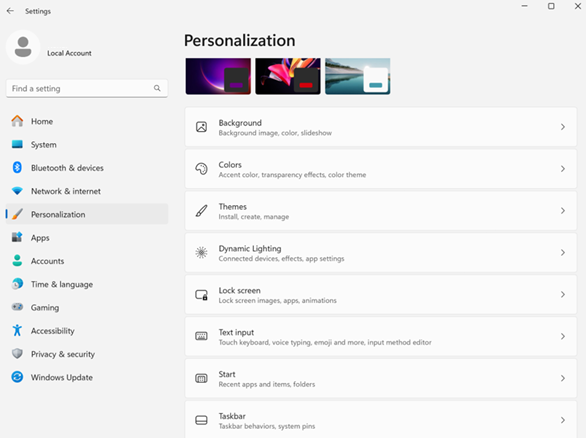
- Click Screen saver at the bottom.

- Select the screen saver. From the drop-down menu, choose your dynamic style (3D Text, Bubbles, Mystify, or Ribbons).
- Click Apply.
- Click OK.

Option 2
Turn the display off while the computer is idle.
- Open Settings, then select System.
- In the right-side menu, choose Power & battery.

- Click Screen, sleep, & hibernate timeouts.

- Under Plugged in, set Turn my screen off after to a value such as 5 minutes, 10 minutes, 15 minutes, and so on.
Note: Dell Technologies does not recommend setting the value to Never.
- Under On battery, set Turn my screen off after to a value such as 5 minutes, 10 minutes, 15 minutes, and so on.
Note: Dell Technologies does not recommend setting the value to Never.

Affected Products
Latitude 7320 Detachable, Latitude 7350 DetachableArticle Properties
Article Number: 000328492
Article Type: Solution
Last Modified: 02 Oct 2025
Version: 4
Find answers to your questions from other Dell users
Support Services
Check if your device is covered by Support Services.