GPS Not Functioning Correctly on Dell Pro Rugged and Latitude Rugged Laptops
Summary: The Global Positioning System (GPS) does not function properly on Rugged Control Center (RCC) 5.0 without the required baud rate configuration. This occurs on the Dell Pro Rugged 14 RB14250, Dell Pro Rugged 13 RA13250, Latitude 5430 Rugged, and Latitude 7330 Rugged Extreme. ...
This article applies to
This article does not apply to
This article is not tied to any specific product.
Not all product versions are identified in this article.
Symptoms
GPS is not functioning properly. The auto scan function in RCC might not work. Baud rate changes in RCC cannot get GPS National Marine Electronics Association (NMEA) data.
Affected Platforms:
- Dell Pro Rugged 13 RA13250
- Dell Pro Rugged 14 RB14250
- Latitude 5430 Rugged
- Latitude 7330 Rugged Extreme
Cause
The GPS module enters power-saving mode when idle. Additional configuration is required to enable the COM port for receiving NMEA data.
Resolution
GNSS configuration:
- Ensure that the GPS device, and the u-blox Universal GNSS driver is installed. Within Device Manager, the u-blox Universal GNSS device is listed under the Sensors category.
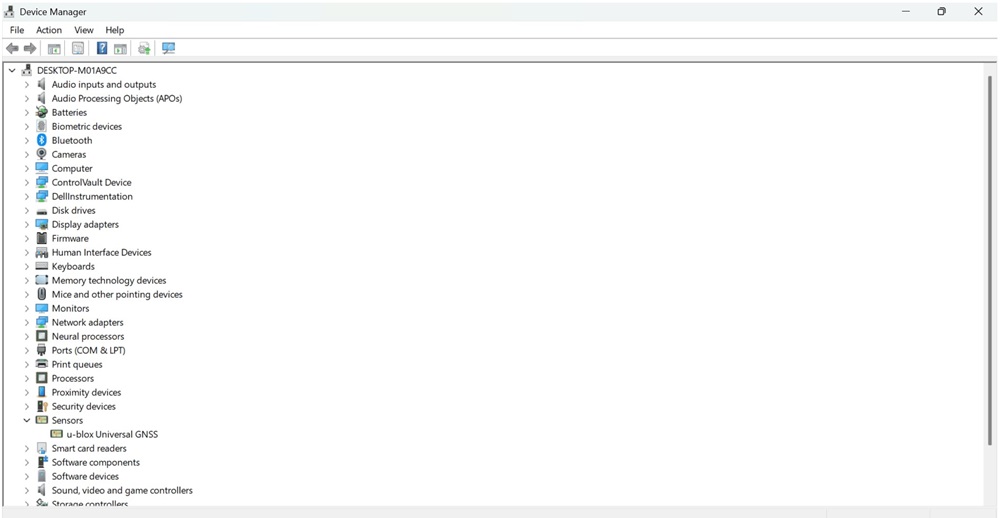
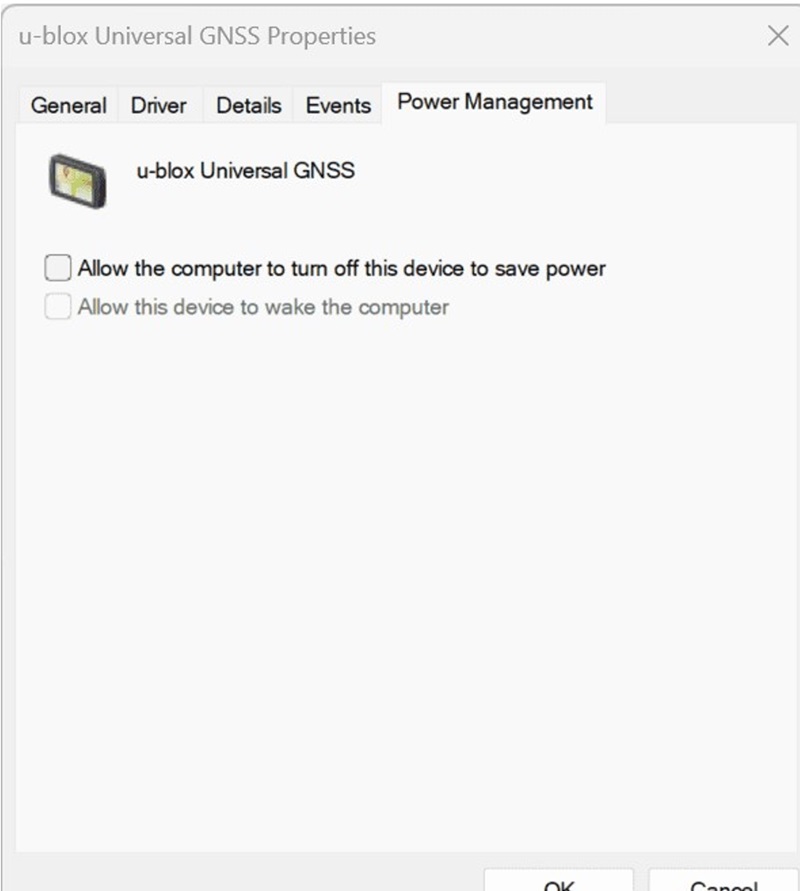
- Right-click the u-blox Universal GNSS device, select Properties, select the Power Management tab, and then clear the option "Allow the computer to turn off this device to save power."
- The map application can receive position data.
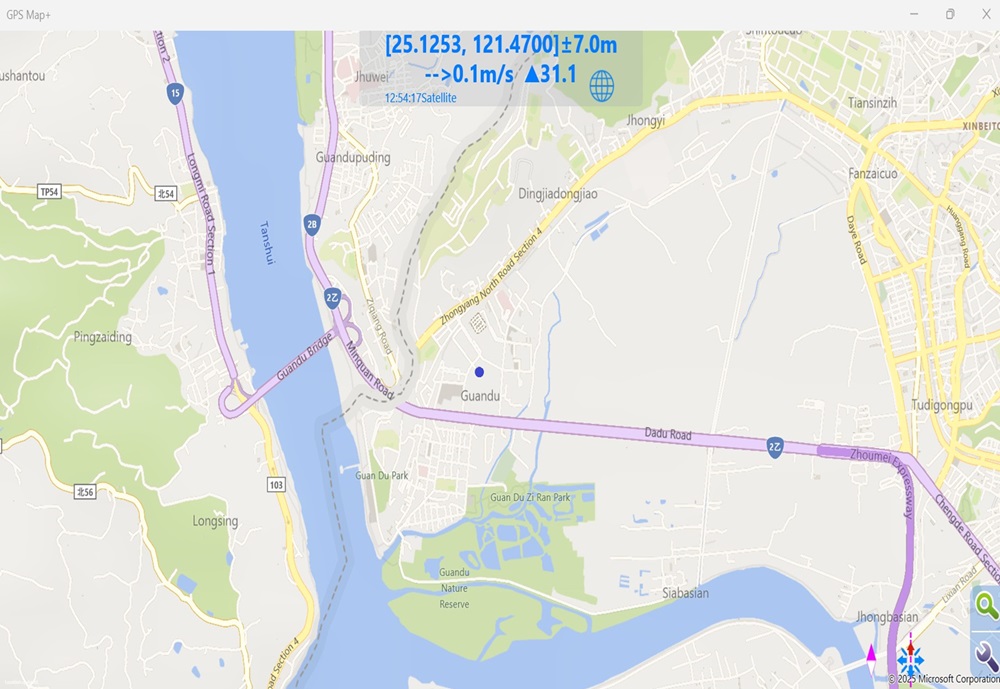
COM port configuration:
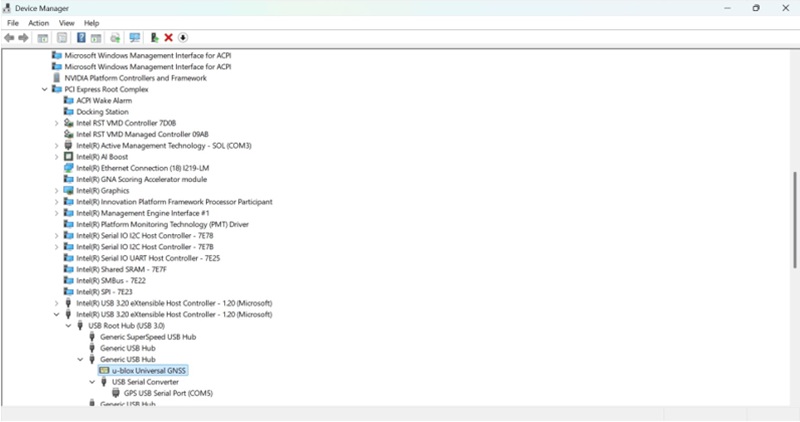
- Ensure that the USB Serial Port device and FTDI driver is installed. Within Device Manager, the u-blox Universal GNSS device is listed under the Sensors category. Then click View and select Devices by connection. Then you can see COM port In the template, COM5 is GPS COM port.
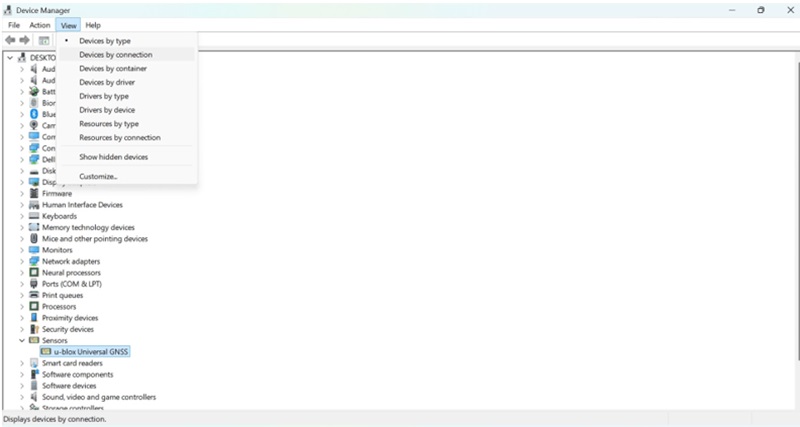
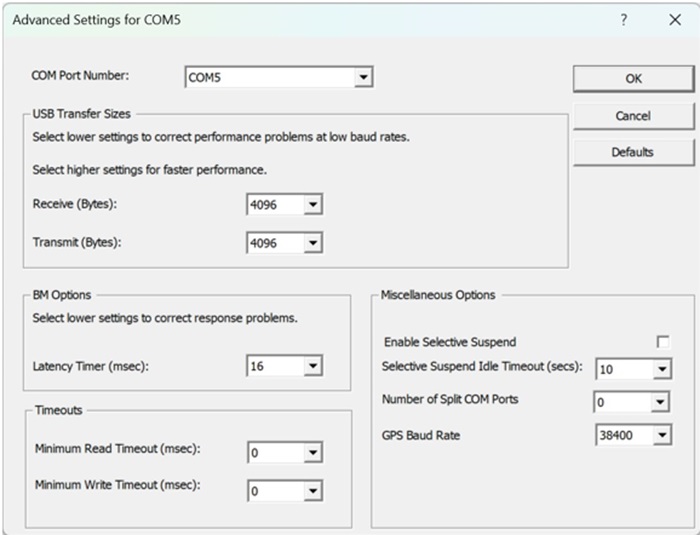
- Right-click to the GPS COM port and open the properties. Select Port Settings, then select Advanced and clear the "Enable selective suspend" option. Then click OK to take effect.
- Open Dell Rugged Control Center v5.0.152.0(RCC) and go to the GPS page PROGRAM and then to GPS.

- Press Auto-scan button, then the GPS COM port and the baud rate value are selected automatically. Next, select the wanted Sentences and satellites for GPS configuration.
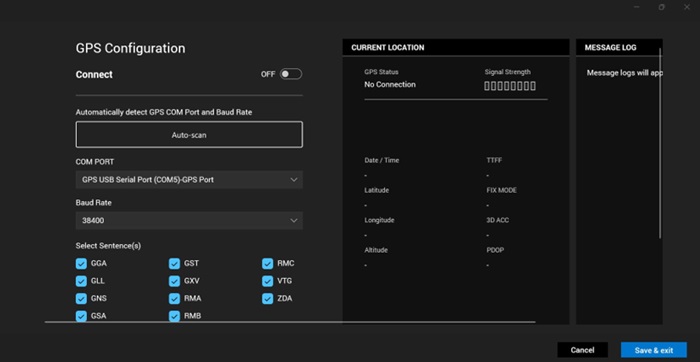
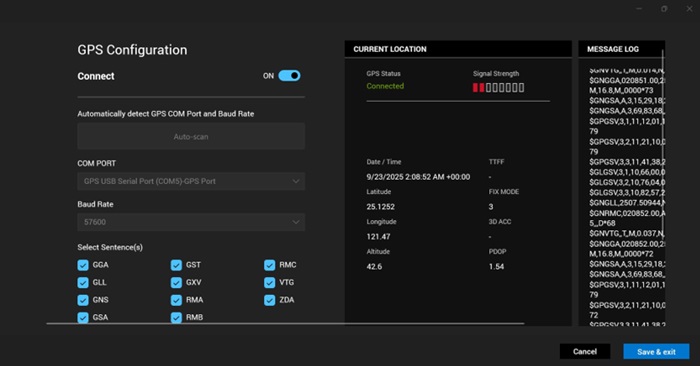
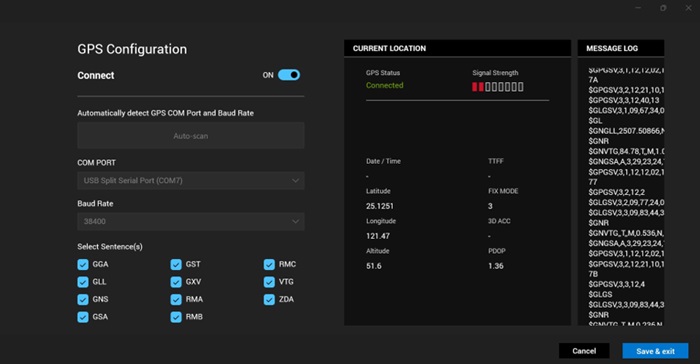
- Switch the Connect icon to ON. NMEA data are shown in the MESSAGE LOG page.

- Select the wanted baud rate value, switching the Connect icon to ON changes the operating baud rate for the GPS COM port. When GPS is connected, you see signal strength in the bar and get the NMEA data in the message log.
How to split multiple COM ports
- Find the COM port found in the previous steps, right-click, and choose Properties.
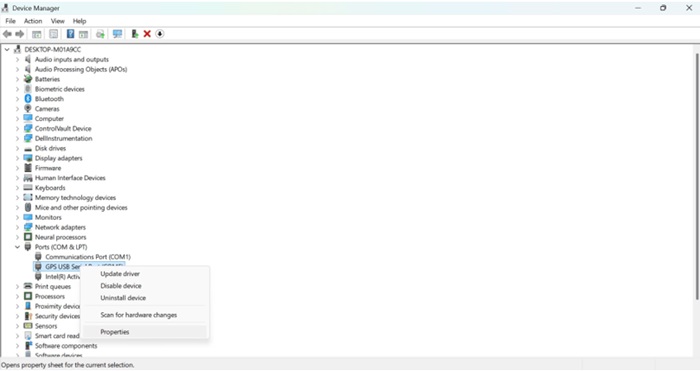
- Select Port Settings and click Advanced.
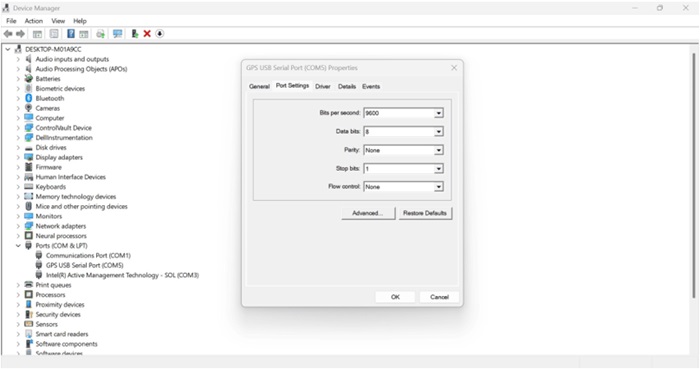
- Adjust a wanted number of Split COM Ports (Up to 5) and check that the GPS Baud Rate is 38400.

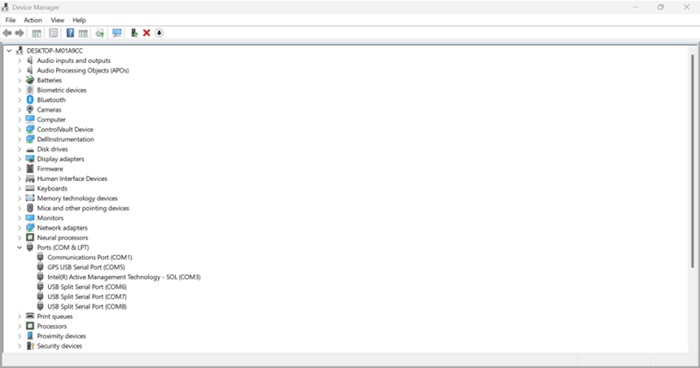
- Restart the computer after the settings are configured.
- Within Device Manager, you can find the splitting ports named USB Split Serial Port. Noticed, the original COM Port 5 has been occupied and not able to be used when the splitting ports generated.
- Open Dell Rugged Control Center v5.0.152.0(RCC) and go to the GPS page, select PROGRAM and then select GPS.
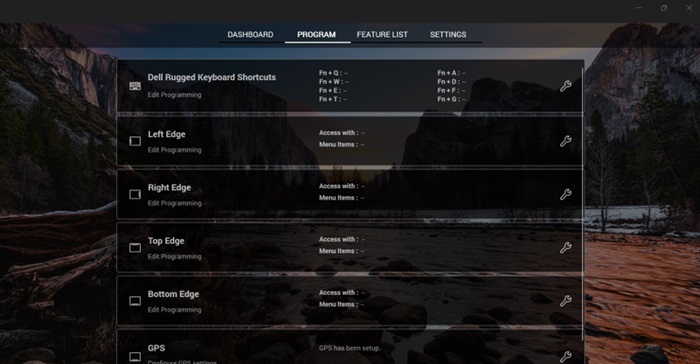
- Select a splitting COM port named "USB Split Serial Port," the wanted baud rate (ex: 38400). Sentences and satellites for GPS configuration.
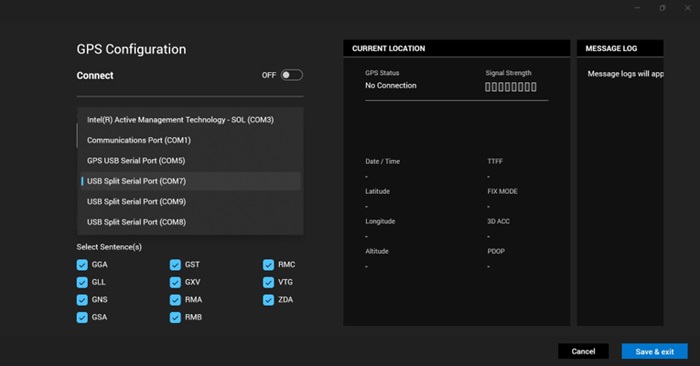
- Switch the Connect icon to ON. NMEA data are shown in the MESSAGE LOG page.
Affected Products
Dell Pro Rugged 13 RA13250, Dell Pro Rugged 14 RB14250, Latitude 7330 Rugged Extreme, Latitude 5430 RuggedArticle Properties
Article Number: 000382416
Article Type: Solution
Last Modified: 28 Oct 2025
Version: 1
Find answers to your questions from other Dell users
Support Services
Check if your device is covered by Support Services.