Dell Unity: Managing Admin and Service Passwords
Summary: This article explains how to manage admin and service account passwords on Dell Unity systems. It provides instructions for changing passwords, unlocking a locked service account, and resetting admin or service passwords when access is lost. ...
This article applies to
This article does not apply to
This article is not tied to any specific product.
Not all product versions are identified in this article.
Instructions
ADMIN
Unisphere: When logged into Unisphere with the admin user.
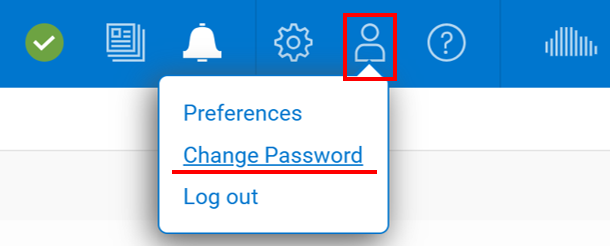
Unisphere: When logged into Unisphere as any user other than admin.
-
- Log in to Unisphere as any user other than
admin. - Go to Settings → Users and Groups → User Management.
- Select the admin user (or the user you want to modify).
- Choose More Actions → Reset Password.
- Enter and confirm the new password.
- Log in to Unisphere as any user other than
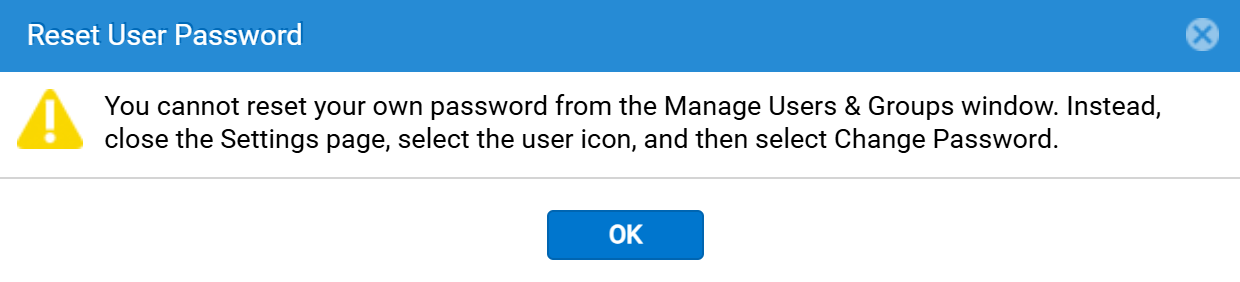
Note: If trying to change the admin password, but you are logged into Unisphere with the admin account, the following alert will appear.
UEMCLI:
-
-
uemcli -u admin -p <current_password> /user/account -id user_admin set -passwd <new_password> -oldpasswd <current_password>
-
Note: The following alert may be seen if new and old passwords match.
Operation failed. Error code: 0x600006e
This password has been used before. Please try another password. (Error Code:0x600006e)
If the admin Password Is Forgotten:
Dell Unity allows the administrator to reset both the admin and service passwords to their defaults using the NMI button on the Storage Processors (SPs). This procedure is documented by Dell and is intended for password recovery scenarios. See the Additional Info section for more information.
SERVICE
Requirement: Before changing the service account password, verify that both Storage Processors (SPs) are present and healthy. The password change procedure requires SPA and SPB to be running in Normal Mode. If an SP is missing, failed, or operating in a different boot mode, resolve that issue first and restore the SP to Normal Mode before proceeding.
Unisphere:
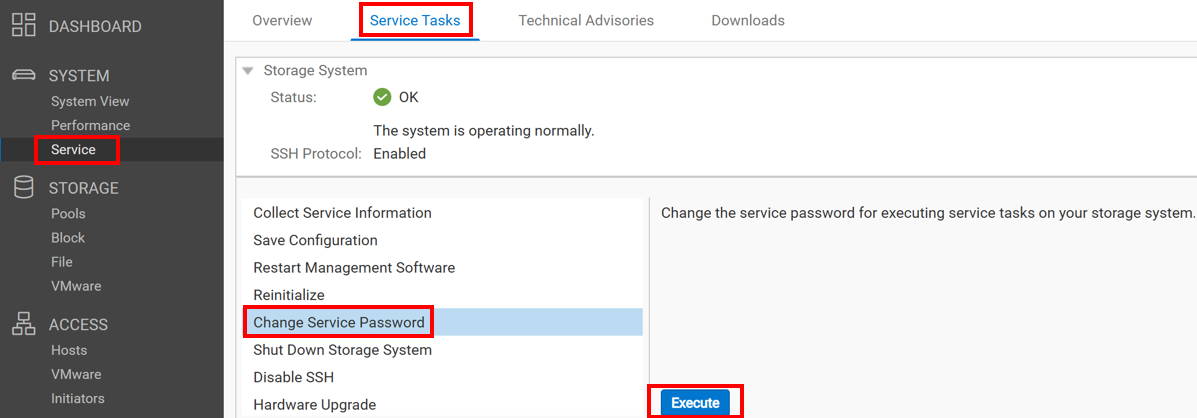
Service Command:
-
-
svc_service_password -s YourPassword
-
Note: The following alert may be seen if the new password matches the last three (3) previously-used passwords.
Error: password is one of the last 3 previously-used passwords.
UEMCLI:
-
-
uemcli -u admin -p <passwd> /service/user set -passwd <new> -oldpasswd <old>
-
Note: The following alert may be seen if new and old passwords match.
Operation failed. Error code: 0x6400b8e
Unable to change the service password. The new password has been used before. (Error Code:0x6400b8e)
Unlocking A Locked Service Account
Requirement: The Dell Unity array must be running OE 4.2.2.x or later to support this command. If the unlock or password reset operation fails, review the Additional Info section for possible causes and corrective actions.
UEMCLI
-
- Open a command prompt or SSH session on a system where UEMCLI is installed.
- Run the following command using an account with administrative privileges:
-
uemcli -no -d <Unity_IP> -u admin -p <password> /user/account -id service set -locked no
-
- Verify that the command completes successfully.
- Attempt to log in to the service account again.
Service Commands
Note: If there is already an active SSH or IPMI session with sufficient privileges, run:
Note:
A problem exists where, if STIG is enabled and the service account is locked, pressing the NMI button does not reset the service password.
Workaround:
- Unlock the service user account first using this
uemclicommand:-
uemcli -no -d <Unity_IP> -u admin -p <password> /user/account -id service set -locked no
-
- Next, press the NMI button to reset the password
If the user does not remember the admin password (required to unlock the service account), then:
- Press NMI button to reset the admin password.
- Use the above
UEMCLIcommand to unlock the service account. - Press NMI button again to reset the password for service and admin.
Additional Information
Physical Arrays: How To Reset The service and admin Password
Notes:
- The Dell Unity platform allows system administrators to reset both the service and admin passwords using the NMI button on a Storage Processor (SP). This provides a quick password recovery method without requiring an onsite Dell support resource. If an admin or service password is lost or forgotten, follow the procedure below.
- If the service password is unknown and no active SSH or IPMI session is available to run
svc_service_password, the NMI reset procedure is the only supported recovery method. This procedure resets both the service and admin passwords to their default values. - Before proceeding, verify that both SPs are present and running in either Normal Mode or Service Mode. If an SP is running in any other boot mode, stop and contact Dell Support, referencing this knowledge base article.
- Any SP running in Service Mode should be recovered to Normal Mode. However, steps 1–3 of this procedure can be performed on an SP in Service Mode to obtain temporary service account access while recovering the SP. For example:
-
svc_rescue_state -c
svc_shutdown -r
-
- A password reset performed on an SP that is in Service Mode is not persistent and will be lost after the SP reboots.
- If STIG is enabled on the system, review the Note under section Unlocking a Locked Service Account before continuing.
- Reference article Dell Unity: Reset the Admin and Service Password by Pressing the NMI Button May Not Work for scenarios where the NMI reset procedure does not work.
- Dell Unity™ All Flash and Unity Hybrid Hardware Information Guide
Before You Begin
- Verify the Storage Processor (SP) Status
- Normal Mode: The SP Fault LED is off.
- Service Mode: The SP Fault LED alternates amber and blue every second.
- Identify the Primary SP
- When the system is in Normal Mode, the NMI button must be pressed on the Primary SP for the password reset prompt to appear in Unisphere.
- To identify the Primary SP in Unisphere:
- Go to System > Service > Service Tasks.
- Locate the SP labeled "Storage Processor X (Primary)."
- If you cannot access Unisphere, start the procedure on SPA. If steps 1–4 do not result in a password reset prompt, repeat the procedure on SPB.
Reset Passwords Using the NMI Button
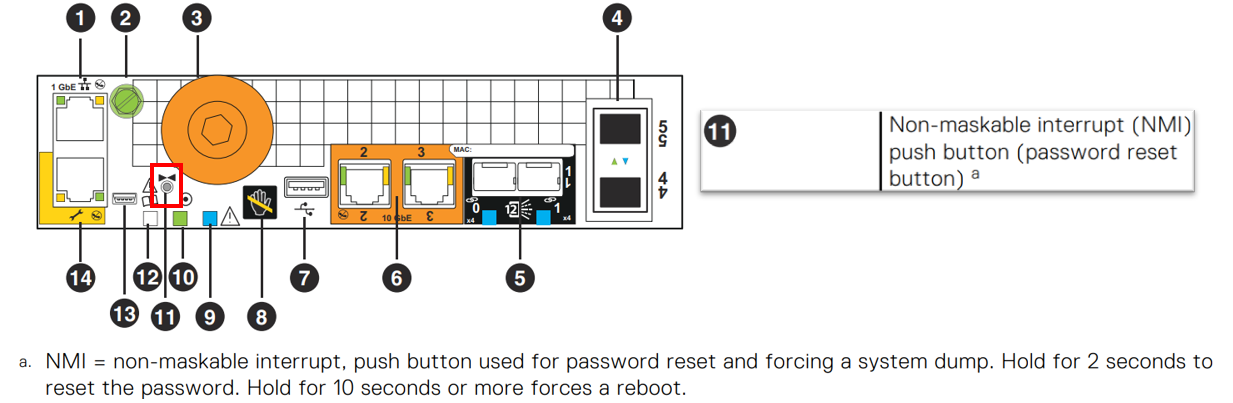
Note: For Unity XT 480(F), 680(F), and 880(F) systems, the NMI butting is only partially visible. As there is a 2mm air gap between the bezel and the button, the button can still be accessed with a thin non-metallic object at an angle as shown in the figures here

-
Locate the NMI button on the rear of the disk processor enclosure. The button is recessed in a small hole and marked by two triangles pointing toward each other.
-
Using a non-metallic tool, press and hold the NMI button for approximately 3 seconds, then release it.
-
Verify that the SP Fault LED blinks rapidly (2 Hz) and then turns off after approximately 5 seconds before proceeding.
Important: Holding the NMI button for more than 10 seconds reboots the Storage Processor.
Important: Do not perform another NMI reset on the same SP within 30 minutes.
-
Open a browser and connect to the Unity management IP address.
-
Log in using:
- admin account:
admin - Default password:
Password123#- Alternatively, if using SSH, the default password for the service account is:
- service account:
service
- admin account:
- When prompted, set a new password for the admin account. By default, the service account password is also updated. Clear the option if you want to assign a different password to the service account.
- If you are not prompted to change the password, the NMI button may have been pressed on the non-primary SP. Repeat steps 1–4 on the other SP.
- If neither SP prompts for a password reset after one attempt on each SP, contact Dell Support and reference this knowledge based article.
VSA Arrays: How To Reset The service and admin Password
Note: This procedure requires console access through VMware vSphere and requires a Unity VSA reboot. Production workloads may be impacted during the restart.
-
Connect to the Unity VSA console using VMware vSphere.
-
Reboot the Unity VSA using one of the following methods:
- Run
svc_shutdown -rfrom the service shell. - Use Unisphere.
- Use
UEMCLI.
- Run
-
During startup, wait for the
EMC Bootscreen to appear. -
Within 3 seconds, press the Tab key to edit the boot loader entry.
-
At the end of the boot loader line, append the following parameter:
-
unityvsa_reset_admin_password
-
-
Press Enter to continue booting.
-
After the system finishes starting, the passwords are reset to their default values:
- admin:
Password123# - service:
service
- admin:
-
Log in and change the passwords as required.
Important: No additional reboot is required. The boot parameter is used only for the current boot session and is not saved permanently.
Affected Products
Dell Unity 300, Dell EMC Unity 300F, Dell EMC Unity 350F, Dell EMC Unity XT 380, Dell EMC Unity XT 380F, Dell EMC Unity 400, Dell EMC Unity 400F, Dell EMC Unity 450F, Dell EMC Unity XT 480, Dell EMC Unity XT 480F, Dell EMC Unity 500
, Dell EMC Unity 500F, Dell EMC Unity 550F, Dell EMC Unity 600, Dell EMC Unity 600F, Dell EMC Unity 650F, Dell EMC Unity XT 680, Dell EMC Unity XT 680F, Dell EMC Unity XT 880, Dell EMC Unity XT 880F, Dell EMC Unity Family |Dell EMC Unity All Flash, Dell EMC Unity Family, Dell EMC Unity Hybrid
...
Article Properties
Article Number: 000022355
Article Type: How To
Last Modified: 07 Jul 2026
Version: 13
Find answers to your questions from other Dell users
Support Services
Check if your device is covered by Support Services.