VNX: How to gather Performance Logs through Unisphere (User Correctable)
Summary: This article discusses how to gather and retrieve NAR files, also known as Performance Monitoring Logs, through Unisphere.
This article applies to
This article does not apply to
This article is not tied to any specific product.
Not all product versions are identified in this article.
Instructions
This document will explain how to gather and retrieve NAR files, also known as Performance Monitoring Logs through Unisphere. For an in depth analysis on the configuration of the Performance Monitoring Tool, look at KB article 335319: How to gather the necessary information for a VNX performance analysis https://support.emc.com/kb/335319
To Generate NAR Files:
To Retrieve NAR Files:
To Generate NAR Files:
- Log into Unisphere and select the Array you wish to gather logs for.
- Click on System -> Monitoring and Alerts -> Statistics. Please refer to the picture below for more information.
- Statistics may appear as Statistics for Block on Unified arrays.
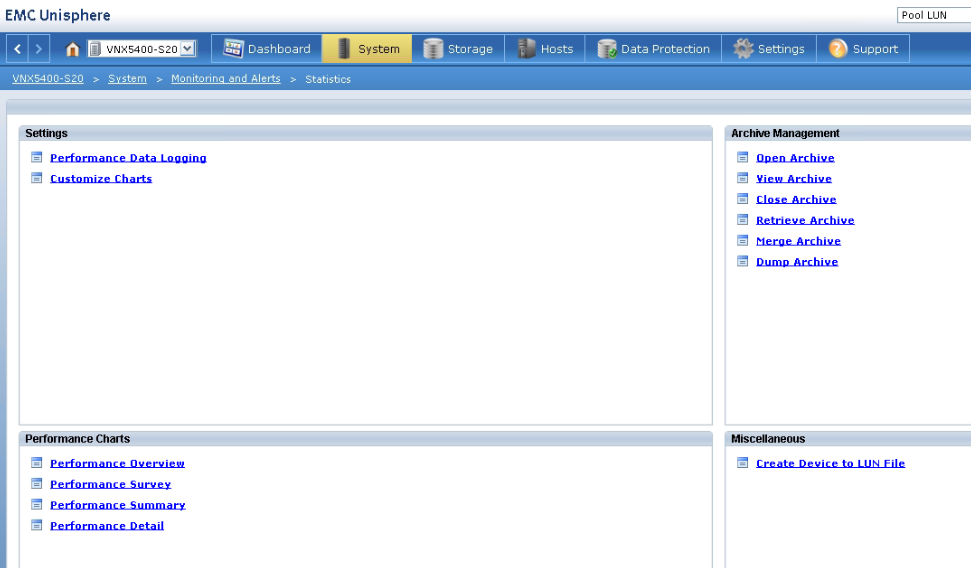
- Under Settings in the top left hand panel, click on Performance Data Logging.
- This will open up a Data Logging window that will allow for you to configure how the logs are gathered. This is seen in the image below.
- For further information on the configuration of Data Logging, please refer to KB article 335319 (link above).
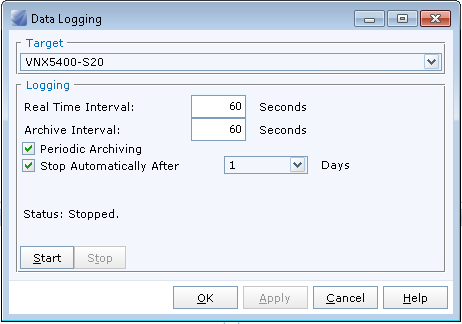
- 60 Seconds is used for a Technical review of Performance NAR files. For a more in depth review, please change the Real Time Interval and Archive Interval to 60 Seconds.
- For further information on the configuration of Data Logging, please refer to KB article 335319 (link above).
- The default numbers for both the Real Time Interval and the Archive Interval are normally set to 300, which is fine. For a quicker log, you can place both of these numbers to 60 seconds.
- Once completed, click on Apply and OK.
To Retrieve NAR Files:
- On the Statistics page click on Retrieve Archive on the top right hand panel.
- Select the NAR files that you wish to have reviewed.
- The NAR files for either SPA or SPB should be gathered. They retain the same information so logs for both SPs are not needed.
- Browse to the correct file location you wish to download to.
- Click OK.
- Upload the files either to an FTP link or to the SR as an attachment to have them reviewed.
Additional Information
For an in depth analysis on the configuration of the Performance Monitoring Tool, review KB article 335319: How to gather the necessary information for a VNX performance analysis https://support.emc.com/kb/335319
Products
Celerra, CLARiiON, VNX1 Series, VNX2 SeriesArticle Properties
Article Number: 000022814
Article Type: How To
Last Modified: 06 Nov 2025
Version: 3
Find answers to your questions from other Dell users
Support Services
Check if your device is covered by Support Services.