PowerScale: Duplicate Active Directory SPNs Prevent SMB Client Authentication to Cluster
Summary: How to identify duplicate Service Principal Names (SPNs) in Active Directory (AD), which can cause Kerberos authentication to fail.
This article applies to
This article does not apply to
This article is not tied to any specific product.
Not all product versions are identified in this article.
Symptoms
This issue is typically seen when accessing SMB shares using FQDN, IP works without issue.
Duplicate SPN names, or registering an SPN on the wrong computer object causes login failures for service account and client logins when authenticating to the cluster.
The following client-side error is associated with this issue:
"The target account name is incorrect"
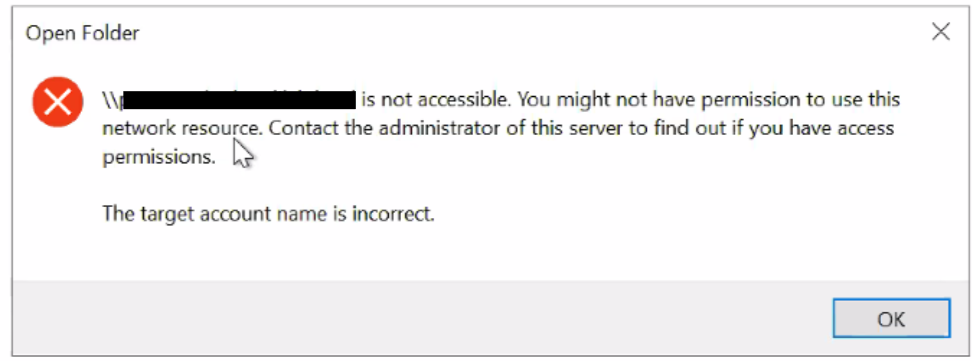
A duplicate SPN can cause a client to attempt to authenticate to the wrong system or have the wrong Kerberos key. Reference Microsoft article Service Logons Fail Due to Incorrectly Set SPNs (External Link)
SMB clients authenticating using SmartConnect zone names or aliases may not be able to authenticate to the cluster shares.
In domain controller logs or the /var/log/lsassd.log, the following messages could indicate that duplicate SPNs are present.
KDC_ERR_PRINCIPAL_NOT_UNIQUE  - Multiple entries in database

KRB_AP_ERR_MODIFIED   Message stream modified errors

Event ID 11 and/or Event ID 4 on Domain controllers can indicate duplicate SPNs.
Cause
The incorrect configuration of SPNs in the Active Directory environment can result in duplicates.
Resolution
Procedure
There are two options that can be used to find duplicate SPNs. Setspn is a command-line utility and LDP is a graphical interface only available on Windows Server 2003 and later.
Using setspn
From the Windows command-line interface (CLI), use setspn /? for additional options for the command.
Duplicates are found using setspn -x, this searches the entire forest and may take time to process in large environments.
The command setspn q queries by SPN name and may be better for larger environments.
Example 1:
The SPN HOST/chomper.test.isilon.com is registered to both the cluster named isicluster1 and also a Windows server named win2k1.
C:>setspn  -x
Checking domain DC=test,DC=isilon,DC=com
Processing Entry 0
HOST/chomper.test.isilon.com is registered on these accounts
                CN=isicluster1,CN=Computers,DC=test,DC=isilon,DC=com
                CN=win2k1,CN=Computers,DC=test,DC=isilon,DC=com
Found 1 group of duplicate SPNs.
Example 2:
In larger environments, query using setspn q <SPN> or use LDP as shown below.
C:>setspn  -q HOST/chomper.test.isilon.com
Checking domain DC=test,DC=Isilon,DC=com
CN=isicluster1,CN=Computers,DC=test,DC=isilon,DC=com
                HOST/chomper.test.isilon.com
                HOST/isicluster1
                HOST/isicluster1.test.isilon.com
CN=win2k1,CN=Computers,DC=test,DC=isilon,DC=com
                HOST/chomper.test.isilon.com
                HOST/win2k1
                HOST/win2k1.test.isilon.com

Existing SPN found!
If there is an SPN elsewhere in the environment with a different service class identifier, such as CIFS, it is not found with setspn -x. You can search for it by running a wildcard search:
C:\>setspn -q */isilon
Checking domain DC=test,DC=Isilon,DC=com
CN=isicluster2,CN=Computers,DC=test,DC=isilon,DC=com
                cifs/chomper.test.isilon.com
Using LDP:
LDP - Microsoft Learn (External Link)
- Click Start, click Run, type LDP, and then click OK.
- Click Connection, and then click Connect.
- Leave the default settings, and then click OK.
Note: If you do not receive the expected result, try another search by using the Global Catalog Port (3268) instead of the default setting (389).
- Click Connection, and then click Bind.
- Leave the default settings, and then click OK.
- Click View, and then click Tree.
- In the Tree View dialog box, type
DC=test,DC=isilon,DC=comin the BaseDN box. - Click Browse, and then click Search.
- In the Search dialog box, type
DC=test,DC=isilon,DC=comin the BaseDN box. - In the Search dialog box, type (
serviceprincipalname=HOST/<sczonename>) in the Filter box. - In the Attributes dialog box, type
servicePrincipalName. - Under Scope, click Subtree.
- Click Run, then close the Search dialog box.
- Duplicates SPNs have two entries listed pointing to two different Dn
***Searching
ldap_search_s(Id,  DC=test,DC=isilon,DC=com ,2,
    (serviceprincipalname=HOST/chomper.test.isilon.com) ,attrList, 0 &msg)
    Getting 2 entries:
Dn: CN=ISICLUSTER1,CN=Computers,DC=test,DC=isilon,DC=com
    servicePrincipalName (3): HOST/isicluster1; HOST/isicluster1.test.isilon.com;
      HOST/chomper.test.isilon.com
Dn: CN=WIN2K1,CN=Computers,DC=test,DC=isilon,DC=com
    servicePrincipalName (3): HOST/win2k1; HOST/win2k1.test.isilon.com;
      HOST/chomper.test.isilon.com
Resolution:
The duplicate entry for win2k1 for HOST/chomper.test.isilon.com should be removed from the Active Directory domain.
The duplicate entry is removable by a user with Domain Admin, Enterprise Admin, or specified domain administration rights on the Active Directory Domain.
The command to remove a duplicate entry is setspn -D <spn> <accountname>.
C:>setspn  D HOST/chomper.test.isilon.com win2k1
Unregistering ServicePrincipalnames for CN=win2k1,CN=Computers,DC=test,DC=isilon,DC=com
                HOST/chomper.test.isilon.com
Updated object
The output above confirms that HOST/chomper.test.isilon.com has been unregistered from the computer win2k1. It is now only registered to the isicluster1 machine account.
Note: If the SPN is registered to the wrong machine account, you can remove it using the
setspn -D command as above and add it to the correct machine account (which in this situation would be the PowerScale Machine Account in AD) using the setspn -A command:
C:\>setspn -A HOST/<FQDN> <correct_machine_account>
Additional Information
Related Articles:
PowerScale OneFS: Authentication services can fail If the Service Principal Name (SPN) Is incorrect or missing
PowerScale OneFS: How to create SPN accounts to allow Kerberos authentication using SmartConnect DNS entries
PowerScale OneFS: How to view an SPN list in a Microsoft Active Directory environment
Isilon: SQL client cannot "Bulk Insert" files from an Isilon cluster to a SQL database. (Log in as a registered Dell Support user may be required to view this article.)
PowerScale OneFS: Service Principal Names for Kerberos Authentication
Affected Products
Isilon, PowerScale OneFSArticle Properties
Article Number: 000032723
Article Type: Solution
Last Modified: 06 Mar 2026
Version: 9
Find answers to your questions from other Dell users
Support Services
Check if your device is covered by Support Services.