NetWorker: How to troubleshoot Scheduled Cloning Issues
Summary: This article explains how to troubleshoot NetWorker Scheduled Cloning Issues.
This article applies to
This article does not apply to
This article is not tied to any specific product.
Not all product versions are identified in this article.
Instructions
For general information regarding cloning, see: NetWorker: Introduction to Save Set Cloning
Clone Actions:
The standard configuration for cloning is under Protection -> Policies -> Workflow -> Actions.
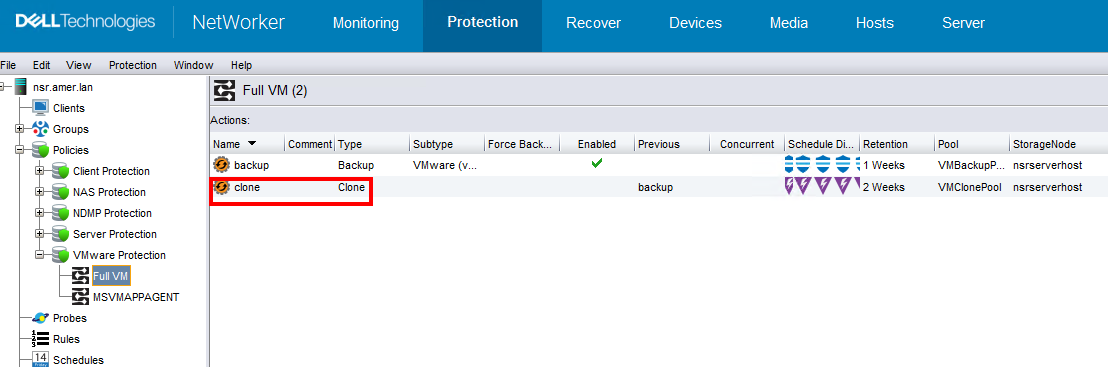
The properties of the clone "type" action detail the selection criteria, source, and target.
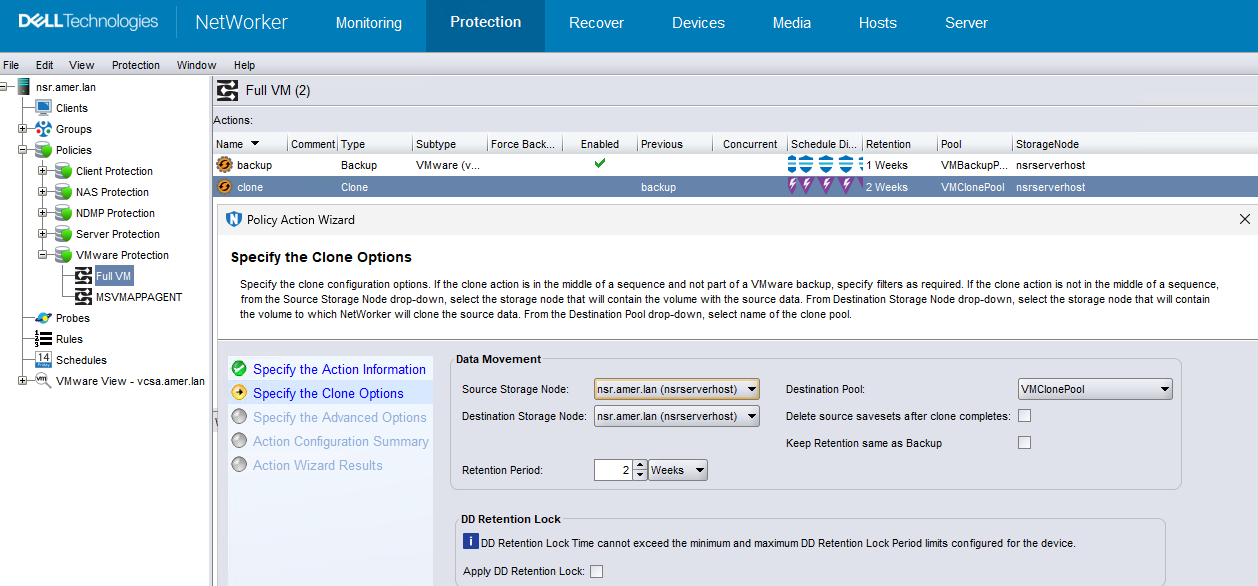
This defines:
-
- The cloning schedule and what actions it follows. When the clone action follows a backup action, it clones any save set that successfully completed its backup.
- The source storage node (whether it is the NetWorker server (
nsrserverhost), or a stand alone "remote" storage node). - The destination storage node (whether it is the NetWorker server (
nsrserverhost), or a stand alone "remote" storage node). - The destination clone pool.
NOTE: You must consider what hosts are involved and the target media when troubleshooting cloning issues. For example, when remote storage nodes are used, the communication between the storage nodes, and NetWorker server, must be considered. Different media types (for example, Another Data Domain, Tape devices, Cloud Tier, AFTD) all perform differently for both read and write operations.
Media Type:
After identifying the Destination Pool, go to Media -> Media Pools.
Open the Destination Pool's properties:
The Selection Criteria tab defines the Media Type and which devices the pool is restricted to: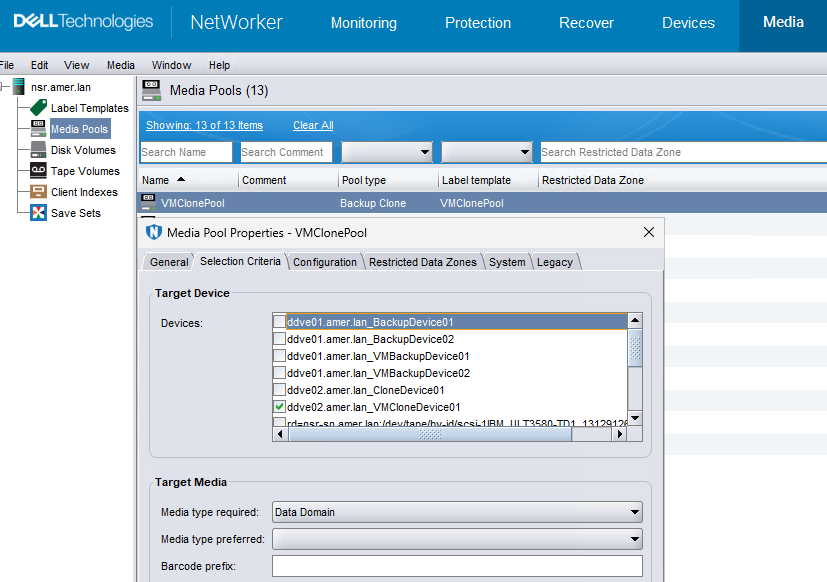
From Devices -> Devices, ensure that the device is mounted (shows volume label).
From Media -> Disk Volumes, ensure that the device is not "read-only," and reports as "appendable"
See: NetWorker: Device in Write Protected
NetWorker Communication:
The following article details methods for troubleshooting NetWorker communication between two hosts. This is primarily useful when the Source and Destination storage nodes differ: NetWorker: How To Troubleshoot Network Related Issues
The following article defines networking and kernel best practices for NetWorker Servers and Storage Nodes: NetWorker: Best practices for networking configuration
Target Media:
Troubleshooting approach differs depending on the source and destination storage media:
-
- General Media Issues: NetWorker: Troubleshooting Media Waiting Events - waiting for one writable volume or no matching devices
- Tape Devices: NetWorker: Troubleshooting Tape Library Problems in NetWorker
- Data Domain: NetWorker: Testing Data Domain Device Connectivity
- Cloud Tier: NetWorker with Data Domain Cloud Tier: Triage and Troubleshooting Guide
Debugging:
In order to debug the cloning operation, you can raise the debug level using one (or both) of the following options:
-
- Raise the debug level of the
nsrdprocess using thedbgcommandfrom an elevated prompt on the NetWorker server:dbgcommand -n nsrd Debug=9 - Edit or create a file called
nsrcloneconfig(no extension). This file must be created in the following directory:- Windows (Default):
C:\Program Files\EMC NetWorker\nsr\debug\ - Linux:
/nsr/debug/ - Set the file contents to:
Debug=9
- Windows (Default):
- Raise the debug level of the
This causes the next cloning operation to run at debug level 9. It sends the logs to the same /nsr/logs/policy/[policy name] folder.
WARNING: Ensure to disable debugging once troubleshooting efforts have concluded. Do not leave debug settings enabled for long periods of time. This can result in excessive log growth and file system usage on the host.
To disable debug:
-
- When using
dbgcommand, set the process debug level back to zero:dbgcommand -n nsrd Debug=0 - When using
nsrcloneconfigfile, delete the file, or setDebug=0in the file.
- When using
Log Collection and Support Engagement:
- General NetWorker Process details: NetWorker Processes and Ports
- General NetWorker Log details: NetWorker: Log Files and Locations
- Clone logging is found under the Policy logs noted in the above article
- NetWorker server and remote storage-node (where applicable) log collection: NetWorker: How to Use the NSRGet NetWorker Data Collection Tool
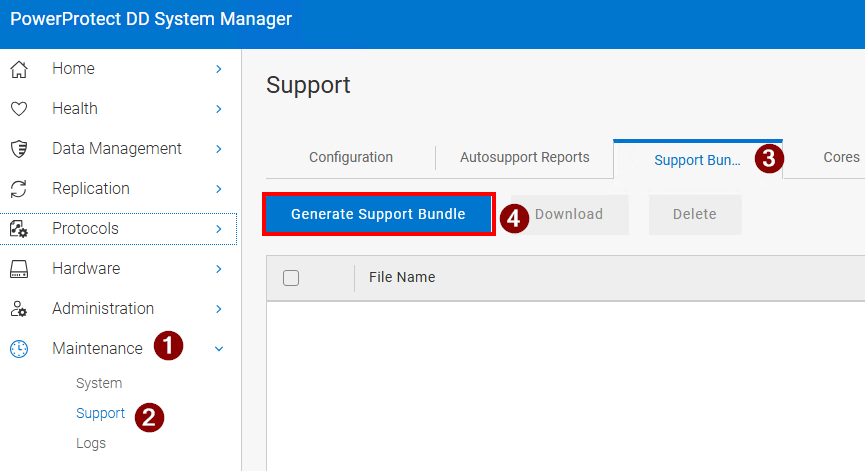
- Data Domain support bundles can be collected from the PowerProtect DD System Manager:
Affected Products
NetWorkerProducts
NetWorker, NetWorker SeriesArticle Properties
Article Number: 000040541
Article Type: How To
Last Modified: 26 Feb 2026
Version: 7
Find answers to your questions from other Dell users
Support Services
Check if your device is covered by Support Services.