Avamar: How to install Avamar Security Update for Multiple Multiprocessor Side-Channel Vulnerabilities
Summary: Avamar Spectre and Meltdown Security Vulnerabilities hotfix for Gen4T / Gen4S: 305019 / 305834 ( CVE-2018-3639, CVE-2018-3640, CVE-2018-3615, CVE-2018-3620, CVE-2018-3646 )
This article applies to
This article does not apply to
This article is not tied to any specific product.
Not all product versions are identified in this article.
Symptoms
The goal of this KB Article is to provide instructions for customers to upload and install hotfixes for their Avamar systems to address the ESA/ETA/Bugs .
Avamar Security Update for Multiple Multiprocessor Side-Channel Vulnerabilities for Gen4T 305019, Gen4S 305834 (CVE-2018-3639, CVE-2018-3640, CVE-2018-3615, CVE-2018-3620, CVE-2018-3646)
Note: Applying this hotfix would shutdown gsan and reboot server to update BIOS. Customers need to schedule downtime before planning to install this hotfix
If the hotfix has been already applied or is not required, Installation manager would report asking to ABORT the workflow. Do not continue with the installation.
.

Cause
. NA
Resolution
Avamar utilizes an Avamar workflow package (AVP) that automates the software steps needed to complete this activity. While this is an automated process, monitoring progress and response to prompts for user input, including any errors that may occur during the operation, is required.
Requirements
- Valid license installed on the Avamar Server
- The Avamar system is healthy and functioning normally
- Internet Explorer, FireFox, or Chrome web browser.
Before the hotfix installation, the Avamar hotfix package (AVP file) needs to be downloaded and copied to the Avamar Server. The download links have to be obtained from EST/ETA or KB which you received.
See Appendix A in the notes section for hotfix download instructions.
2. Run the Installation Workflow Package (AVP):
To run a workflow package, perform the following:
In the web browser URL address box, type:
https://<avamarserver>/avi/ or https://<avamarserver>:7543/avi/ for newer version.
Where <avamarserver> is the hostname or IP address of the Avamar Server
The Avamar Installation Manager login page appears.
You may receive a security warning from your browser and be required to add an exception prior to reaching the login screen.
Type the root user in the User field and the password in the Password field then click Login.
The Avamar Installation Manager page appears.
Gen4T
Gen4S
When the Avamar hotfix package appears, click the Install button to execute the workflow.
Note: If the package is not visible in the Avamar Installation Manager, verify the package was copied to the correct location.
It may take up to 15 minutes for the package to appear. Click the refresh button in the top right of the window to refresh the package list.
The Installation Setup screen below will appear:
Click on the "Continue" at the bottom of the screen.
The installation will run and will display its progress.
This hotfix would shut down all the services except installation manager which is installing the hotfix.

Customer having access to RMM can see the BIOS getting updated. 
Depending on the number of notes the update time may vary, Once the BIOS is updated installation manager would restart all the services and the progress page will show "Completed hotfix-xxxxxx" in the information log at the bottom of the page.
The procedure is completed and you may log out and exit out of the Avamar Installation Manager.
Note: After the installation, the hotfix would not be deleted from the Installation manager it would remain on the system so it can update any newly replaced node in future.
Additional Information
This content is translated in other languages:
| https://downloads.dell.com/TranslatedPDF/PT-BR_KB530406.pdf |
| https://downloads.dell.com/TranslatedPDF/ZH-CN_KB530406.pdf |
| https://downloads.dell.com/TranslatedPDF/ES_KB530406.pdf |
| https://downloads.dell.com/TranslatedPDF/DE_KB530406.pdf |
| https://downloads.dell.com/TranslatedPDF/FR_KB530406.pdf |
| https://downloads.dell.com/TranslatedPDF/IT_KB530406.pdf |
| https://downloads.dell.com/TranslatedPDF/JA_KB530406.pdf |
| https://downloads.dell.com/TranslatedPDF/NL_KB530406.pdf |
| https://downloads.dell.com/TranslatedPDF/KO_KB530406.pdf |
| https://downloads.dell.com/TranslatedPDF/RU_KB530406.pdf |
| https://downloads.dell.com/TranslatedPDF/PT_KB530406.pdf |
| https://downloads.dell.com/TranslatedPDF/SV_KB530406.pdf |
APPENDIX A:
Instructions for copying Hotfix AVPs to the Avamar system.
1. Download the AVP hotfix file for the appropriate Avamar version.
2, Login to Avamar Installation Manager
3.Navigate to repository tab and upload required AVP
Uploading file using method 1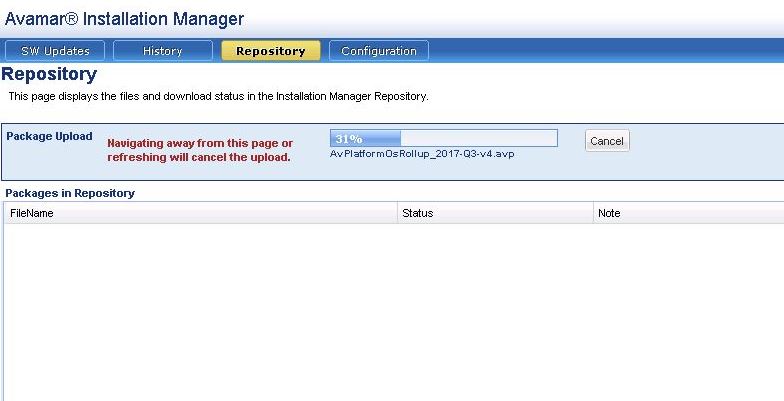
Method 2: Copying file using the command line.
1. Download the AVP hotfix file for the appropriate Avamar version.
2.Login to Avamar as the admin user.
3. Copy the AVP from the location you downloaded it to to the Avamar Server directory /usr/local/avamar/src/
4. Move the AVP file to the packages directory
mv /usr/local/avamar/src/v7_x_x_HF_xxxxxx.avp /data01/avamar/repo/packages/
mv /usr/local/avamar/src/v7_x_x_HF_xxxxxx.avp /data01/avamar/repo/packages/
APPENDIX B:
How to check previously installed hotfix
1.Login to Avamar installation Manager.
2. Navigate to history tab to check previously installed hotfixes. 
Affected Products
Avamar ServerProducts
Avamar, Avamar Data Store, Avamar Data Store Gen4S, Avamar Data Store Gen4T, Avamar ServerArticle Properties
Article Number: 000055447
Article Type: Solution
Last Modified: 15 Apr 2021
Version: 4
Find answers to your questions from other Dell users
Support Services
Check if your device is covered by Support Services.