VNX, Dell Unity: Failed to enumerate objects in the container. Access is denied
Summary: VNX, Dell Unity: Failed to enumerate objects in the container. Access is denied.
This article applies to
This article does not apply to
This article is not tied to any specific product.
Not all product versions are identified in this article.
Symptoms
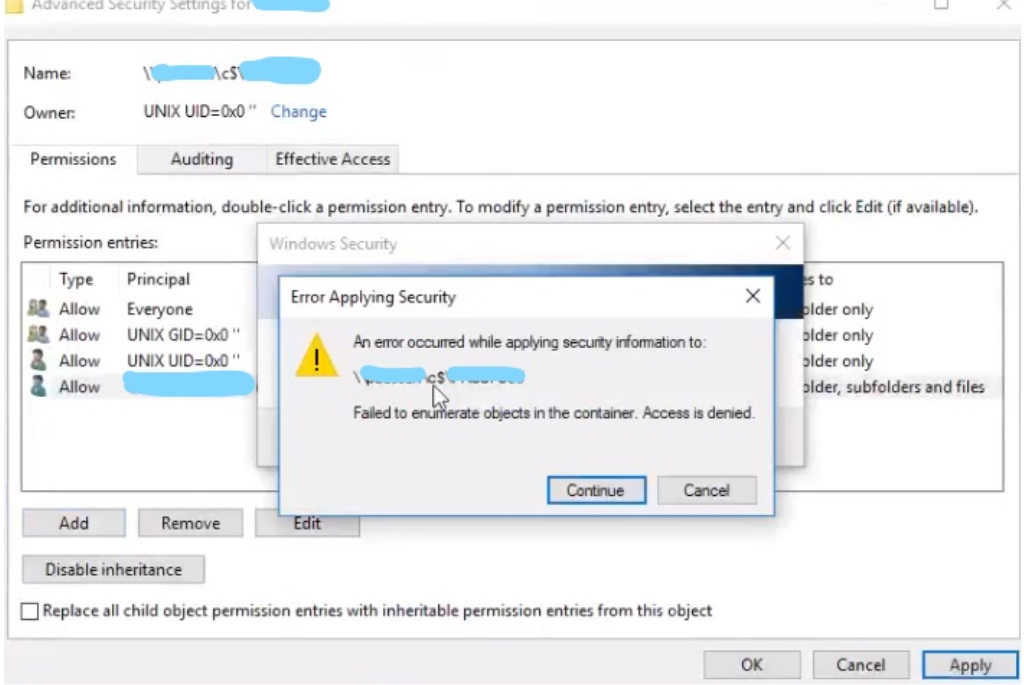
User receiving error 'An error occurred while applying security information to: <PATH> Failed to enumerate objects in the container. Access denied' when trying to modify/view the Windows ACL of a created CIFS share folder with a domain admin account.
Cause
This is not a bug. In this instance it was caused by Windows security settings having a default owner of "UNIX UID=0x0" on the root folder.
Resolution
To resolve this issue the object owner must be changed by going to "Advanced" in Security tab of folder properties. From there change the "Owner" to a domain admin account. Use the steps as detailed below:
1. On the root folder, right click, select properties, select security tab.
2. Click Advanced.
3. The window that pops up should show the current owner. Click "Change." The "Select User or Group" pop up box appears.
4. In the text box, type in your domain admin account, and hit the "Check Names" button. Your name will be replaced with the "official" system name (i.e.,preceded by computer name and back slash).
5. Click OK.
6. The box disappears, sending you back to the Advanced Security Settings window.
7. A new tick box appears below owner, with the text "Replace owner on subcontainers and objects" Select this tick box.
8. May also tick box "Replace all child object permission entries with inheritable permission entries from this object".
9. Make sure that "everyone" appears on the Permission entries window, if not, click add. The same box that appears in step 4 shows up again. Type everyone, click "Check Names" and then "OK".
10. Hit apply.
Additional Information
Additional information found here: https://social.technet.microsoft.com/Forums/windowsserver/en-US/db04b57c-7684-4e52-8e1a-5e4407f6e2ab/windows-2012-failed-to-enumerate-objects-in-the-container-access-denied?forum=winserver8gen
Affected Products
Dell EMC Unity Family, VNX/VNXeArticle Properties
Article Number: 000056357
Article Type: Solution
Last Modified: 07 Jul 2026
Version: 6
Find answers to your questions from other Dell users
Support Services
Check if your device is covered by Support Services.