Windows Server: How to Configure the Remote Desktop Protocol
Summary: This article demonstrates how to enable Remote Desktop using Windows Graphical User Interface (GUI) on a server running Windows Server 2008 to Windows Server 2016.
This article applies to
This article does not apply to
This article is not tied to any specific product.
Not all product versions are identified in this article.
Instructions
This article demonstrates how to enable Remote Desktop using Windows Graphical User Interface (GUI) on a server running Windows Server 2008 to Windows Server 2016.
It applies to:
- Windows Server 2008
- Windows Server 2008 R2
- Windows Server 2012
- Windows Server 2012 R2
- Windows Server 2016
Enabling Remote Desktop
- Open the System Properties:
- For Windows Server 2012 to Windows Server 2016:
- At the desktop, press Windows Key + X to open the Quick Access Menu then select System

- At the desktop, press Windows Key + X to open the Quick Access Menu then select System
- For Windows Server 2008 to Windows Server 2008 R2:
- Open Server Manager. To open Server Manager, click Start, point to Administrative Tools, and then click Server Manager.
- Open Server Manager. To open Server Manager, click Start, point to Administrative Tools, and then click Server Manager.
- For Windows Server 2012 to Windows Server 2016:
- In Computer Information, click Configure Remote Desktop:
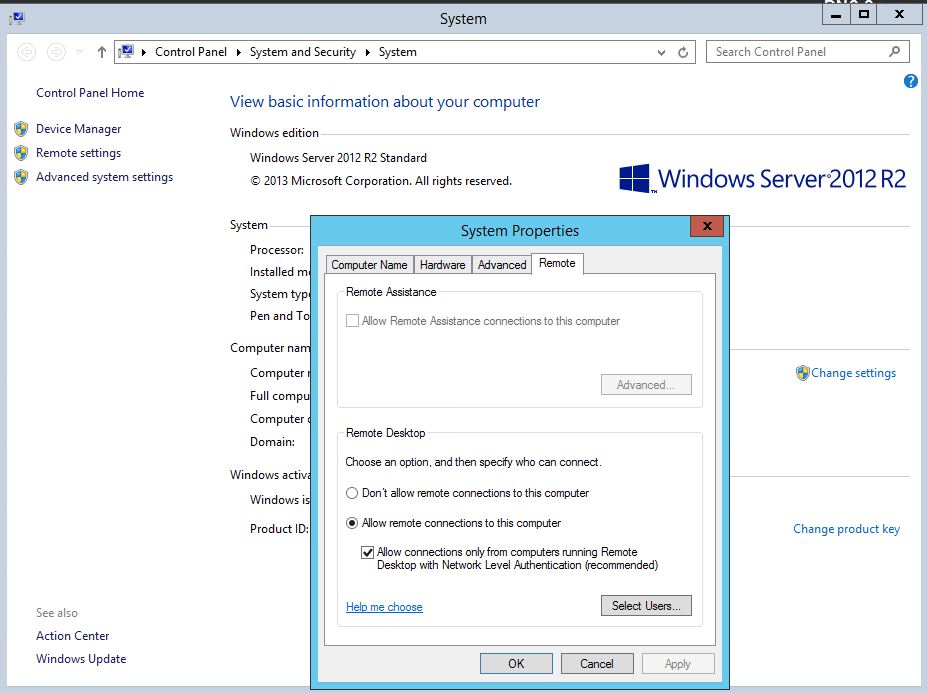
- In the System Properties dialog box, under Remote Desktop, click one of the following options:
- Allow connections from computers running any version of Remote Desktop (less secure) - Use this option if you do not know the version of Remote Desktop Connection that will be used to connect to this server.
- Allow connections only from computers running Remote Desktop with Network Level Authentication (more secure).
- Review the information in the Remote Desktop dialog box, and then click OK twice.
Affected Products
Microsoft Windows Server 2016, Microsoft Windows 2008 Server R2, Microsoft Windows 2008 Server Service Pack 2, Microsoft Windows 2012 Server, Microsoft Windows 2012 Server R2Article Properties
Article Number: 000121878
Article Type: How To
Last Modified: 29 Nov 2024
Version: 6
Find answers to your questions from other Dell users
Support Services
Check if your device is covered by Support Services.