Windows 이벤트 로그를 내보내는 방법
Summary: 이벤트 뷰어를 사용하여 Windows 이벤트 로그를 내보내고 문제 해결 및 기술 지원을 위해 시스템, 애플리케이션 또는 보안 로그를 저장하는 방법에 대해 알아봅니다.
This article applies to
This article does not apply to
This article is not tied to any specific product.
Not all product versions are identified in this article.
Instructions
- Windows() 키를 누릅니다.
- 유형
Event Viewer을 클릭한 다음 목록에서 이벤트 뷰어 를 선택합니다. - 왼쪽 창에서 내보낼 로그 유형을 선택합니다.
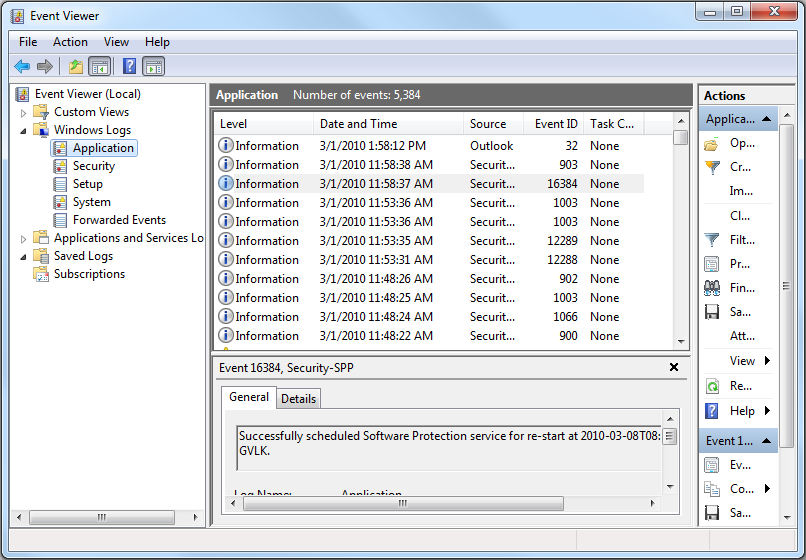
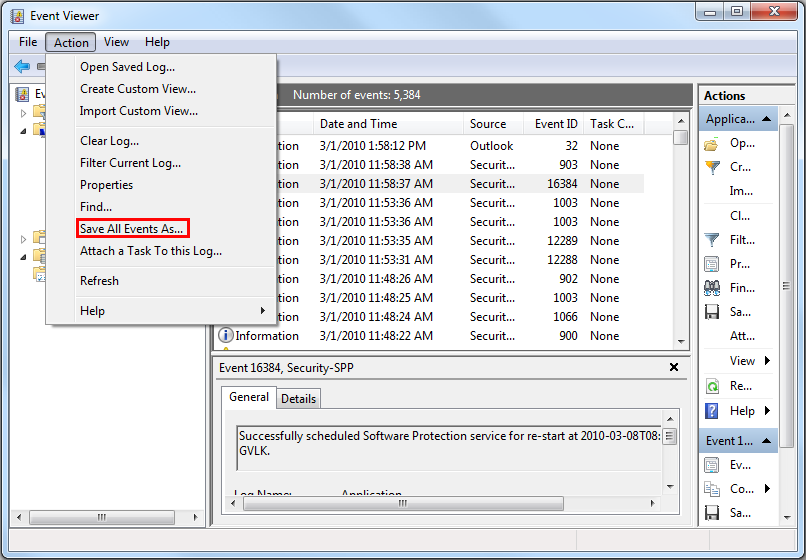
- Action을 클릭한 다음 Save All Events As를 클릭하여 로그를 저장합니다.
자세한 내용은 이벤트 로그를
Dell 노트북의 BIOS 이벤트 로그에 대한 자세한 내용은 Dell 노트북의 BIOS 이벤트 로그 및 진단 로깅을 참조하십시오.
Additional Information
Affected Products
Alienware, Dell All-in-One, Dell Pro All-in-One, Dell Pro Max Micro, Dell Pro Max Slim, Dell Pro Max Tower, Dell Pro Micro, Dell Pro Slim, Dell Pro Tower, Dell Slim, Dell Tower, Inspiron, Legacy Desktop Models, OptiPlex, Vostro, XPS, G Series
, G Series, Alienware, Dell Plus, Dell Pro, Dell Pro Max, Dell Pro Plus, Dell Pro Premium, Inspiron, Latitude, Dell Pro Rugged, Vostro, XPS, Legacy Laptop Models, Fixed Workstations, Mobile Workstations, Dell Pro Max Micro XE FCM2250, Dell Pro Max Slim XE FCS1250, Dell Pro Max Tower T2 XE FCT2250, Dell Pro Max 16 XE MC16250, Dell Pro Micro Plus XE QBM1250, Dell Pro Slim Plus XE5 QBS1250, Dell Pro Tower Plus XE5 QBT1250
...
Article Properties
Article Number: 000124382
Article Type: How To
Last Modified: 10 Aug 2026
Version: 10
Find answers to your questions from other Dell users
Support Services
Check if your device is covered by Support Services.