Dell Encryption Enterprise Self-Encrypting Drive Manager and Dell Full Disk Encryption Common Recovery Scenarios
Summary: This article contains instructions for common recovery scenarios in Dell Encryption Enterprise Self-Encrypting Drive Manager and Dell Full Disk Encryption.
This article applies to
This article does not apply to
This article is not tied to any specific product.
Not all product versions are identified in this article.
Instructions
Affected Products:
- Dell Encryption Enterprise Self-Encrypting Drive Manager
- Dell Full Disk Encryption
Affected Versions:
- v8.X and Later
Affected Operating Systems:
- Windows
Table of Contents:
When recovery must be performed for preboot authentication (PBA) devices, an administrator may perform Remote PBA Commands, or Disable PBA. An administrator may also perform Troubleshooting. Click the appropriate subject for more information.
Remote PBA Commands
PBA Device Control allows administrators to send commands to the PBA environment on the endpoint through the Security Server to perform tasks remotely. These tasks include locking and unlocking the endpoint, bypassing the PBA, and wiping the endpoint.
To access Pre-boot Authentication Device Control options:
- From a web browser, go to the Dell Data Security administration console at https://servername.company.com:8443/webui.
Note:
- The example, servername.company.com may differ from the server DNS in your environment.
- The port, 8443, may differ from the Remote Management Console port in your environment.
- For more information about accessing the Remote Management Console, reference How to Access the Dell Data Security Server Administration Console.
- Sign in to the Dell Data Security administration console.
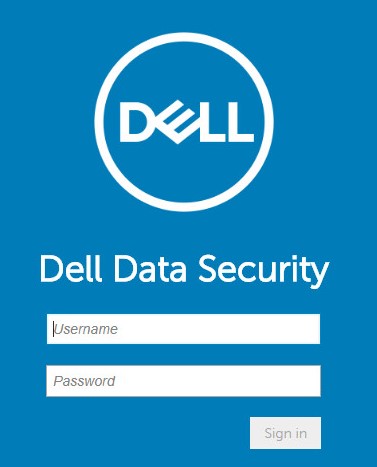 Note:
Note:- The default administrator credentials are a username of
superadminwith a password ofchangeit. - Dell Technologies recommends changing the default
superadminpassword.
- The default administrator credentials are a username of
- From the left menu pane, click Populations, and then Endpoints.

- In the Details & Actions tab of the endpoint is present the PBA Device Control area where specific commands can be sent to the endpoint:
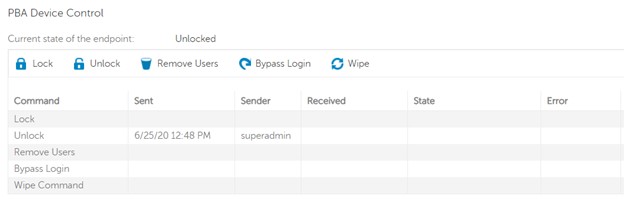
The commands are:- Lock - Disables logins on the specified endpoint computer. This locks the endpoint computer.
- Unlock - Reenables logins. This unlocks the endpoint computer.
- Remove Users - Removes all users from the PBA.
- Bypass Login - Unlocks a locked endpoint computer (this command can be used to allow a one-time bypass of the PBA). Using this command does not reenable logins.
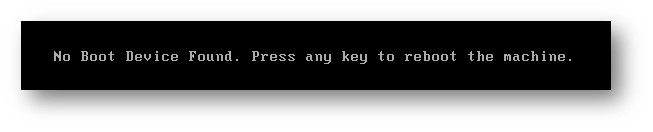
- Wipe Command - This command can be used in emergency situations to automatically wipe the endpoint computer, leaving data permanently unrecoverable. All data, including the operating system is lost. After a wipe, the machine will show the following or similar message on boot.
Disable PBA
ThePBA authenticates the access to Self-Encrypting Drives (SED) and Full Disk Encryption (FDE) before booting the operating system. From time to time, an administrator is faced with retrieving data from one of these encrypted drives. This could happen for various reasons, including but not limited to a corrupted operating system or disk failure.
If the endpoint can still complete a boot into the operating system, it is possible to remove the PBA and decrypt the disk by Policy. If the endpoint is unable to complete a boot into the operating system, the PBA must be disabled using the Recovery Utility to decrypt the disk and access the data. Click the appropriate method for more information.
Policy
The process to disable PBA and encryption by policy differs depending on whether Dell Encryption Enterprise Self-Encrypting Drive Manager or Dell Full Disk Encryption is installed. Click the appropriate product for more information.
Dell Encryption Enterprise Self-Encrypting Drive Manager
To disable Dell Encryption Enterprise Self-Encrypting Drive Manager by policy:
- From a web browser, go to the Dell Data Security administration console at https://servername.company.com:8443/webui.
Note:
- The example, servername.company.com may differ from the server DNS in your environment.
- The port, 8443, may differ from the Remote Management Console port in your environment.
- For more information about accessing the Remote Management Console, reference How to Access the Dell Data Security Server Administration Console.
- Sign in to the Dell Data Security administration console.
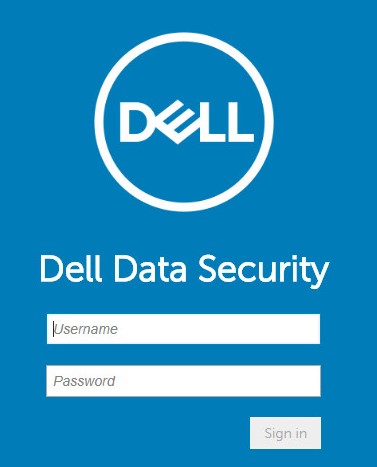 Note:
Note:- The default administrator credentials are a username of
superadminwith a password ofchangeit. - Dell Technologies recommends changing the default
superadminpassword.
- The default administrator credentials are a username of
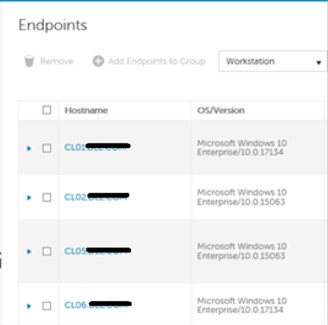
- From the left menu pane, click Populations, and then Endpoints.

- In the right pane, select the endpoint from the list.
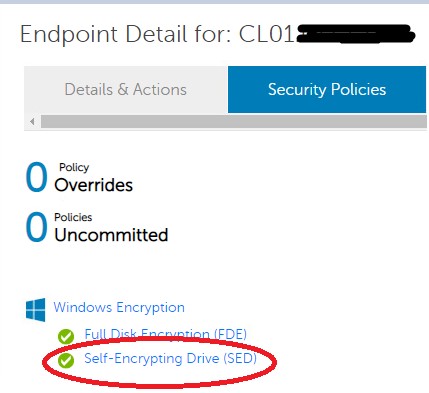
- From the Security Policies tab, click Self-Encrypting Drive (SED).
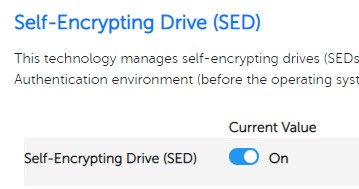
- Turn the Self-Encrypting Drive (SED) Off. This disables PBA and completely decrypts the disk for this endpoint only.
 Note: For more information, reference How to Check for Policy Updates for Dell Data Security.
 - In the upper right, click Save.

- Commit the policy.
Note: For more information, reference How to Commit Policies for Dell Data Security Servers.
- From the endpoint, Check for Policy Updates.
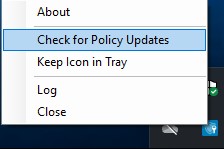 Note: For more information, reference How to Check for Policy Updates for Dell Data Security.
 - Confirm that the policies have been received. The PBA and encryption are disabled, and the disk is fully accessible.
Dell Full Disk Encryption
To disable Dell Full Disk Encryption by policy:
- From a web browser, go to the Dell Data Security administration console at https://servername.company.com:8443/webui.
Note:
- The example, servername.company.com may differ from the server DNS in your environment.
- The port, 8443, may differ from the Remote Management Console port in your environment.
- For more information about accessing the Remote Management Console, reference How to Access the Dell Data Security / Dell Data Protection Encryption Remote Management Console.
- Sign in to the Dell Data Security administration console.
 Note:
Note:- The default administrator credentials are a username of
superadminwith a password ofchangeit. - Dell Technologies recommends changing the default
superadminpassword.
- The default administrator credentials are a username of
- From the left menu pane, click Populations, and then Endpoints.

- In the right pane, select the endpoint from the list.

- In the Security Policies tab, click Full Disk Encryption (FDE).
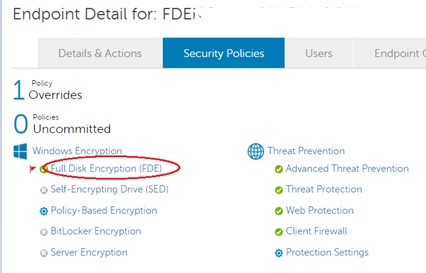
- Turn Full Disk Encryption (FDE) Off. This disables PBA and completely decrypts the disk for this endpoint only.
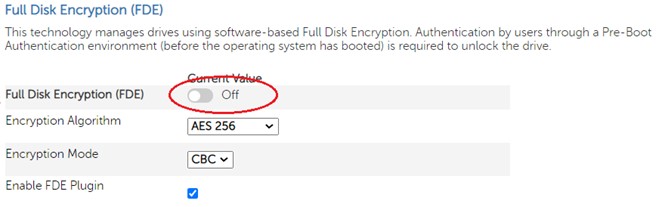
- In the upper right, click Save.

- Commit the policy.
Note: For more information, reference How to Commit Policies for Dell Data Security Servers.
- From the endpoint, Check for Policy Updates.
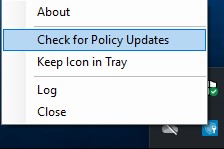 Note: For more information, reference How to Check for Policy Updates for Dell Data Security.
 - Confirm that the policies have been received. The PBA and encryption are disabled, and the disk is fully accessible.
Recovery Utility
Note: A USB storage device is required to successfully disable PBA through the Recovery Utility.
To disable preboot authentication using the Recovery Utility:
- From a web browser, go to the Dell Data Security administration console at https://servername.company.com:8443/webui.
Note:
- The example, servername.company.com may differ from the server DNS in your environment.
- The port, 8443, may differ from the Remote Management Console port in your environment.
- For more information about accessing the Remote Management Console, reference How to Access the Dell Data Security Server Administration Console.
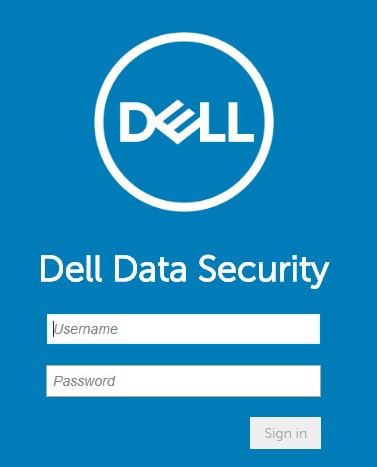
- Sign in to the Dell Data Security administration console.
 Note:
Note:- The default administrator credentials are a username of
superadminwith a password ofchangeit. - Dell Technologies recommends changing the default
superadminpassword.
- The default administrator credentials are a username of
- From the left menu pane, click Management, and then Recover Data.

- From the right menu pane, click the PBA tab.

- Populate the fully qualified hostname of the endpoint and then click Search.
- From the PBA dropdown menu, select the most recent entry and click Create Recovery File to download the recovery file.
- Copy the recovery file to USB media.
- Shut down the endpoint
- Insert the Dell Encryption WinPE Recovery CD or bootable USB media.
Note:
- For more information, reference How to Create a Bootable WinPE USB for Dell Encryption Enterprise or Dell Encryption Personal.
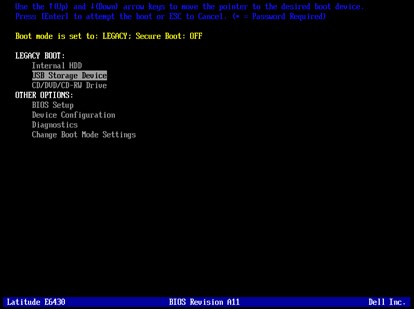
- It may be necessary to change the boot order in the system BIOS to boot from USB or CD media first in order to boot from removable media. If the hard drive is higher in the boot order, the machine continues to boot back into PBA.
- Insert the USB media containing the recovery .dat file. If you inserted a self-encrypting drive recovery CD, choose to boot from the CD Drive. If you inserted a bootable USB media, choose to boot from USB Storage Device.
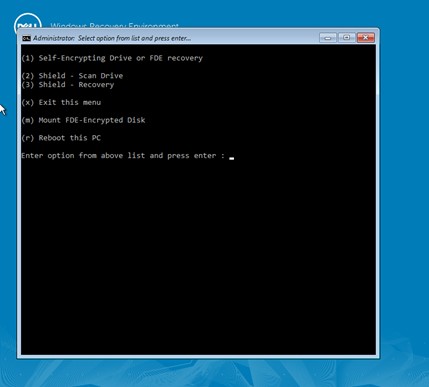
- Once the Dell Encryption WinPE Recovery Environment has loaded, press 1, and then press Enter.
- Select either Self-Encrypting Drive or Full Disk Encryption, and then click the Browse button to search for the recovery file (Step 7).
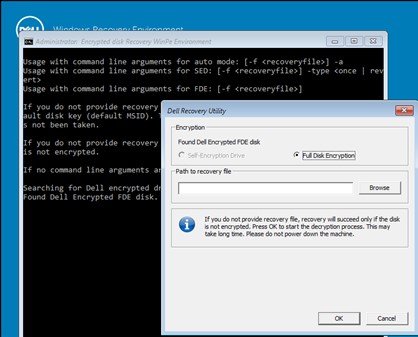
- Browse to the recovery file, select it, and then click Open.

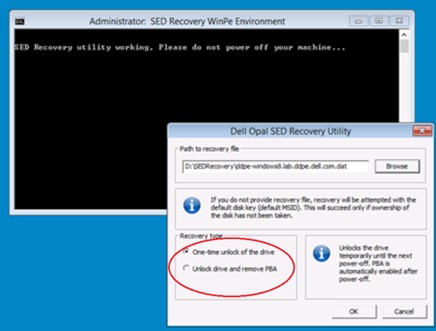
- If the Self-Encrypting Drive was selected (Step 12), select either One-time unlock of the drive, or Unlock drive and remove PBA.
 Note:
Note:- USB media is typically mounted using the C: drive letter. The Dell Encryption - WinPE Recovery Kit, which is built using WinPE, by default, uses the X:\ drive.
- Every time PBA is activated on an endpoint, a new key material is generated. If the recovery file fails to disable PBA, it presents an error. This could occur if the recovery file being used is not current. Ensure that the latest recovery file is downloaded from the console for each recovery.
- The Recovery Type option is only available if Self-Encrypting Drive was selected (Step 12).
Troubleshooting
An administrator may troubleshoot PBA or User log in. Click the appropriate topic for more information.
Pre-Boot Authentication
PBA may be troubleshot using the icons and information in the menus.
Network Information
The Network Information menu option is used to validate any form of network connection.
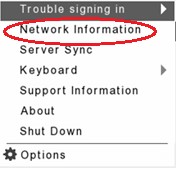
It performs a basic cable connectivity test and returns a cable-connected icon if successful.

Server Sync
The Server Synchronization menu option is used to verify path to the Security Server. This is useful if the server connection icon has a red line through it.

This also restarts the DHCP process and check for any pending commands (not policy changes) such as Unlock, Remote Wipe, Enable, or Disable users.
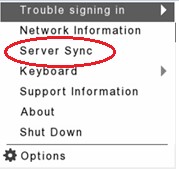
If the Server Sync is successful, the Server Sync icon is shown without the red line next to the Network Cable icon.

Collecting Preboot Authentication Logs
PBA logs are gathered differently depending on whether the BIOS mode is set to UEFI or Legacy. For more information, reference How to Collect Logs for the Dell Data Security Pre-Boot Authentication Environment.
User login
Passwords can often be forgotten. Fortunately, there are multiple ways to pass the PBA to gain access to a computer. For more information, reference Dell Encryption Self-Encrypting Drive Manager and Dell Full Disk Encryption Recovery Scenarios for Forgotten Password.
To contact support, reference Dell Data Security International Support Phone Numbers.
Go to TechDirect to generate a technical support request online.
For additional insights and resources, join the Dell Security Community Forum.
Affected Products
Dell EncryptionArticle Properties
Article Number: 000124976
Article Type: How To
Last Modified: 17 Jun 2026
Version: 11
Find answers to your questions from other Dell users
Support Services
Check if your device is covered by Support Services.