Een Dell Data Protected schijf ontsleutelen zonder de Dell Data Protection Personal Edition te verwijderen
Summary: In dit artikel wordt het ontsleutelingsproces doorlopen zonder Dell Data Protection | Persoonlijke editie.
This article applies to
This article does not apply to
This article is not tied to any specific product.
Not all product versions are identified in this article.
Instructions
Betreffende producten:
- Dell Data Protection | Personal Edition
Betreffende versies:
- v8.0 - 8.13
Betreffende besturingssystemen:
- Windows
Gebruikers kunnen om verschillende redenen de versleuteling van de computer willen verwijderen. Als de gebruiker een schijf wil ontsleutelen zonder de Dell Data Protection software te verwijderen, laat deze handleiding zien hoe u de software voor Windows 7, 8.1 en 10 verwijdert.
Versleuteling in Windows verwijderen:
- Start het Dell Data Protection | Versleutelingssoftware .
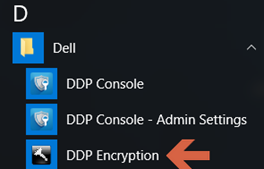
Windows 10
- Ga naar het Start-pictogram op de taakbalk.

- Ga naar Alle apps.

- Ga naar Dell.

- Ga naar Dell Data Protection Encryption.
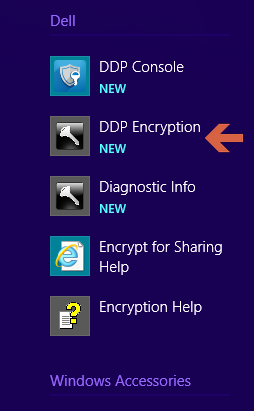
Windows 8.1
- Ga naar het Start-pictogram.

- Selecteer de pijl om de Applicaties weer te geven.

- Ga naar de map Dell en selecteer Dell Data Protection | Versleuteling.
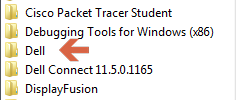
Windows 7
- Ga naar het Start-pictogram.

- Ga naar Alle programma's.

- Ga naar Dell.
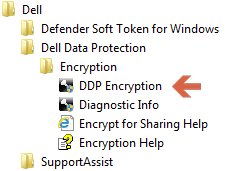
- Ga naar Dell Data Protection | Versleuteling.
- Ga naar het Start-pictogram op de taakbalk.
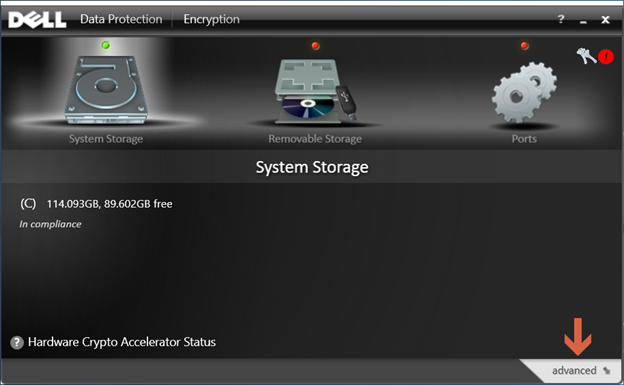
- Selecteer geavanceerd in de rechterbenedenhoek.
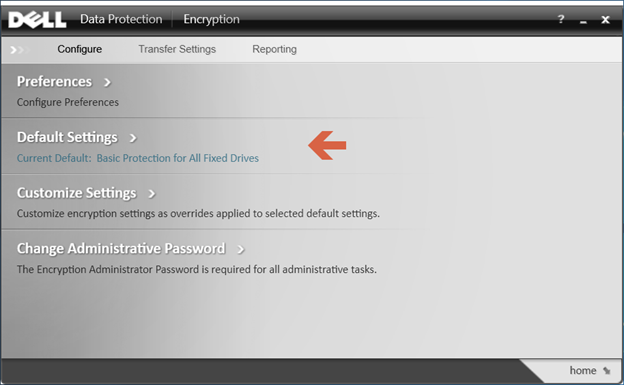
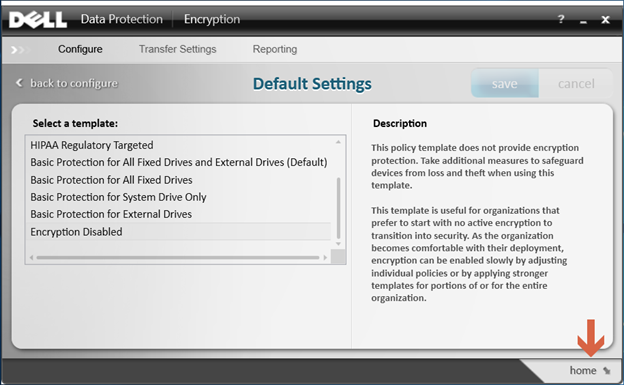
- Kies Standaardinstellingen.
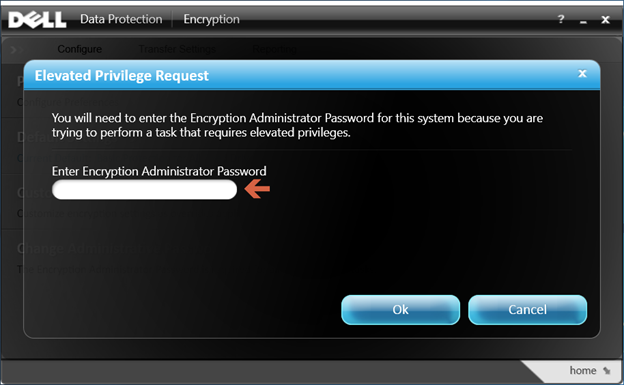
- Voer het Encryption Administrator-wachtwoord in dat wordt aangemaakt bij de installatie van de Dell Data Protection software.
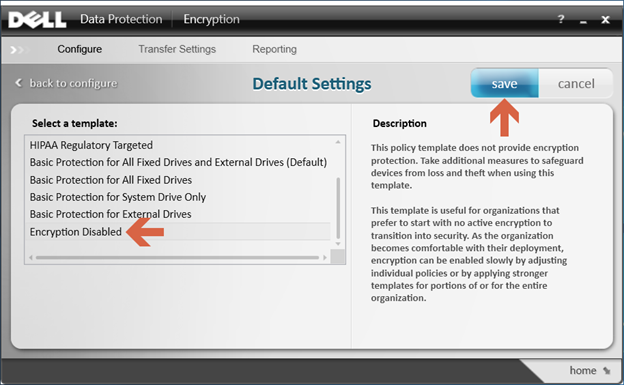
- Gebruik onder Een sjabloon selecteren de schuifopties om naar de optie voor Versleuteling uitgeschakeld te gaan en selecteer vervolgens Opslaan.
- Selecteer de optie om naar huis te gaan in de rechterbenedenhoek.
- Het ontsleutelingsproces begint.
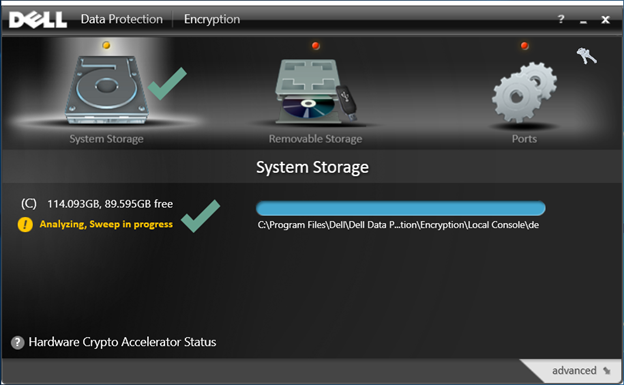 Opmerking: Dit kan enkele uren in beslag nemen, afhankelijk van de computer en het aantal versleutelde bestanden.
Als u contact wilt opnemen met support, raadpleegt u de internationale telefoonnummers voor support van Dell Data Security.
Ga naar TechDirect om online een aanvraag voor technische support te genereren.
Voor meer informatie over inzichten en hulpbronnen kunt u zich aanmelden bij het Dell Security Community Forum.
Affected Products
Dell EncryptionArticle Properties
Article Number: 000125212
Article Type: How To
Last Modified: 19 Apr 2026
Version: 15
Find answers to your questions from other Dell users
Support Services
Check if your device is covered by Support Services.