在不解除安裝 Dell Data Protection Personal Edition 的情況下解密 Dell 資料保護磁碟機
Summary: 本文提供無需解除安裝 Dell Data Protection 即可解密程序的演練 |Personal Edition。
This article applies to
This article does not apply to
This article is not tied to any specific product.
Not all product versions are identified in this article.
Instructions
受影響的產品:
- Dell Data Protection | Personal Edition
受影響的版本:
- 8.0 版至 8.13 版
受影響的作業系統:
- Windows
使用者可能出於各種原因想要從計算機中刪除加密。如果使用者想要在不解除安裝 Dell Data Protection 軟體的情況下解密磁碟機,本指南將示範如何移除 Windows 7、8.1 和 10 的軟體。
如何在 Windows 中移除加密:
- 啟動 Dell Data Protection |加密 軟體。
Windows 10
- 前往任務列上的 開始圖示 。

- 轉到 所有應用。

- 前往 Dell。

- 前往 Dell Data Protection Encryption。
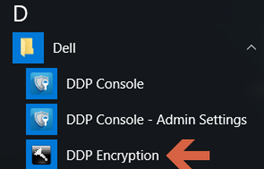
Windows 8.1
- 前往 開始圖示。

- 選取 箭頭 以查看應用程式。

- 前往 Dell 資料夾,然後選取 Dell Data Protection |加密。
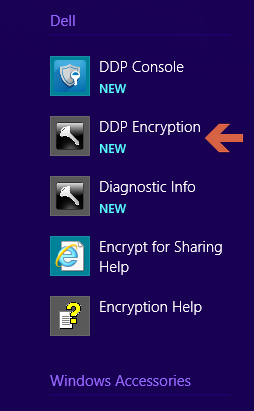
Windows 7
- 前往 開始圖示。

- 轉到 所有程式。

- 前往 Dell。
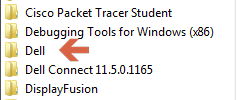
- 前往 Dell Data Protection |加密。
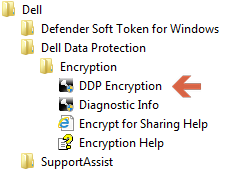
- 前往任務列上的 開始圖示 。
- 選取右下角 的進階 。
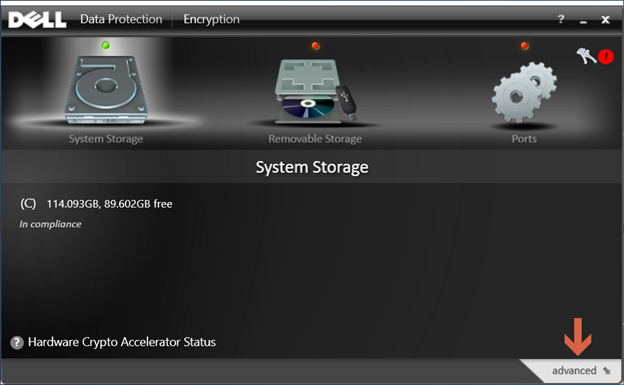
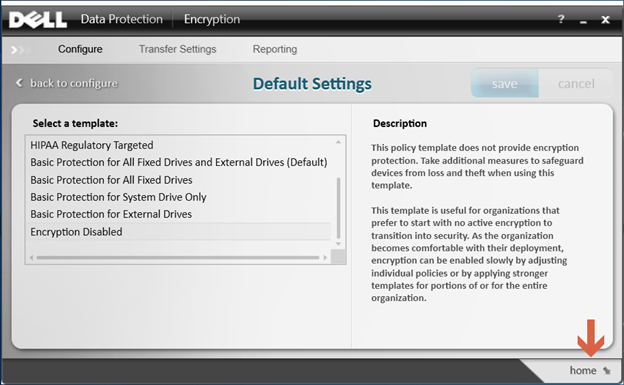
- 選擇 預設設定。
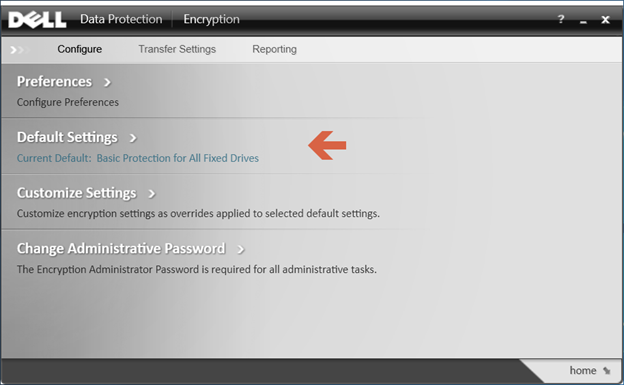
- 輸入 Dell Data Protection 軟體設定時建立的 加密系統管理員密碼 。
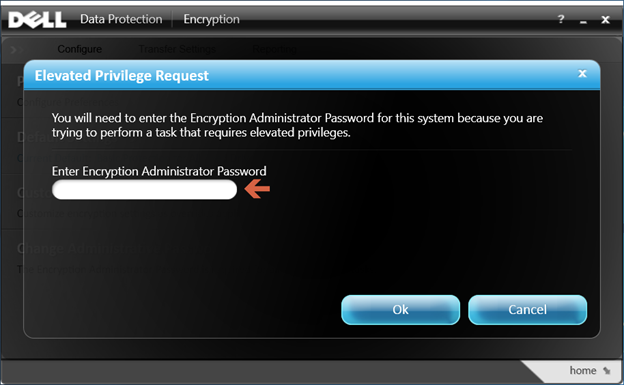
- 在 「選取範本」下,使用捲動選項移至 加密停用 選項,然後選取 儲存。
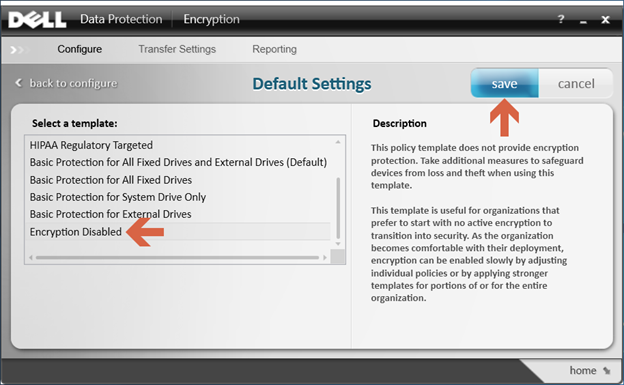
- 選取右下角的「 返回首 頁」選項。
- 解密程序隨即開始。
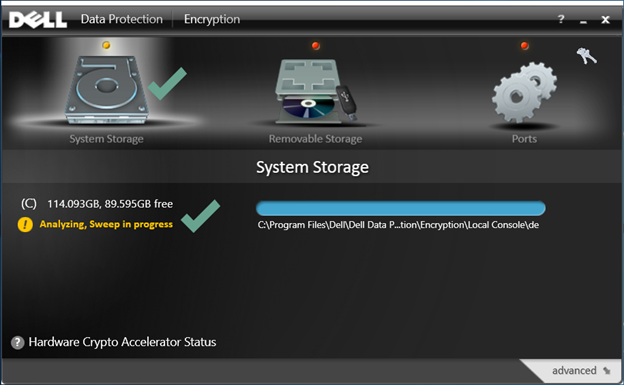 注意:這可能需要數小時才能完成,具體取決於計算機和加密的文件數量。
如要聯絡支援部門,請參閱 Dell Data Security 國際支援電話號碼。
請前往 TechDirect,以線上產生技術支援要求。
如需更多深入見解與資源,請加入 Dell 安全性社群論壇。
Affected Products
Dell EncryptionArticle Properties
Article Number: 000125212
Article Type: How To
Last Modified: 19 Apr 2026
Version: 15
Find answers to your questions from other Dell users
Support Services
Check if your device is covered by Support Services.