How to Automatically Force-Enable Dell Endpoint Security Suite Web Protection Browser Extensions Through Group Policy
Summary: This article describes the process to automatically force Dell Endpoint Security Suite Web Protection browser extensions to start through group policy.
This article applies to
This article does not apply to
This article is not tied to any specific product.
Not all product versions are identified in this article.
Symptoms
Note:
- As of May 2022, Dell Endpoint Security Suite Enterprise has reached End of Maintenance. This article is no longer updated by Dell. For more information, reference the Product Life Cycle (End of Support / End of Life) Policy for Dell Data Security. If you have any questions on alternative articles, either reach out to your sales team or contact endpointsecurity@dell.com.
- As of January 2019, Dell Endpoint Security Suite Pro has reached End of Service and this article is no longer updated by Dell. For more information, reference the Product Life Cycle (End of Support / End of Life) Policy for Dell Data Security. If you have any questions on alternative articles, either reach out to your sales team or contact endpointsecurity@dell.com.
- Reference Endpoint Security for additional information about current products.
Affected Products:
- Dell Endpoint Security Suite Enterprise
- Dell Endpoint Security Suite Pro
ESS Web Protection works with IE, Edge, Chrome, and Firefox as a browser extension or add-on. All these browsers require you to manually activate the ESS Web Protection extensions before you can use Web Protection.
Each browser has different behaviors and steps that are associated with activating the ESS Web Protection extensions after ESS Web Protection is installed on the local computer.
This article shows how to configure Active Directory to force-enable the ESS Web Protection extension in Internet Explorer and Chrome.
Mozilla is investigating Active Directory integration. You cannot manage Firefox through Active Directory to force-enable the ESS Web Protection extension and keep end users from disabling the extension.
Cause
Not Applicable
Resolution
Table of Contents:
IE
In IE, a prompt displays at the bottom of the browser screen asking the end user to enable the ESS Web Protection Browser Helper Object (BHO) and ESS Web Protection toolbar. ESS Web Protection does not function in IE if the ESS Web Protection BHO and toolbar are not enabled.
The CLSID for ESS Web Protection BHO is {B164E929-A1B6-4A06-B104-2CD0E90A88FF}, and the CLSID for the ESS Web Protection toolbar is {0EBBBE48-BAD4-4B4C-8E5A-516ABECAE064}.
To use group policy to force the Add-ons to be enabled for the user:
- Open the Group Policy Management Editor and go to
Computer Configuration\Policies\Administrative Templates\Windows Components\Internet Explorer\Security Features\Add-on Managementand enter the CLSID for both the ESS Web Protection and ESS Web Protection toolbar.
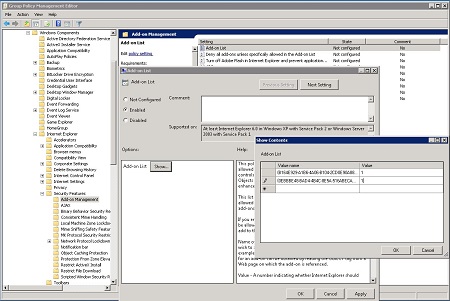
- Open the Add-on List Group Policy Object, select Enabled, and then click Show.
The Show Contents dialog appears. - In Value Name, paste these including brackets:
{B164E929-A1B6-4A06-B104-2CD0E90A88FF} {0EBBBE48-BAD4-4B4C-8E5A-516ABECAE064} - In Value, enter one of the following:
0 the add-on is disabled, and your employees cannot change it.
1 the add-on is enabled, and your employees cannot change it.
2 the add-on is enabled, and your employees can change it. - Close the Show Contents dialog.
- In the Group Policy editor, go to
Computer Configuration\Administrative Templates\Windows Components\Internet Explorer.
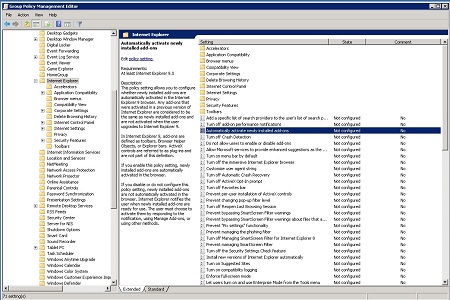
- Double-click Automatically activate/enable newly installed add-ons and select Enabled.
Enabling turns off the message prompting you to Enable or Do not enable the add-on. - Click OK twice to close the Group Policy editor.
For details on AD templates and group policy, reference https://technet.microsoft.com/en-us/library/cc985341.aspxand https://technet.microsoft.com/en-us/itpro/internet-explorer/ie11-deploy-guide/enable-and-disable-add-ons-using-administrative-templates-and-group-policy
Edge
In Edge, a prompt displays asking the end user to enable the Web Control extension when opening Edge after Web Control installation. Web Control does not function in Edge until the extension is enabled.
Note: The version of ENS Web Control reported in Edge is 10.7.1 when ENS Web Control 10.6.1 is installed.
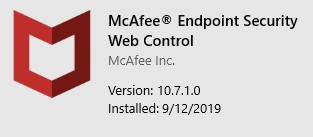
If an end user disables the ENS Web Control extension in Edge, you cannot reenable the extension remotely; the end user must reenable the extension locally.
Windows provides a group policy (Prevent turning off required extensions) to harden the Edge extension. To ensure that users cannot disable the Web Control extension, add the Web Control extension PFN to the group policy Prevent turning off required extensions. The Web Control extension PFN is: 5A894077.McAfeeEndpointSecurityWebControl_wafk5atnkzcwy
For detailed instructions to enable this group policy, see https://docs.microsoft.com/en-us/microsoft-edge/deploy/group-policies/extensions-management-gp#prevent-turning-off-required-extensions
Microsoft does not provide a way to manage Edge through Active Directory to force-enable the ENS Web Control extension.
Chrome
In Chrome, the menu icon is highlighted and a window opens with a message stating a new extension has been installed and is ready for use. ESS Web Protection does not function in Chrome until the extension is enabled.
Chrome also allows for the ESS Web Protection extension to be force-enabled through Active Directory.
- Open the Group Policy Management Editor and go to Computer Configuration\Policies\Administrative Templates\Google\Google Chrome\Extensions and enter the APPID and update URL.
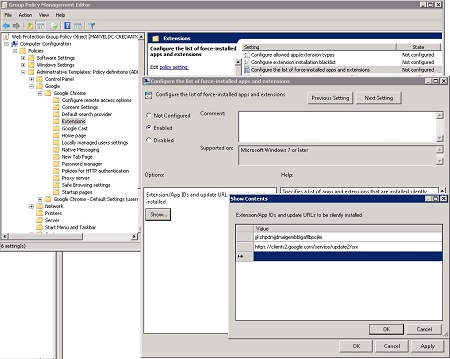
- Open the Configure the list of force-installed apps and extensions Group Policy Object, select Enabled, and then click Show.
The Show Contents dialog appears. - In Value, enter the following on separate lines, APPIDs are case-sensitive.
jjkchpdmjjdmalgembblgafllbpcjlei
https://clients2.google.com/service/update2/crx
Note: Above ID for chrome is all lower-case. - Click OK twice to close the Group Policy editor.
For details, see https://support.google.com/chrome/a/answer/187202?hl=en
Firefox
In Firefox, a prompt displays asking the end user to enable the ESS Web Protection extension upon opening Firefox after the ESS Web Protection installation. The ESS Web Protection service will enable the ESS Web Protection browser extension automatically five minutes after installation if the end user has not already opened Firefox. Every 30 minutes, the ESS Web Protection service checks the status of the ESS Web Protection extension and enables the extension if it has been disabled by the end user. A browser restart is required to enable the ESS Web Protection browser.
Affected Products
Dell Endpoint Security Suite EnterpriseArticle Properties
Article Number: 000126322
Article Type: Solution
Last Modified: 24 Aug 2026
Version: 12
Find answers to your questions from other Dell users
Support Services
Check if your device is covered by Support Services.