WM615 Bluetooth Mouse Does Not Power On
Summary: This article provides the steps for clearing pairing data if the WM615 Bluetooth mouse is not powering on.
This article applies to
This article does not apply to
This article is not tied to any specific product.
Not all product versions are identified in this article.
Symptoms
Bluetooth Mouse Does Not Power Up
The WM615 Bluetooth mouse may not power on after rotating the bottom half so it can power on. This also happens when using good charged batteries.
Cause
No cause information
Resolution
Use the following steps to clear pairing data from the mouse and then try to power it on.
- Remove batteries and then reinsert them into the mouse. Rotate the mouse's bottom half straight to power it off (Figure 1).
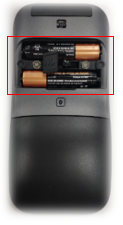
Figure 1
- Press the pairing button for 10 seconds until the indicator light turns red (Figure 2).
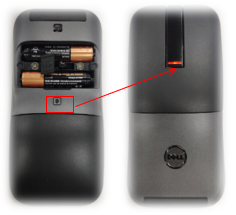
Figure 2
- Press the left button or right button to clear the link key data. When this happens, the indicator light turns white (Figure 3).
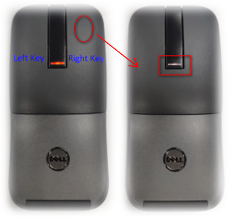
Figure 3
- Rotate the mouse's bottom half to power it on, the indicator light turns on and it turns off 5 seconds later (Figure 4).
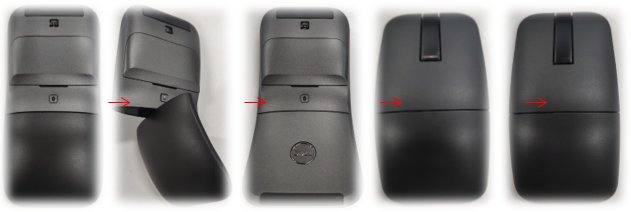
Figure 4
- Press the pairing button until the indicator light flashes white (Figure 5). Search and choose the mouse on your device for pairing.
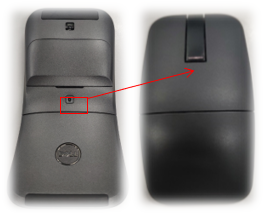
Figure 5
- The Indicator turns off, and the pairing is completed (Figure 6).

Figure 6
If you have further questions about this article, contact Dell Technical Support.
Affected Products
Dell Bluetooth Mouse WM615Article Properties
Article Number: 000132061
Article Type: Solution
Last Modified: 19 Apr 2026
Version: 5
Find answers to your questions from other Dell users
Support Services
Check if your device is covered by Support Services.