Tryby Dell Data Security Shield
Summary: W tym artykule opisano tryby osłony Dell Data Security (dawniej Dell Data Protection).
This article applies to
This article does not apply to
This article is not tied to any specific product.
Not all product versions are identified in this article.
Symptoms
Dotyczy produktów:
- Credant Mobile Guardian
- Dell Encryption Enterprise
- Dell Data Protection | Enterprise Edition
- Dell Encryption External Media
- Dell Data Protection | External Media Edition
- Dell Encryption Personal
- Dell Data Protection | Personal Edition
- Narzędzia bezpieczeństwa Dell Data Protection
- Dell Encryption Enterprise for Server
- Dell Data Protection | Server Edition
Dotyczy platform:
- Windows
Oparte na regułach oprogramowanie Dell Data Security (dawniej Dell Data Protection) używa identyfikatora trybu osłony do klasyfikacji produktów.
Cause
Ostrzeżenie:
- Tryb osłony jest określany w momencie instalacji produktu i nie można go modyfikować ręcznie.
- Tryb osłony jest używany tylko do rozwiązywania problemów z typem lub stanem produktu.
Resolution
Tryby osłony dla produktów Dell Data Security to:
| Identyfikator | Tryb | Produkt |
|---|---|---|
| 0 | Nieznany/niezainicjowany | Nie zainicjowano / nie przydzielono1 |
| 1 | Tryb Enterprise | Tarcza Dell Encryption Enterprise \ Dell Data Protection Enterprise Edition |
| 2 | Tryb autonomiczny | Credant Mobile Guardian |
| 3 | Tylko tryb Enterprise EME | Dell Encryption External Media \ Dell Data Protection | External Media Edition |
| 4 | Tryb zarządzania lokalnego | Dell Encryption Personal \ Dell Data Protection | Wersja osobista |
| 5 | Tryb podstawowy | Ochrona danych Dell | Narzędzia bezpieczeństwa2 |
| 6 | Tryb szyfrowania serwera | Dell Encryption Enterprise dla serwerów \ Dell Data Protection | Szyfrowanie serwerów |
| 7 | Tryb SaaS | Dell Encryption Enterprise Shield |
Rozdział 1Wszystkie produkty Dell Data Protection pozostają nieprzydzielone do momentu aktywacji.
2Tryb podstawowy występuje tylko w przypadku instalacji oprogramowania Dell Data Protection | Narzędzia bezpieczeństwa.
Aby zlokalizować tryb osłony:
Ostrzeżenie: Przejście do rejestru systemu Windows:
- Edytowanie rejestru może sprawić, że komputer przestanie odpowiadać przy następnym uruchomieniu.
- Jeśli masz obawy dotyczące wykonania tego kroku, skontaktuj się z międzynarodowym działem pomocy technicznej Dell Data Security.
- Prawym przyciskiem myszy kliknij menu Start systemu Windows, a następnie wybierz opcję Uruchom.
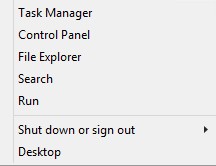
Rysunek 1. (Tylko w języku angielskim) Uruchomienie
- W interfejsie użytkownika Uruchom wpisz regedit , a następnie naciśnij przycisk OK.
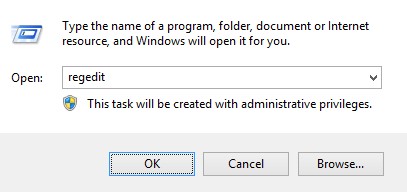
Rysunek 2. (Tylko w języku angielskim) Wpisz regedit
- Przejdź do HKEY_LOCAL_MACHINE\SOFTWARE\Credant\CMGShield.
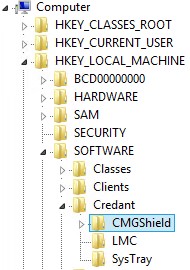
Rysunek 3. (Tylko język angielski) CMGShield
- Odszukaj SM klucza DWORD.
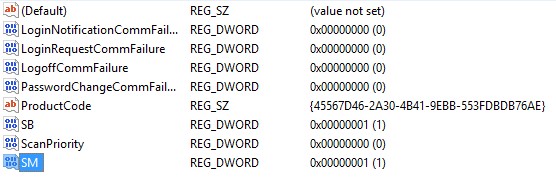
Rysunek 4. (Tylko w języku angielskim) SM
Uwaga: W tym przykładzie klawisz SM jest ustawiony na 1. Identyfikuje edycję Enterprise w trybie osłony.
Aby skontaktować się z pomocą techniczną, przejdź do sekcji Numery telefonów międzynarodowej pomocy technicznej Dell Data Security.
Przejdź do TechDirect, aby wygenerować zgłoszenie online do pomocy technicznej.
Aby uzyskać dodatkowe informacje i zasoby, dołącz do Forum społeczności Dell Security.
Additional Information
Videos
Affected Products
Dell EncryptionArticle Properties
Article Number: 000132837
Article Type: Solution
Last Modified: 19 Apr 2026
Version: 11
Find answers to your questions from other Dell users
Support Services
Check if your device is covered by Support Services.