Fix a Windows Screen That's Off-Center or Cut Off on One Side
Summary: Is your Windows desktop shifted left or right, with a black bar on one side? Learn the real causes and follow simple, step-by-step fixes to recenter your screen.
This article applies to
This article does not apply to
This article is not tied to any specific product.
Not all product versions are identified in this article.
Instructions
If your screen looks shifted to the left or right, with a black strip on one side and part of your desktop missing on the other, here's some good news: in most cases, you can fix it yourself in just a few minutes. This article walks you through the most likely causes, starting with the easiest fix first.
Quick answer
Your Windows desktop appears offset when the resolution or refresh rate Windows is using doesn't match what your monitor expects. Try a quick driver reset first. If that doesn't work, matching your desktop resolution to your monitor's active resolution fixes this issue for most people.

What causes a shifted or offset desktop screen
A few different things can cause this, depending on how your monitor is connected and what changed right before the problem started:
- Windows is using a screen resolution that doesn't match what your monitor is actually displaying
- Your monitor's refresh rate changed, often after using an "Auto Adjust" button or updating a driver
- You're using an older VGA cable, and the analog signal has drifted out of position
- Your graphics card's scaling setting is centering or repositioning a non-native resolution
- A docking station or video adapter is limiting your resolution below your monitor's native setting
- You're connected to a TV, and its overscan setting is cropping and shifting the image
- Windows didn't restore the correct resolution after your computer woke from sleep or after closing a full-screen game or app
We'll go through fixes for each of these, so you can find the one that matches your situation.
Before you start: try a quick driver reset
This simple keyboard shortcut resets your graphics driver without restarting your computer. It fixes temporary display glitches in seconds, so it's worth trying first.
- Press and hold the Windows key + Ctrl + Shift + B at the same time.
- Wait a moment. Your screen may flash and go black briefly, and you might hear a short beep. This is normal.
- Check whether your desktop is now centered.
If this doesn't fix the issue, move on to the steps below.
Fix 1: Match your desktop resolution to your monitor's active resolution
This is the most common cause. Windows sometimes renders your desktop at a different resolution than what your monitor is actually displaying, which pushes the image off-center.
- Right-click an empty area of your desktop, and then select Display settings.
- Scroll down, and then select Advanced display settings.
- Compare the Desktop resolution and Active resolution values.
- If the two values don't match, select Display adapter properties.
- In the window that opens, select List All Modes.
- From the list, select the resolution that matches your monitor's native resolution, and then select OK.
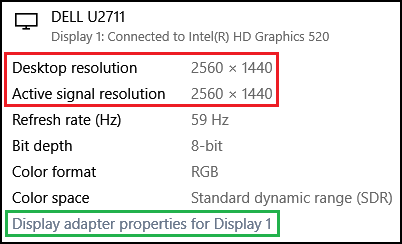
Your desktop should now align properly. If your monitor's native resolution isn't in the list, check the resolution limits of your computer or docking station in the next step.
Fix 2: Check your docking station or video adapter's resolution limit
If you're using a docking station, USB-to-HDMI adapter, or VGA-to-HDMI adapter, it may cap your output below your monitor's native resolution. When this happens, Windows may reposition the image instead of stretching it.
- Check the specification sheet or product page for your docking station or adapter, and note its maximum supported resolution.
- Compare that value to your monitor's native resolution, listed in your monitor's manual or on the manufacturer's website.
- If the adapter's limit is lower than your monitor's native resolution, connect your monitor directly to your computer instead, if possible, or use an adapter rated for your monitor's full resolution.
Fix 3: Check your refresh rate
A mismatched refresh rate, not just resolution, can also cause this issue. This is especially common after using a monitor's "Auto Adjust" feature.
- Right-click an empty area of your desktop, and then select Display settings.
- Select Advanced display settings.
- Note the current Refresh rate.
- Select Display adapter properties, and then select the Monitor tab.
- Try a different refresh rate close to your current one, for example switching between 59 Hz and 60 Hz.
- Select Apply, and then check whether your desktop is now centered. If it isn't, revert to your original refresh rate and continue to the next fix.
Fix 4: Adjust your monitor's on-screen position settings (VGA connections)
If you're using a VGA cable, the image position can drift on its own, since VGA carries no digital timing signal. This isn't a Windows setting. You'll need to adjust it directly on the monitor.
- Locate the menu button on your monitor, usually on the bottom or side edge.
- Open the on-screen display (OSD) menu.
- Look for an option called Auto Adjust, Auto Setup, or Position.
- Select Auto Adjust first. If the image is still off-center, use the manual horizontal and vertical position controls to recenter it.
If possible, switching to an HDMI or DisplayPort cable prevents this from happening again, since digital connections don't drift the way analog ones do.
Fix 5: Check your graphics card's scaling settings
Your graphics card has its own scaling setting, separate from Windows, that controls how a resolution is displayed on your screen. If it's set to center the image instead of filling the screen, this can look like an offset.
For Intel graphics:
- Right-click an empty area of your desktop, and then select Intel Graphics Settings or Intel Graphics Command Center.
- Select Display.
- Under Scaling, select Full Screen or Maintain Display Scaling.
For NVIDIA graphics:
- Right-click an empty area of your desktop, and then select NVIDIA Control Panel.
- Select Display, and then select Adjust desktop size and position.
- Select Full-screen as your scaling mode, and then select Apply.
For AMD graphics:
- Open AMD Software.
- Select Display.
- Adjust the GPU Scaling and Scaling Mode settings, and then select a full-screen option.
Fix 6: Turn off overscan (TV connections only)
If your monitor is actually a TV, its overscan setting may be cropping and shifting the incoming image. This is a setting on the TV itself, not in Windows.
- Open your TV's picture or display settings menu using your TV remote.
- Look for an option called Overscan, Screen Fit, or Just Scan.
- Turn this option off, or select the setting that displays the full image without cropping.
Fix 7: Update your graphics driver
Outdated drivers can cause resolution and scaling problems, including this one.
- Select Start, and then open Dell SupportAssist.
- Select Update Software, and then click Start to check for graphics driver updates.
- Install any available updates, and then restart your computer.
You can also update drivers through Windows Update, under Settings > Windows Update > Advanced options > Optional updates.
Frequently asked questions (FAQs)
Why is my screen suddenly off-center after waking my computer from sleep?
Windows sometimes fails to reapply the correct resolution after sleep. Try the driver reset shortcut (Windows key + Ctrl + Shift + B) first, since this usually resolves it without a restart.
Why does my screen shift only after I close a game?
Some games set a custom resolution that Windows doesn't always revert cleanly. Right-click your desktop, select Display settings, and confirm your resolution is set back to your monitor's recommended value.
Does this mean my monitor is broken?
No. This is a settings mismatch rather than a hardware fault.
Videos
Fix Windows Desktop Offset Issue
Duration: 00:02:15 (hh:mm:ss)
When available, closed caption (subtitles) language settings can be chosen using the CC icon on this video player.
Affected Products
Alienware, Dell All-in-One, Dell Pro All-in-One, Dell Pro Max Micro, Dell Pro Max Slim, Dell Pro Max Tower, Dell Pro Micro, Dell Pro Slim, Dell Pro Tower, Dell Slim, Dell Tower, Inspiron, OptiPlex, Vostro, XPS, G Series, G Series, Alienware
, Dell Laptops, Dell Plus, Dell Pro, Dell Pro Max, Dell Pro Plus, Dell Pro Premium, Inspiron, Latitude, Dell Pro Rugged, Vostro, XPS, Fixed Workstations, Mobile Workstations, Dell Pro Max Micro XE FCM2250, Dell Pro Max Slim XE FCS1250, Dell Pro Max Tower T2 XE FCT2250, Dell Pro Max 16 XE MC16250, Dell Pro Micro Plus XE QBM1250, Dell Pro Slim Plus XE5 QBS1250, Dell Pro Tower Plus XE5 QBT1250
...
Article Properties
Article Number: 000138732
Article Type: How To
Last Modified: 25 Aug 2026
Version: 10
Find answers to your questions from other Dell users
Support Services
Check if your device is covered by Support Services.