How to configure Synchronous Replication between Compellent Storage Centers
Summary: Our charter is to deliver solutions that simplify IT by providing database solutions, custom development, dynamic datacenters, flexible computing
This article applies to
This article does not apply to
This article is not tied to any specific product.
Not all product versions are identified in this article.
Symptoms
Applies to:
Storage Platform(s) – Dell Compellent Series 40 and Dell Compellent Series 8000 storage systems with Storage Center 6.3 and greater
Author:
Ramamohan Reddy K
Problem:
How to configure Synchronous Replication on Compellent?
Solution:
Synchronous replication will be created if we want the source and destination volumes to be synchronized at all times.
To replicate a volume from one Storage Center to another Storage Center synchronously, below are the prerequisites
Synchronous replication can be configured in two modes: High consistency and high availability
Storage Platform(s) – Dell Compellent Series 40 and Dell Compellent Series 8000 storage systems with Storage Center 6.3 and greater
Author:
Ramamohan Reddy K
Problem:
How to configure Synchronous Replication on Compellent?
Solution:
Synchronous replication will be created if we want the source and destination volumes to be synchronized at all times.
To replicate a volume from one Storage Center to another Storage Center synchronously, below are the prerequisites
- Both Storages should have Storage Center versions 6.3 or above
- Both the source and destination Storage Centers must be added to the Enterprise Manager Client
- The Storage Centers must be connected using Fibre Channel or iSCSI, and each Storage Center must be defined on the other Storage Center.
- On the source Storage Center, the destination Storage Center must be defined as a remote Storage Center.
- On the destination Storage Center, the source Storage Center must be defined as a remote Storage Center.
- On the source Storage Center, a quality of service (QoS) definition must be set up for the replication
Synchronous replication can be configured in two modes: High consistency and high availability
- In the Enterprise manager Client Click the Replication & Live Volumes view on the left bottom of the pane.
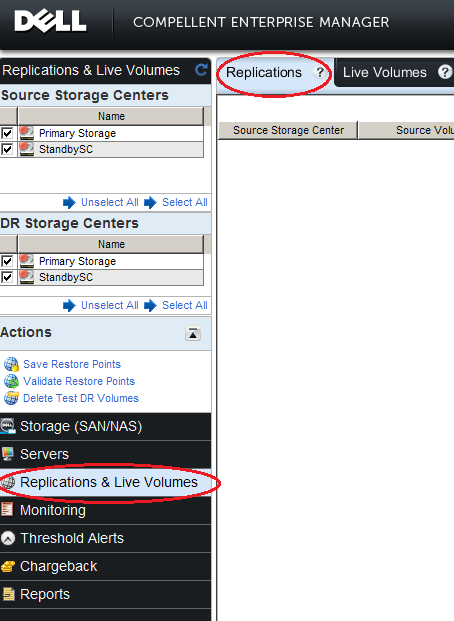
Figure 1: Replication & Live - In the Replications Tab choose Replicate Volumes. Then Create Replication wizard appears.
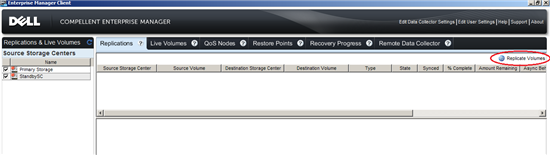
Figure 2: Replicate Volume - Select the source storage center from where volumes should be replicated, then click Next
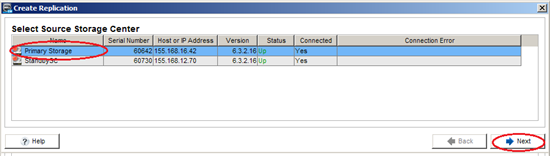
Figure 3: Source storage center - Select the destination storage center to which volumes to be replicated and click Next
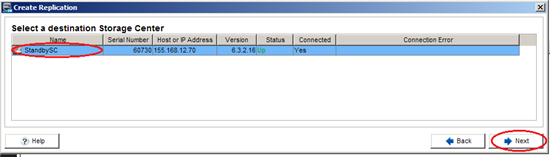
Figure 4: Destination storage center - In the next wizard,select all the volumes that has be replicated and click Next
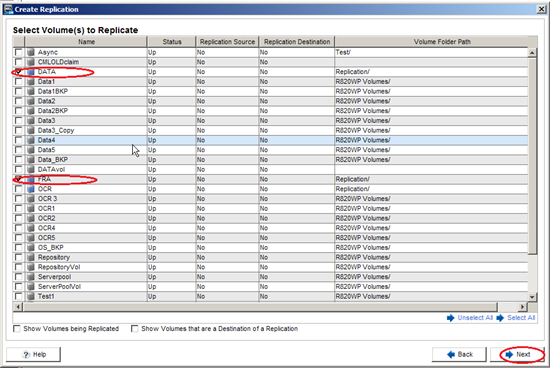
Figure 5: Volumes that has be replicated - In next wizard,
a) For Configuring in high consistency mode, configure the Replication attributes as
- Select Type as Asynchronous and Sync mode as High Consistency
- Select other attributes Deduplication and Replicate Active Replay if it is necessary
- Select QoS node which is created as a Prerequisite.
Select the destination volume attributesand click Next
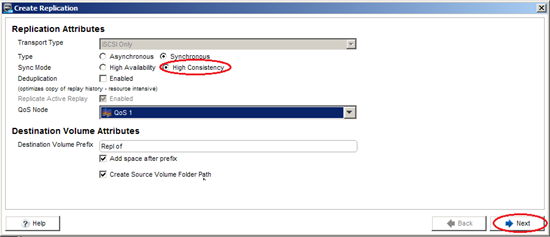
Figure 6: QoS node
b) For Configuring in High Availability mode, configure the Replication attributes as
- Select Type as Asynchronous and Sync mode as High Availability
- Select other attributes Deduplication and Replicate Active Replay if it is necessary
- Select QoS node which is created as a Prerequisite.
Select the destination volume attributes and click Next
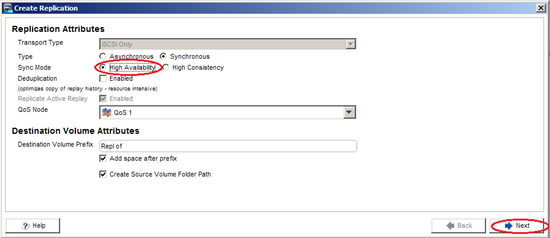
Figure 7: Destination volume attributes - In this wizard, review and modify the replications if necessary by clicking Edit Settings, then click Finish.
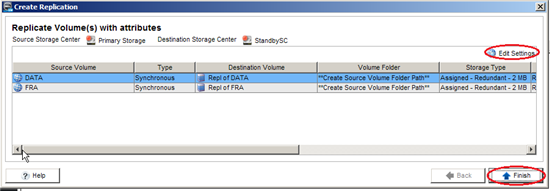
Figure 8: Review and modify the replications - We can see all the configured replication in the Replications Tab
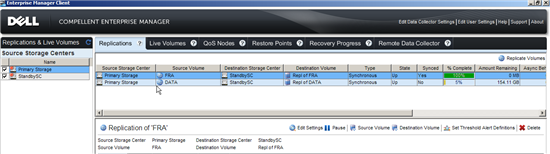
Figure 9: Replications
Article Properties
Article Number: 000147106
Article Type: Solution
Last Modified: 21 Feb 2021
Version: 3
Find answers to your questions from other Dell users
Support Services
Check if your device is covered by Support Services.