Data Domain: Split and Download Core file using DD GUI on DDOS 7.x
Summary: Data Domain Operating System (DDOS) 7.x and later allows split and download of core files using DD System Manager.
This article applies to
This article does not apply to
This article is not tied to any specific product.
Not all product versions are identified in this article.
Instructions
A core dump file contains an image of the working memory being used by the process or kernel at the point of termination and can be invaluable for postmortem analysis. This article describes how you can split and download core files using DD System Manager (DD GUI) on DDOS 7.x and later.
For older DDOS version, refer to KB article 000043398: Data Domain: How to upload a core dump file from a Data Domain Restorer for analysis by Data Domain support/engineering
Identify core dump files on the DDR
It is first necessary to identify which core dump files exist on DD - this can be done by logging in to DD System Manager by entering DD hostname or IP address on a Web Browser.
Splitting core file: A maximum of 20 split chunks are permitted.

However, best practice would be to select and delete the split files when your task is complete.
For older DDOS version, refer to KB article 000043398: Data Domain: How to upload a core dump file from a Data Domain Restorer for analysis by Data Domain support/engineering
Identify core dump files on the DDR
It is first necessary to identify which core dump files exist on DD - this can be done by logging in to DD System Manager by entering DD hostname or IP address on a Web Browser.
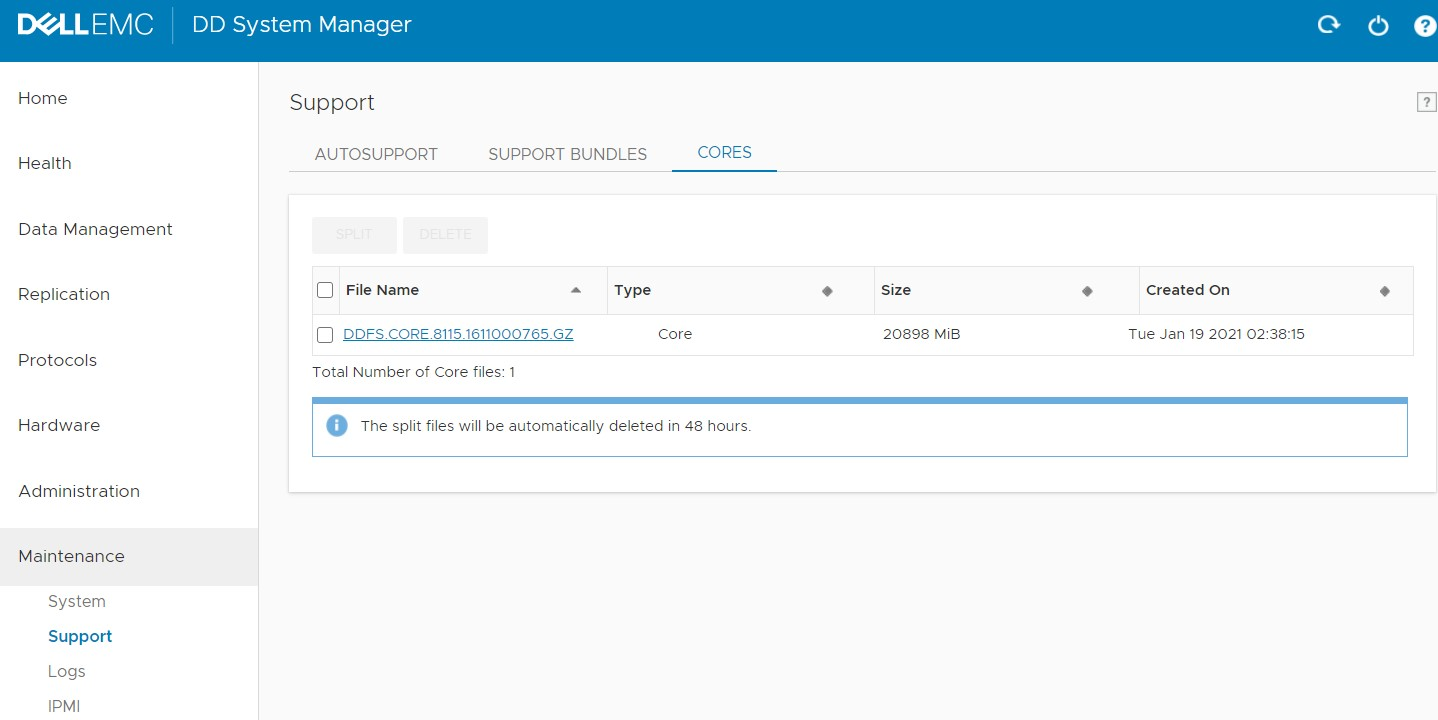
- Click on Maintenance > Support > CORES
- You can now see the Core file ready for download and sort it by clicking Created On
- Click on the Core file name to begin download.
- In some cases, the core file size may be huge and may cause inconvenience in uploading to SR or FTP and we may need to split it before downloading.
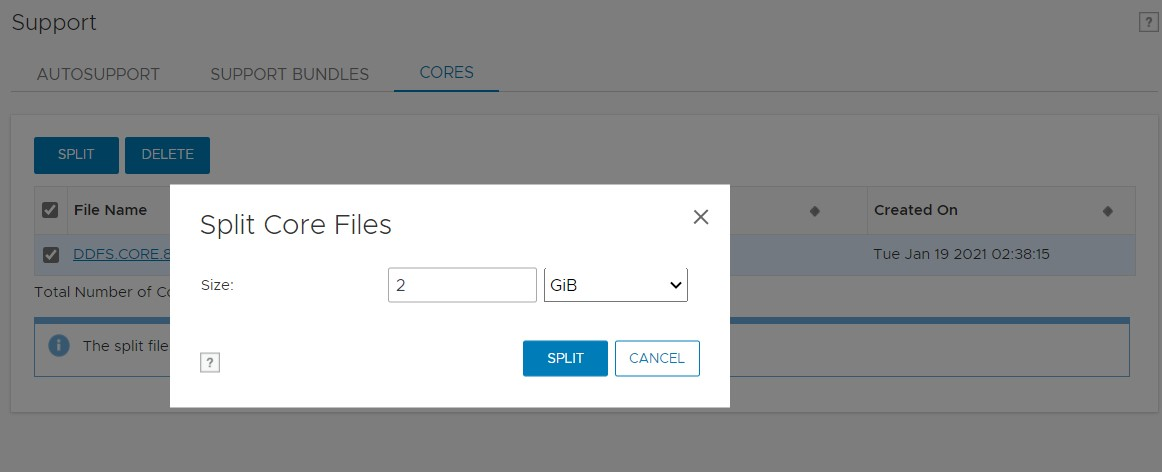
Splitting core file: A maximum of 20 split chunks are permitted.
- Select the check box beside core file name and click on SPLIT
- Select the appropriate size to not exceed more than 20 chunks.
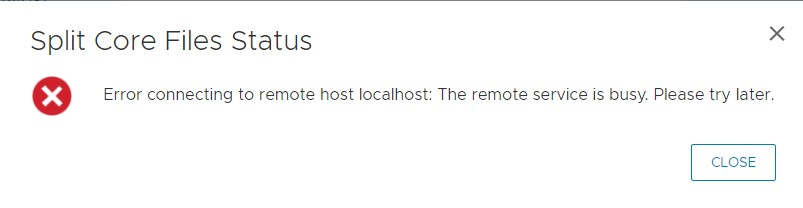
- You may sometimes see a Timeout error, this still means that the split is running in background.
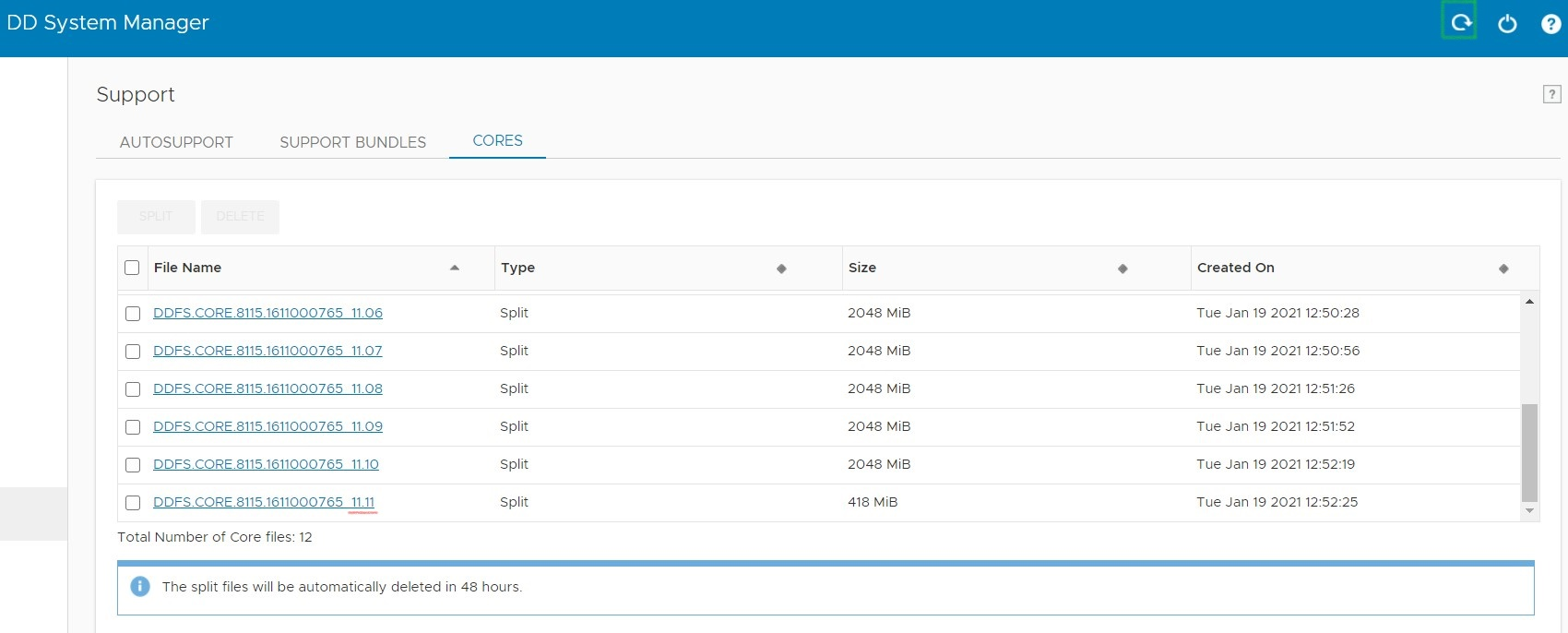
- Wait for 10 minutes, and then Refresh.
- The Split file name can be seen in format <core name>_<Total Chunks>.<Chunk Number> and are stored along with the md5 checksum on DD under /ddvar/core/chunks/
- Make sure that all chunks have been created before you begin downloading.
- Now you can click on the Split core file names to begin the download.
However, best practice would be to select and delete the split files when your task is complete.
Additional Information
Refer to this video:
Affected Products
Data DomainArticle Properties
Article Number: 000182033
Article Type: How To
Last Modified: 07 May 2026
Version: 6
Find answers to your questions from other Dell users
Support Services
Check if your device is covered by Support Services.