IDPA: Proper shutdown process for the Integrated Data Protection Appliance
Summary: How to properly shut down an IDPA appliance using Appliance Configuration Manager (ACM) Dashboard and integrated Dell Remote Access Controller (iDRAC) interface.
This article applies to
This article does not apply to
This article is not tied to any specific product.
Not all product versions are identified in this article.
Instructions
Preface:
Integrated Data Protection Appliance (IDPA) requires a specific shutdown procedure to ensure that all the software components are shut down gracefully.
Failure to perform a Graceful Shutdown may result in issues when restarting the appliance.
Procedure:
To ensure a Graceful Shutdown, follow the Shutting down the IDPA appliance using Appliance Configuration Manager (ACM) Dashboard procedure below.
This must be completed before proceeding with the Shutting down the IDPA appliance using Integrated Dell Remote Access Controller (iDRAC) Dashboard procedure.
CAUTION: Directly shutting down IDPA using iDRAC may cause data loss and may result in an unclean shutdown.
Shutting down the IDPA appliance using Appliance Configuration Manager (ACM) Dashboard:
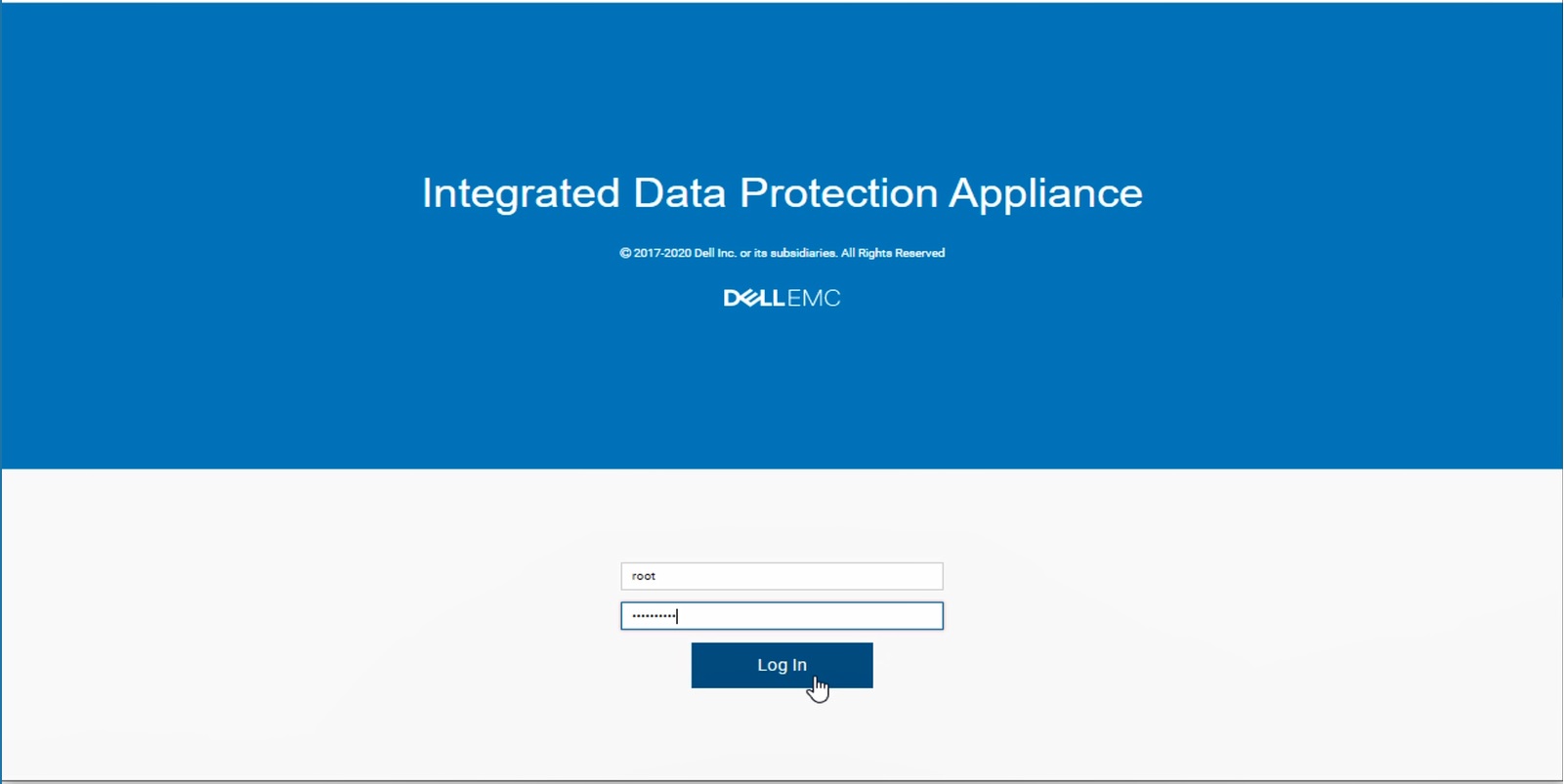
- Log in to the ACM Web Interface.
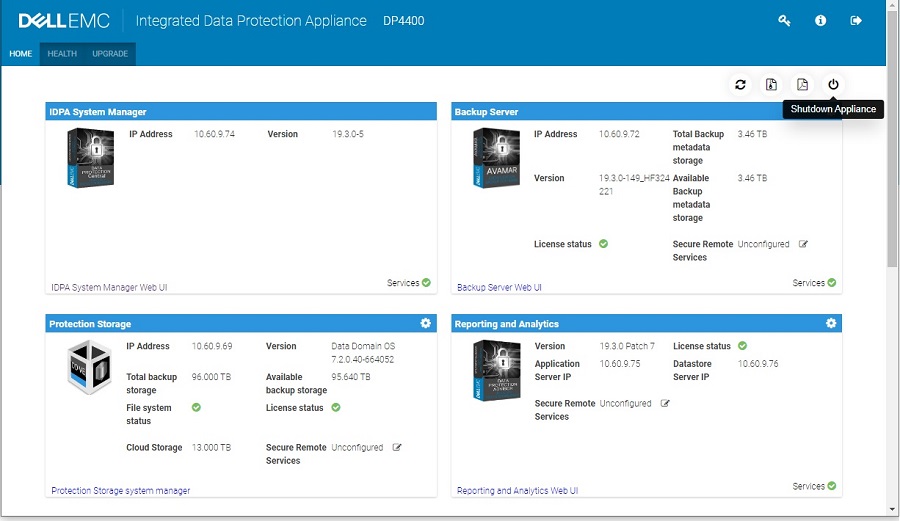
- On the ACM dashboard Home tab, click the Shutdown Appliance icon.
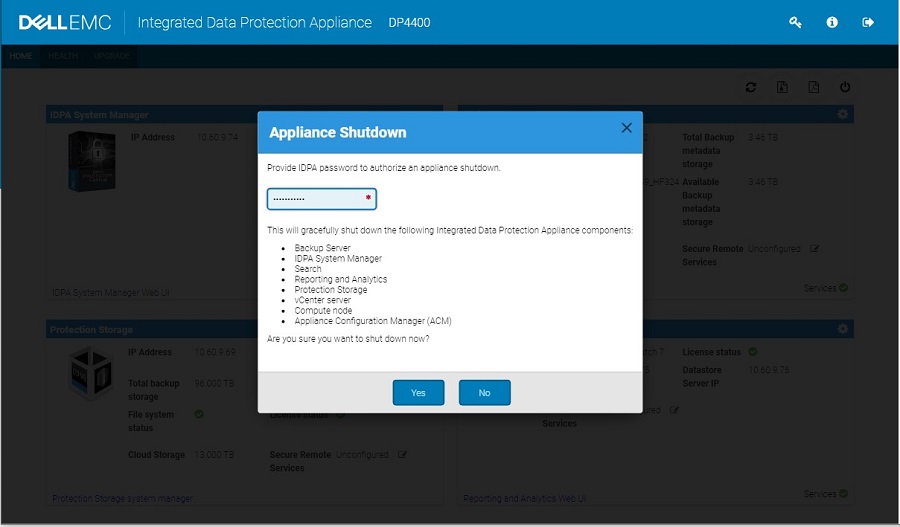
- Enter the ACM root password, and click Yes.
- The appliance shutdown progress is displayed.
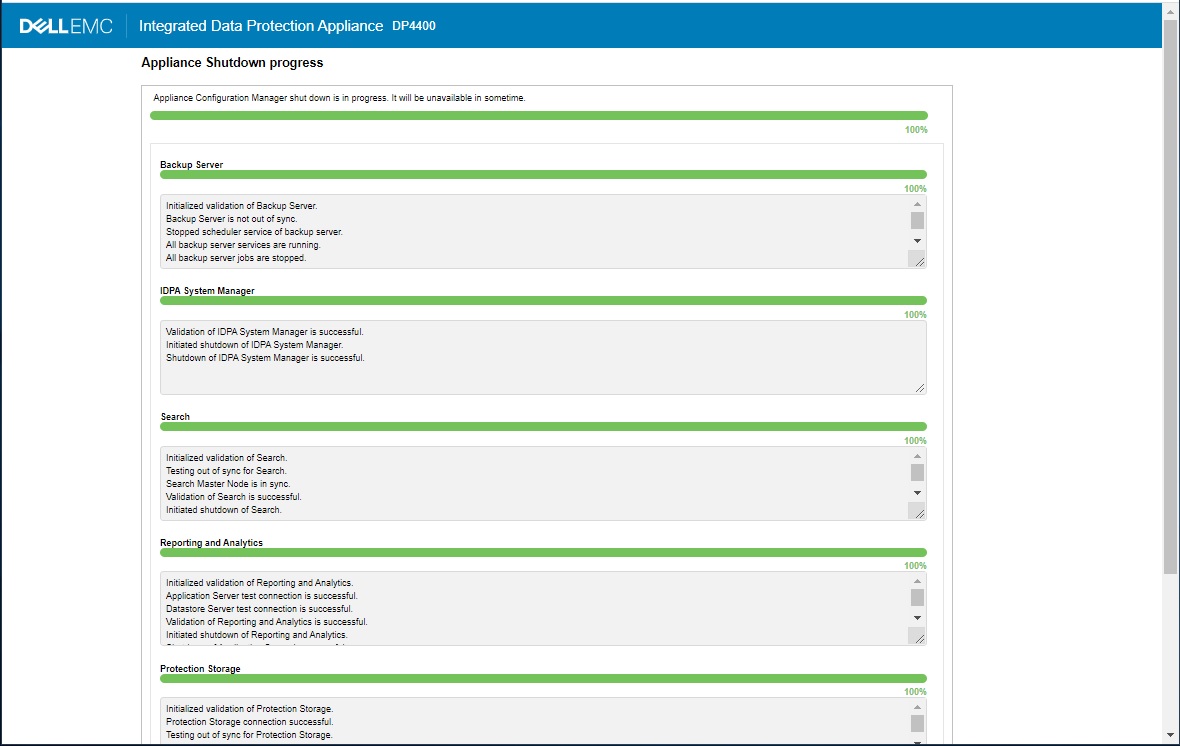
NOTE: Once the shutdown UI progress shows 100%, wait for 15 minutes, then proceed with the iDRAC process below.
Shutting down the IDPA appliance using integrated Dell Remote Access Controller (iDRAC) Dashboard:
CAUTION: This should only be performed AFTER the Appliance has been put into a controlled state and system is ready for reboot.
- Open the iDRAC Web interface and log in.
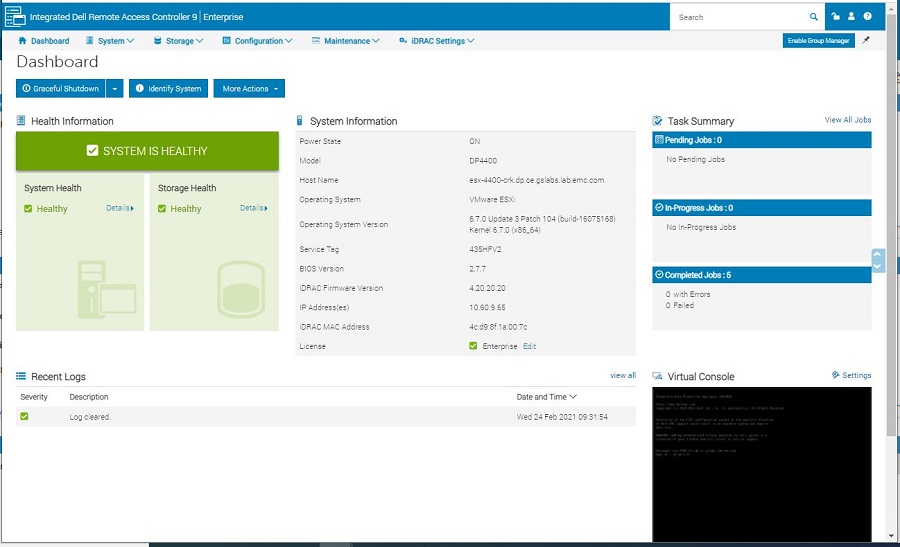
- At the iDRAC Dashboard, click on the Graceful Shutdown button. The system shuts down.
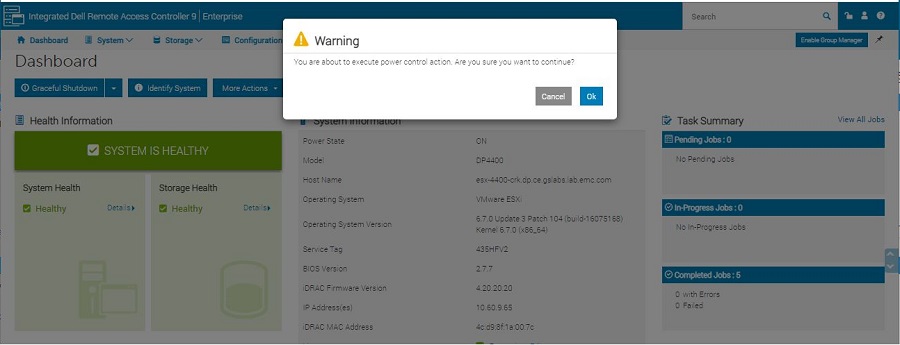
- Check the status of the appliance on the iDRAC Dashboard, which should show Power State: OFF.
Additional Information
More documentation found on Dell Support website:
- Integrated Data Protection Appliance Service Procedures Guide
- Integrated Dell Remote Access Controller (iDRAC) User's Guide
- IDPA DP4400 Field Service Guide
See this video:
Affected Products
PowerProtect Data Protection Appliance, PowerProtect Data Protection Software, Integrated Data Protection Appliance Family, PowerProtect Data Protection Hardware, Integrated Data Protection Appliance SoftwareArticle Properties
Article Number: 000184357
Article Type: How To
Last Modified: 08 May 2026
Version: 15
Find answers to your questions from other Dell users
Support Services
Check if your device is covered by Support Services.